


Show trailers
Trailers require a downloaded video that the player can decode. A poster, a film record or a YouTube link is not a substitute for a playable trailer file.
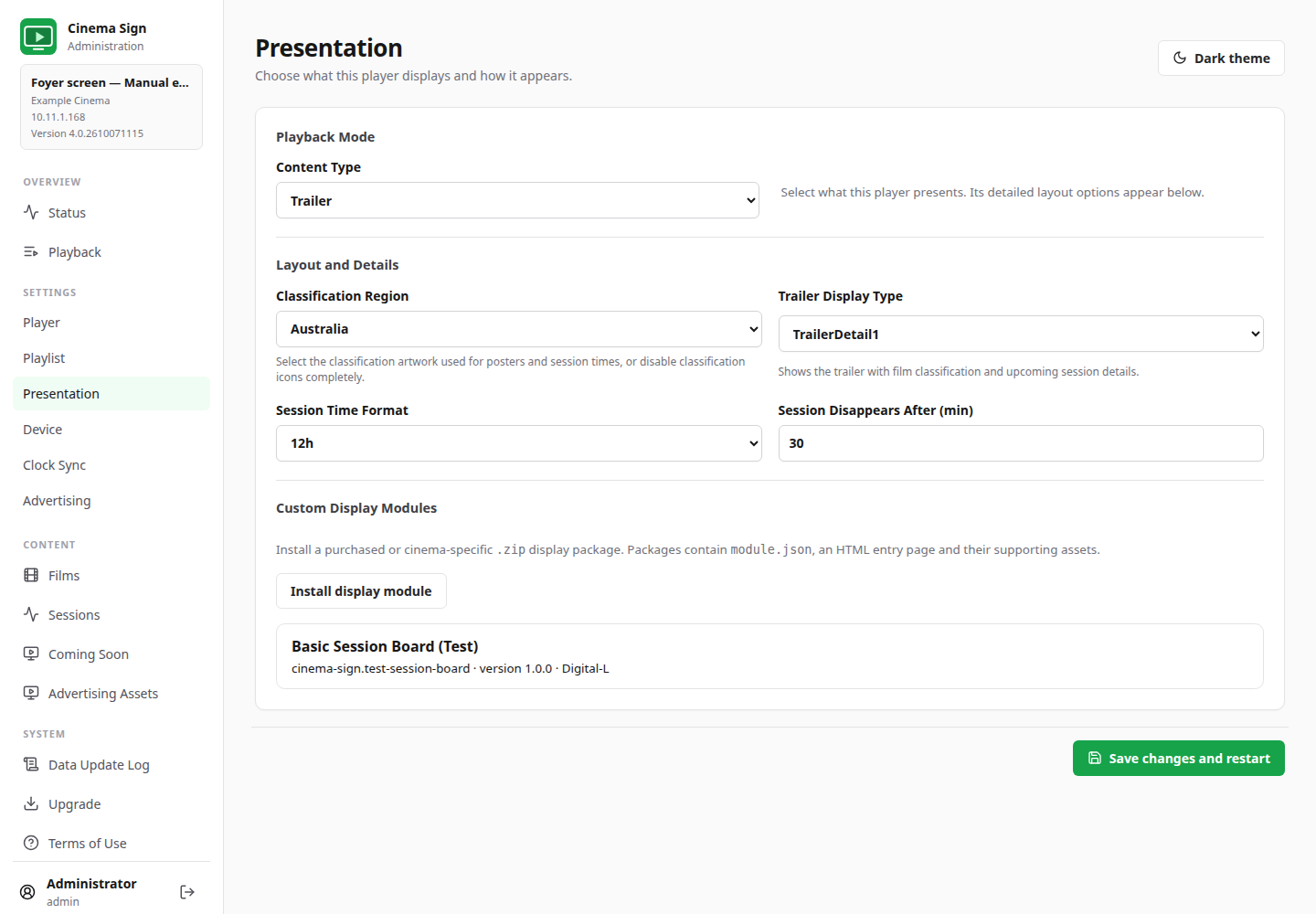
Settings → Presentation → Content Type → Trailer
- Check the intended films' cached trailers in Films or Films and Media.
- Select Trailer as the Content Type.
- Choose TrailerOnly or TrailerDetail1.
- For the detail layout, choose the classification region, time format and Session Disappears After value.
- Save and watch the actual screen. Check sound using the display/player's audio controls.
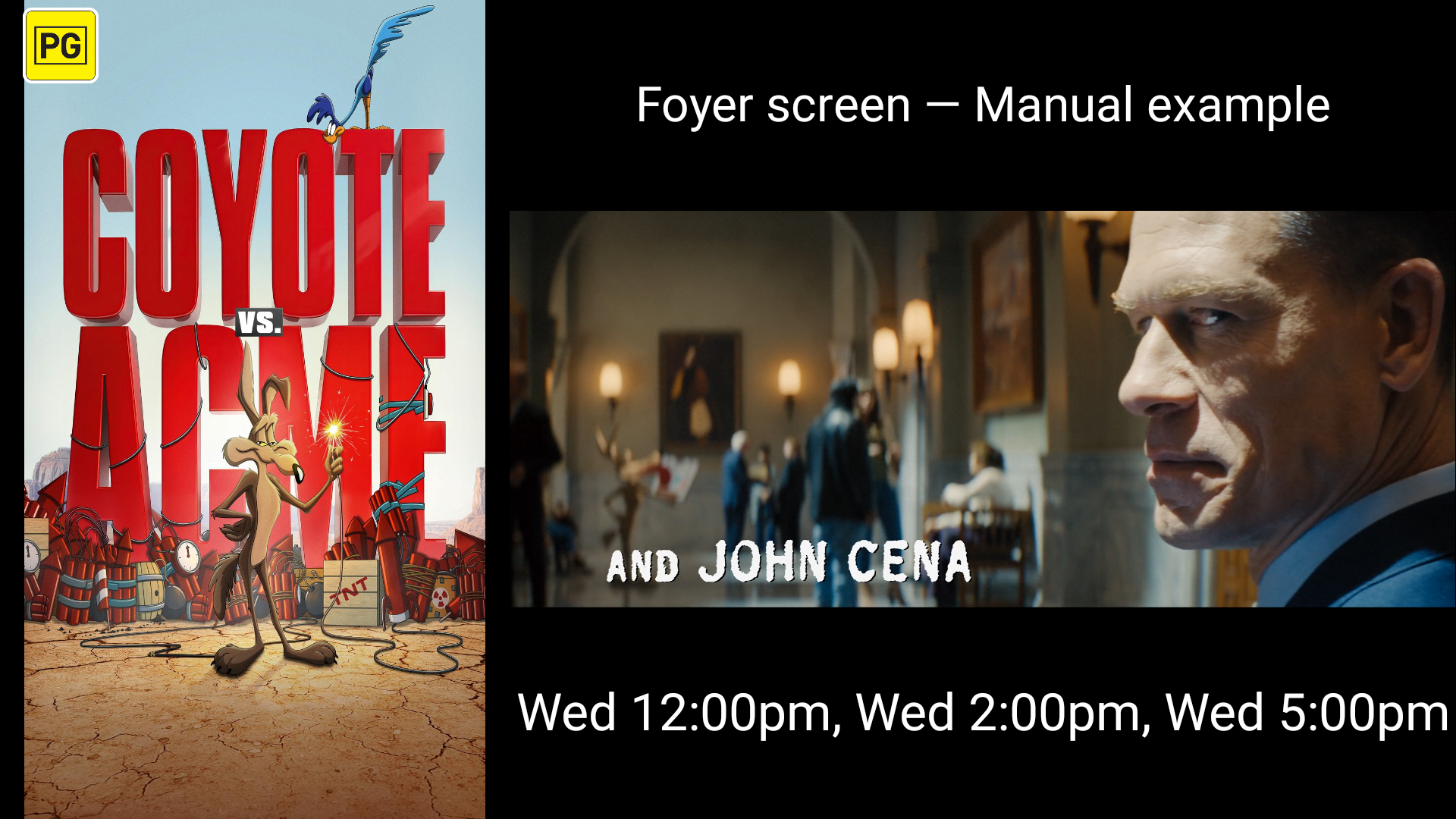
Preview before public playback
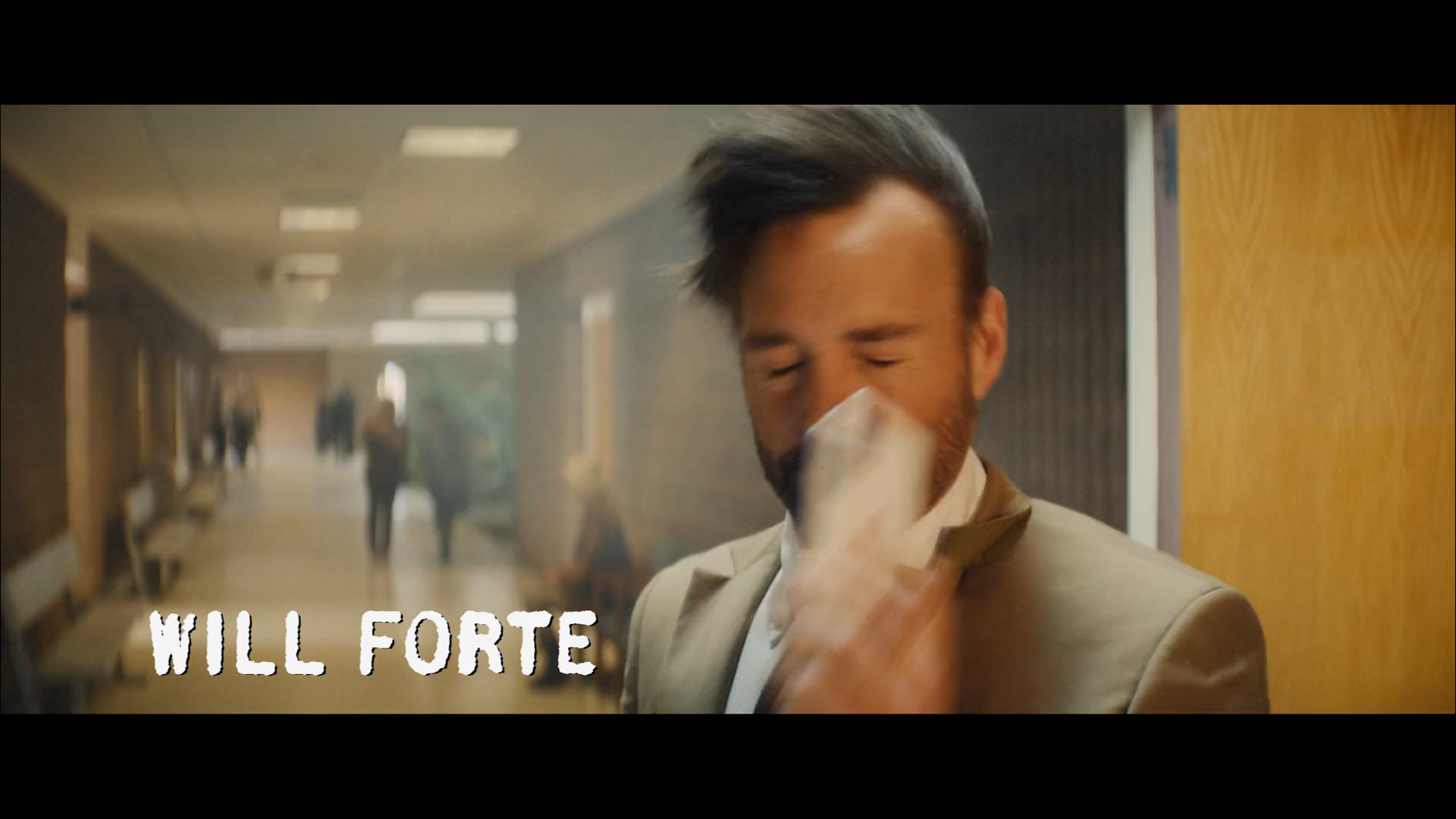
Watch the cached preview and a real playback cycle. Confirm the film title, language, aspect ratio, audio and suitability of the chosen trailer. Use start/end offsets only when you need to remove unwanted material; check that the remaining clip still plays correctly.
If storage or playback is a problem, ask the installer about an appropriate lower-bandwidth version. A large video is not always better on an older Android box. Removing unused entertainment apps can help storage, but disabling unknown system apps can make a device unstable.
Video advertising
Use Advertising Assets → Video adverts to upload video adverts, then enable Settings → Advertising → Trailer Advertising. Choose Clock-synchronized playback. A video advert begins after the current video ends, so its actual start may be later than the requested interval.
If a trailer is missing
The player shows the film's actual title followed by “trailer missing” in the centre of a black screen for a five-second slot, then continues. For example, a film named Example Film shows “Example Film trailer missing”; the title is not a literal placeholder.
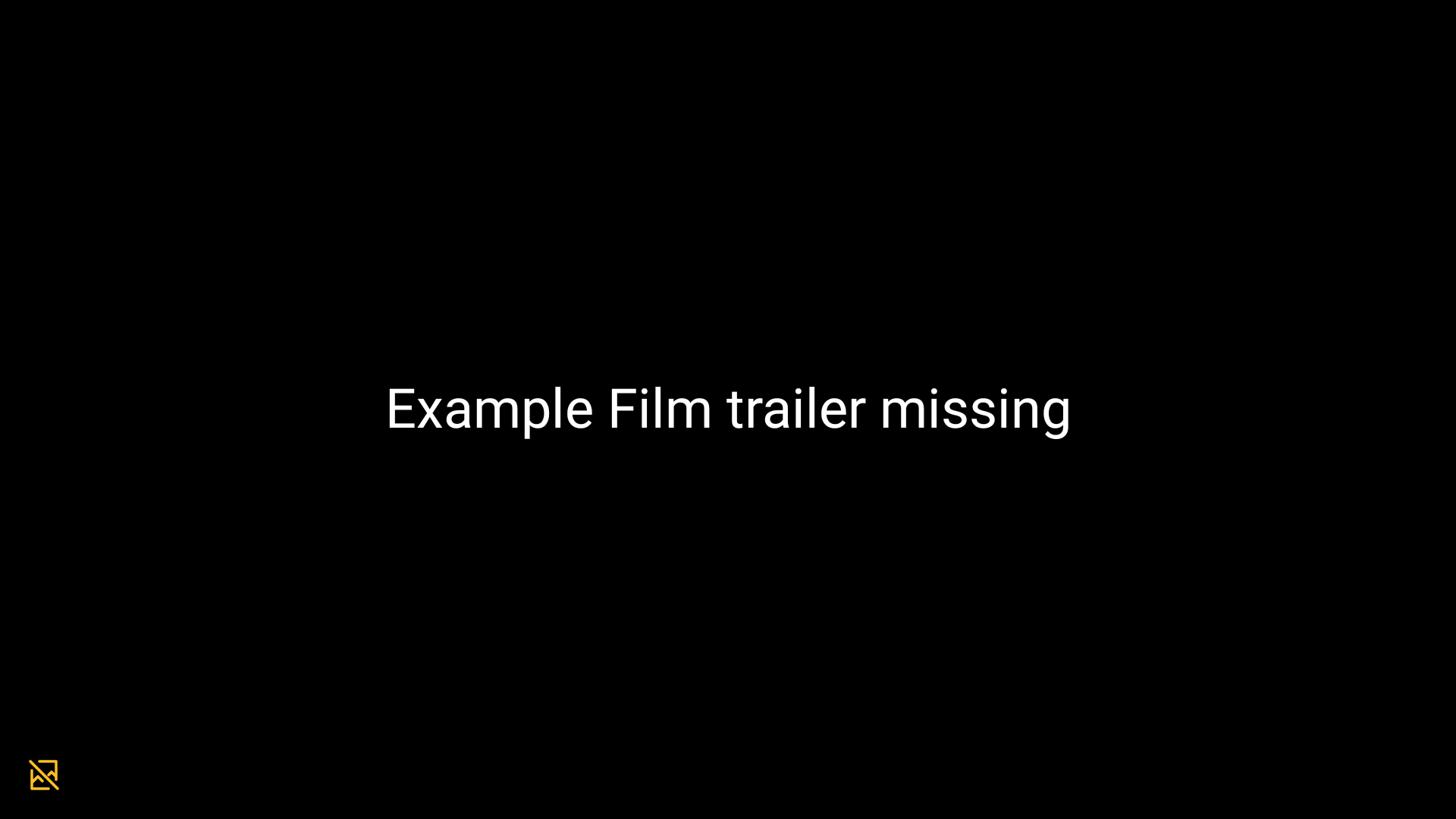
Check the film's cached status, required download, available storage and video encoding. Upload or choose a valid replacement. A corrupt/unreadable trailer can trigger the same fallback.