


Set startup, display hours and nightly restart
Settings → Device
These settings prepare the player for unattended operation. Android firmware and the connected television also affect the result, so test the actual equipment.
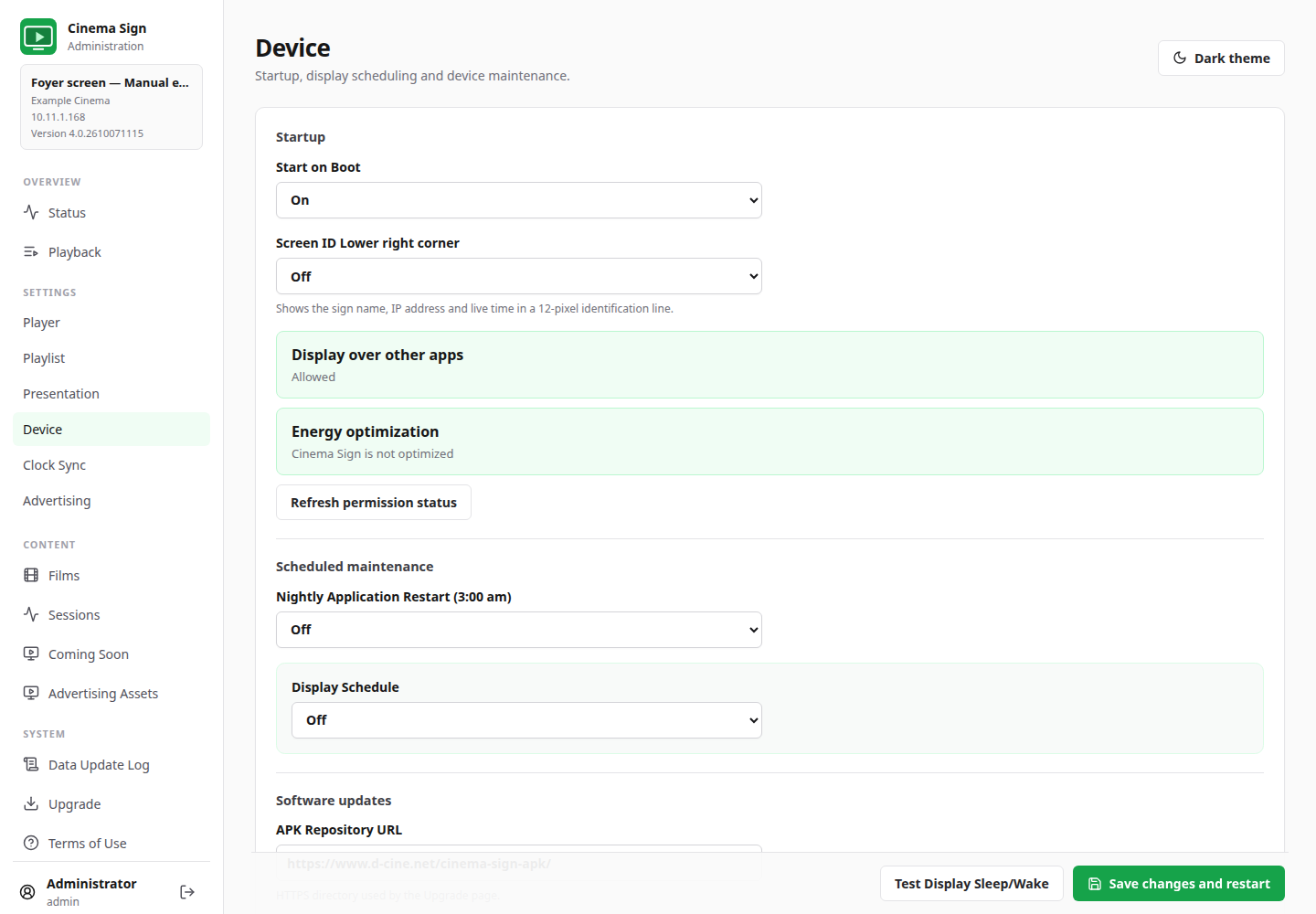
Start on Boot
- Open Cinema Sign once after installation and accept the terms.
- Set Start on Boot to On.
- Follow any applicable Display over other apps and Energy optimization instructions.
- If Open setting on TV is available, use it, then complete the change with the remote.
- Return to the browser and select Refresh permission status.
- Save and arrange a real device restart during setup. Confirm that Cinema Sign opens automatically.
The Device page checks whether a permission applies and whether the firmware provides a settings screen. It omits an energy-optimization warning when Android's idle energy-saving feature is disabled. When a settings screen is unavailable, it explains that instead of offering a button that does nothing.
Refreshing permission status preserves unsaved choices on the form, but you still need to save those choices. Installer permission, startup permission and Start on Boot are separate.
Nightly Application Restart
Leave this On when using the normal unattended maintenance behaviour. With no display schedule, the configured nightly restart is at 3:00 am. With a display schedule, it is performed at display wake. Check the player clock and observe a pilot cycle on the device.
This restarts the application's presentation through Activity recreation; it is not an Android reboot. RAM-only update reports can survive this in-process restart, and the app-process uptime need not reset. A full process exit or device reboot clears RAM-only reports.
Display Schedule
- Set Display Schedule to On.
- Enter Turn Display Off At and Turn Display On At using the player's local operating time.
- Choose whether to attempt HDMI-CEC power control where offered.
- Check any applicable alarm and Android display-setting messages.
- Save, then use Test Display Sleep/Wake during setup and observe an actual scheduled cycle.
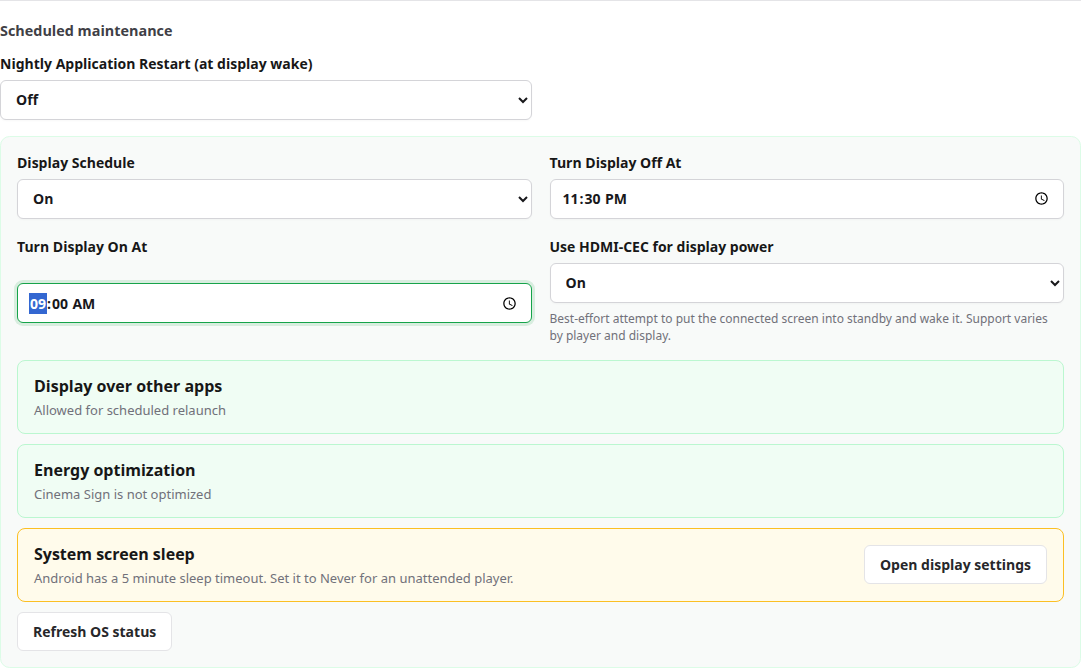
HDMI-CEC is a feature allowing connected devices to request screen power changes. The television and player must support and allow it. Screen blanking, app wake and television power are different outcomes; test what your installation actually does.
Screen ID in the lower-right corner
Turn on Screen ID Lower right corner when you want a small identification line showing the sign name, IP address and live time. It helps an installer identify a physical screen. Turn it off for a cleaner public display if the identification is not wanted.
Restart the app now
Restart application now is an immediate action. Use it when you deliberately want to restart Cinema Sign, then check that the administration connection and display return. It is not a device reboot.
Do not use Android's Force stop as an unattended recovery test. Force stop prevents alarms/recovery until the app is opened again. Ordinary process recovery is subject to Android permissions and restrictions and may take roughly 90–120 seconds.