


Cinema Sign 4 operator guide
Cinema Sign quick operator guide
Practical steps for changing content, scheduling adverts and checking the player from your phone or computer.
A useful daily check.
- Open the local address shown on the player, normally
http://PLAYER_IP:8888/. Use a browser on the same reachable network. - Check Status for the expected screen name, content type, time and storage. The name/location box remains readable on short windows; on a phone, use the menu button.
- Check Import Status and the programme’s dates. A successful response alone does not prove correct venue, timezone or publication rules.
- Check Playback for current media, playlist position, Up Next and any Next URL poster state. Open the full playlist and use Go to NOW when needed.
- Check the physical screen after changes. Confirm media, campaign dates and orientation before leaving the player unattended.
Add titles and choose media deliberately.
For a manual title, select Films → Add Title. This creates the record without downloading media. Alternatively, Search d-cine for title to add lets you select a catalogue film and import its ID, metadata and default poster. Configure your d-cine Media API key under Settings → Player before selecting Manual; the key fields are shown for external sources.
Use Find poster on d-cine or Find trailer on d-cine, search the title, narrow by language and choose the intended asset. Only that asset downloads. External video links are preview-only. Uploaded posters and MP4 trailers remain available as alternatives.
Your explicit trailer choice is retained through automatic scans. Local title, classification, media, enabled and Coming Soon overrides survive imports. Downloads can be made before sessions exist, but playback still depends on the chosen playlist formula and film eligibility.
Review session dates/times and classification region. BLOAD - TaPOS contains times without dates: imports attach them to today in the player’s local timezone, so publish a fresh export daily. TaPOS / MEDIA2 has dated performances and imports all public catalogue films. Coming Soon follows TaPOS status by default; choose another policy in the connection settings or override individual films and reset to imported status. See TaPOS MEDIA2 setup.
Add a weather, news or other URL poster.
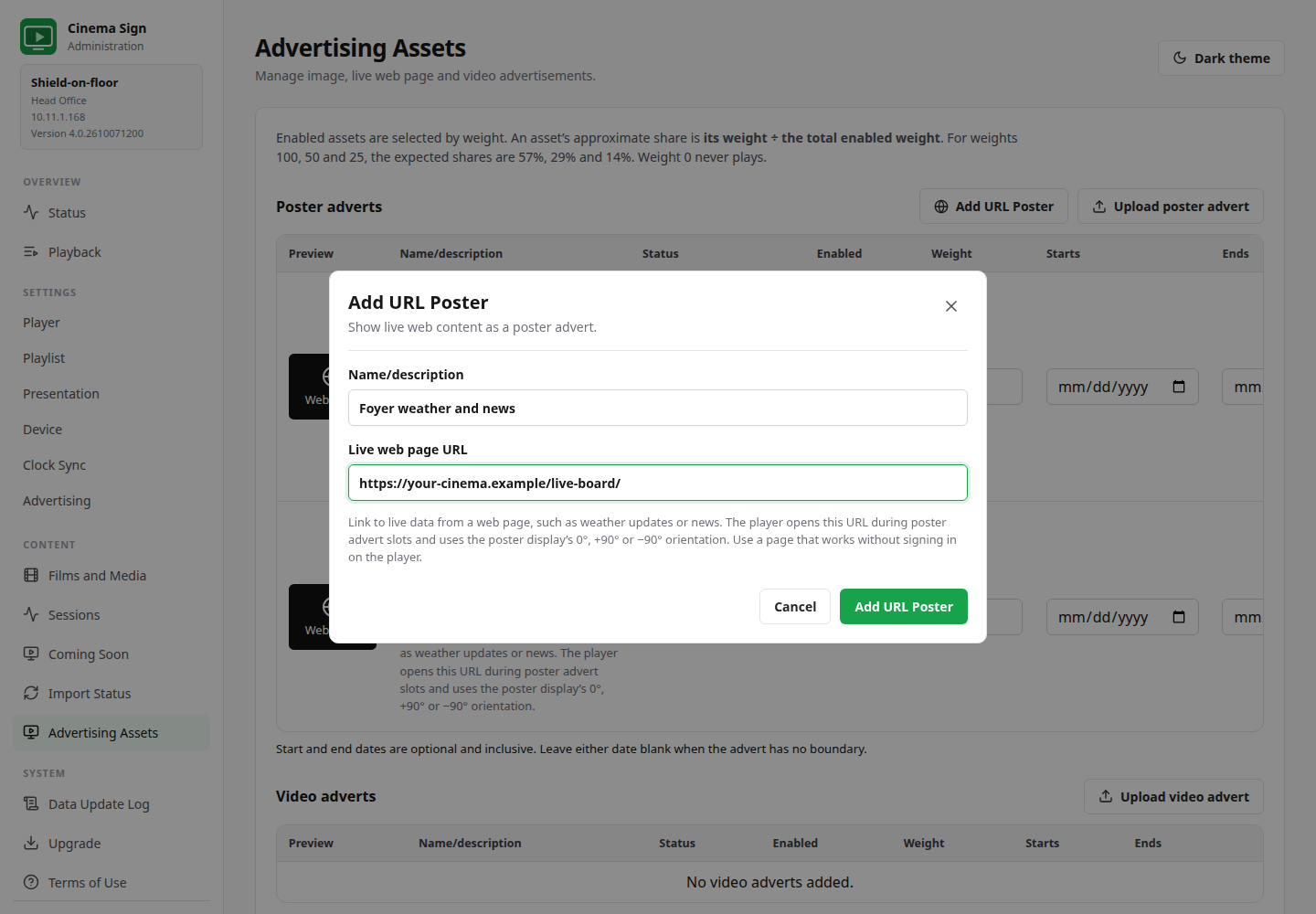
- Open Advertising Assets → Poster adverts → Add URL Poster.
- Enter a meaningful Name/description and a complete Live web page URL, such as your own weather or announcements page. Use an HTTP/HTTPS address that displays without player sign-in.
- Enable the asset, set its weight above 0 and set optional campaign start/end dates. Dates are inclusive; either end can be left open. Save asset settings after edits.
- Choose Settings → Presentation → Content Type → Poster and its Poster Display Type/orientation and Poster Delay.
- Choose Settings → Playlist → Playback Order → Clock-synchronized. Advertising is inserted into synchronized playlists.
- Under Settings → Advertising, enable Poster Advertising on this player, enter the interval and save.
- Check Playback/Up Next and the physical screen. Confirm the page fits at its mounted orientation, becomes visible and continues animating as expected.
How often and for how long?
The interval is measured from advert start to advert start and rounds up to the next poster-slot boundary. A 10-second interval and 7-second Poster Delay produce an advert every 14 seconds. It occupies one 7-second slot. Multiple eligible assets are selected by weight; a higher weight increases opportunities, not a guarantee of a fixed sequence.
Image adverts use the same campaign controls. Video adverts use Trailer Advertising and begin after the current video finishes. Advertising is enabled independently on followers even when assets are shared from a master.
Does the page preload?
Yes: the next scheduled URL page starts loading up to 30 seconds before its slot, including while a long poster slot is still running. Playback reports Loading, Ready, Unavailable or None preloading. Only one future page is retained. Once ready, its rendering pauses to reduce GPU load; the same attached browser resumes when displayed, without an activation reload.
Visible CSS/canvas animations can continue. A heavy page, source outage or starting the app already inside an advert slot can still cause loading delay. The browser is destroyed at slot end; this is not a permanently running tab that preserves every website’s state between adverts.
Choose the right kind of live display.
| Choice | Use it for | What to configure |
|---|---|---|
| URL Poster advert | A live page between film posters | Add the asset, enable poster advertising and use Synchronized poster playback. Follows poster orientation; preloads the next scheduled URL. |
| Live HTML Page | A screen dedicated to a web board | Select this Content Type under Display, enter Live Page URL and Reload Page Every seconds. Use 0 when the page updates itself. |
| Custom Display Module | A cinema-specific board using Cinema Sign’s session data | Install a trusted ZIP under Presentation → Custom Display Modules, select the Content Type and module. Data updates on load and every 30 seconds. |
These browser modes have different policies. URL posters require valid HTTPS certificates and have no player-data injection. Whole-screen Live HTML Page also permits HTTP/mixed content and locally issued HTTPS certificates for on-site servers. Local modules receive the display data contract and cannot navigate to external pages. See the module documentation.
Share a programme without copying every setting.
Follow Cinema Sign Master shares films, sessions and assets from a configured player. Each follower still chooses its own presentation, poster duration and advertising settings. A follower receives a URL advert’s address rather than a cached image; it must reach the live website itself.
Player Clock Sync aligns clocks over the local network. Its automatic or forced clock role does not select a cinema data source. To show matching content at the same time, use compatible playlist formula, seed, timing, assets and advertising settings, then check drift and adjust display latency if necessary.
When the display does not match expectations.
No adverts appear
Check Content Type, Synchronized playback, this player’s advertising enable switch, the saved interval, enabled assets, weight above 0 and campaign dates using the player’s date/time. Check Up Next before expecting an immediate advert. Poster intervals round to the next slot; trailer adverts wait for the current video’s end. Followers need their own advertising switch enabled.
The URL preview is blank, but the TV may still show it
The administration preview uses an iframe and can be blocked by the website’s embedding policy. The Android display opens the page directly in a WebView. Test on the actual player; a blocked preview alone does not prove playback failure.
A live page loads slowly, does not animate or needs scrolling
Check network access on the player, a valid HTTPS certificate and whether the website needs cookies, sign-in or an unsupported browser feature. Watch the preload state. Allow enough Poster Delay for the content to be useful, test the actual mounted orientation and prefer a page made for unattended display. Preloading cannot guarantee that a third-party page is fast or compatible.
Import succeeds but titles, dates or screenings are wrong
Check venue/site scope, timezone and cancellation/publication mappings in the provider’s setup notes. TaPOS BLOAD times belong to the import day. A festival example can be historical. Use the catalogue’s evidence and setup links; do not treat a sandbox or fixture pass as production acceptance.
Clean unused player storage
Open Settings → Player and select Clean unused data. The result shows measured free space and reports which targets Android allowed. Cinema Sign web cache is disposable; old Android reports, graphics traces and Play Store cache require privileged access that ordinary apps may lack. Reports from the last 24 hours, downloaded media, adverts, browser data and settings are kept. Cache file sizes can exceed the disk space recovered; Android may rebuild caches while playing.
A poster or trailer is missing
Check the film’s media selection and download state, free storage and the cached preview. Missing posters retain the last good poster, or black if none is available, with a small bottom-left indicator. Missing or unreadable trailers show “{Title} trailer missing” in the centre of a black screen for a five-second slot. Valid replacement files resume normal playback. Correct the media rather than assuming the whole playlist has stopped.
The player does not reopen after a restart or process kill
For boot, check Start on Boot, initial launch, Display over other apps and energy optimization. The Device page checks which permissions apply and which settings screens the firmware provides. It omits energy optimization warnings when Android idle power saving is disabled, and explains unavailable settings instead of offering a button that does nothing. Refresh permission status preserves unsaved edits. For process recovery, also check exact-alarm access and device restrictions. The running app requests relaunch roughly 90–120 seconds after a kill, subject to Android. Normal exit cancels it; Force stop disables alarms until reopening. Screen wake and app startup are separate.
Storage or memory figures look wrong
Free storage is not total flash capacity, and Android’s data partition excludes system partitions. Available RAM is not installed RAM; swap is separate. Check the hardware measurements if firmware reports inconsistent totals. Reduce unnecessary cached media and test heavy live pages on the actual hardware.
A source seems to be missing from the dropdown
The option table scrolls within the dialog. Scroll within the dialog to reach its last option. All 38 implemented choices are available; roadmap providers shown on the website are not yet selectable. Manual and Follow Cinema Sign Master are first, then CinemaShowtimes, both BLOAD formats, TaPOS / MEDIA2, Veezi and VenueMaster.
Keep diagnostics light during normal operation.
The latest update report is available without continuously saving an update-log history.
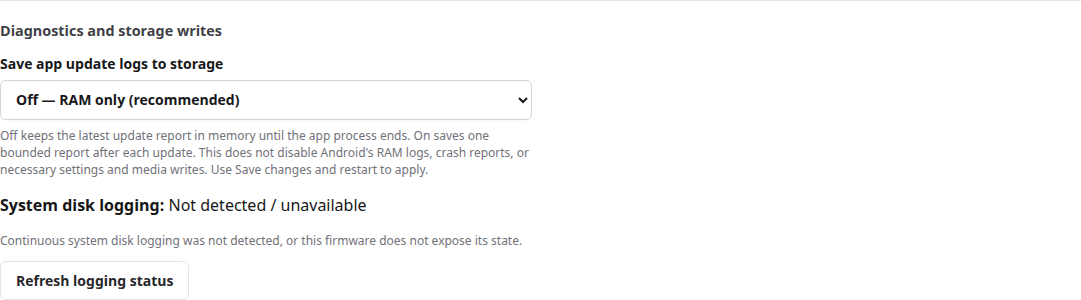
- Open Settings → Device → Diagnostics and storage writes.
- Leave Save app update logs to storage Off for normal operation, then save. The latest bounded report stays in RAM while the app process runs.
- If support needs the report after a full process restart, turn persistence On temporarily before reproducing the issue.
- Read Data Update Log, record the relevant result, then turn persistence Off again.
- Read the separate system disk-logging status. Controls appear only after privileged access is confirmed; ordinary Android TV apps may not have that access.
Ordinary Android Logcat uses rotating RAM buffers. Continuous copying to disk is a separate collector, and firmware may restore it after reboot. Keep useful media cached; frequent deletion causes downloads and writes to recur. Crash reports and essential Android, settings and media writes remain.
Illustrated storage and logging steps → · Installer checks →
Update, then verify.
Use Upgrade to choose/download a published signed APK and approve Android’s installer. Install over the existing app using the same application/signing identity to retain data. Do not uninstall or clear app data as an upgrade step.
After installation, check the version on Status, films/imports, current layout, advert interval, preload state and Android startup permissions. Publication of the APK and publication of these documentation pages are separate steps.