

8 minute guide · 6 illustrated steps
Find and download cinema device certificates
Find the public certificate for the player that will receive a KDM. Search an individual device, collect a cinema's devices through OpenTDL, and organise the results into named sets for download.
Open Device CertsBefore you begin
- Have the target player's serial number and, ideally, its manufacturer and model. A cinema name alone may refer to more than one location.
- Sign in to download certificates. The download area shows your current allowance and recent usage.
- For an OpenTDL search, know the facility name and address. Its screen records need to identify devices that can be matched to certificates.
Recognise the screen
These screenshots show the actual tool. The numbered steps below use labelled examples to explain the selections and results.
Choose the appropriate certificate search
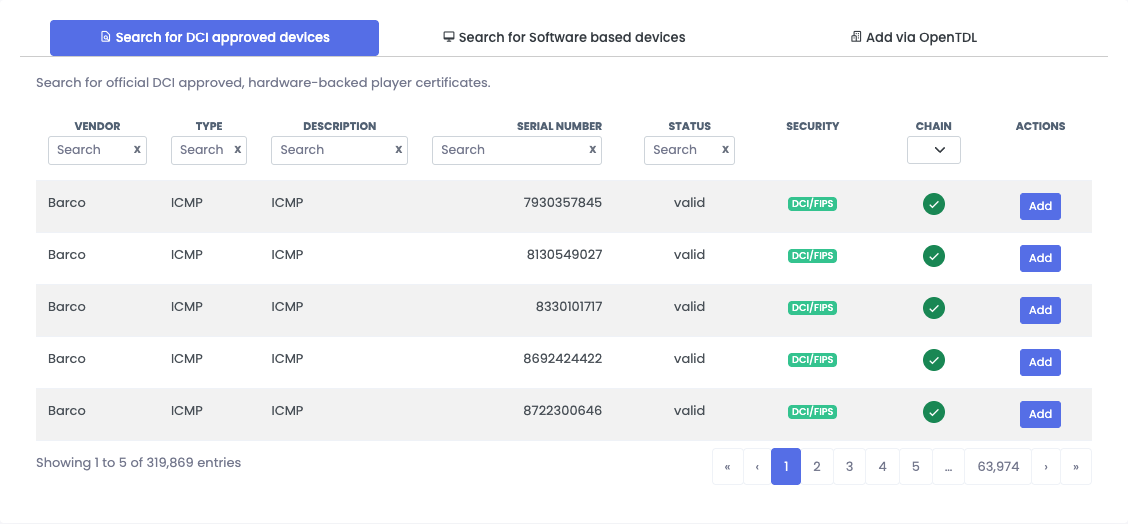
Open Device Certs under KdmGen. Use Search for DCI approved devices for hardware-backed cinema player certificates. Use Search for Software based devices for software-issued player certificates.
The Security column distinguishes DCI/FIPS from nonDCI/software. A software certificate can identify a player, but it does not make that player an official DCI/FIPS device. Check the recipient requirements with the content supplier.
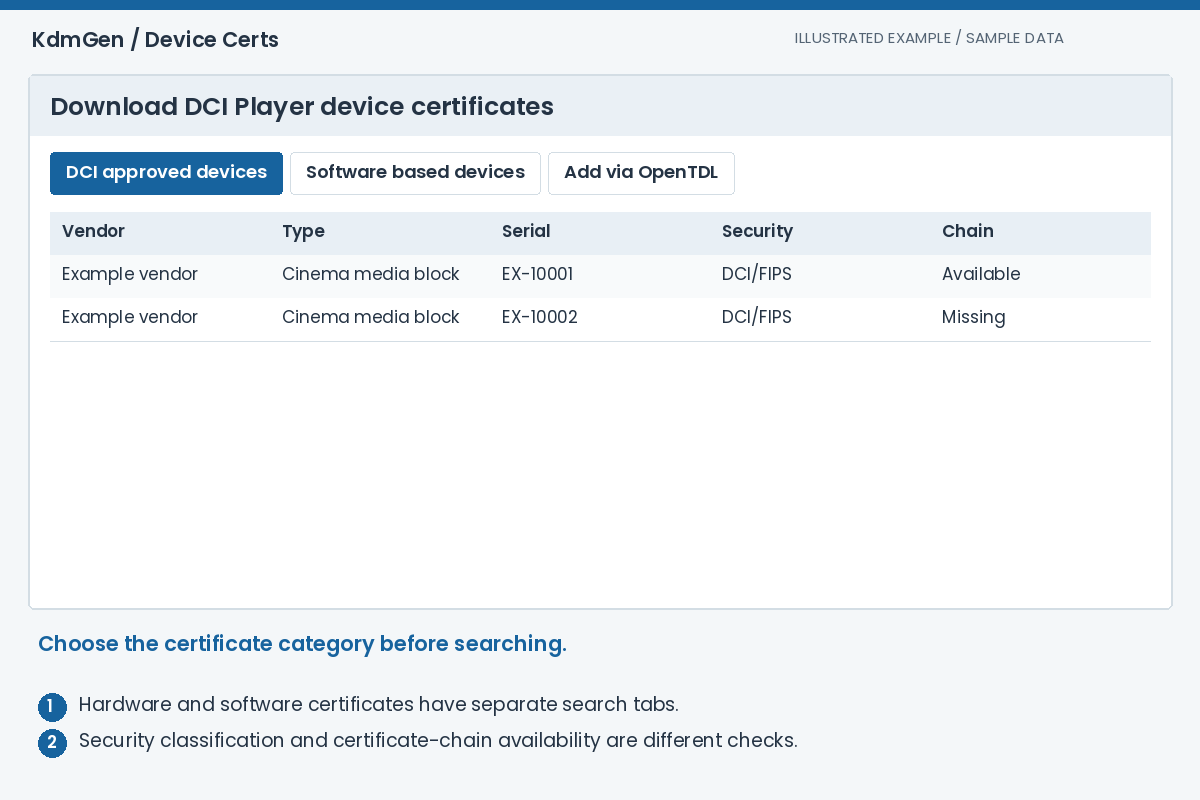
Expected result: The search results come from the certificate category you selected.
Filter the table and verify the device
Enter the serial number in the filter beneath the Serial heading. Add a vendor or type filter if several records look similar. The column filters narrow the results together; use the table's page controls to browse further matches.
Compare the result with the installed player. Do not choose a certificate just because its serial is close. Where multiple certificates exist for a device, check their dates and certificate details before choosing.
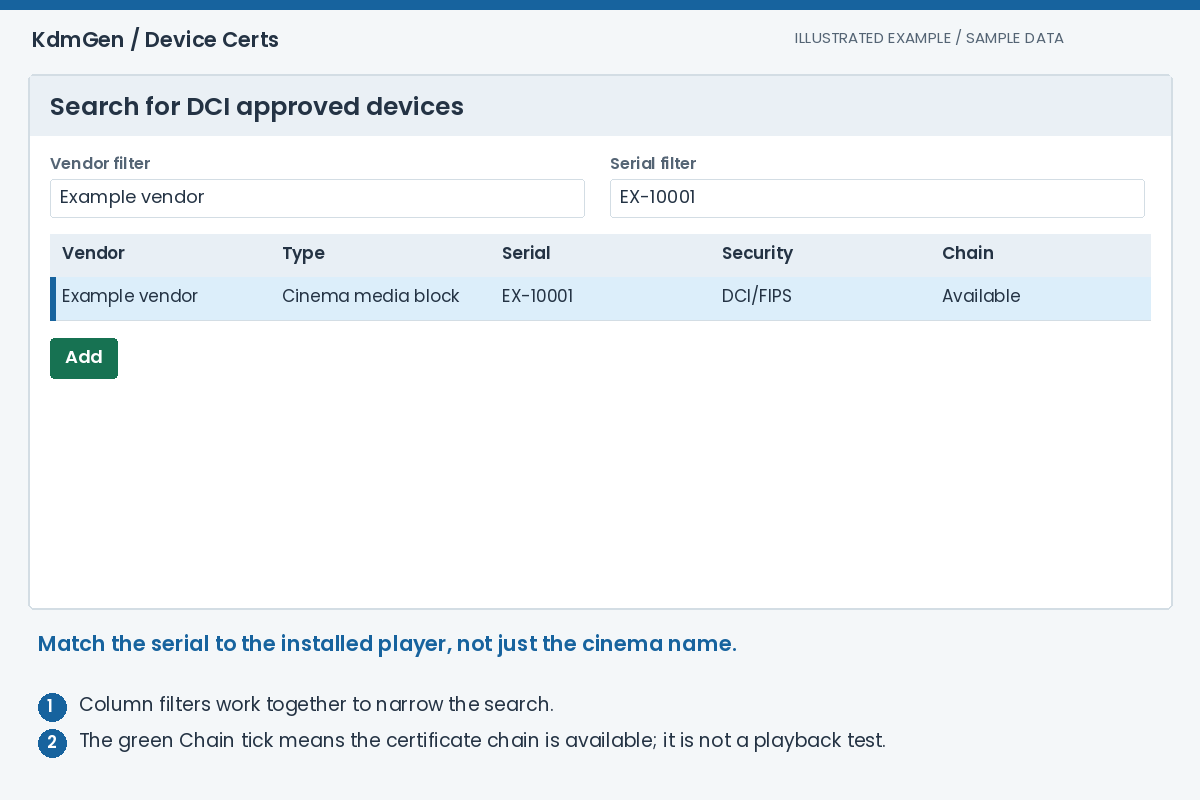
Expected result: You have identified the certificate for the intended player.
Build a certificate set
Use Add on the required device result. It appears in Selected Certificates. Use Add Certificate Set to create another named collection, and select the intended set before adding more devices.
Select a certificate in the tree to use Remove Selected. Delete Certificate Set removes a whole set from this collection; Remove All clears the collection. These actions change your download selection, not the device catalogue.
The selected tab and certificate collection are remembered in this browser. A different browser or cleared browser storage will not have the same selection.
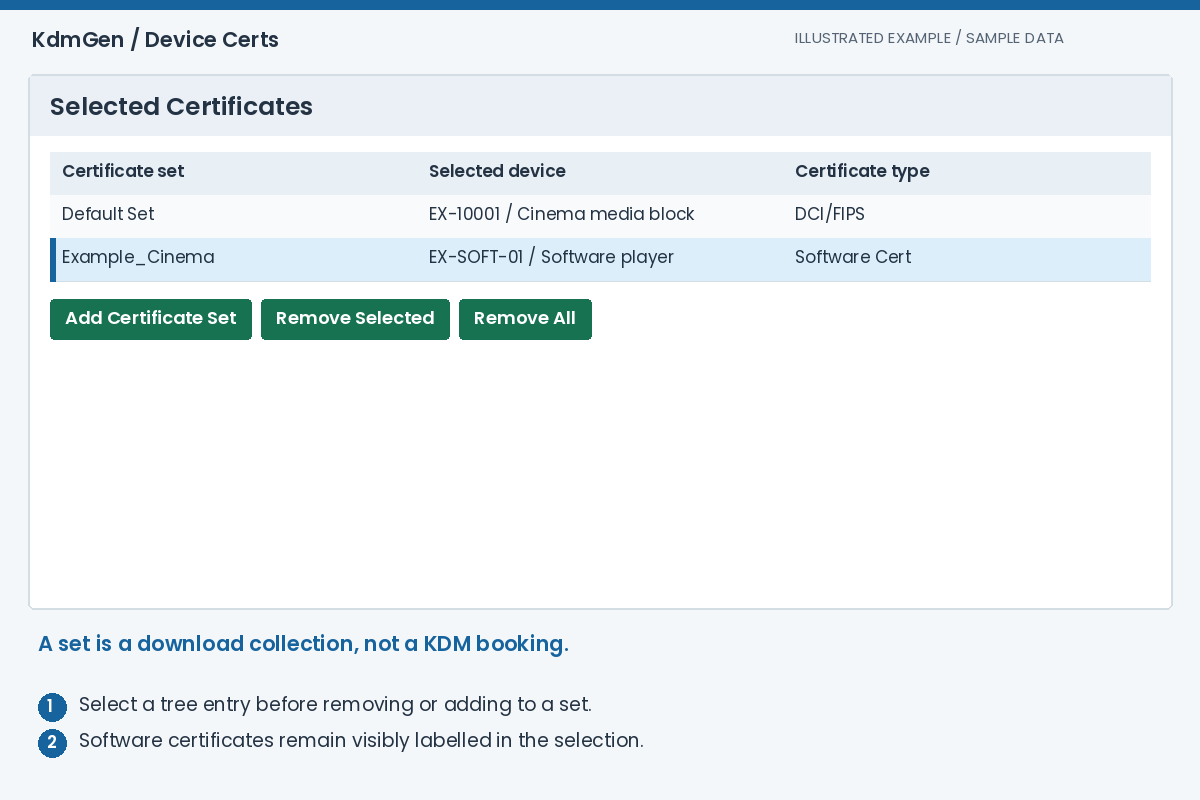
Expected result: Selected Certificates contains only the devices you want to download.
Find a facility through OpenTDL
Select Add via OpenTDL, enter the facility, circuit, city or FLM ID, and press Search OpenTDL. Use the address beneath each facility name to distinguish cinemas with the same name.
Certificate type defaults to All. DCI/FIPS or Software narrows the matching certificate category. Select a facility to populate Resolved Devices; a listed facility is not a promise that every screen has a matching certificate.
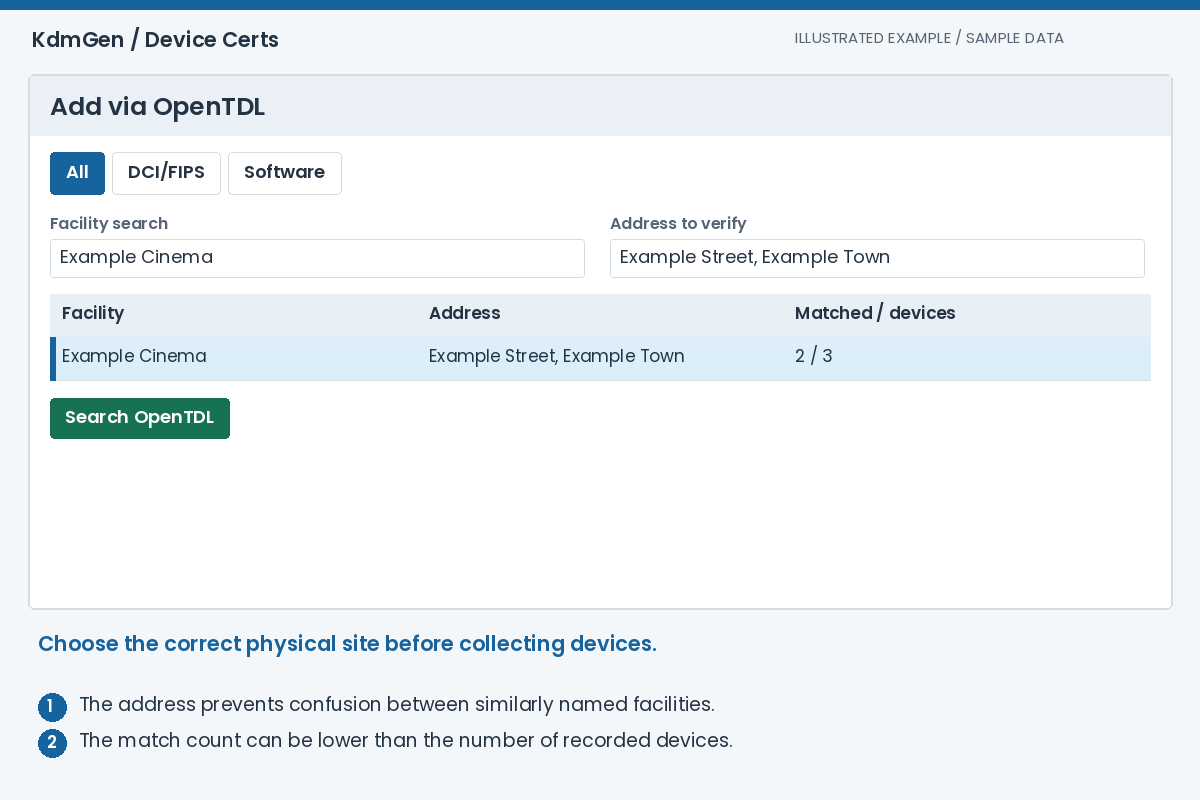
Expected result: Resolved Devices shows the matched certificates for the selected location.
Add all resolved devices or just one
Review the auditorium, vendor, type, serial and Security columns. Press Add all resolved to collect the facility's matched certificates, or use Add on one row to collect only that device.
Adding the facility's devices creates a certificate set based on its name, with spaces made safe for filenames using underscores. Open Unmatched OpenTDL devices to see screen records that could not be resolved; those do not become downloadable certificates automatically.
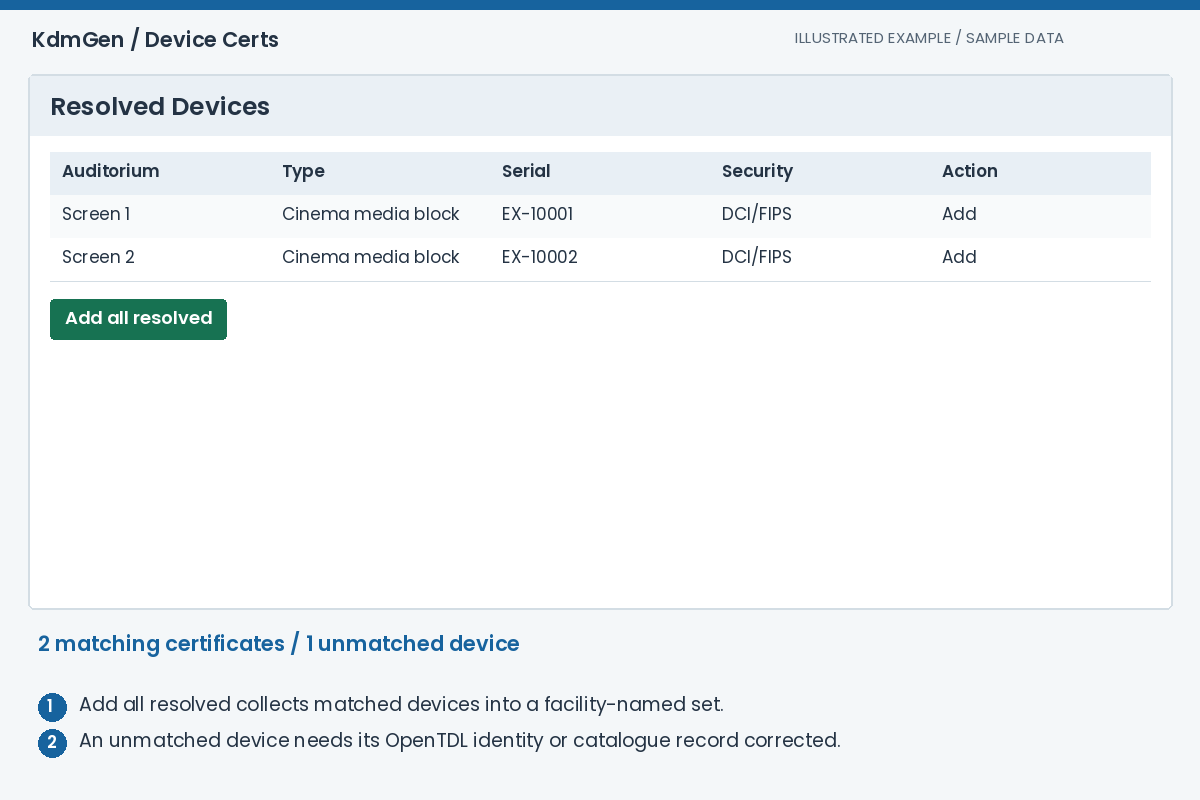
Expected result: The selected facility's matching devices appear in your certificate collection.
Download the certificate ZIP
Review the tree and your allowance, then press Download Certificates. The service gathers the selected public certificates into a ZIP file. Keep the set names meaningful when preparing multiple cinema deliveries.
Supply the correct player certificate to whoever creates the KDM. Downloading a certificate does not create a KDM and does not give a player access to an encrypted film. To generate KDMs here, continue with Register DCP/CPL and Generate KDM.
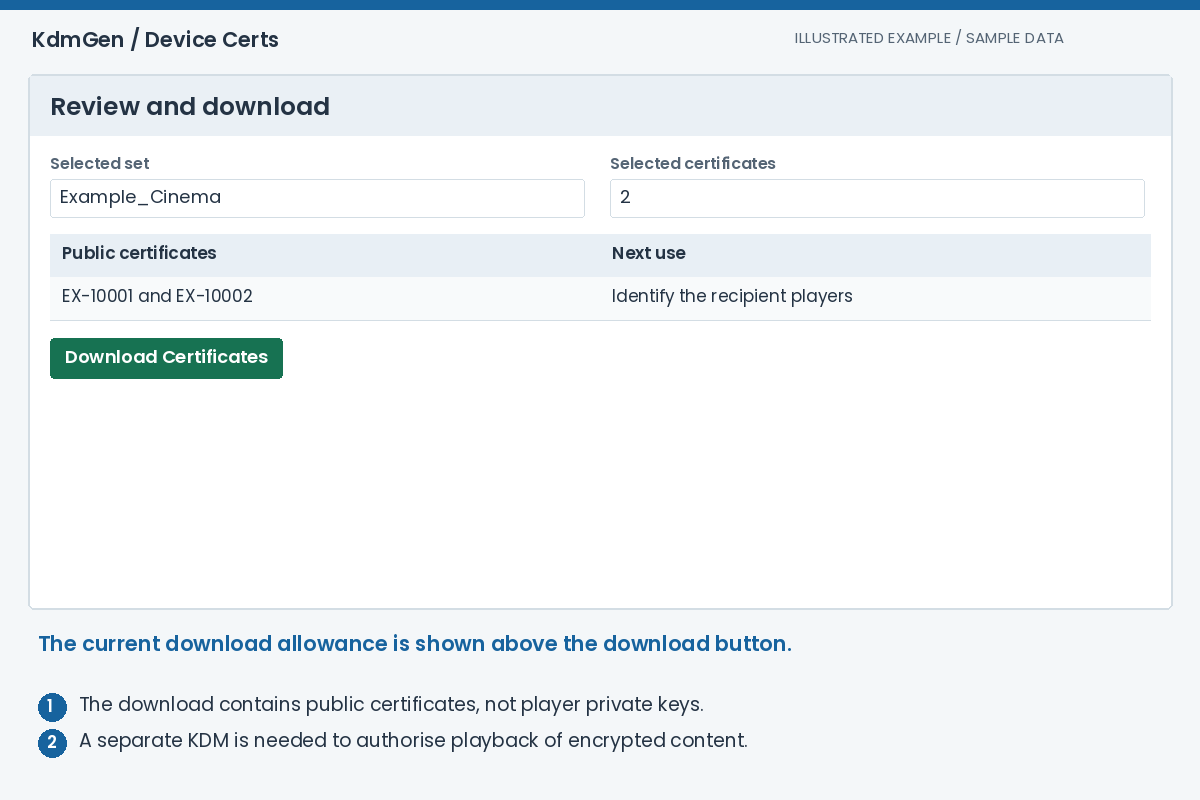
Expected result: You have a ZIP of public device certificates ready for the KDM issuer.
Troubleshooting
Why is Download Certificates disabled?
Check that you are signed in and that the selection fits the allowance shown above the button. An empty selection is not useful; add the required devices first.
What does the red X in Chain mean?
The catalogue does not have a complete chain for that record. It does not mean the serial number is wrong. Check the certificate supplier's requirements and obtain the missing issuer certificates if needed.
Why is an OpenTDL screen unmatched?
Its manufacturer, device type, serial or identifier may not match a known certificate, or the required certificate has not yet reached the catalogue. An authorised facility editor can correct the screen details and search again.
Does my saved certificate set become a managed booking?
No. This browser collection prepares downloads. Create a managed booking in Generate KDM and select OpenTDL auditoriums there if you want the booking to follow device changes.