

14 minute guide · 8 illustrated steps
Prepare and manage distributor booking offers
Work from film bookings to a distributor offer. Compare each cinema's commitments, prepare the film and facility terms, then review the exact offer content and recipients before sending.
Open Booking AppBefore you begin
- Sign in with access to Slate Tools and the relevant cinema bookings.
- Create the required film/facility booking entries from Release Timeline first, or work with existing entries.
- Have the intended dates, policy, minimum guarantee, terms and verified distributor/exhibitor recipients. The guide's example figures are not suggested commercial terms.
Recognise the screen
These are cropped views of the actual tool. Numbered examples below explain the workflow with fictional records; screenshots are not a promise of current release dates or scores.

Load the period and choose your facilities
Set From and To and press Apply to load the booking period. Expand Filters (Distributor) or Filters (Facility) to add or edit named groups, select their Targets and switch them Active. Collapse the section to keep the switches in its header.
Facility groups control which cinema rows are shown in the timeline. Within the facility or distributor groups, any active group's targets can match; with no groups active, that group filter imposes no restriction. Booking-status switches are a separate filter. These controls change the working view; they do not cancel bookings or remove facilities.
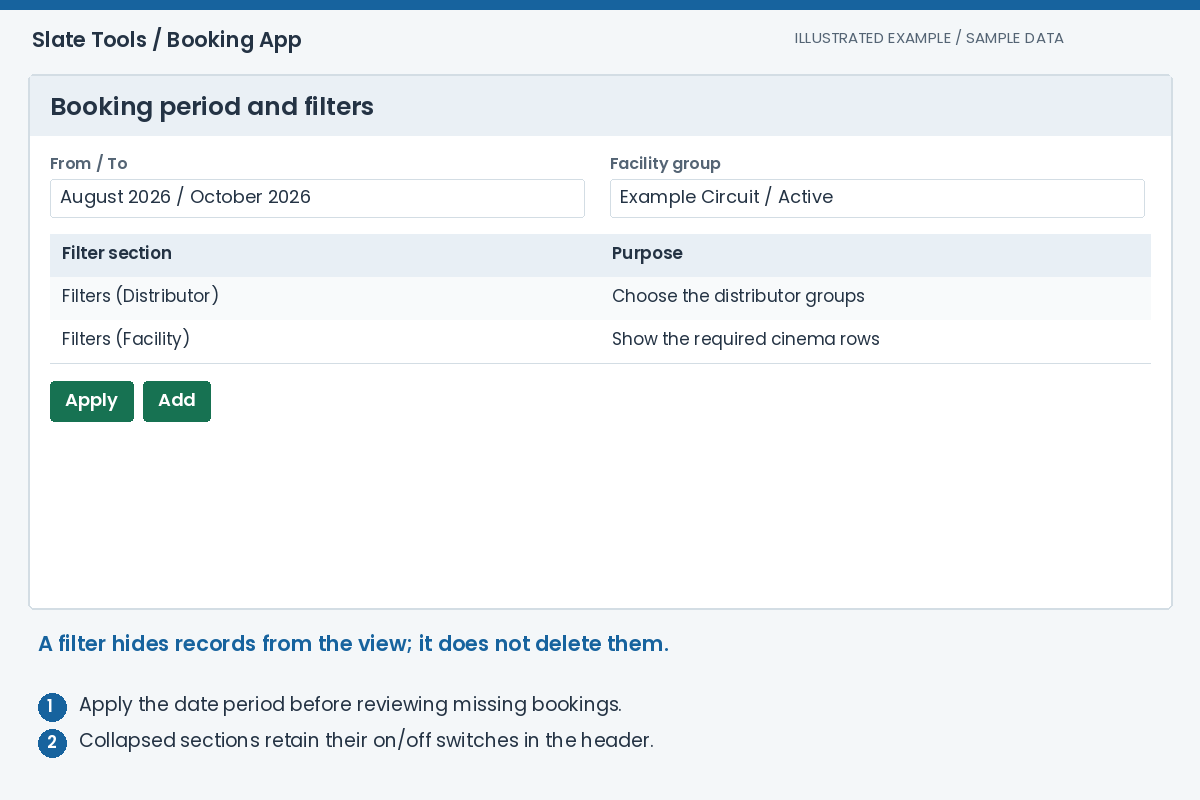
Expected result: The booking workspace focuses on the cinemas and period you want to programme.
Select bookings in either the table or timeline
Expand Table (Bookings) and use the column filters or pagination to find a row. Click it to highlight the booking and its corresponding timeline item. The graph moves only when needed to bring that item into view; selecting a booking does not deliberately zoom the graph.
Clicking a timeline item selects the corresponding table row and adjusts the table page without pulling the whole page up to the table. Open in Movie DB in the booking-table header opens that booking's film in a new tab. Reload fetches fresh data; Delete is a separate destructive action for the selected booking.

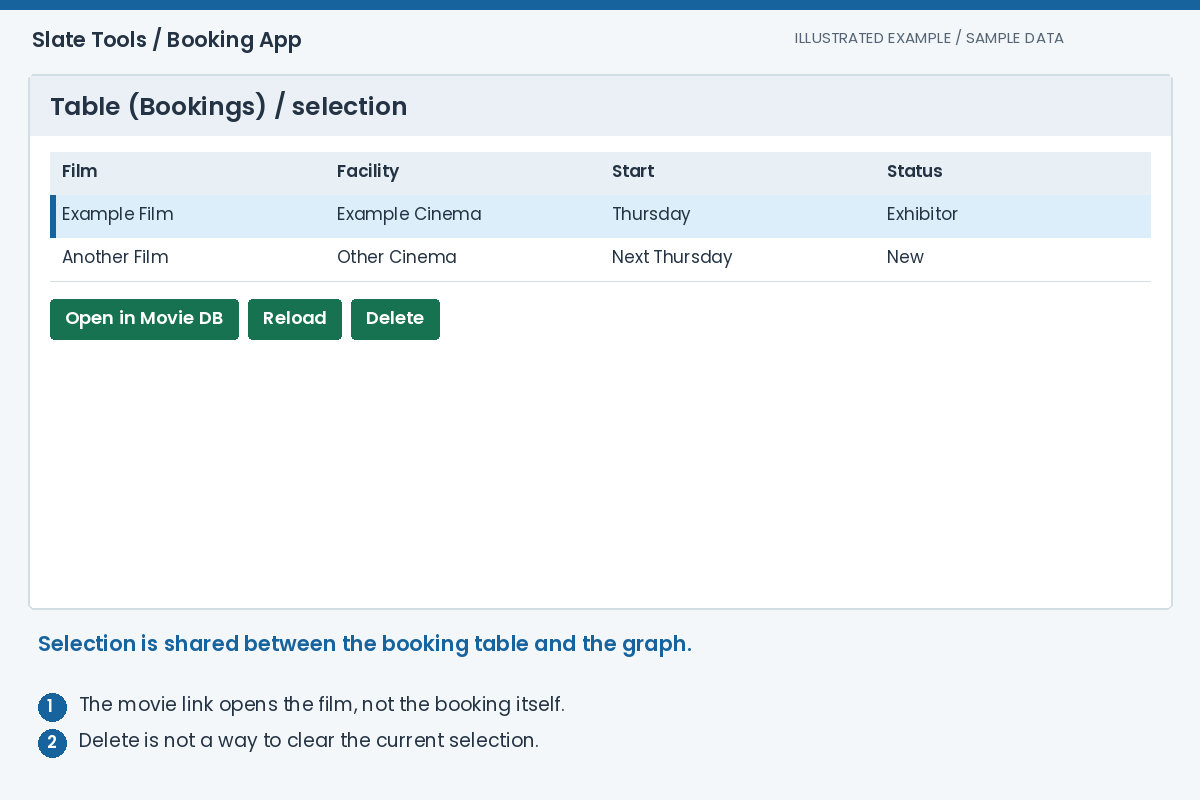
Expected result: The highlighted table row and graph item refer to the same booking.
Read the facility rows and film bars
Each facility has a named row on the left of the timeline. The bar text identifies the film and its week/policy context; the facility name is not repeated inside every bar. The right-hand indicators show the rating and booking status.
Use Now, Full, Month, Week, pan and zoom to compare the loaded bookings. Hover over a film for a compact summary of its dates, status, MG, policy and terms. The graph position is remembered when you return. Weeks adds weekly bands; holiday controls use the selected Australian state.
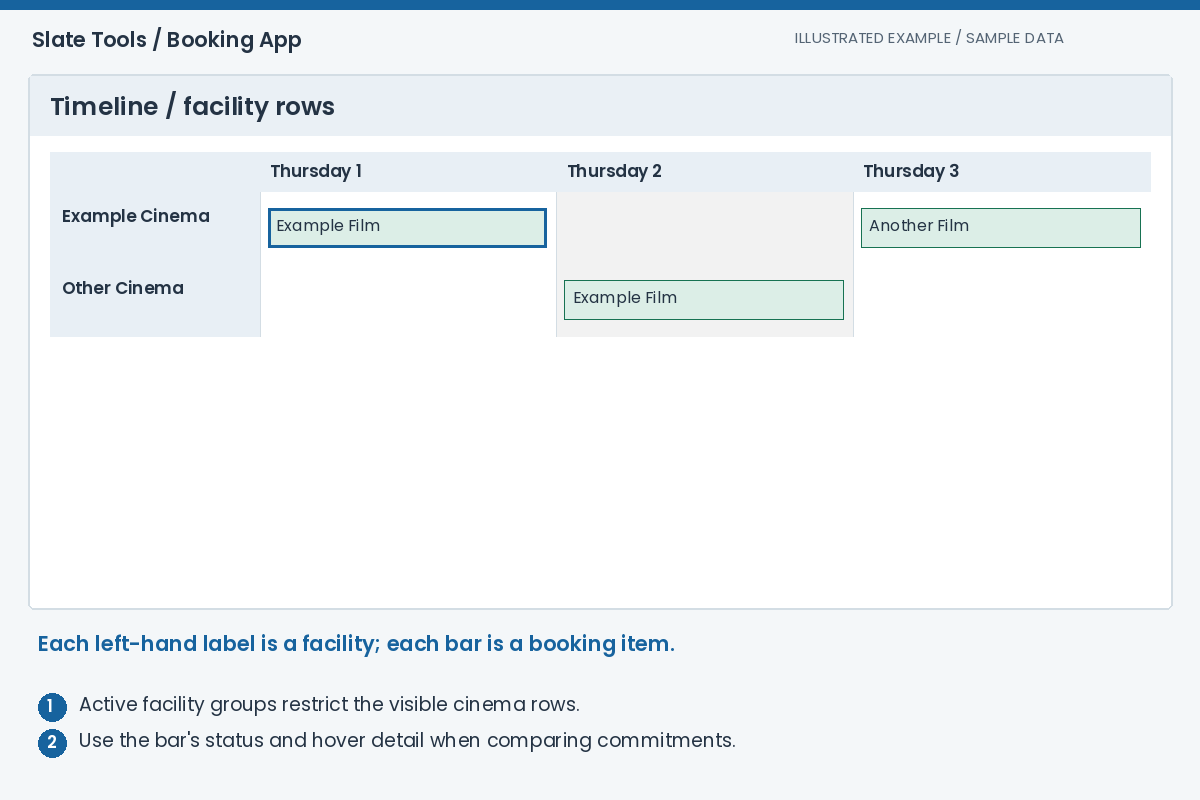
Expected result: You can compare the bookings for each physical cinema without confusing their rows.
Interpret Off, On, On Ghost and On Length
Commitment controls the policy visualisation. Off hides the weekly totals. On adds the N+N totals centred over each week for each facility. On Ghost also draws additional policy/session representations; On Length extends the normal bar across the policy's week count.
The policy parser reads slash-separated weeks and plus-separated day/evening values. For example, 2+1/1+1 contributes two day and one evening in the first week, then one day and one evening in the next. Only Confirmed, Exhibitor and Distributor statuses contribute to the commitment totals.
These are planning counts derived from the stored policy, not actual performance times, admissions or remaining screen capacity. Duration also changes the visual bar width. Check the source booking terms before treating a ghost bar or long bar as another independently agreed booking.

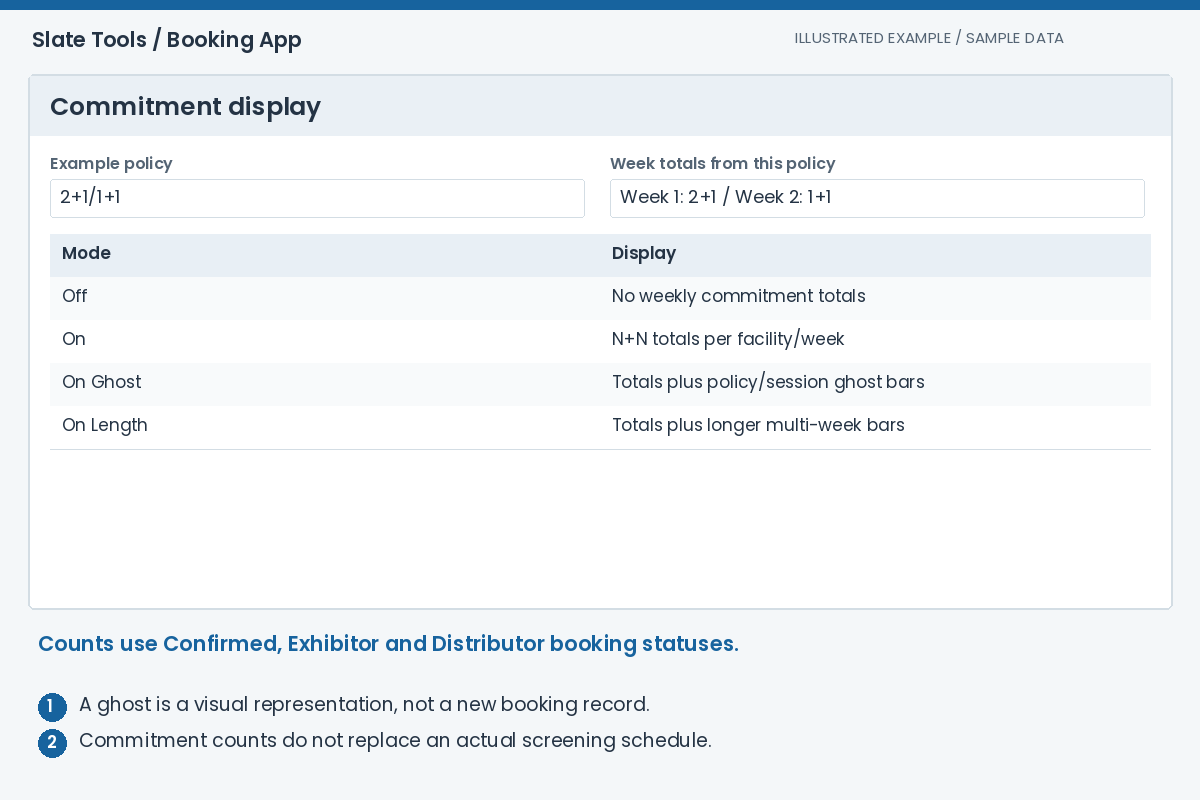
Expected result: The commitment overlay is understood as a policy-based planning aid.
Choose a distributor and start an offer
Select a booking to load its distributor's Active films section. Verify the distributor name and films before pressing Create Offer. The editor can prefill the previous offer message and email recipients, so check them carefully rather than assuming they are still correct.
Turn Include in offer on for every film you intend to send. Only included films form a new offer. Each film has its own poster, title, release date and facility rows; review every included row, including cinemas that may be offscreen in the working table.
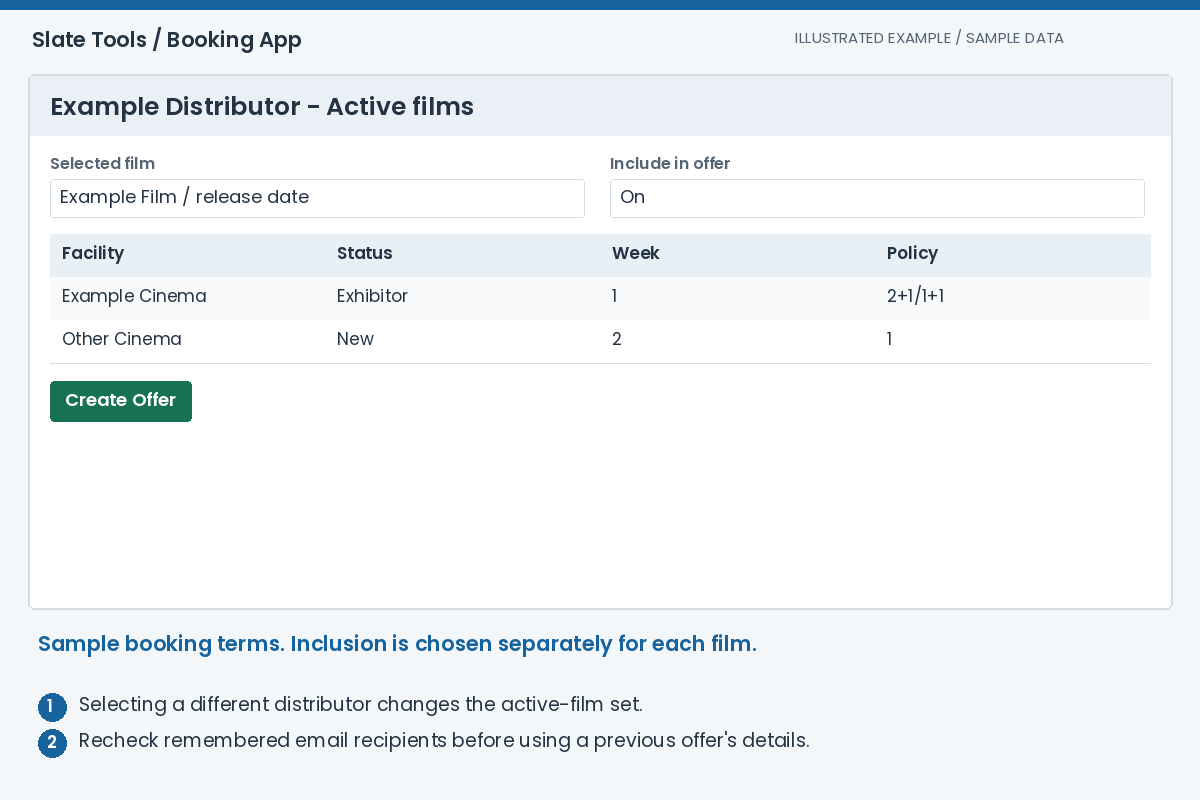
Expected result: The offer contains the intended films for the correct distributor.
Review each cinema's dates, MG, policy and terms
For included films, review Status, Week, Date, MG, Policy and Terms for each facility. Week relates to the booking's release-date baseline; changing it with the stepper updates the corresponding start date. Check the resulting date rather than relying on the week number alone.
MG is the minimum-guarantee field. Policy stores the proposed weekly commitment, while Terms holds the offer terms. The status cell colour is a visual aid; read its text before changing it. Make sure all values reflect the actual proposal, not an earlier film's agreement.
Offer edits are preparation for the send workflow. Do not treat unsent edits or switching between distributors as a guaranteed saved draft. Keep the distributor selected while finishing the offer and review the final preview.
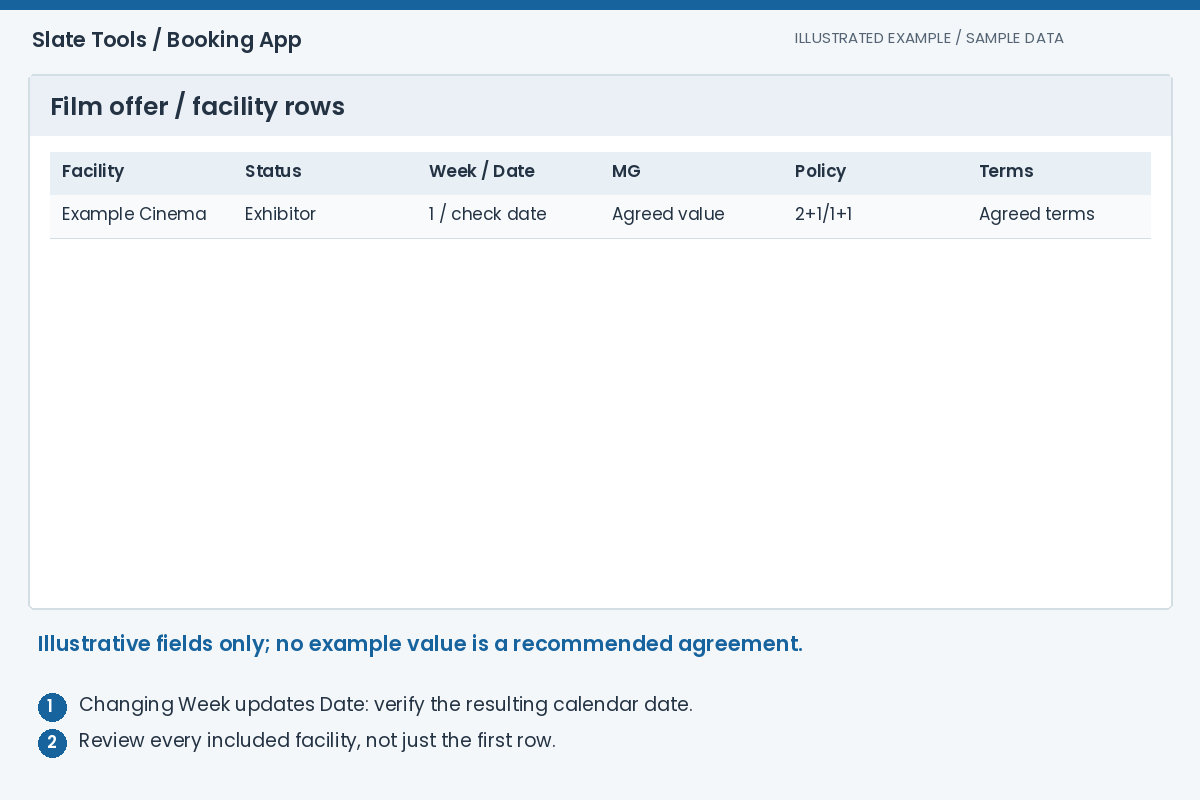
Expected result: Every included facility row contains the intended commercial proposal.
Preview the complete offer before sending
Enter the Offer Message, Target Exhibitor Emails and Target Distributor Emails. Separate multiple addresses with commas. Press Send Offer to open Send Booking Offer; this first action prepares a confirmation dialog rather than immediately sending the message.
Check the distributor, both recipient lists, message and Offer Preview. The preview includes the same film tables, posters, titles, dates and facility terms prepared for the email. Email clients can still render HTML differently, so readable text and correct terms matter more than exact pixels.
Cancel returns without sending. The final Send Offer in the dialog submits the email and offer; it is disabled when no valid recipients are supplied or a send is underway. Wait for the result before retrying, to avoid submitting the same offer twice.
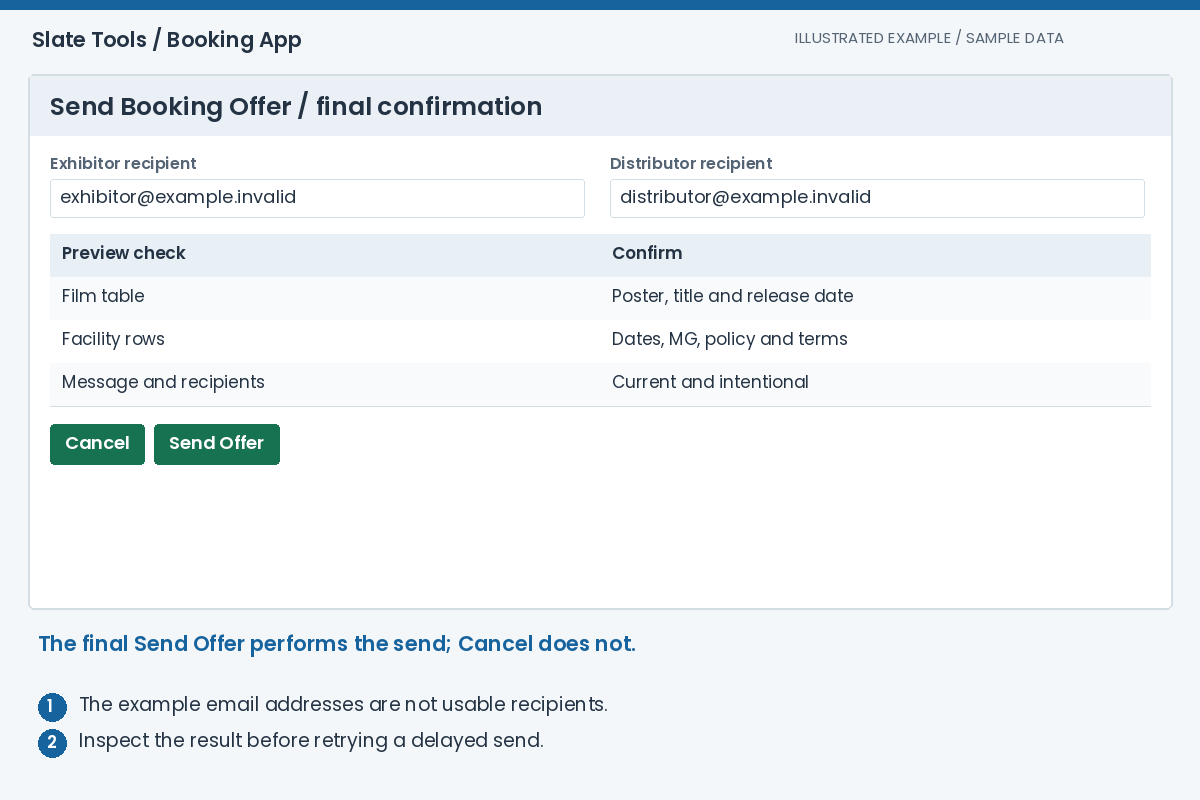
Expected result: The intended recipients receive the reviewed offer, subject to the reported sending outcome.
Review offers and continue a negotiation
Table (Offers) lists the offers for the selected distributor, subject to its status switches. Select an offer to load its thread and Table (Offer History). Select a historical entry to inspect that version in Offer Editor.
Negotiate Offer prepares a follow-up using that offer's bookings. Review the inherited films, terms, message and recipients, make the intended changes, then use the same preview-and-send process. History helps distinguish revisions; an email being sent does not itself prove the other party accepted the terms.
Deleting an offer or booking is not the same as sending a cancellation notice or withdrawing an email already delivered. Use the agreed communication process with the distributor. These commercial booking records are separate from the KdmGen bookings used to generate and renew keys.

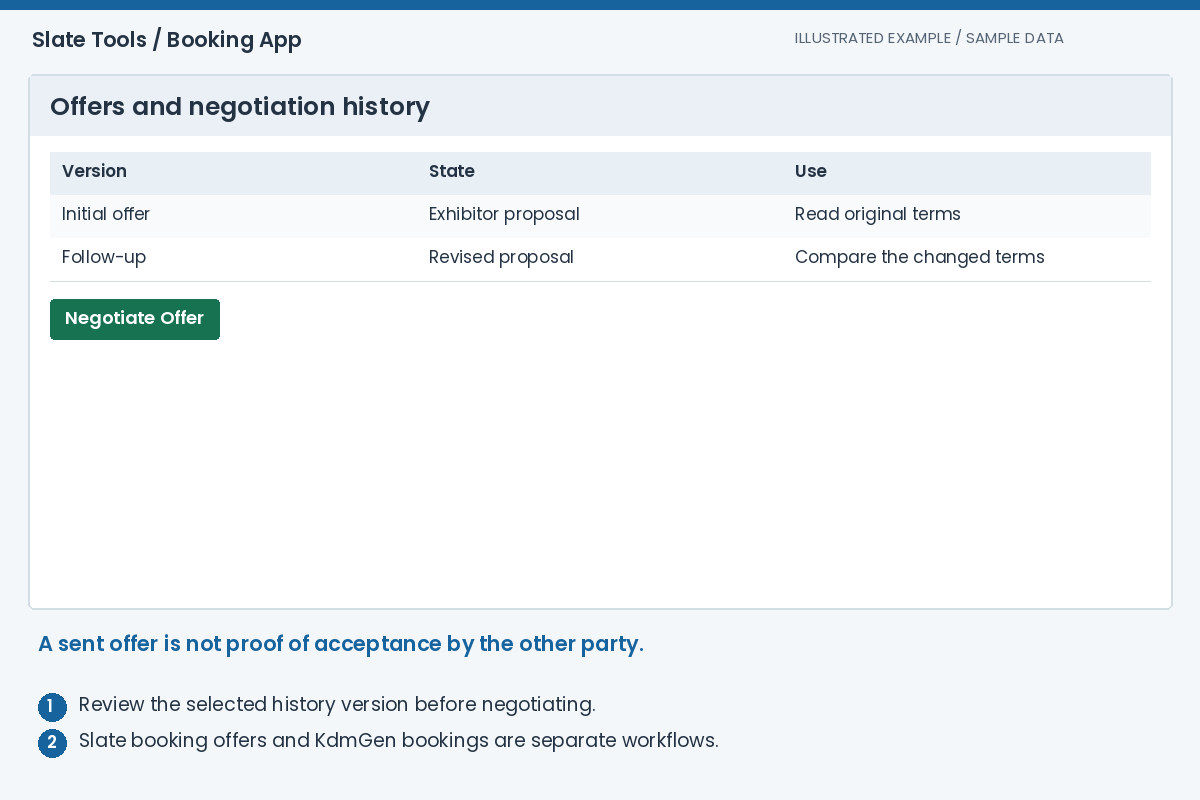
Expected result: You can follow the offer thread and issue a deliberate revision without confusing it with KDM generation.
Troubleshooting
Why is a facility row missing from the timeline?
Check the date period, facility/distributor groups, booking-status switches and table filters. A row needs matching visible bookings; filters do not create or cancel those bookings.
Why is the commitment total lower than expected?
Only Confirmed, Exhibitor and Distributor statuses are counted. Check the policy notation and the visible booking filters. Ghost items are representations, not extra records to count again.
Why is Create Offer missing?
Select a booking so its distributor's Active films section is loaded, then expand it. Confirm that your account can access the relevant bookings and that the distributor request completed successfully.
Why does Send Offer say no films are selected?
In a new offer, turn Include in offer on for at least one film. Selecting a row in the booking table is not the same as including that film in the offer.
Why is the final Send Offer button disabled?
Check that at least one recipient is entered, every address is valid and addresses are comma-separated. It is also disabled while a send is underway.
Does this send KDMs or guarantee film delivery?
No. This workflow prepares commercial film-booking offers. Use the separate KdmGen workflow for keys and the relevant asset tools for delivery; check the reported outcomes of each process.