

14 minute guide · 8 illustrated steps
Generate KDMs and manage cinema bookings
Choose a one-off request or a managed cinema booking. Both start with registered CPLs and a validity period; managed bookings also keep the OpenTDL auditorium relationship so they can respond to changed devices.
Open Generate KDMBefore you begin
- Sign in with KdmGen access and register the encrypted CPLs and matching DKDMs first.
- Have the exact authorised start and end times. Every selected CPL needs DKDM coverage for the full period.
- Identify the recipient player certificates, or the correct facilities and auditoriums in OpenTDL. For automatic email delivery, check the facility's KDM delivery addresses.
Recognise the screen
These screenshots show the actual tool. The numbered steps below use labelled examples to explain the selections and results.


Choose Quick KDM or Create Booking
The opening instructions describe each workflow. Quick KDM creates an ad hoc request using direct device certificates, OpenTDL auditoriums, or both. Recent Quick KDMs can be loaded as the basis of another request.
Create Booking uses OpenTDL auditorium targets and offers automation for changed device certificates and email delivery. Extend Booking starts from an existing managed booking. KDM Email Queue shows delivery status and attempts.
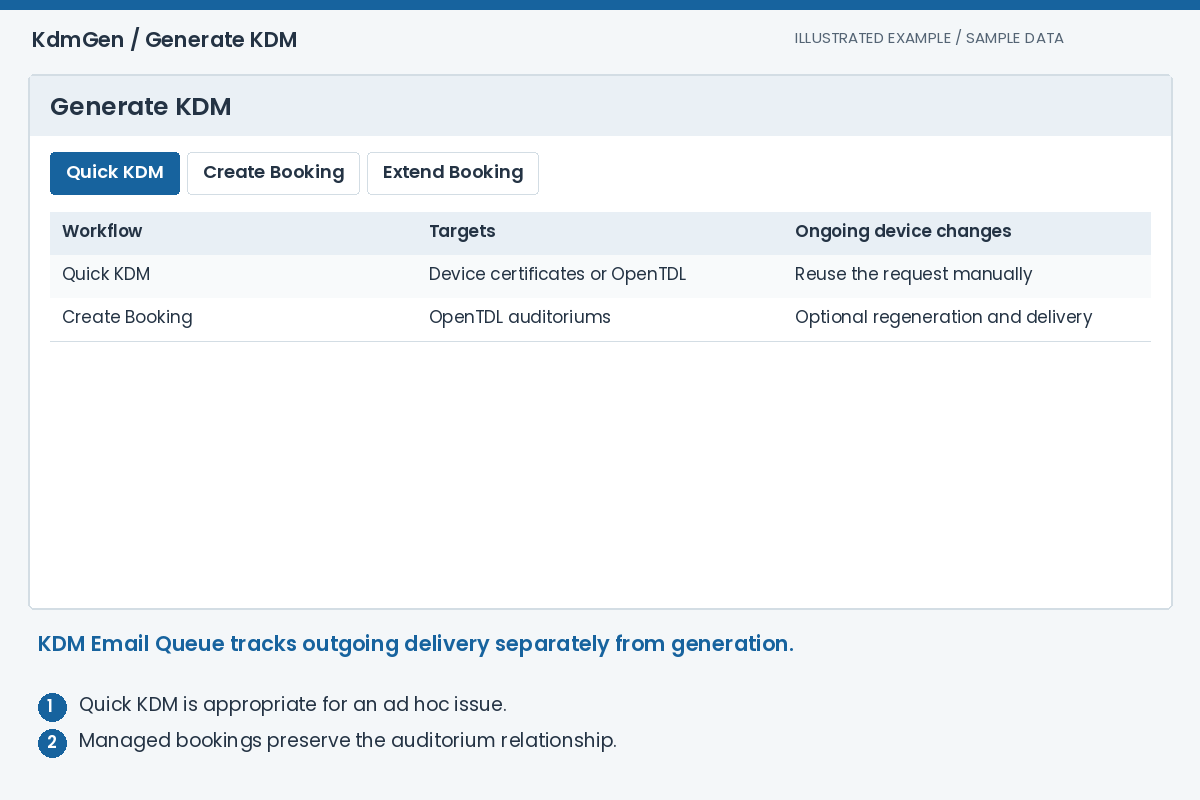
Expected result: The workflow matches whether you need a one-off issue or an ongoing facility booking.
Populate Target CPLs
Target CPLs starts empty. Select My CPLs or Distributor CPLs, then press Add CPL to find registered compositions. Add via DCP lets you select registered compositions by package. Filter by composition, package or distributor as appropriate.
Check the resulting Target CPLs table and remove versions you do not intend to issue. Multi-CPL requests apply the chosen target set and validity period to the selected compositions, so check every version's DKDM coverage.
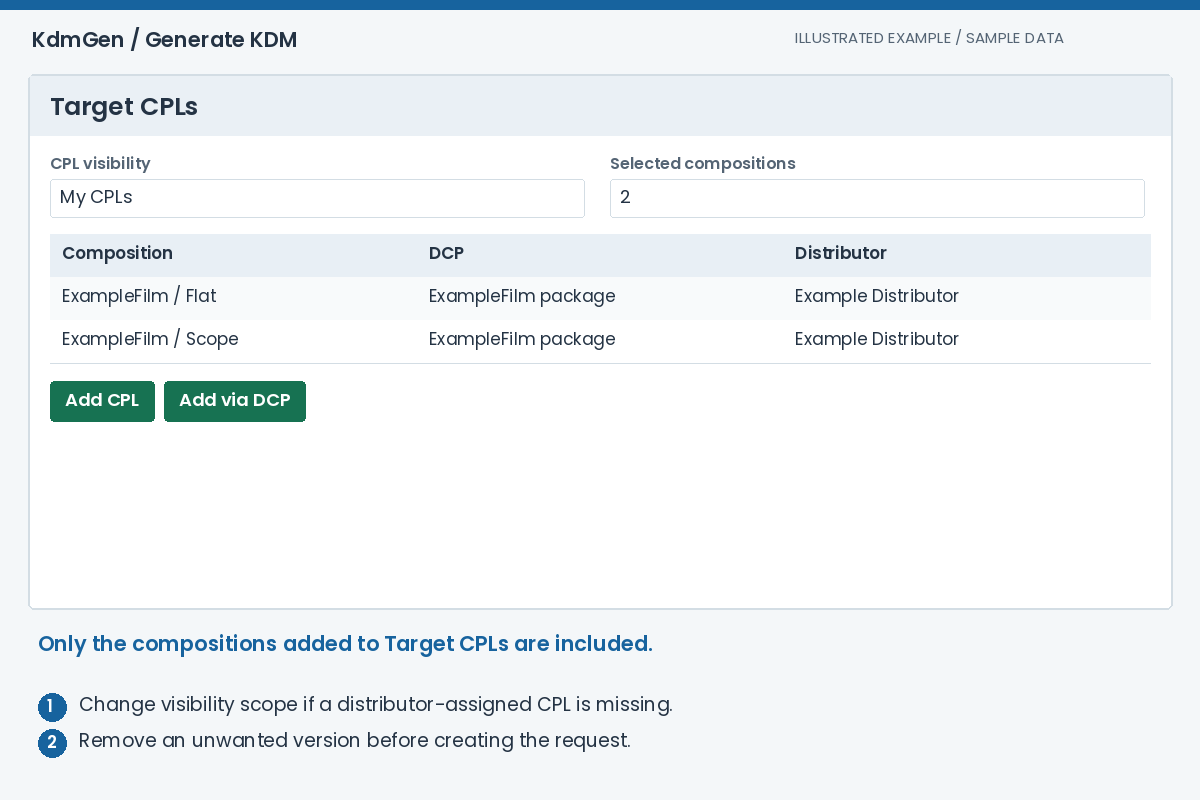
Expected result: Target CPLs explicitly lists the compositions this request will include.
Set the authorised validity period
Enter Valid From and Valid To in the workflow's validity section. Include the time as well as the date, and add a useful Comment. Confirm the intended cinema time zone when arranging cross-region screenings; do not assume that a date-only agreement defines the exact playback window.
The end must be later than the start, and the full interval must be covered by a usable DKDM for each CPL. Run Validate Setup after choosing all targets so the backend can check dates and certificates together.
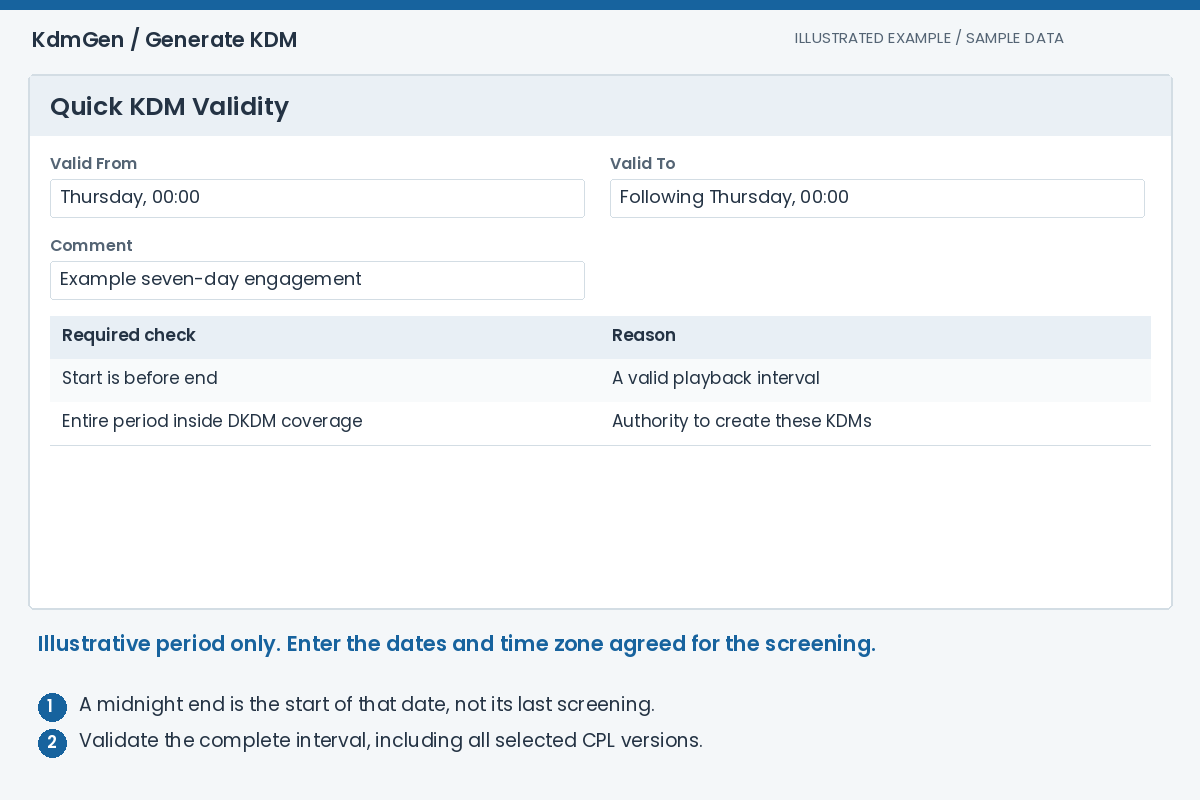
Expected result: The request has an explicit start and end for authorised playback.
Add player certificates or OpenTDL auditoriums
In Quick KDM, use Add in Target Devices to search the device database, or Add in Target OpenTDL to select a facility. The target tables are intentionally empty until you add recipients. Managed bookings use Target OpenTDL only.
In the OpenTDL dialog, use the Facility, Address and Country filters. Address and country searches are remembered for subsequent selections. Select the correct facility, review the selected auditoriums, and apply the required screens; all screens are initially selected for convenience.
Verify the auditorium and player serial numbers in the target table. A cinema with several screens is not a single recipient certificate. Remove any screen or direct device that should not receive keys.
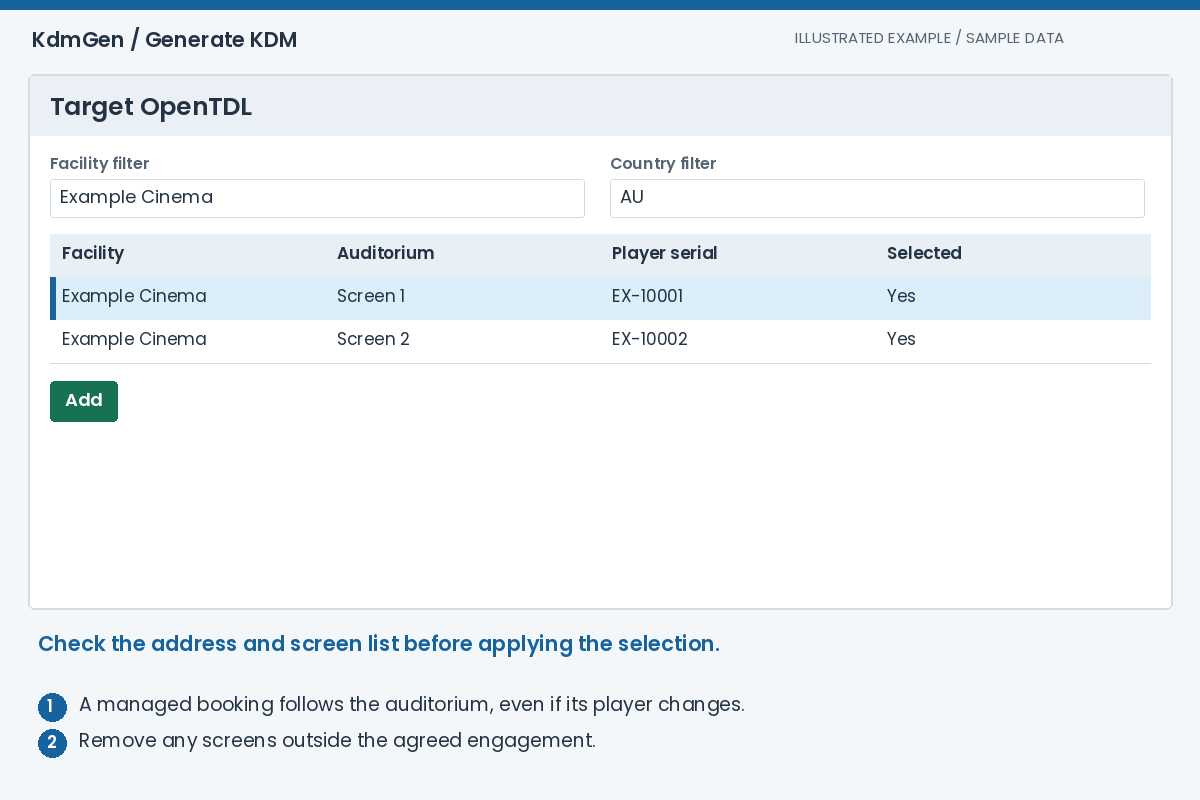
Expected result: The target tables contain the exact devices or auditoriums authorised for this request.
Validate, then create and download
Press Validate Setup in Review and Create. This checks the CPLs, DKDMs, dates and target certificates without creating or queueing KDMs. Read the returned reasons if validation fails, correct the setup and validate again.
Press Create Quick KDM or Create Booking to submit the request. Generation is a backend process: submitting successfully is not the same as having finished KDM files. Review the resulting status and use Download when output is available.
If a run is partial or failed, inspect the reported error and target counts. Retry after correcting the cause. Keep a downloaded copy of the issued KDMs with the booking record used for the screening.
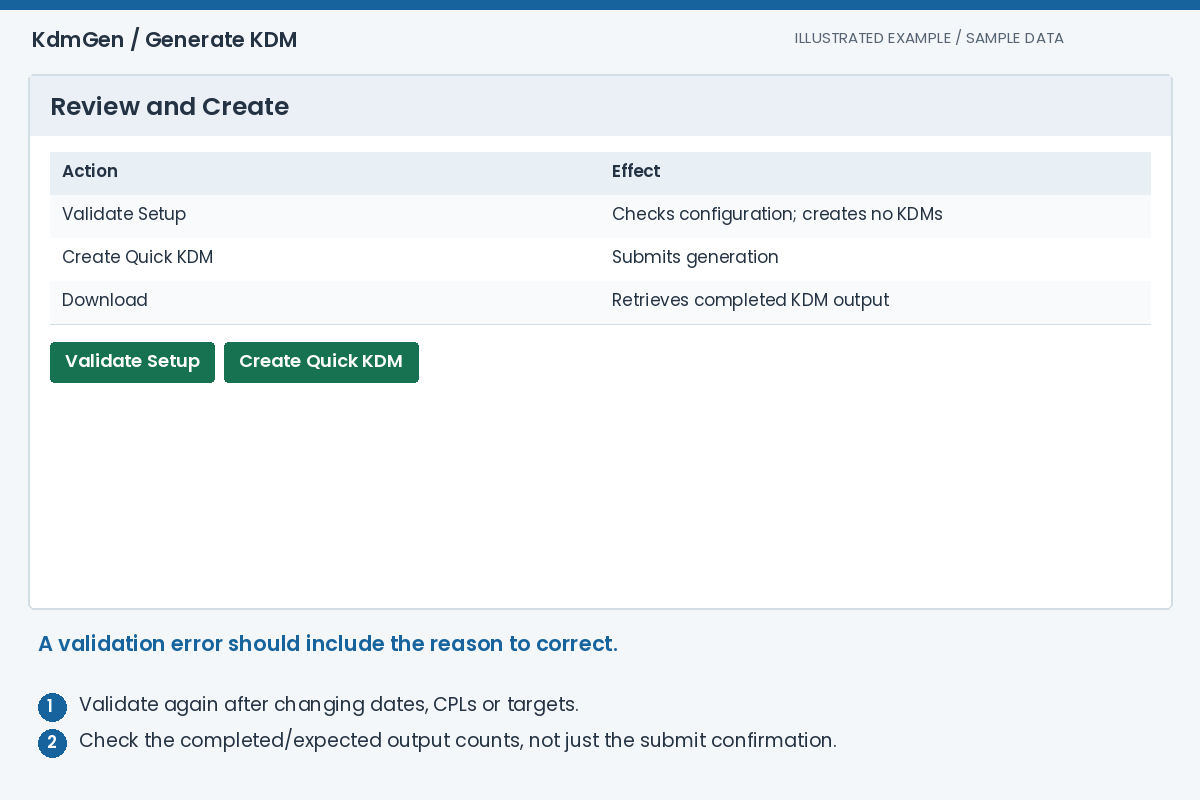
Expected result: The backend generates the authorised KDMs and makes completed output available.
Configure managed booking automation
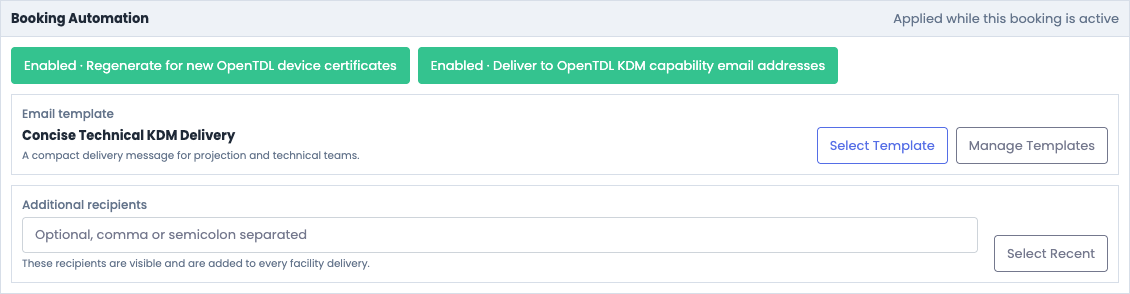
In Create Booking, review Booking Automation. Enable regeneration for new OpenTDL device certificates when replacement players should receive updated keys during the active booking. Enable delivery when generated keys should be sent to the facility's KDM capability email addresses.
Review the email template and any additional recipients. The facility's general contact email and its KDM delivery capability address are different fields; use Facilities/OpenTDL to check the latter.
Automation depends on current, resolvable OpenTDL device information and usable DKDM coverage. Check generation and delivery outcomes when a player changes, especially close to a screening.
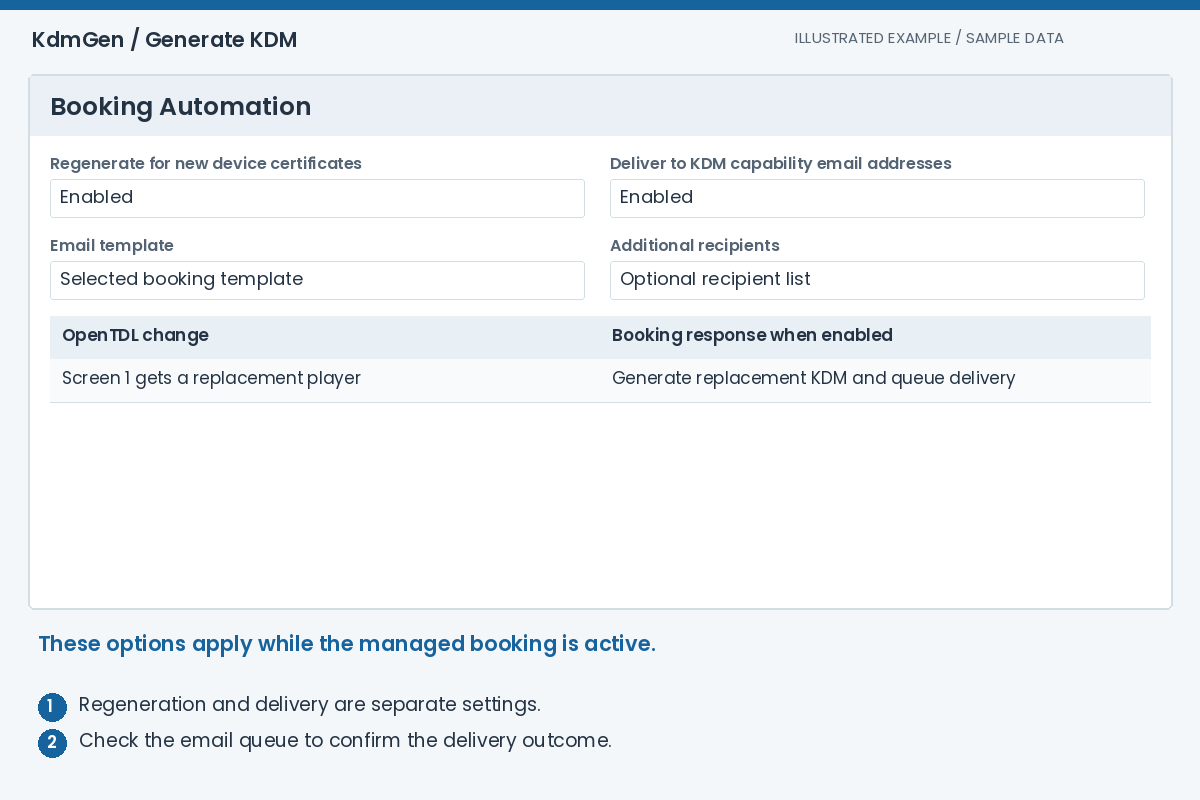
Expected result: The booking records the auditoriums, the authorised period and the chosen automation settings.
Extend a managed booking or reuse a Quick KDM
For a Quick KDM, find the entry in Recent Quick KDMs and press Load. Review the reloaded compositions and targets, change the dates, then validate and create a new request.
For a managed booking, open Extend Booking and select the previous booking. Use a 7 or 14-day Thursday-to-Wednesday holdover preset, or enter a custom Extension Period. Review the exact timestamps and target list before pressing Create Extension.
A holdover does not extend the authority in the source DKDM. If the new period exceeds its coverage, register renewed DKDMs before issuing the extension.
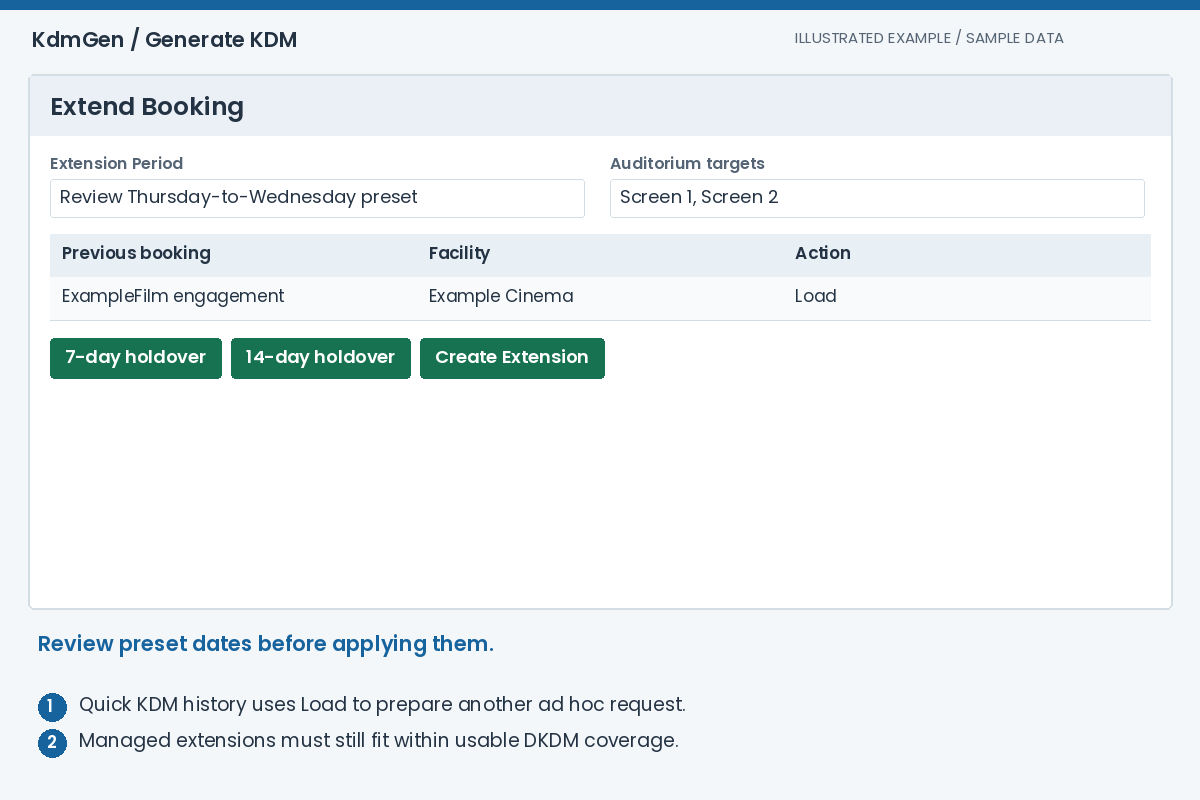
Expected result: A new request or booking extension covers the reviewed future engagement period.
Follow email delivery to completion
Open KDM Email Queue to inspect queued and sent emails. Select an entry to inspect the recipients, attachment manifest, attempts and any recorded error. Use the available retry or resend action when appropriate after checking the failure.
For a completed Quick KDM, the Recent Quick KDMs row offers Email as well as Download. Review the recipients and message before sending.
A generated KDM, a queued email and a sent email are different outcomes. Sent confirms the recorded sending result; it does not prove the cinema imported the KDM or successfully played the DCP. Confirm receipt and playback readiness with the site.
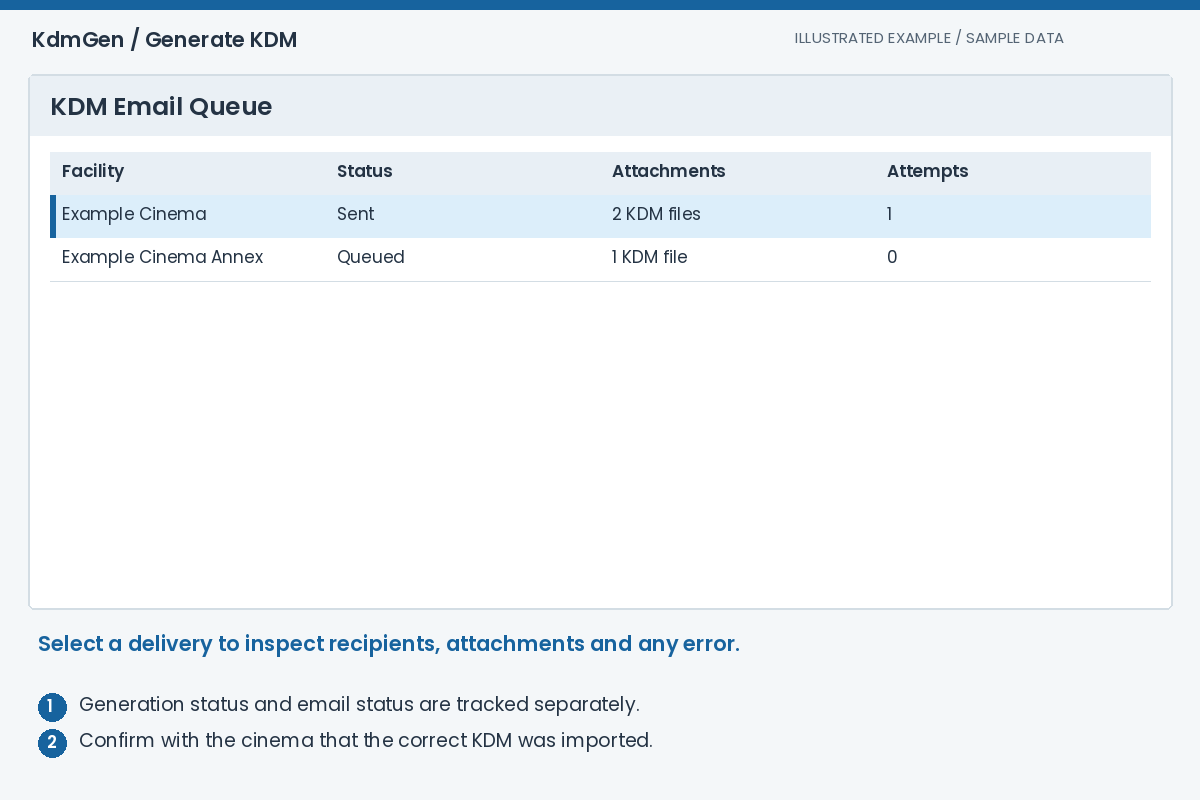
Expected result: You can account for generated files and the delivery status of each email.
Troubleshooting
Why is Target CPLs empty?
It is a selection table. Use Add CPL or Add via DCP, and check My CPLs versus Distributor CPLs. If the required composition is missing from the selector, check its registration, your access and DKDM validity.
What does Validate Setup actually do?
It asks the backend to check the current compositions, DKDM coverage, dates and recipient certificates. It does not queue a generation job or send an email. The create action is the next step.
Why did only some KDMs generate?
Review the failed targets and reported errors. A target may lack a usable certificate or a selected CPL may have unsuitable DKDM coverage. Correct the underlying data before retrying, and check the output counts again.
Will a Quick KDM automatically follow a replaced player?
Use Create Booking with OpenTDL auditoriums and regeneration enabled for that workflow. A Quick KDM can be loaded and issued again manually, but it is not a managed auditorium booking.
Why has the cinema not received the email?
Check whether the delivery is still queued, failed or marked sent. Inspect its recipients and error details, and verify the facility's KDM capability email address. A sent result also warrants checking the recipient's spam or mail-filtering system.