

12 minute guide · 8 illustrated steps
Research a film in Movie DB
Find a film, compare the available source information and collect useful material for programming discussions. Keep release dates, classifications and audience scores separate: each answers a different question.
Open Movie DBBefore you begin
- Movie DB can be browsed publicly. Sign in to use the regional preferences attached to your profile.
- Have a title or IMDb identifier. Similar titles, remakes and regional title variants may refer to different films.
- Treat missing source information as unknown, not a zero score or a confirmed absence of a release.
Recognise the screen
These are cropped views of the actual tool. Numbered examples below explain the workflow with fictional records; screenshots are not a promise of current release dates or scores.

Search with the column filters
Open Movie DB and use the inputs beneath Title, Distributor, Rating and IMDb in Movies / Features. Filters work together, so clear a previous distributor or rating filter if a title search unexpectedly returns nothing.
The table requests results one page at a time from the backend and displays up to ten films. Use its page navigation for more results and click a heading to change the sort order. You do not need to load the entire catalogue into the browser.
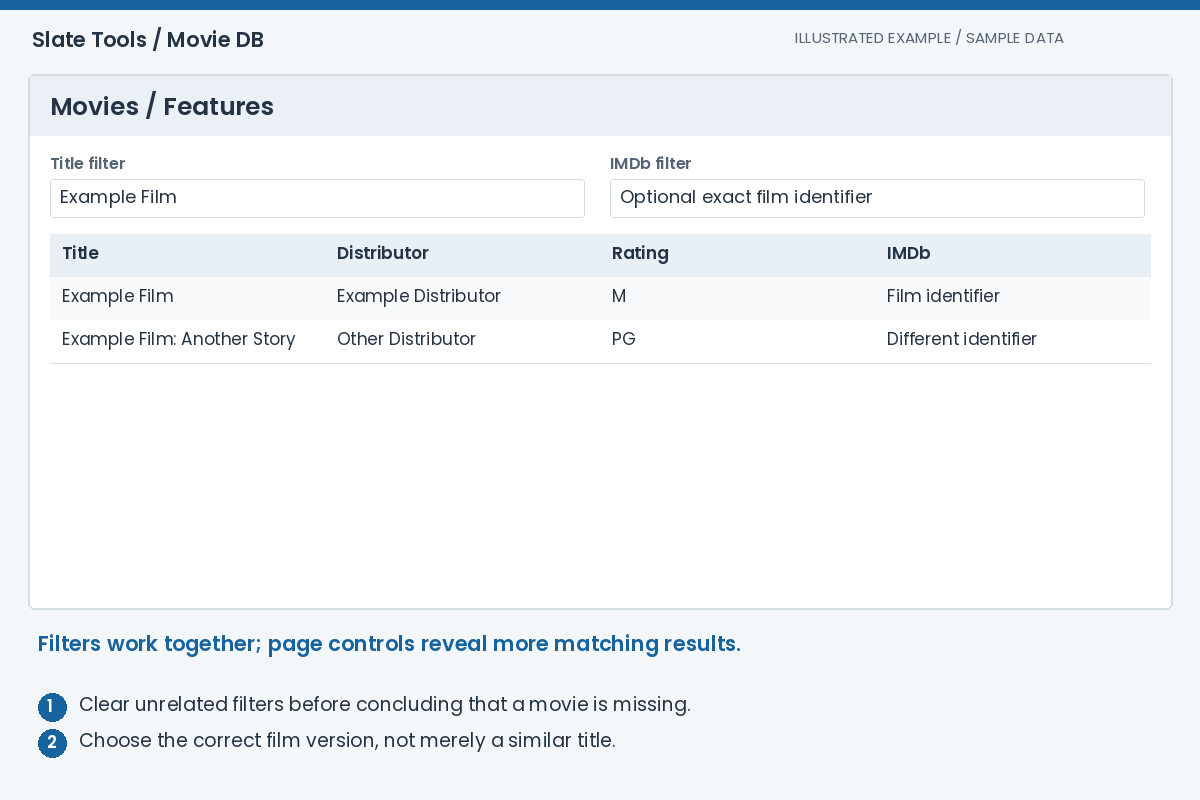
Expected result: The result list is narrowed to the films matching your filters.
Select the film and share its link
Click a result row to populate Movie Detail. Check Title, Distributor, Runtime and the IMDb and TMDB codes. The Open link beside either code opens that film on the corresponding source site in a new tab.
The URL records the selected movie plus the title, distributor, rating and IMDb table filters. Copy that URL to share the selection or return to it after a refresh. A recipient sees the saved search context; access permissions and the currently available data still apply.

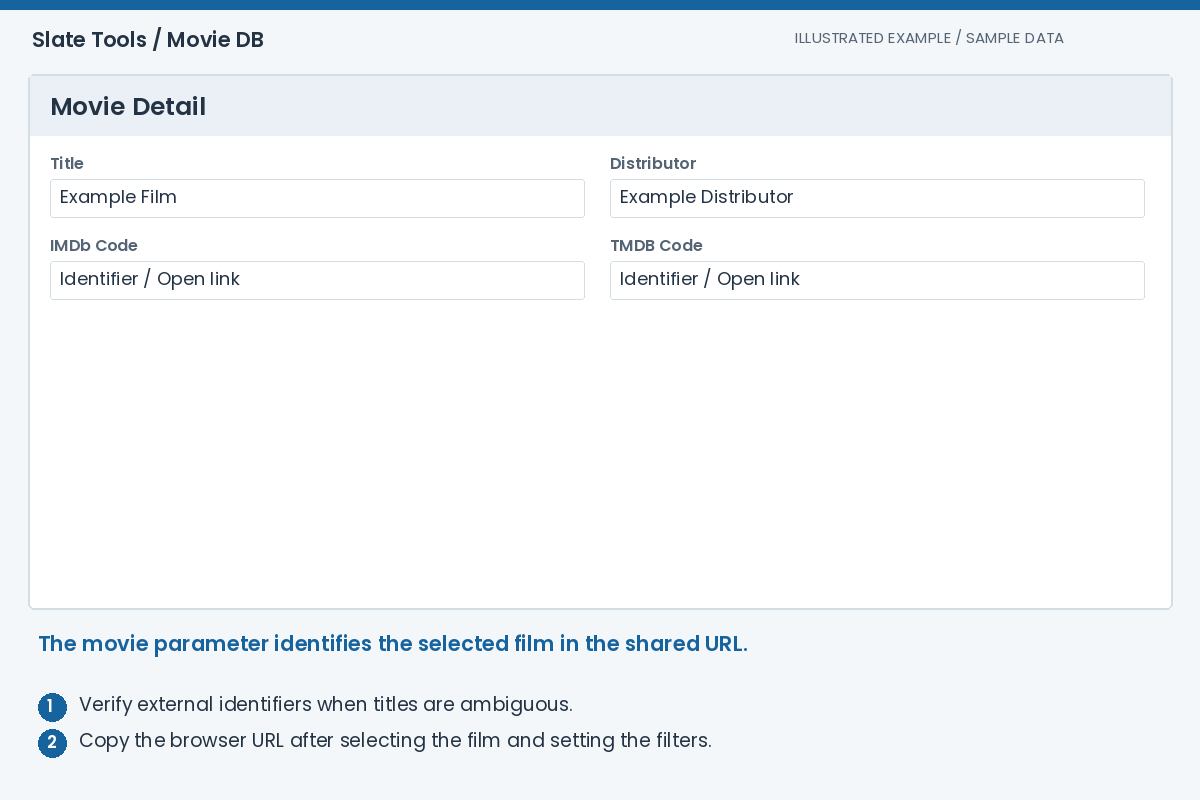
Expected result: You are viewing the intended film and have a reusable link to that selection.
Compare release dates within each region
Release Dates initially shows the regions from your profile, with AU as the fallback. Use Show all to reveal the other recorded regions, and Show my regions to return. The Official AU and IMDb AU summaries remain Australian reference dates, not the selected country's dates.
Read each region's Date, Source, Type / Status, Diff and Active columns together. TN identifies The Numbers and NZFC identifies the New Zealand source; IMDb and Numero records can appear alongside them. Wide or limited release information is shown when supplied by the source.
A green tick means the stored source record is active; a red X marks an inactive record. Diff compares with the official AU date, so it is not necessarily a change since the last scrape. Multiple rows can represent different sources, release types or earlier dates. Confirm important changes at the source rather than treating every row as another opening.
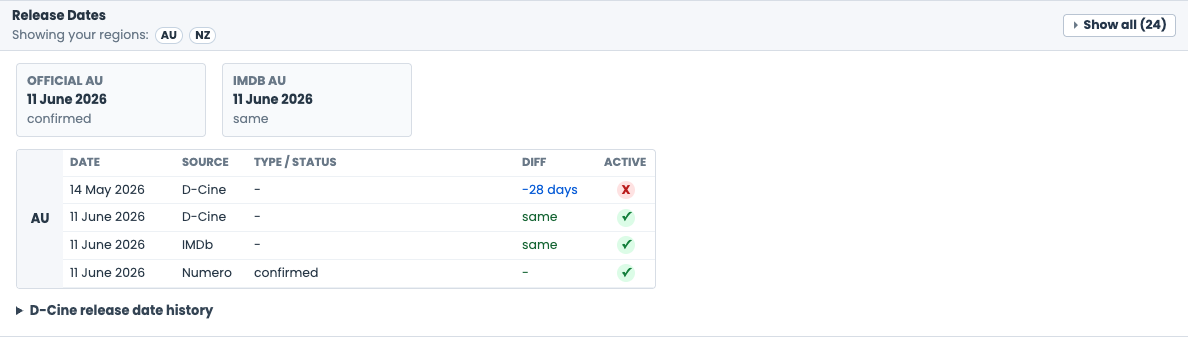
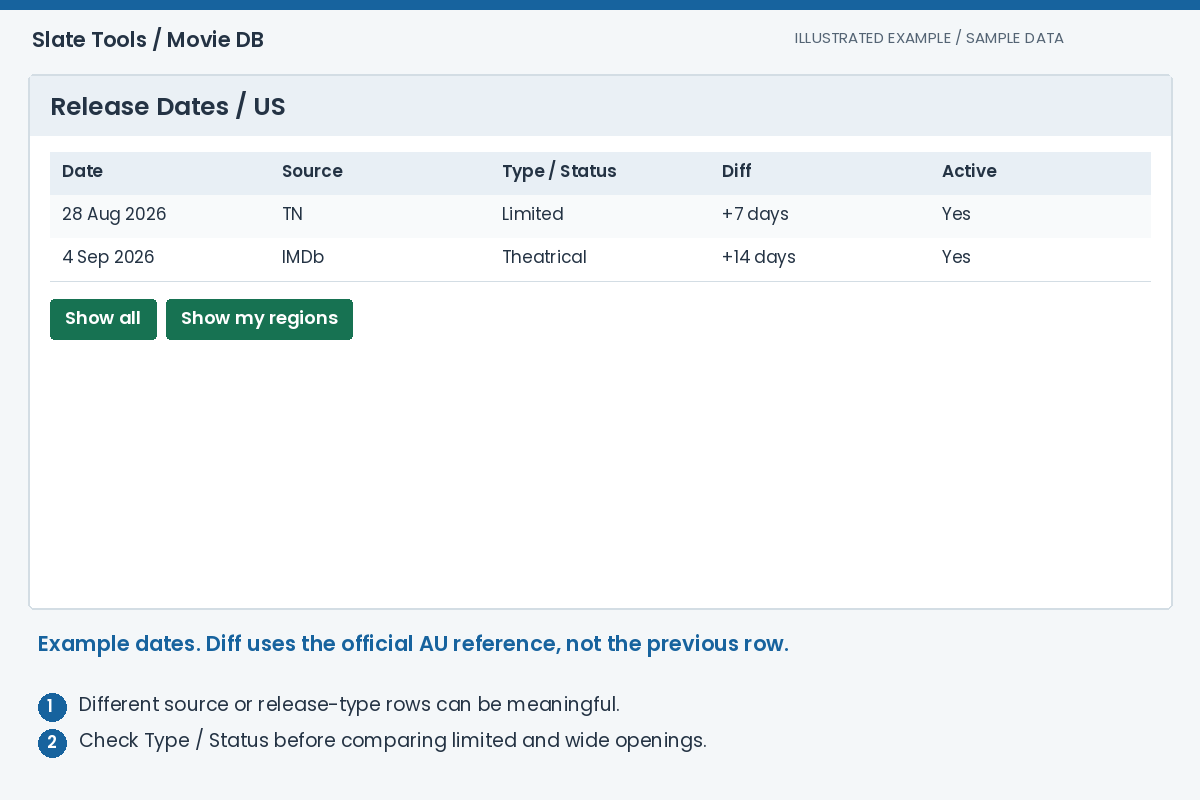
Expected result: You can identify the region, source and status behind each date.
Read regional classifications and advice
Regional Ratings follows your profile regions independently of the Release Dates expansion. Use its Show all control to reveal other available classifications. Read the regional icon and rating together with the source, classification date, consumer advice, runtime and certificate information where present.
These are content classifications, not audience scores. An AU rating in the movie summary must not be assumed to apply to GB, NZ or another territory. Missing details usually mean that a classification has not been found or collected; follow the source link when you need to verify the current record.
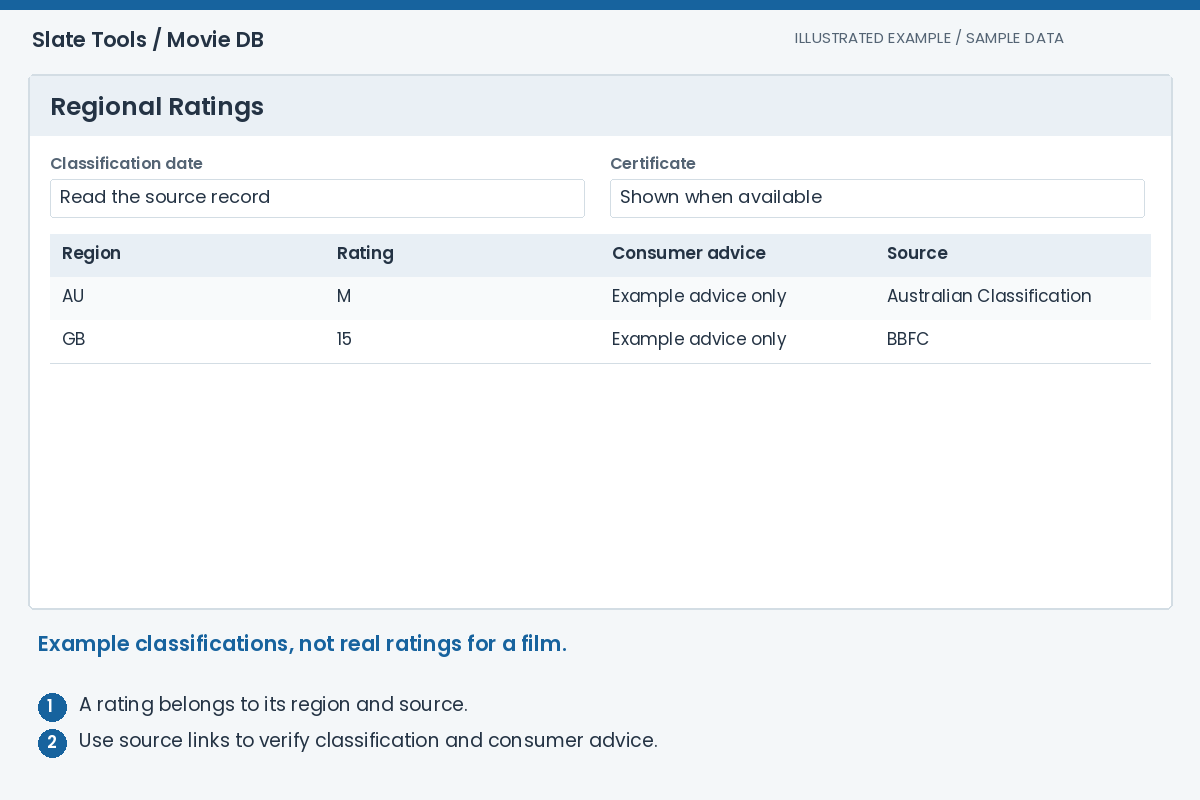
Expected result: You have checked the content classification for the territory relevant to your screening.
Check scores and preview the trailer
The Scores section shows the providers currently configured and available for the film. Read the score scale, metric, vote or review count and last-checked time rather than comparing bare numbers. Cached scores can be retained for up to 30 days; selecting a movie asks the backend to refresh them when needed.
A provider without credentials or available data may not produce a score. No score is not a negative review. The Trailer panel opens a larger YouTube player when you click its preview. Confirm the title, version and intended audience before relying on the clip for a presentation.
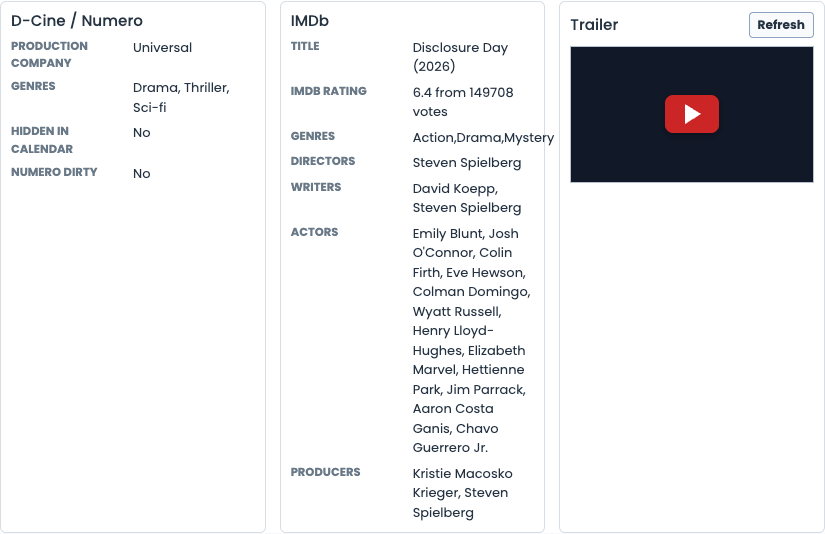

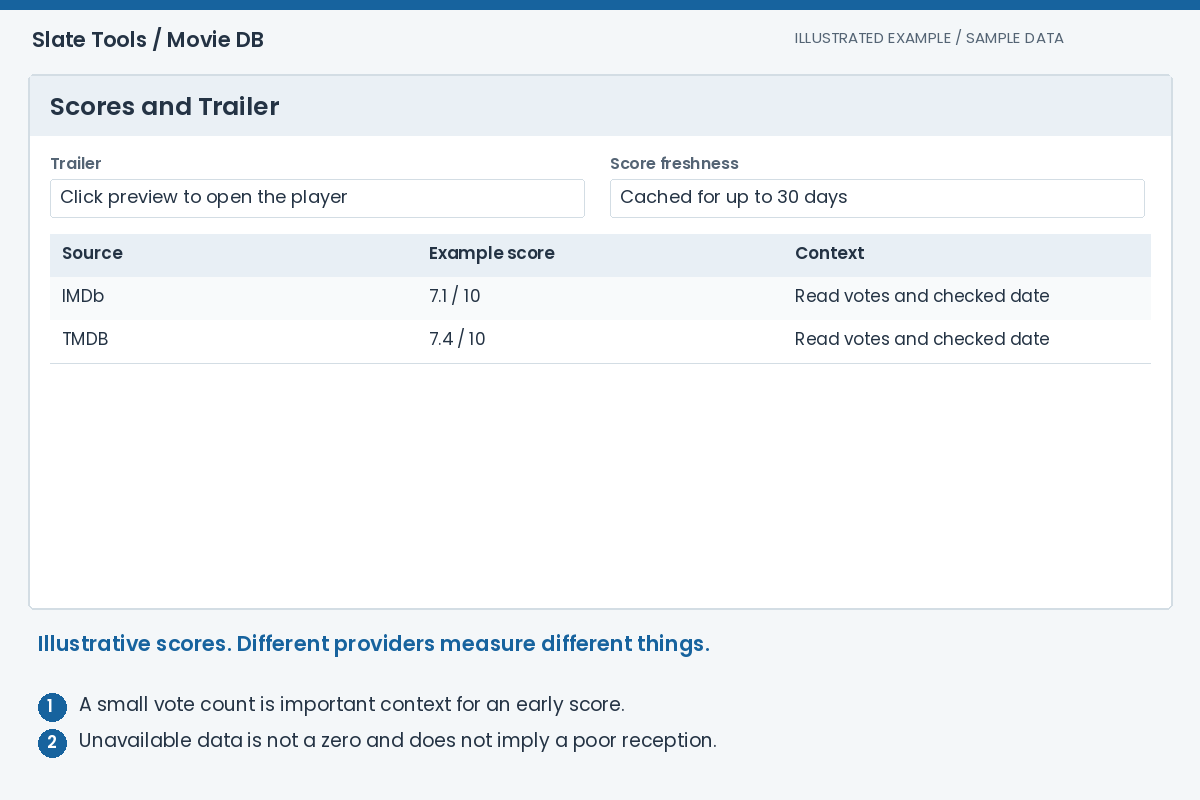
Expected result: You can distinguish source scores from classifications and inspect the available trailer.
Compare box office totals by territory
In Box Office, review Worldwide, Domestic, International, Budget and Checked. Amounts are displayed in USD. Use the regional expansion control to show all stored territory rows rather than only your preferred regions.
Click a table heading to sort by territory, release date, opening or total; click it again to reverse the direction. Domestic reporting can combine the US and Canada, so read the territory label rather than assuming it represents the US alone. Do not add Domestic to Worldwide: Worldwide already represents the overall total.
These are collected source figures, not a live ledger or a local admissions forecast. A missing value is unknown. The displayed budget is a source figure and should not be treated as a complete accounting of all release costs.
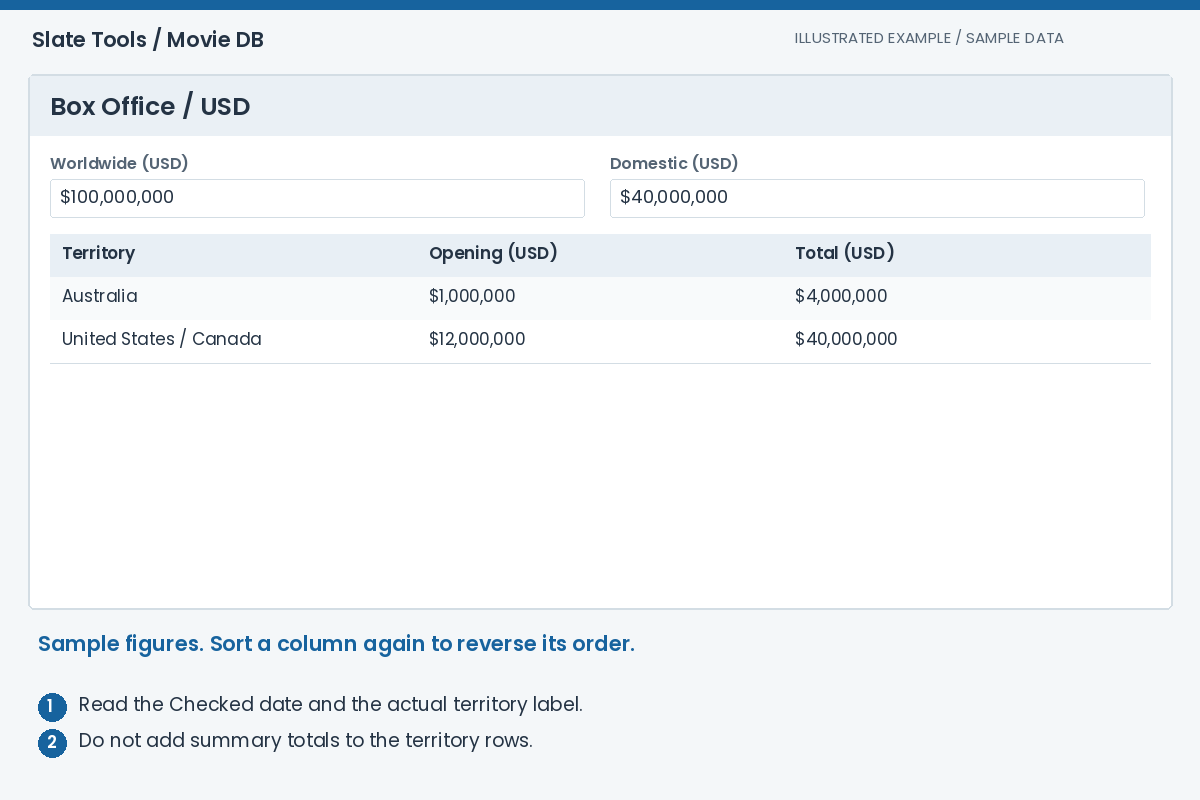
Expected result: You can compare the available territorial figures without double-counting summary totals.
Find public artwork and videos
Expand Public Artwork and Assets near the bottom. Opening it requests the available TMDB posters, backdrops, logos and video links for the selected film. Use View for a larger image, Download for the source image, or Open video for a hosted clip. A browser may open a cross-site image instead of immediately saving it.
Use Select All or Select None, then the language switches to include the material you need. NoLang means that no language is recorded; it does not guarantee that the artwork has no text. The black active switches are included, and selections are remembered in this browser across films and visits.
EN is a language while US is a country. Images filter by language; videos match either their language or country switch. An EN / US video therefore remains visible when either EN or US is on: turn both off to exclude it, or start with Select None and enable the codes you need. Read resolution and score/votes beneath images; videos show their type, language/country and publication date. Availability here does not itself establish permission for every use: check the supplier's requirements before publishing or exhibiting material.

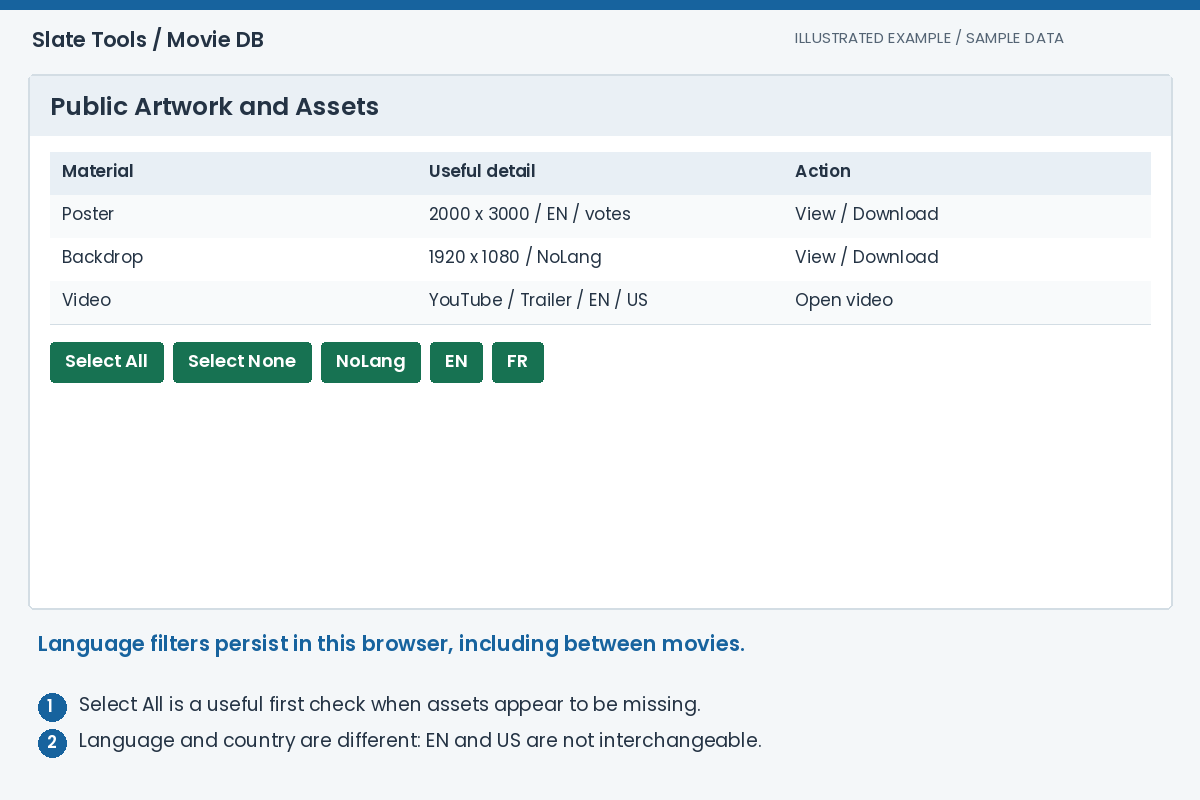
Expected result: You have found the available material in the required language and inspected its size and provenance.
Report or correct a mismatched film record
If the poster, trailer or source details belong to another film, compare the IMDb and TMDB links first. Send support the Movie DB URL and the exact mismatch. This preserves the identity of the record you are discussing.
Admin/staff users have Edit IMDb Code, Edit TMDB Code, Refresh Poster and Refresh Trailer controls. Changing an identifier can change which external film supplies metadata, so verify the source film before applying it. Delete Movie removes an imported movie record; it is not a way to clear a search, remove an image or hide one unwanted source result.
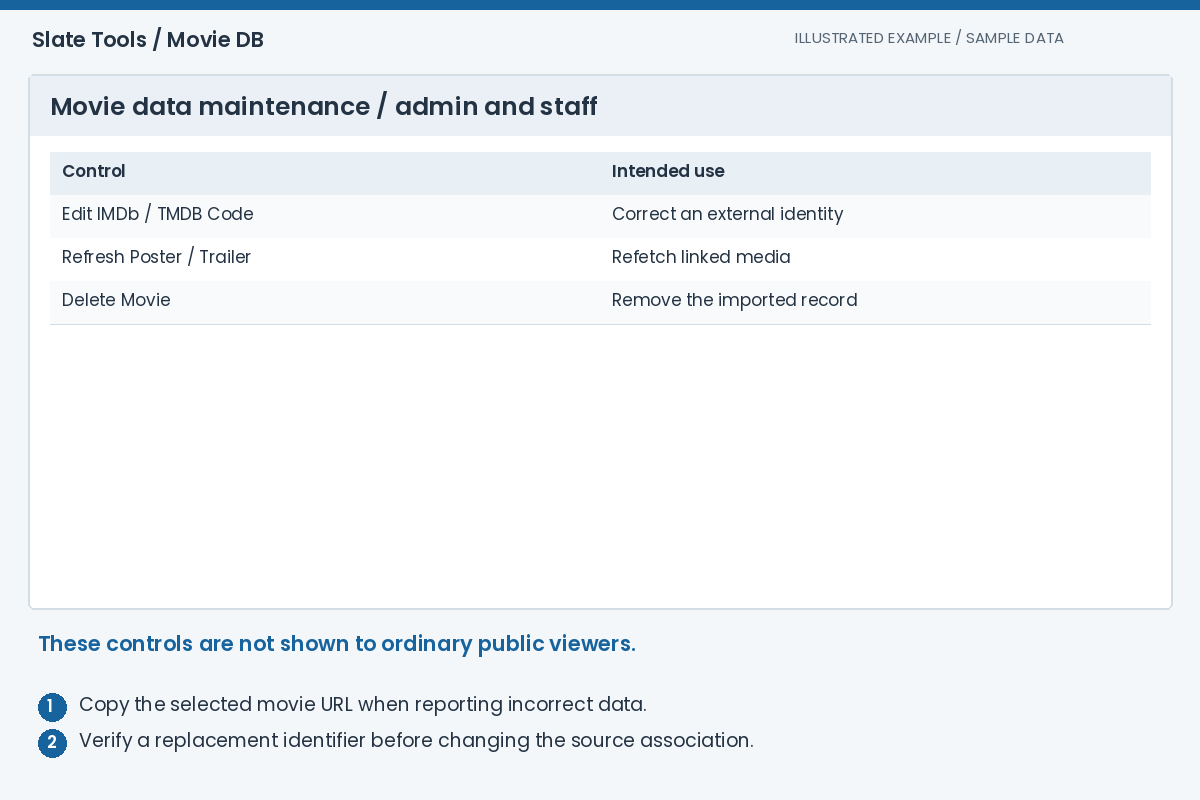
Expected result: A data issue is tied to the right movie identity and can be corrected deliberately.
Troubleshooting
Why does a title search find nothing?
Clear the other column filters, try a shorter distinctive part of the title and check the IMDb identifier. A film may not yet be imported or linked, even if a release source already lists it.
Why does my region seem to be missing?
Expand Show all in the relevant section. Profile regions limit the initial display, and each section has its own expansion. No row after expansion can mean that the source data has not been collected.
Are multiple release rows duplicates?
Compare Source, Type / Status and Active. They can represent separate sources, release types or historical states. Diff is relative to the official AU date, not proof that the scraper changed a date that many days.
Why is a score provider absent?
Providers depend on configured access, matching identifiers and available scores. Providers awaiting credentials are hidden. A missing score is not interpreted as zero.
Why are there no artwork items or videos?
Open the section, wait for its request and try Select All. Your stored language switches may exclude every result. If the loaded total is also zero, check the TMDB identity or the displayed source error.