


Cinema Sign 4.1 · Daily operation
Cinema Sign quick operator guide
A short guide to choosing content, checking playback and resolving common problems. The illustrated manual provides every setup step and screen example.
Check the player, then the physical screen.
- Open the local address shown on the player, normally
http://PLAYER-IP:8888/, and sign in. - On Status, check name, version, player time/timezone, content type, storage and warnings.
- For a cinema provider, review Import Status and the expected films/sessions. Use Provider Data Log for supplied media links and Data Update Log for download outcomes.
- Review Playback and Up Next. For Clock-synchronized playback, open the full playlist and use Go to NOW.
- After changing settings, check the actual picture, rotation, readability and several item changes. Browser preview alone cannot prove the TV output.
Run a screen entirely from Advertising Assets.
- On Settings → Player, select Provider → Advertise Only and save.
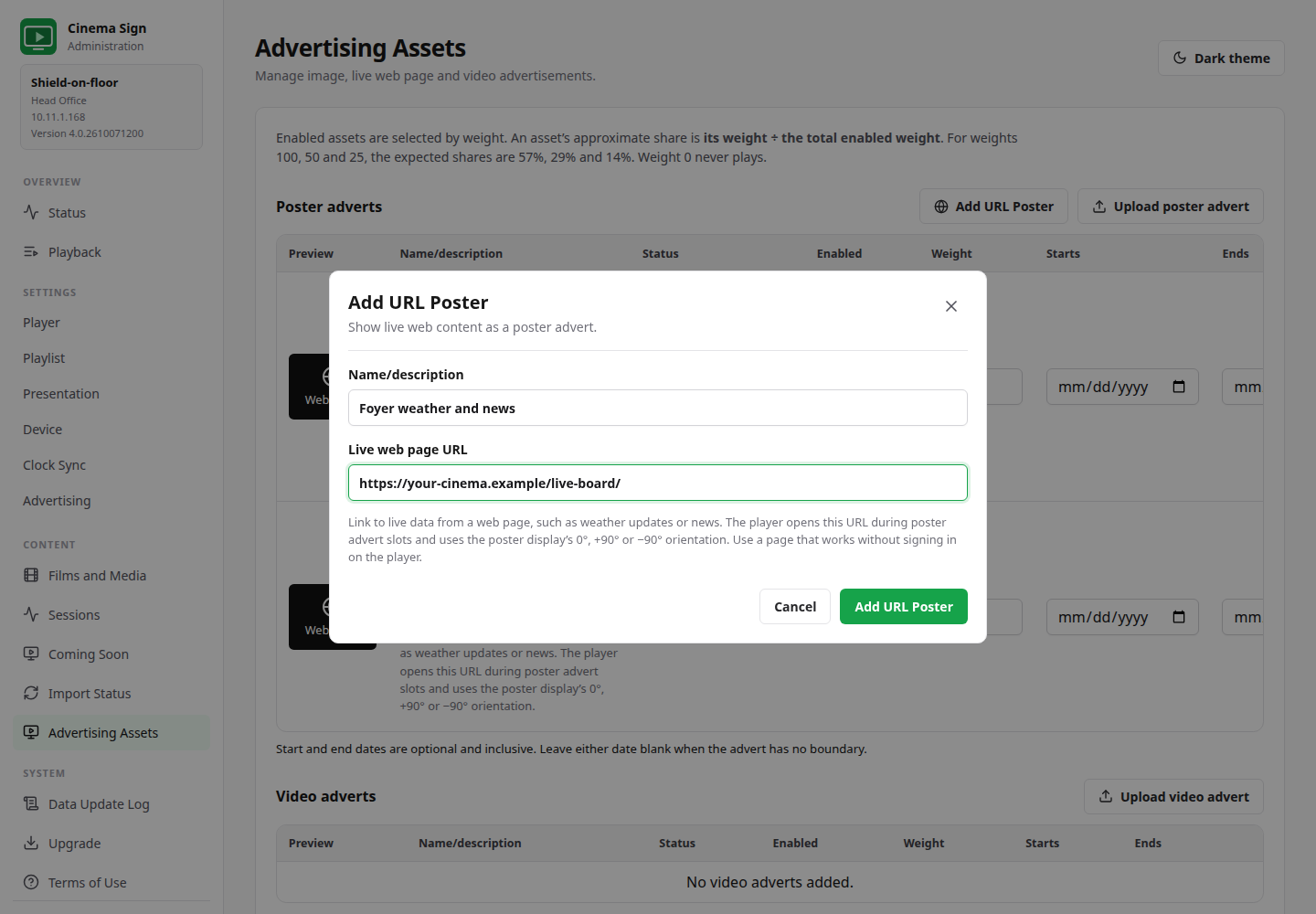
- Add images, URL posters or compatible videos under Advertising Assets. Give assets a name, enable them, set a positive weight and optional dates, then save asset settings.
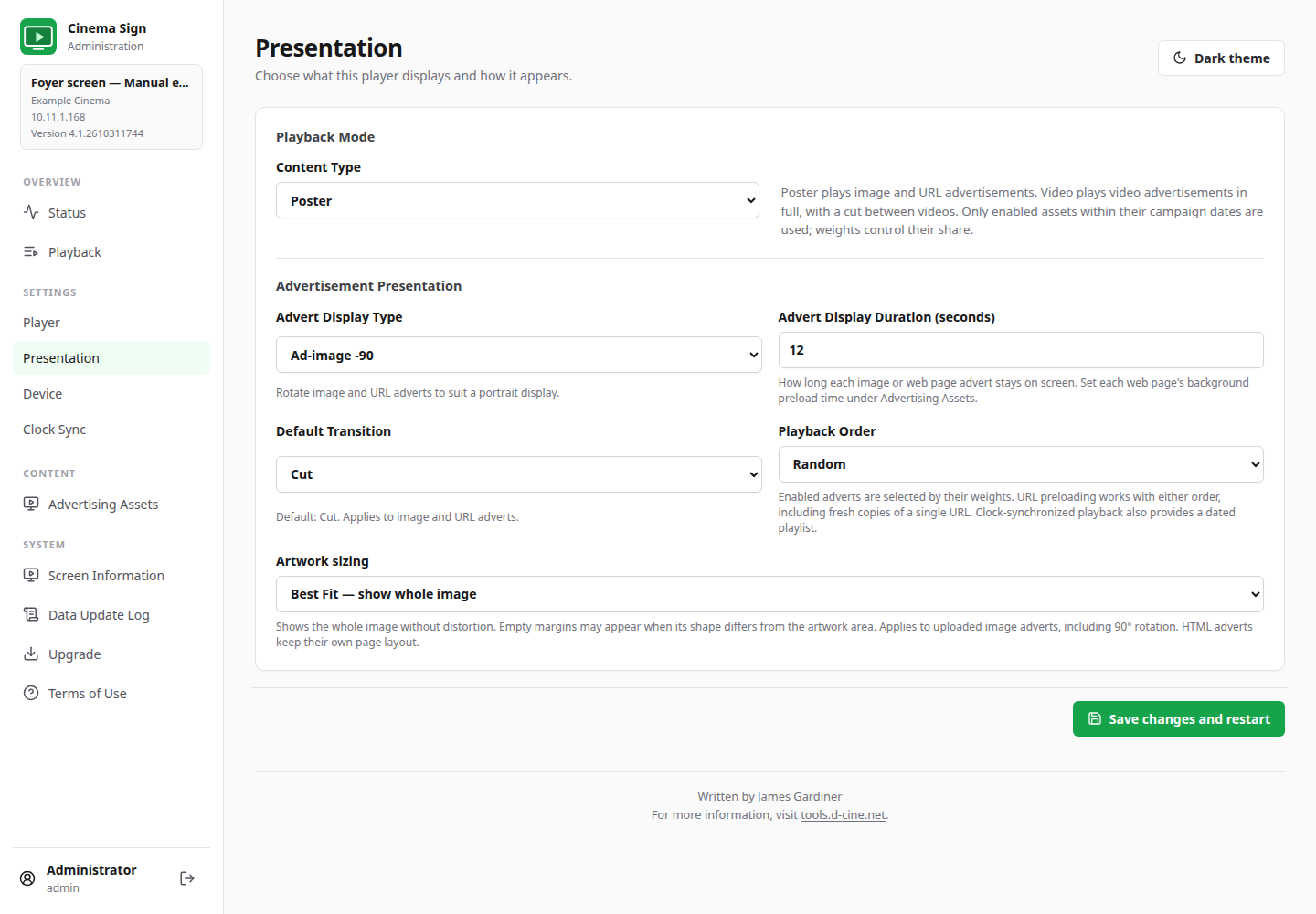
- On Presentation, choose Poster for images/URLs or Video for videos. Poster offers Ad-image and ±90° rotation, duration, artwork sizing and Cut by default.
- Choose Playback Order on Presentation. Both orders support fresh URL preloading; Clock-synchronized also has a dated playlist.
- Watch a complete rotation. Film/session menus and insertion settings are hidden in this mode. Normal cinema settings are retained for when you return to a provider.
Prepare the three film-media types.
Open Films or Films and Media. Add a manual title, search the d-cine catalogue, or select an imported film. Poster, Motion Poster and Trailer are independent assets: upload a file or set the direct URL for the intended type, download it and check the cached preview.
For d-cine posters/trailers, sign in under Settings → Player → d-cine Posters and Trailers to fetch your Media API key, or paste a key. Suitable providers can optionally fill missing posters/trailers automatically; the toggle is Off by default and needs a valid key. A later provider-supplied asset takes precedence over the automatic fallback.
Media being cached does not make a film eligible for every playlist. Check enabled state, per-media exclusions, sessions, Coming Soon and Selection Formula.
Play moving artwork with the right fallback.
- Cache the film’s Motion Poster MP4 and a still poster.
- Choose Presentation → Content Type → Motion Poster, then the layout and rotation.
- Choose Artwork sizing: Best Fit, Fill or Stretch to Fit. The default Stretch fills exactly but can distort proportions.
- Under Playlist, start with Cut. Android 14+ animated transitions show a performance warning; test the actual box and files before using them.
- Save and watch several changes. Playback is muted. Films without usable motion video can show their available still poster.
CinemaShowtimes-JSON can supply optional Motion Poster assets. Other ticketing providers are not confirmed sources; d-cine automatic matching does not supply Motion Posters. This mode has no advertising insertion.
Adjust frequency under Playlist.
Use Content Frequency below the main settings box. Minimum session cutoff filters current films using today through seven days ahead, inclusive. Current films can be weighted by their session count or evenly. Coming Soon can be weighted by proximity or evenly. A mixed rotation defaults to an even 50/50 group balance. Shares count film slots, rather than minutes.
For Enabled films, set each film’s Playback Weight. Advertise Only uses asset weights. Session boards and dedicated web pages do not need film-frequency controls.
Insert campaigns between film content.
- Add and save the images/URLs or videos in Advertising Assets.
- Use Poster or Trailer presentation, and select Clock-synchronized playback under Playlist.
- Under Settings → Advertising, enable the matching type on this player and set its interval.
- Review Up Next and a full real cycle. Followers need their own insertion switch enabled.
Poster intervals round to a poster-slot boundary; trailer adverts wait until the clip finishes. Disable an asset for later reuse or use Delete and confirm removal.
Keep a URL fresh without exposing its next load.
Set Preload time beside the URL in Advertising Assets: 0–120 seconds, default 30. A fresh hidden copy loads before each turn, including when there is only one URL. The prepared browser becomes visible without another reload. Its animations and embedded content can prepare while hidden.
If a refresh is slow or fails, the current item remains visible and a later attempt can recover. Initial startup has no previous page to keep. Use an item duration longer than the requested preload to allow the full head start, and test the actual website.
For a dedicated website, use Live HTML Page and its reload interval. For a board using the player’s cinema/session data, install a trusted Custom Display Module. These have different browser policies; see the module guide.
Share the programme, then choose the presentation.
Follow Cinema Sign Master copies programme/media/advertising assets; each player still chooses its own layout and advertising enable switches. A URL advert must be reachable from every player. Clock Sync aligns time separately. Matching synchronized output also needs matching programme, media, seed, timing and frequency choices.
Find the cause before changing the programme.
Sessions are missing although posters are already downloaded
Check the player timezone and date first. Status warns if your browser has a different timezone; a remote administrator can legitimately be in a different zone. Cached media and qualifying session times are separate. Review Sessions, Selection Formula, Minimum session cutoff and provider venue/publication mapping.
Artwork has margins, loses edges or looks stretched
Open Presentation → Artwork sizing. Best Fit preserves the whole picture with possible margins. Fill crops edges to cover the area. Stretch to Fit fills exactly and can distort proportions. Check the remaining artwork area with details enabled and verify the mounted rotation.
No adverts appear
In Advertise Only, check the selected Poster/Video type, enabled assets, positive weights, dates and viable media. In a cinema programme, also check Clock-synchronized playback and this player’s insertion enable/interval. Motion Poster does not insert adverts.
A URL shows Loading before it appears
The first page after startup still needs loading. For later turns, check the saved preload, item duration and website speed. A fresh hidden replacement should retain the previous picture until ready, including a single-URL Advertise Only playlist. Check Playback’s URL state and reproduce on the updated player.
A URL preview is blocked
The control panel uses an iframe; a site can block embedding there while still working directly in Android WebView. Check the physical player. Sign-in requirements, certificates and unsupported page features can still prevent playback.
The network icon is on but Wi-Fi works
The network-style icon means the configured provider import/contact failed, not simply missing Wi-Fi. Inspect the provider address, credentials and update result. It clears after successful contact. Manual and Advertise Only do not show it.
A poster, motion video or trailer is missing
Check the corresponding per-film media URL, cached preview, disabled flag, download result and free space. Motion Poster can use its still fallback. A missing still can retain the last good poster; a missing/unreadable trailer gets a short labelled placeholder. Repair the asset and check another cycle.
A provider has a Tested badge
It has previous successful, public-programme or sandbox evidence. Confirm your venue’s actual titles, times, cancellations, publication and media before rollout. The catalogue records evidence dates; a badge is not certification of every venue.
The app will not start automatically
Open it once, accept the terms, set Start on Boot and check applicable permissions on Device. Firmware may lack the offered Android settings screens. Test a real reboot; Force stop prevents recovery until the app is opened again.
The display reports no EDID
Open Screen Information and download its report. Android/firmware may expose resolution and Hz while withholding EDID/model or pixel clock. This does not alone indicate a fault with the television.
Keep routine diagnostics light.
Device → Diagnostics and storage writes keeps the latest bounded update report in RAM with storage persistence Off. Enable persistence temporarily if support needs the report across process restarts, reproduce the problem, collect it and turn persistence Off again. System logging controls require privileged access and do not prove that all vendor writes stop.
Clean unused data on Player reports measured recovery and permission limits. Keep useful media cached; deleting it repeatedly causes more writes and downloads. Available RAM, total RAM, data-partition capacity and total flash are different measurements.
Use Upgrade to install a published signed APK over the existing app, approve Android’s installer and recheck Status, media, layout, campaigns and startup permissions. Do not uninstall or clear data as an upgrade step.