


Cinema Sign 4.1 · Capabilities and practical limits
Cinema Sign features
Cinema Sign 4.1 combines cinema programmes, three film-media types and a dedicated advertising workflow. These are implemented features; provider and hardware limits are stated alongside them.
Match the presentation to the job.
Choose the content type under Presentation. Film selection lives under Playlist; the presentation controls decide how eligible content looks.
Poster
Artwork only, details below or landscape details beside it. Portrait variants rotate ±90°. Set duration, classification region and session time format.
Motion Poster
Muted video artwork with the same detail choices, independent ±90° rotation and still-poster fallback. Each film has a separate Motion Poster media entry.
Trailer
Full-screen cached video or trailer with poster, classification and sessions. Per-film start/end offsets support prepared excerpts.
Session Times
Landscape or portrait boards with fixed or automatic row counts, 12/24-hour times and configurable session disappearance.
Live HTML Page
Dedicate the screen to an HTTP/HTTPS web address. Set its reload interval or use 0 when the page updates itself.
Custom Display Module
Install a trusted HTML ZIP with its manifest and assets. Cinema Sign supplies cinema/session data on load and every 30 seconds.
Portrait video deserves its own media type.
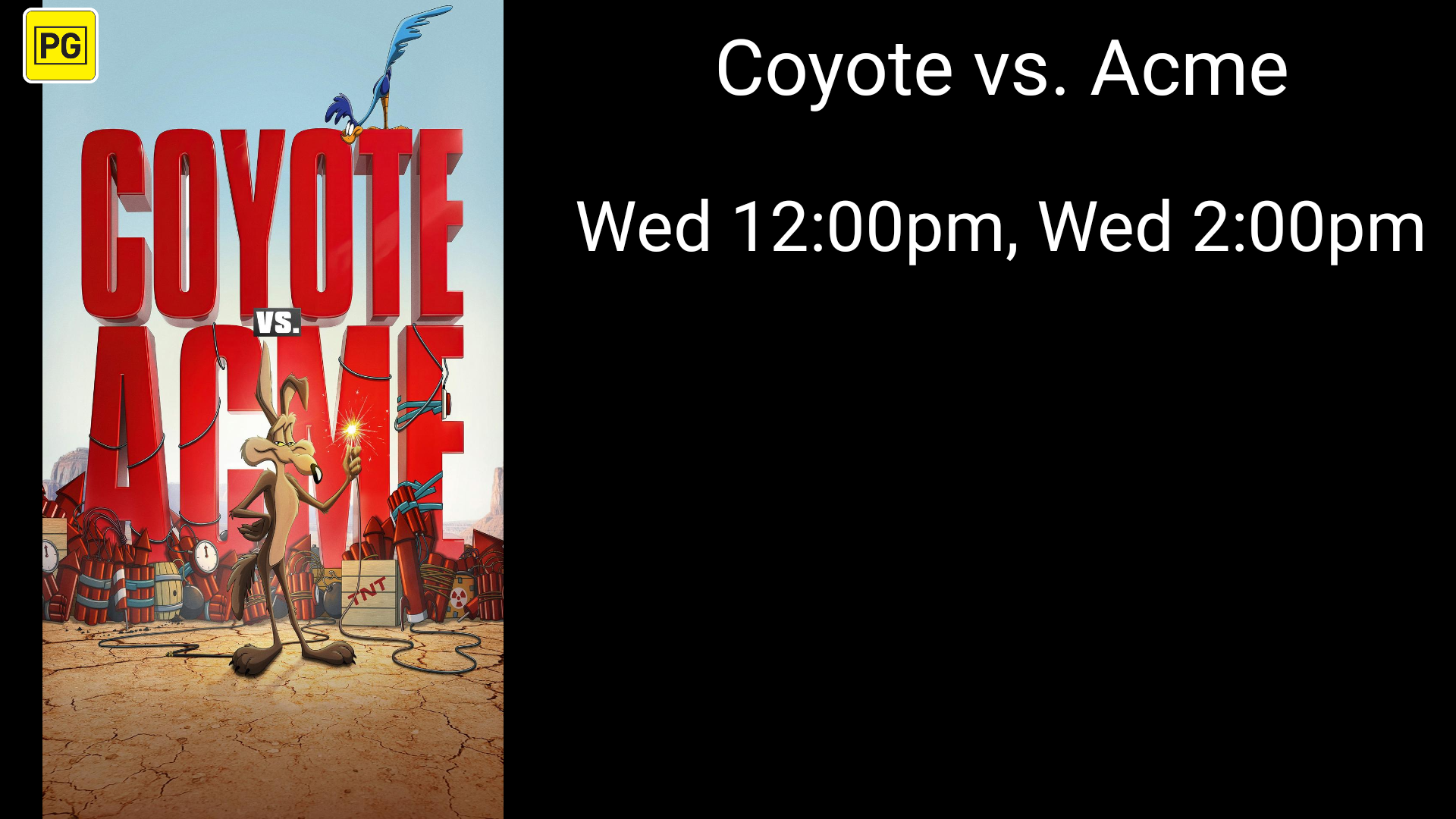
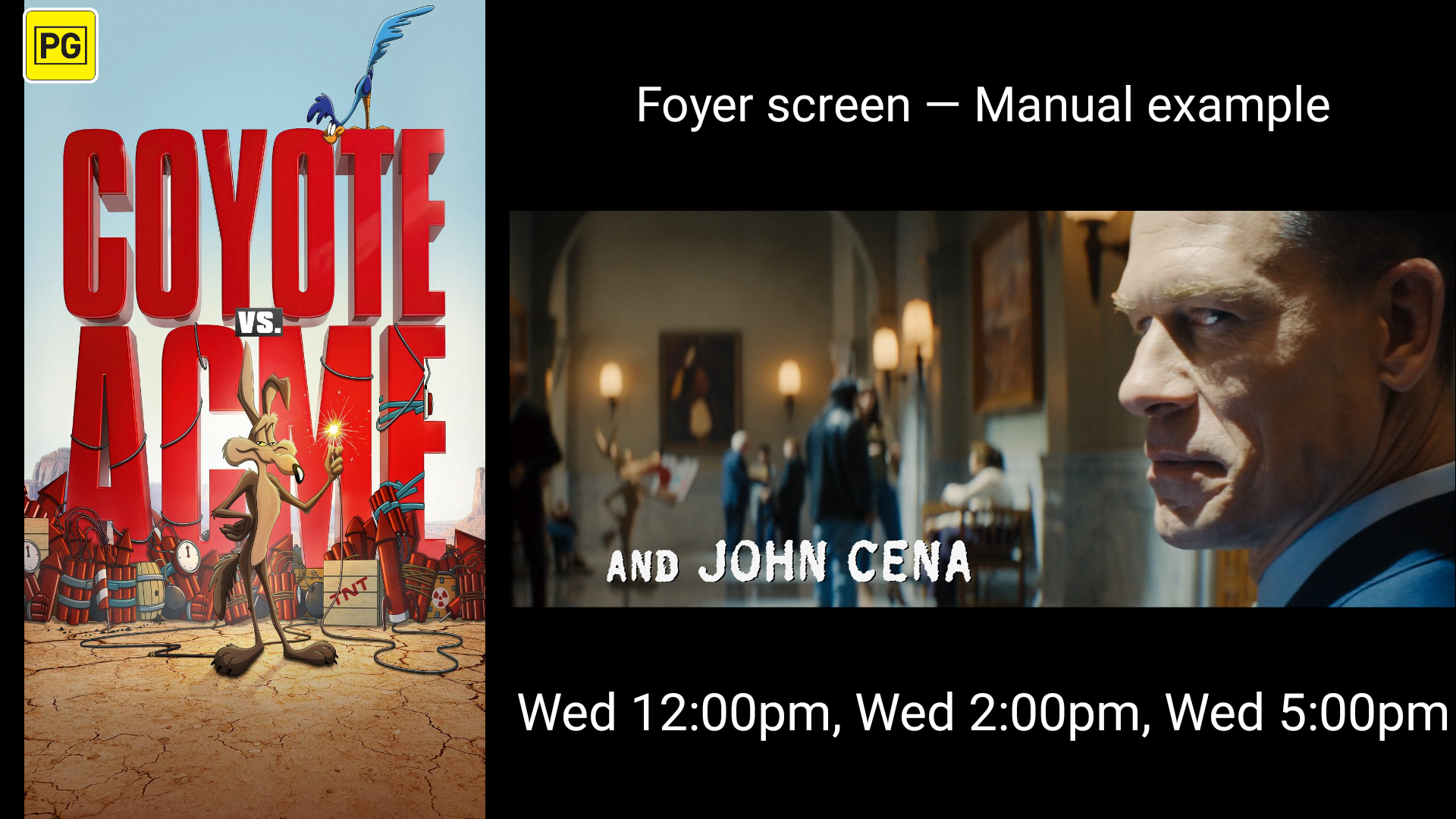
A Motion Poster can be animated artwork or a finished portrait composition with moving footage. Upload a compatible MP4, provide a direct download URL or import the optional motion_poster role from CinemaShowtimes-JSON. Eligible films without usable video can use the cached still poster.
Cut is the default on every supported Android version. Android 14+ also offers Crossfade, Slide Left, Slide Right and Zoom. The default 0.7-second overlap starts while the outgoing video is moving and is limited to a quarter of each clip. Two simultaneous decodes may stutter on some boxes; selecting an animated effect displays a warning. Test your actual files and choose Cut if necessary.
The Shield images show real Cut playback on Android 11. They do not establish animated-transition performance. Veezi and other ticketing APIs are not confirmed Motion Poster sources. d-cine matching supplies posters/trailers, and Motion Poster mode does not insert advertising.

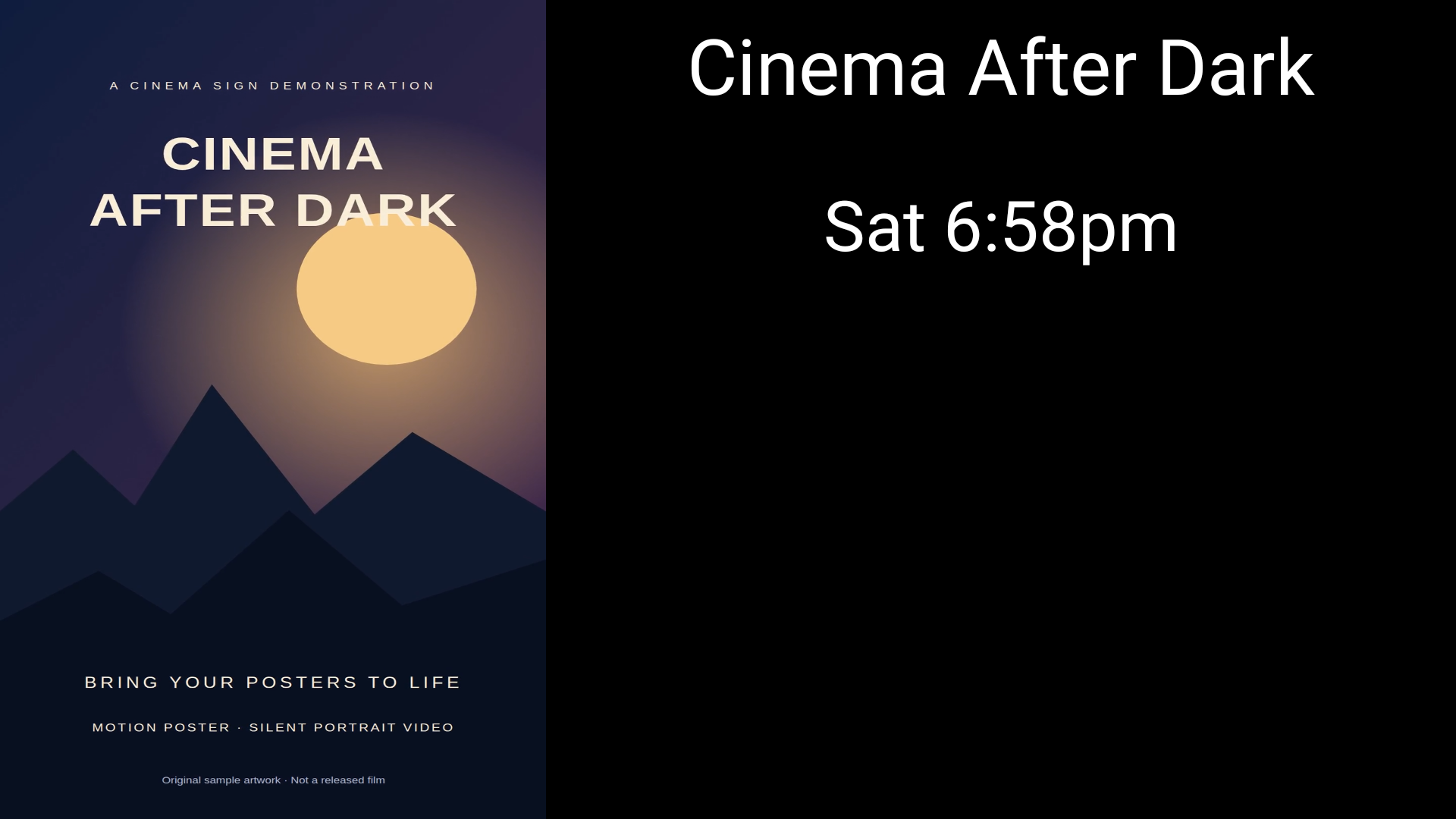
Choose coverage, proportions or the whole image.
Artwork sizing uses the area left after the detail strip or panel, including rotated layouts. It applies to still posters, image adverts, Motion Posters and fallback stills. HTML pages keep their own layout.
Best Fit — show whole image
Preserves proportions and all artwork. Empty margins appear when the artwork and display area have different shapes.
Fill — crop edges
Preserves proportions and covers the area. Edges are cropped when the shapes differ.
Stretch to Fit — exact fill
The default for an unset preference. Shows all artwork and fills the area exactly, which can make faces or lettering wider or taller. Saved existing choices are retained.
Use advertising as the whole programme—or between films.
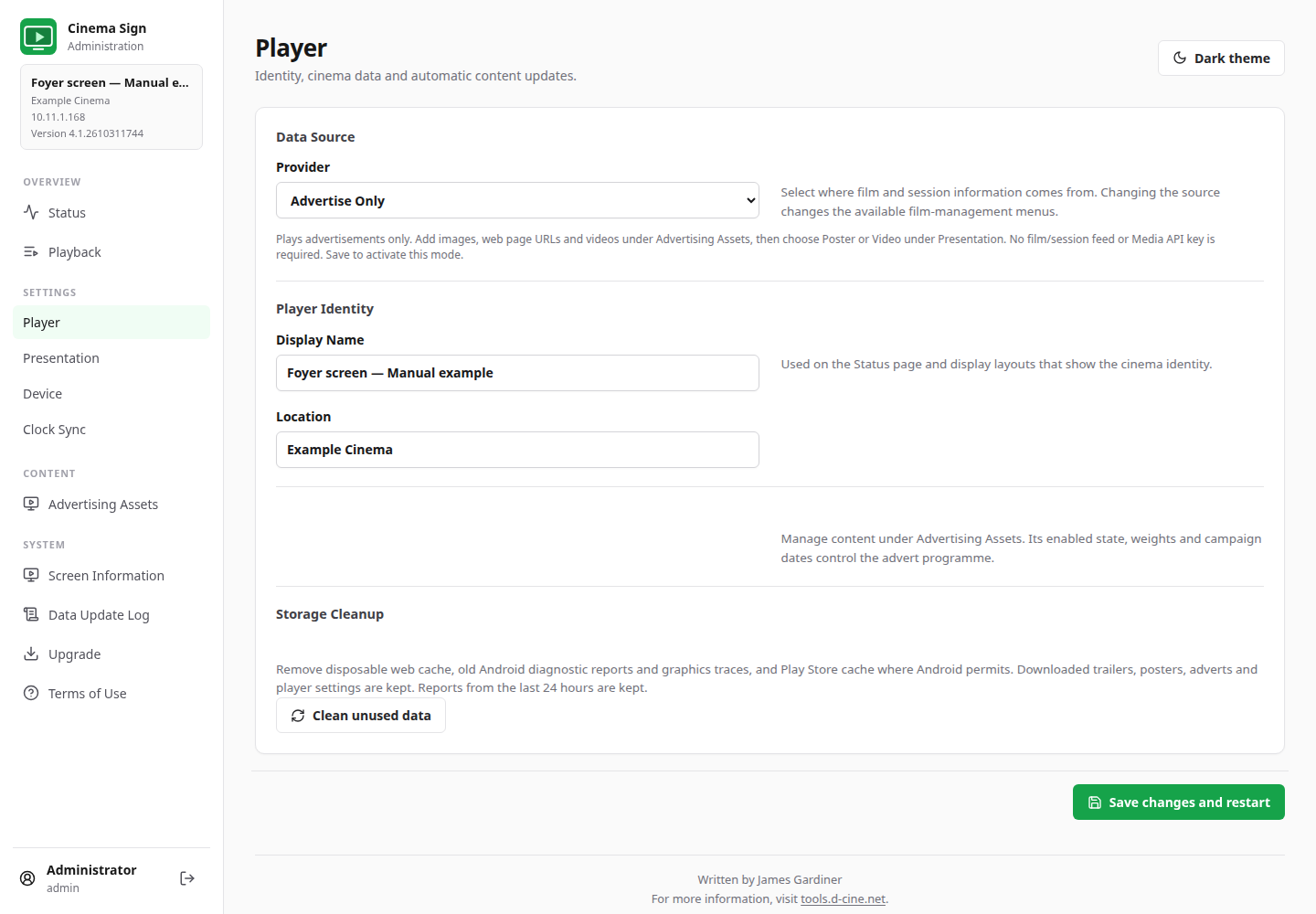
Advertise Only hides the film/session/import and insertion menus. Presentation offers Poster for images/URLs or Video for complete video adverts. Poster has Ad-image, Ad-image ±90°, a duration and Cut/Fade/Crossfade/Slide Left/Slide Right/Zoom. Video cuts between full clips.
For a normal cinema programme, poster and trailer advertising have independent enable switches and intervals. Insertion uses Clock-synchronized playback; followers enable their own advertising. Poster adverts occupy the full slot, including the detail area. Video adverts wait for the current clip to finish.
Campaign control
Named assets, preview, enabled state, weights from 0–100 and optional inclusive start/end dates. Weight 0 never plays. Missing uploaded media and invalid URLs are excluded.
Manage the library
Upload image/video files or add URL posters. Disable for later use, or use the labelled Delete button and confirm removal.
Understand the interval
Poster insertion is start-to-start, rounded up to a slot boundary: a 7-second poster duration with a 10-second interval gives an advert every 14 seconds. Advertise Only has no insertion interval.
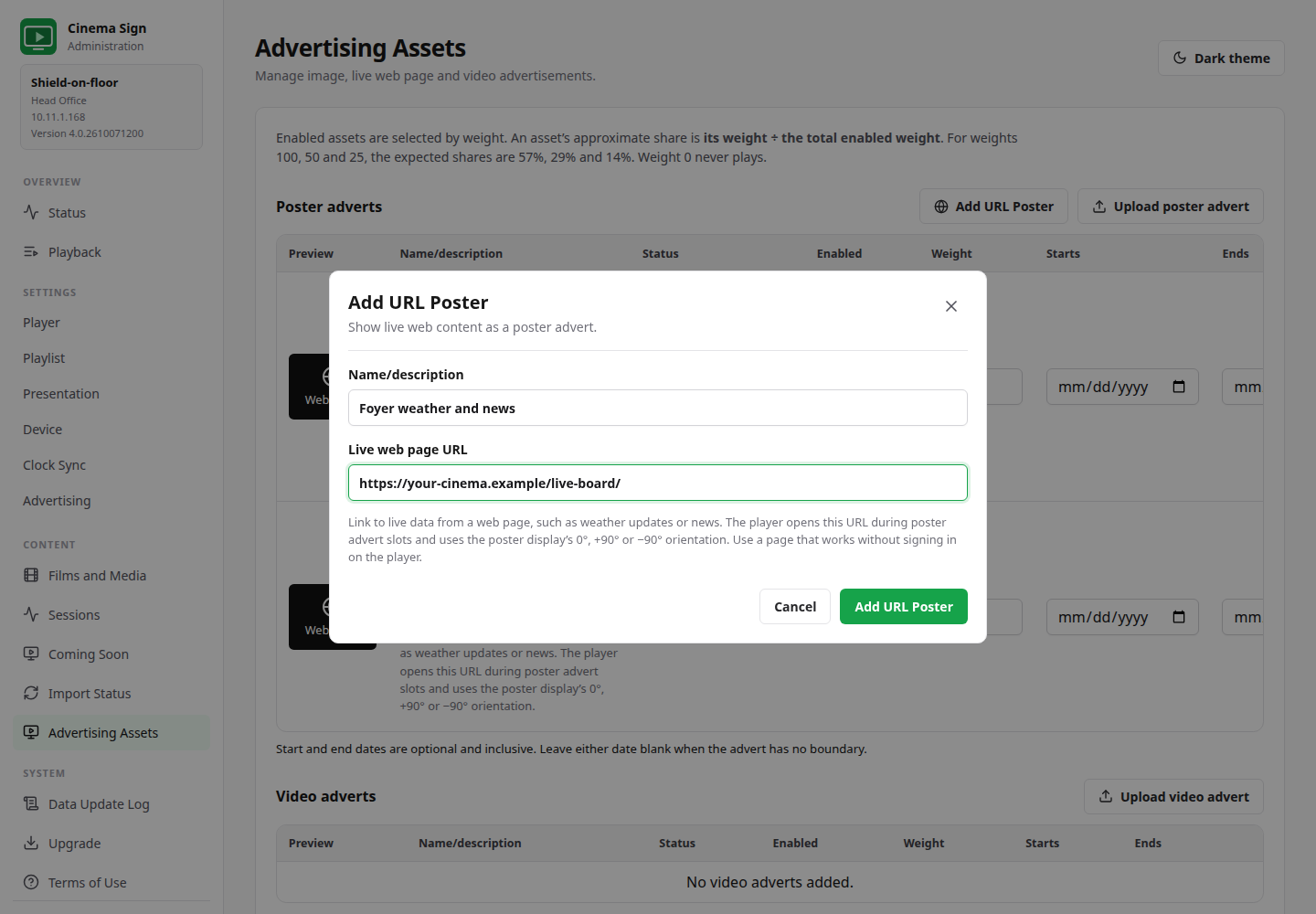
Load the next page before showing it.
Each URL advert has a 0–120 second preload time, default 30. Fresh hidden pages load in both Random and Clock-synchronized playback, including a programme containing just one URL. The prepared browser becomes visible without an activation reload, and its animation keeps running.
The main document is requested with cache revalidation, allowing changes at the same URL to be picked up while ordinary static resources can remain cached. A slow or failed replacement leaves the previous item visible and can retry. Clock-synchronized playback shows a late page only while it still belongs to the active slot. The first page after startup may show loading; preload is a head start, not a delivery guarantee.
URL adverts use normal HTTPS certificate checks and do not receive player data. Live HTML Page additionally supports local/self-signed HTTPS and mixed content for on-site boards. Local Custom Display Modules receive the display data contract and cannot navigate to external pages. Live third-party content requires network access.
Decide how often a film appears.
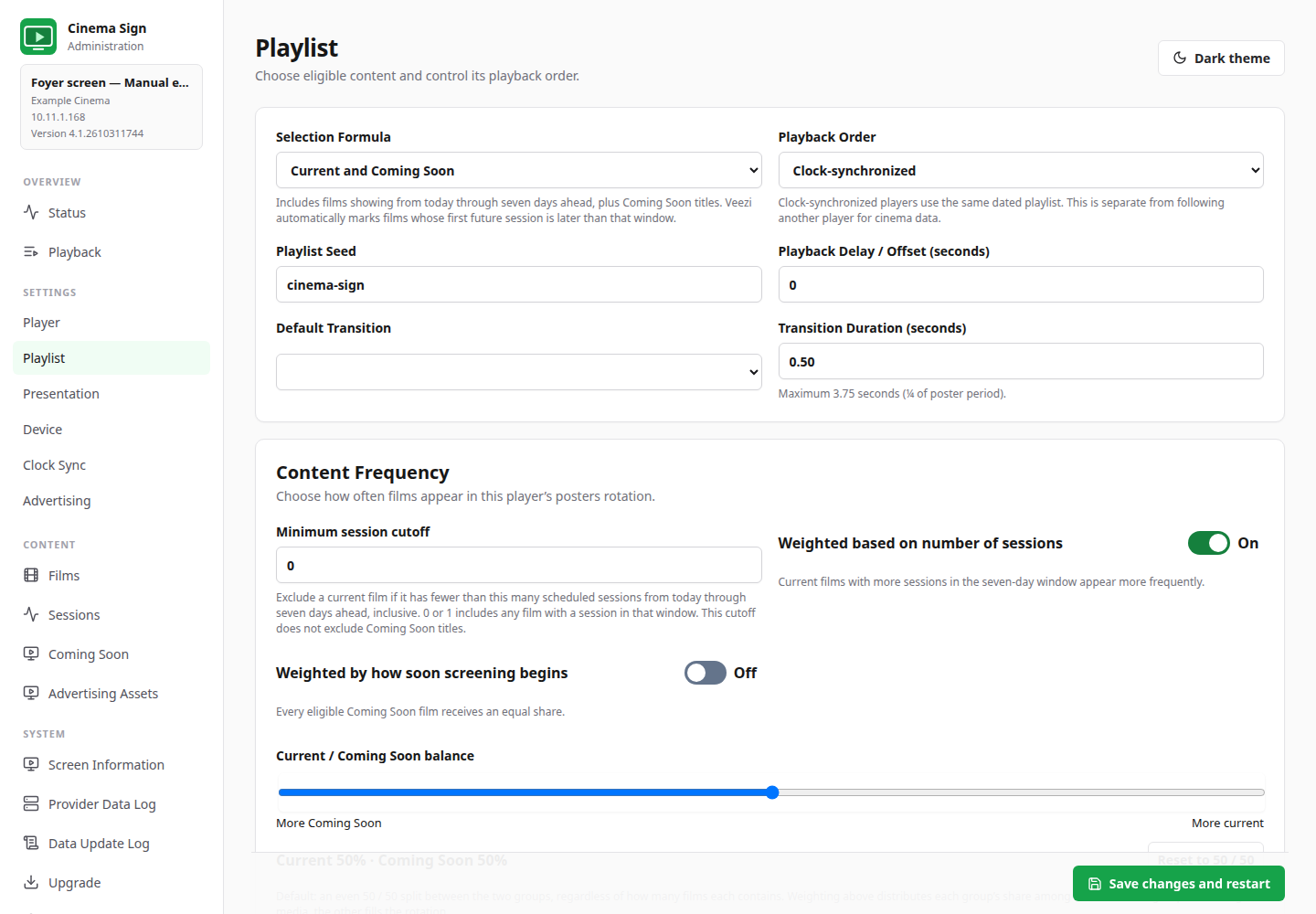
Content Frequency appears below Playlist settings for film rotations. It is hidden for session boards and dedicated HTML displays; Advertise Only uses campaign weights instead.
Current programme
Minimum session cutoff counts sessions from today through seven days ahead, inclusive. Session weighting is On by default; turn it Off to give eligible current films equal shares.
Coming Soon
Choose equal weighting, the default, or give films with nearer first screenings a greater share. An available release date is used when there are no sessions.
Mixed rotation
Current / Coming Soon balance defaults to 50/50. These are shares of film slots, not minutes. When one group is empty the other fills the rotation. Both playback orders use these rules.
Expanded cinema connections
Connect the programme. Keep control of the media.
Connect your existing ticketing system, use an open feed or share a programme between players. The expanded source collection keeps connection setup, film media and each screen's presentation together in one application.
Start with Manual, Advertise Only or Follow Cinema Sign Master. Advertise Only plays your image, URL or video campaigns without film/session data. Standard feeds include EBooking-Gateway, Veezi, both BLOAD formats and TaPOS / MEDIA2. Green Tested badges identify previously tested types; connection evidence is shown alongside each choice. The full provider list remains reachable on a phone or a short desktop window.
Native TaPOS XML
TaPOS / MEDIA2 joins BLOAD.
Import dated public performances, posters and the full public film catalogue directly from a MEDIA2 endpoint. Keep TaPOS's Coming Soon status, use unscheduled films or choose titles manually. BLOAD - TaPOS remains a separate text-export option.
Established connections
Keep using Veezi and VenueMaster.
Veezi offers regional endpoints plus Custom URL. VenueMaster has a configurable HTTP export address. Both have owner-confirmed successful prior tests. EBooking-Gateway also has prior connection evidence and imports films and sessions over the local network. The existing Veezi reader was retained during the expansion. CinemaShowtimes OpenAPI, BLOAD.TXT and master-player sharing remain available alongside the new readers.
A wider ticketing collection
Connect more cinema programmes.
Readers include RTS, Spektrix, Eventive, TicketingCiné, Fienta, Ciné Office and more. Provider setup notes explain the feed, credentials and mapping required. Check the status of your connection before committing to a rollout.
Visible import results
Check what the player received.
Test connections where offered, inspect Provider Data Log for received links and eligibility, and read Data Update Log for download work and errors. Confirm the cinema, venue timezone and publication rules against your ticketing system.
Your media choices survive
Improve artwork without losing control.
Choose posters and downloadable trailers from d-cine, or upload your own media. Suitable providers can optionally fill missing posters/trailers by title matching; the option is Off by default and needs a valid Media API key. Provider-supplied assets take precedence over automatic fallbacks. Local film/media overrides survive programme imports, and explicitly chosen trailers are retained through automatic scans. d-cine requires your own Media API key.
One programme, several screens
Share data; choose each layout.
Follow a Cinema Sign master for films, sessions and cached media. Keep a portrait poster screen, a trailer screen and a session board on different layouts, with advertising controlled on each player.




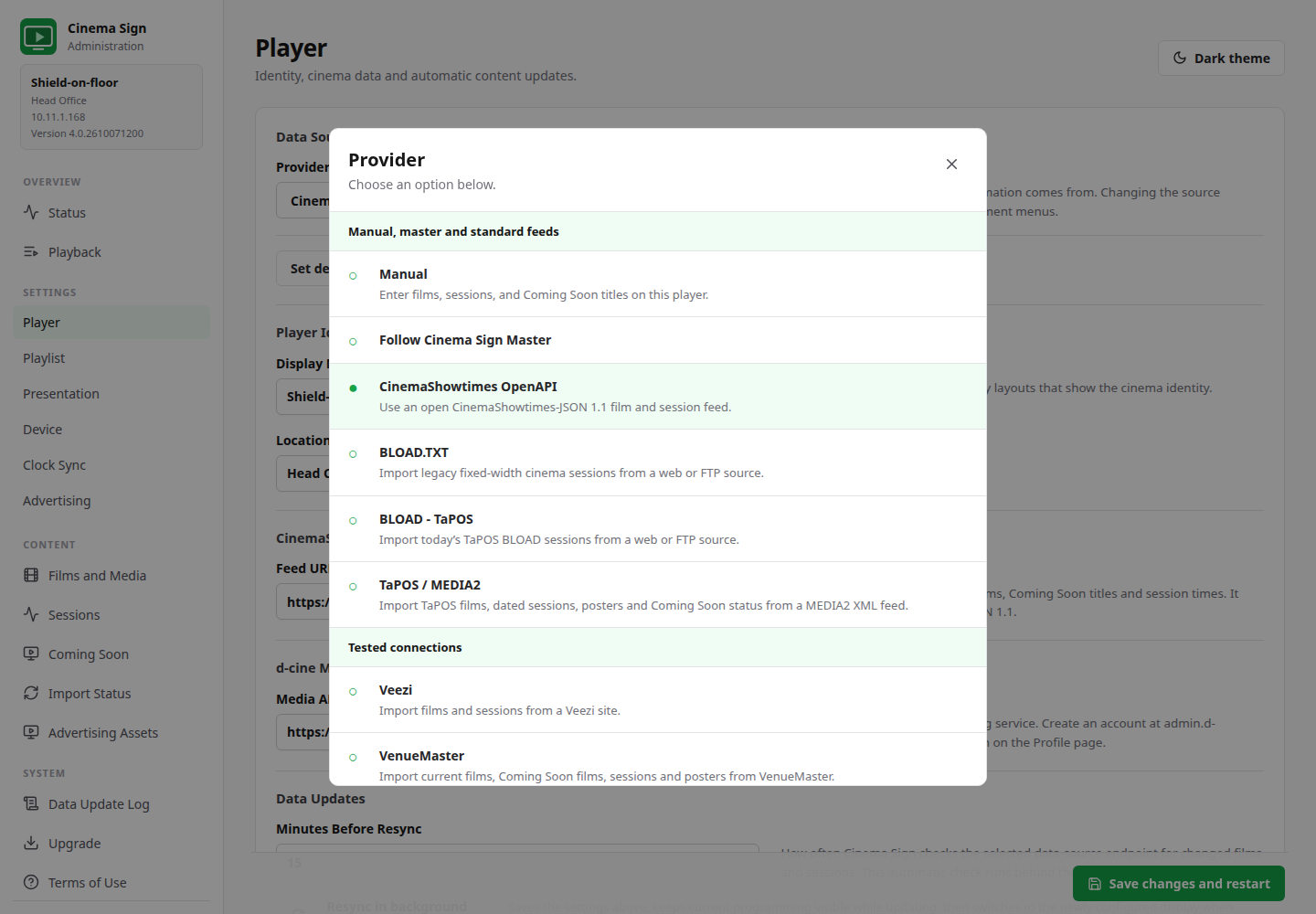
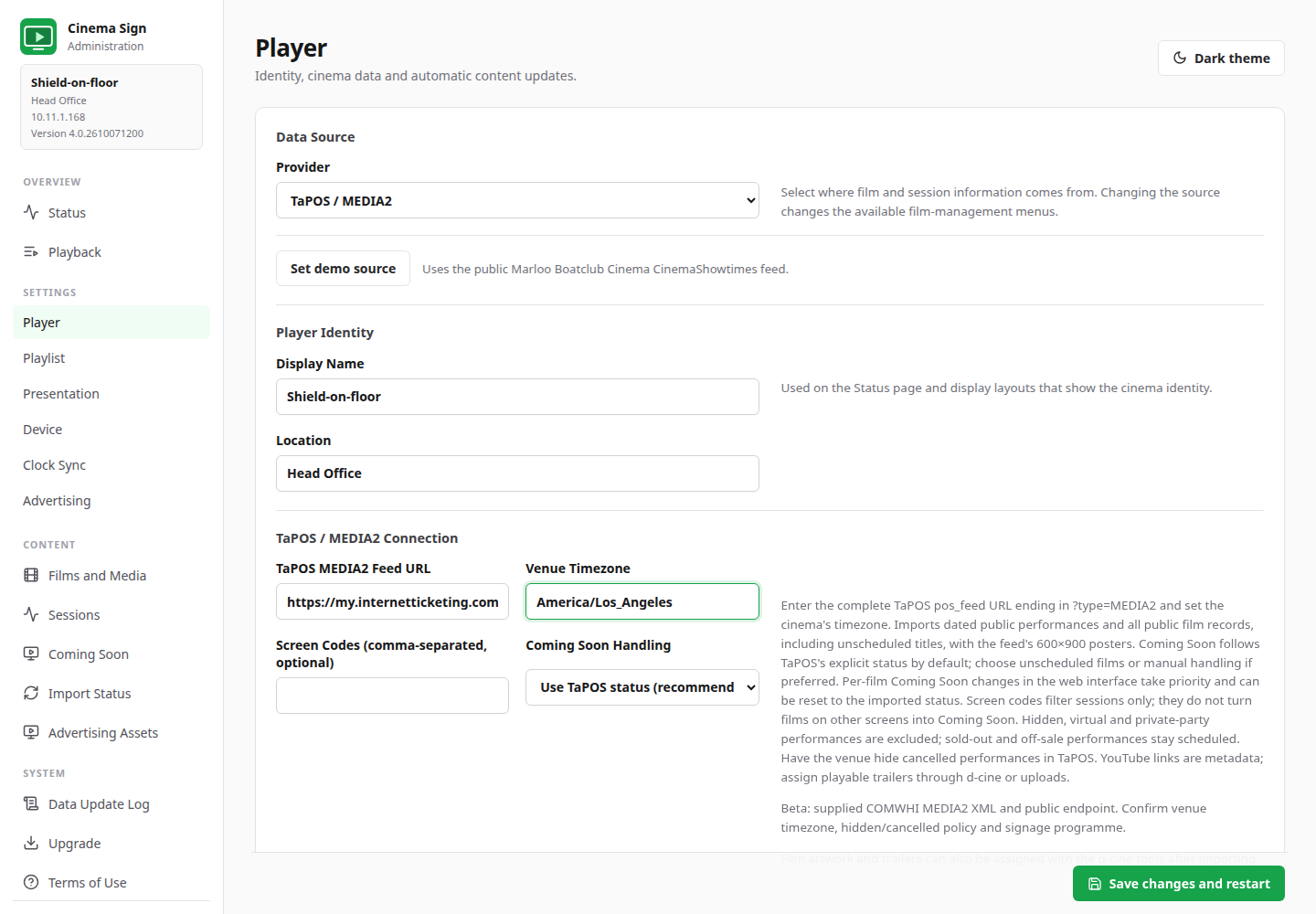
Evidence is visible: 10 ticketing readers have public-programme or vendor demo/sandbox passes; Veezi, VenueMaster and EBooking-Gateway have separate prior connection evidence. The catalogue distinguishes supported, beta, planned and deferred entries, with dated evidence for each.
40 input types does not mean 40 independently proven production APIs. Beta readers, including TaPOS MEDIA2, still need acceptance against your cinema's programme, timezone and publication/cancellation rules. Planned entries are not selectable.
Connect, inspect and enrich the programme.
Veezi offers a region selector and Custom URL. Its returned poster URLs are used as supplied, independently of the schedule host. VenueMaster suggests http://POS-IP:4065/VenueSchedule.json; confirm the configured port, export and any forwarding with the venue administrator.
EBooking-Gateway imports films and dated sessions over a TCP connection, default port 4016. Its reduced gateway protocol has no media URLs. A valid d-cine Media API key is required for matched posters and downloadable trailers: exact title, then prefix for truncated names, then a cautious best match against releases from three months ago onward.
Suitable providers offer an optional Use d-cine for missing posters/trailers toggle, Off by default and saved per provider. A valid Media API key is required. If the provider later supplies the asset, its automatic version replaces the fallback. Explicit local choices remain under your control.
Three film assets. Deliberate choices.
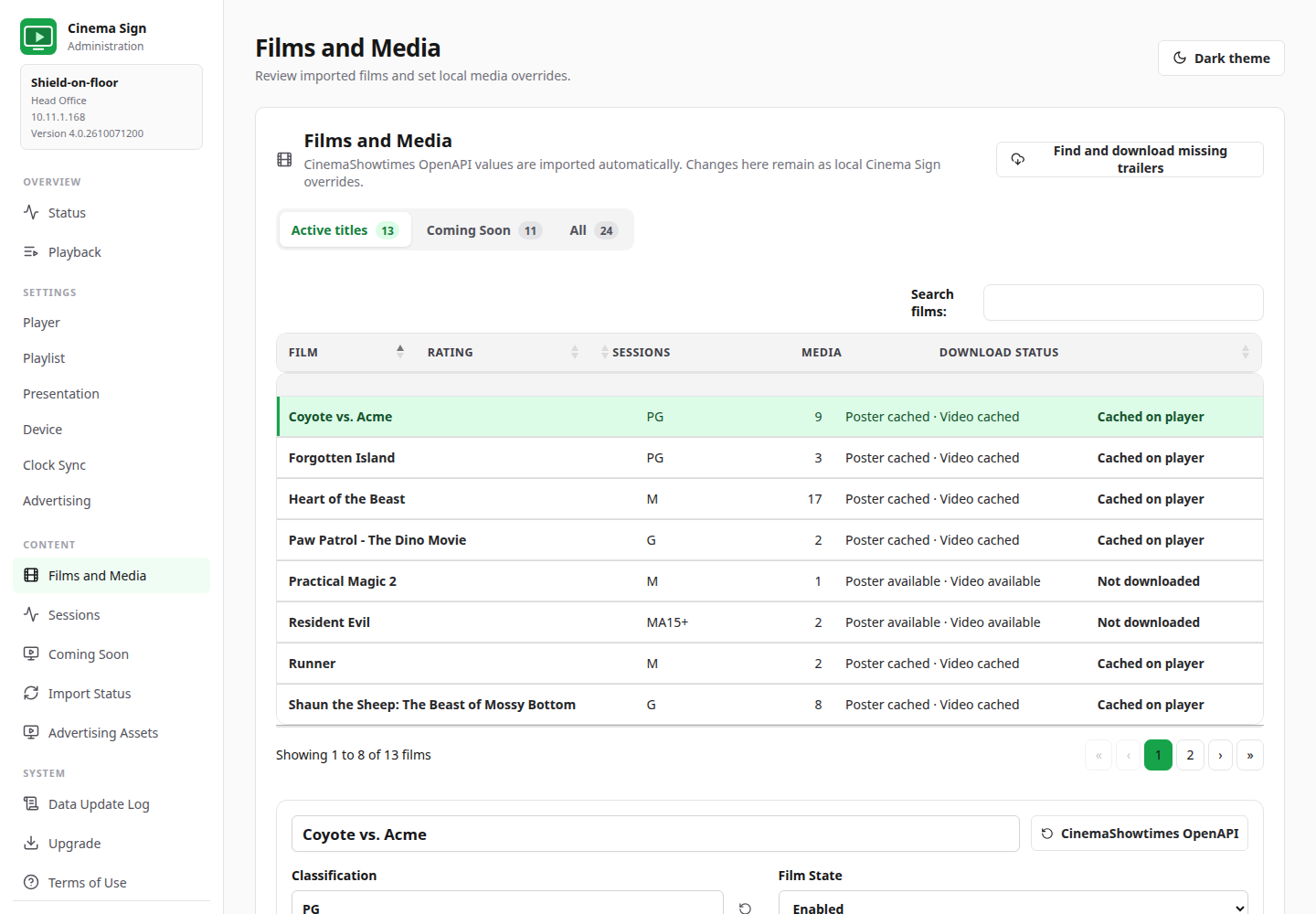
Each film can have a Poster, Motion Poster and Trailer, with separate URL/upload controls, cached previews and playback exclusions. Correct title/classification, edit sessions and Coming Soon status, and retain local overrides through imports.
Sign in with a tools.d-cine.net username and password to fetch your Media API key, or paste an existing key. The password is used only for that sign-in. Search the d-cine catalogue for titles, posters and downloadable trailers, filter choices by language and select the asset you want. External video links are preview-only. The app does not include a shared media key.
Share data and align clocks separately.
Follow Cinema Sign Master shares films, sessions, cached media and advertising assets. Each follower keeps its own layout and advertising settings. A shared web advert is an address: each player must reach the website itself.
Clock-synchronized playback builds repeatable dated playlists with a seed and per-player offset. Player Clock Sync discovers peers, elects a clock master or accepts forced roles, reports conflicting masters and measures video drift. Matching output also needs matching programme, media, timing, frequency and advertising settings. Third-party pages are not guaranteed to animate in lockstep.
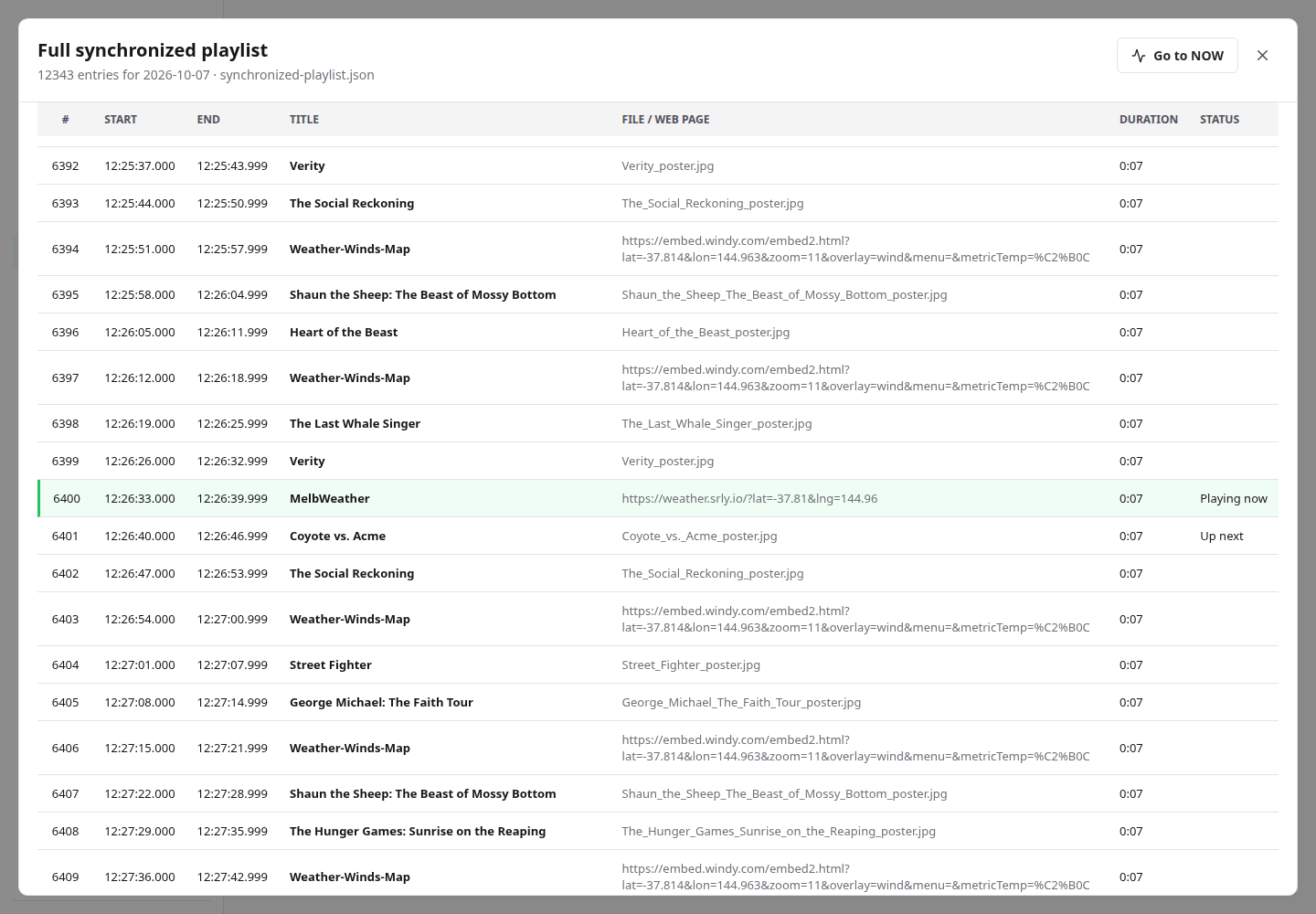
A local control panel that fits a phone.
Use the player’s local website for Status, Playback, settings, downloads and upgrades. Light/dark themes, reachable navigation, scrollable tables and option dialogs support phones and short windows. The control panel reconnects when the player returns.
Status compares the viewing browser’s timezone with the player’s timezone. A mismatch warning can be expected for a remote administrator, but an incorrectly configured player zone affects sessions and schedules. Screen Information separates active output from Android rendering resolution and lists refresh rate, supported modes, HDR and EDID/identity data when firmware makes it available. Download the report for support.
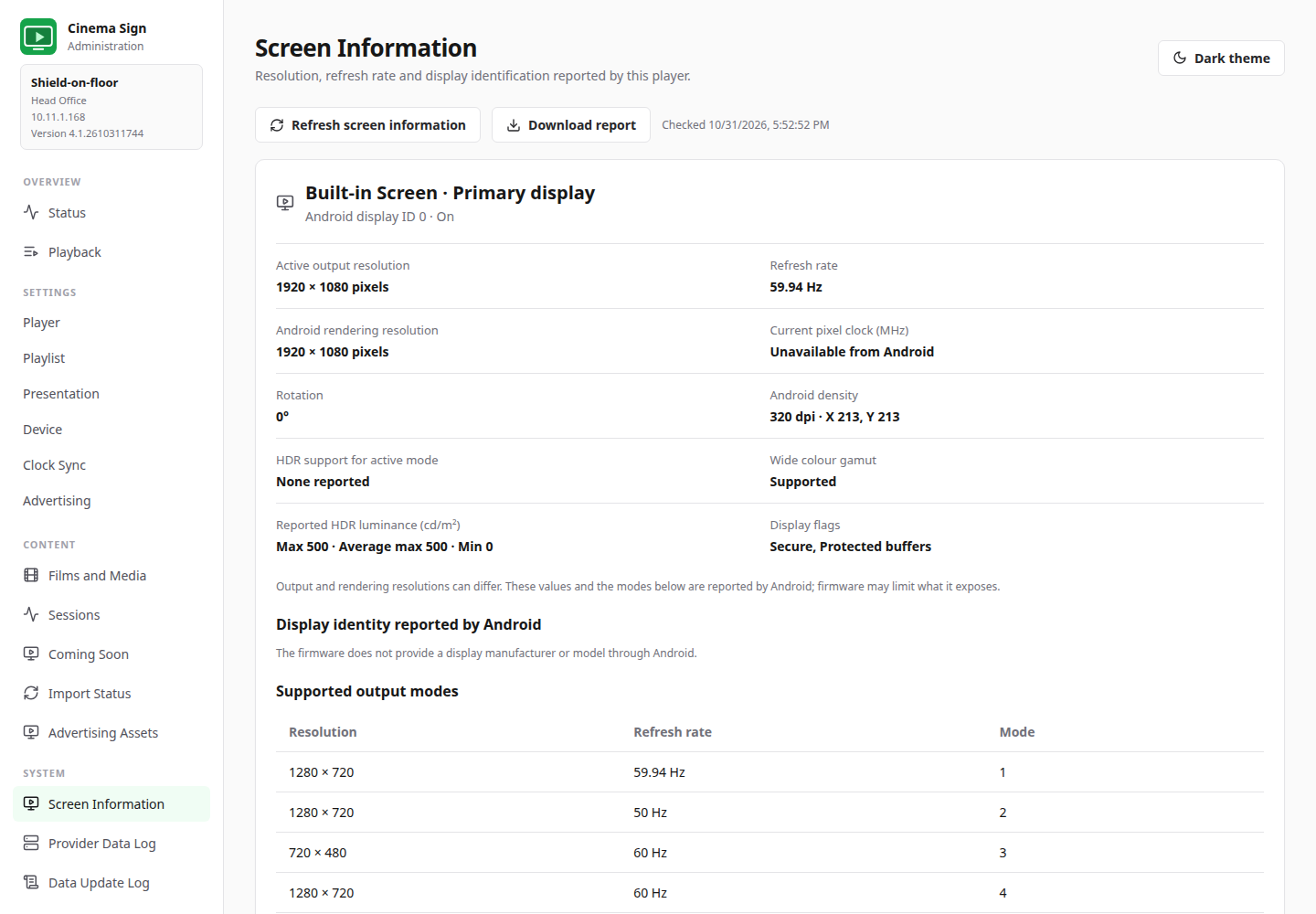
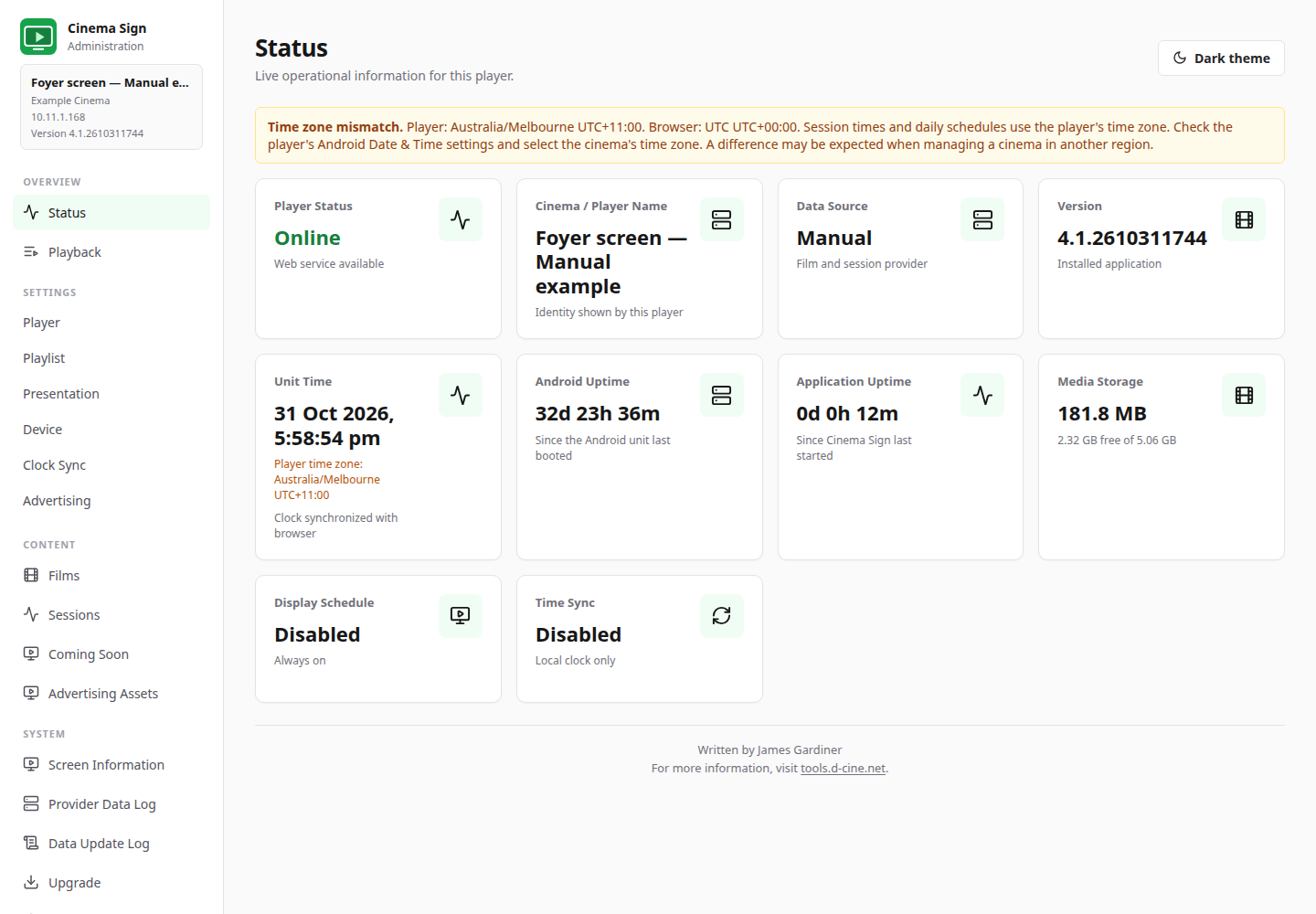
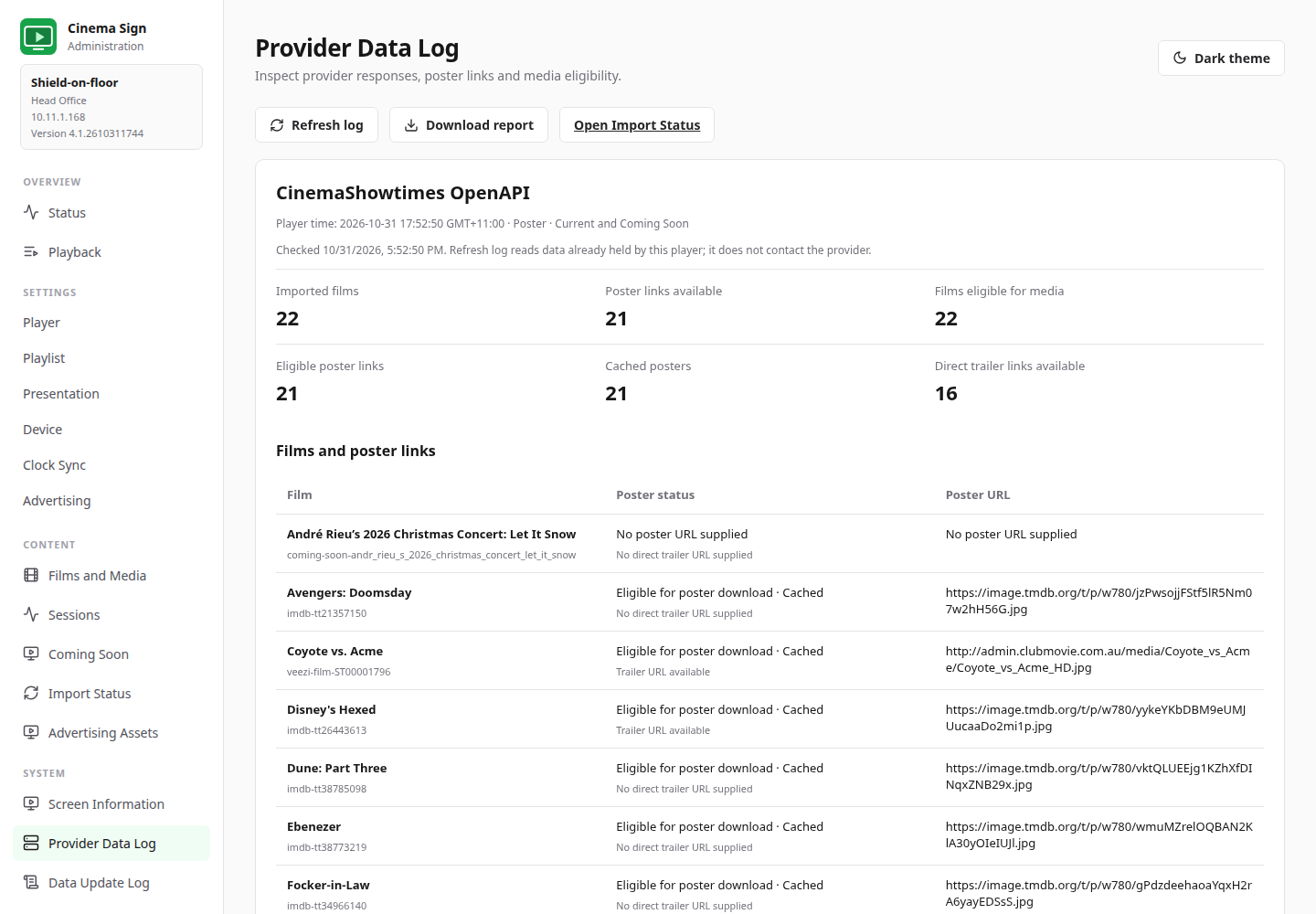
Explain an import before changing the setup.
Provider Data Log shows received films, media URLs, eligibility and cached state. Refreshing that view reads the player’s held data; it does not contact the provider. Data Update Log describes update work, download decisions and errors. A skipped download can mean the file is already cached—it does not prove the film has a qualifying session.
The network-style icon indicates failure to reach/import the configured provider, rather than general Wi-Fi loss. It clears after successful contact and is absent in Manual and Advertise Only. A separate missing-media indicator reports unavailable film assets.
Latest bounded update diagnostics are available in RAM. Keep storage persistence Off normally; enable it temporarily when support needs a report across process restarts. System logging controls require confirmed privileged access. RAM buffers, disk collectors and vendor logging are different things.
Prepare the hardware for unattended use.
Start on Boot, display schedules, applicable permission checks and nightly application restart support unattended operation. HDMI-CEC screen power, exact alarms and background startup depend on firmware and television support. Test a real boot and overnight cycle.
Cached film media can continue without the provider while stored content remains usable. Live pages and fresh imports still need connectivity. Missing posters retain a last good image where available; missing/unreadable trailers use a short labelled placeholder. Process recovery requests are subject to Android restrictions; Force stop disables recovery until the app is reopened.
Clean unused data reports measured space and permission results. Avoid repeatedly deleting useful media, which causes more downloading. Installed RAM, available RAM, data-partition capacity and total device flash are different measurements.