11 minute guide · 7 illustrated steps
Maintain facilities, auditoriums and OpenTDL devices
Keep the relationship between a cinema, its screens and its player identities current. OpenTDL data is used to resolve recipient certificates, address KDM delivery and support managed bookings after equipment changes.
Open Facilities/OpenTDLBefore you begin
- Know the facility's physical address and chain or circuit so you can identify the correct record.
- To edit, use an account with facility edit permission. The page explains the association process when you do not have access.
- Have each auditorium's name or number, player serial number, and manufacturer/type where known. Obtain the current KDM delivery email addresses from the cinema.
Recognise the screen
These screenshots show the actual tool. The numbered steps below use labelled examples to explain the selections and results.

Find the correct cinema
Open Facilities/OpenTDL and filter the facilities table by name, chain/circuit or address. Select the row for the intended physical cinema. Check its address and displayed country before relying on a familiar name.
Search filters and the selected facility are represented in the page URL, so a copied link or refresh can return to the same selection. Access permissions still apply to whoever opens that link.
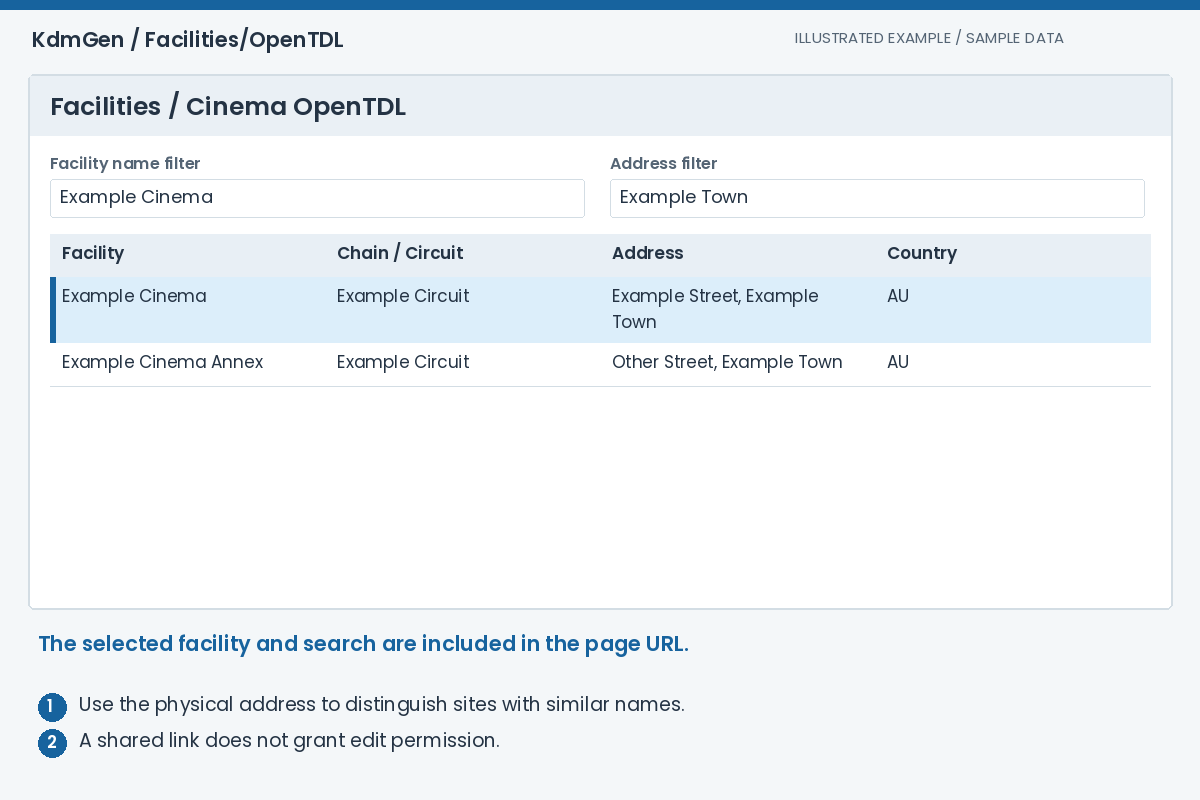
Expected result: Facility Detail belongs to the actual site you intend to maintain or target.
Check or request edit permission
An administrator, the facility creator, a directly associated user, or a user associated with its chain/circuit can have edit access. The page lists Users with Facility edit permissions for people who can edit.
If you cannot edit, read the blue instructions. Associate me via Email checks whether your account email matches a facility email. SEND EMAIL FOR ASSOCIATION requests approval through the facility's recorded email contacts. An approving recipient forwards the Association Code to you; enter it within 30 minutes.
If neither route is suitable, contact site support with evidence of your connection to the cinema. Emails and the full FLM URL are restricted, so a public viewer should not expect to see those fields.
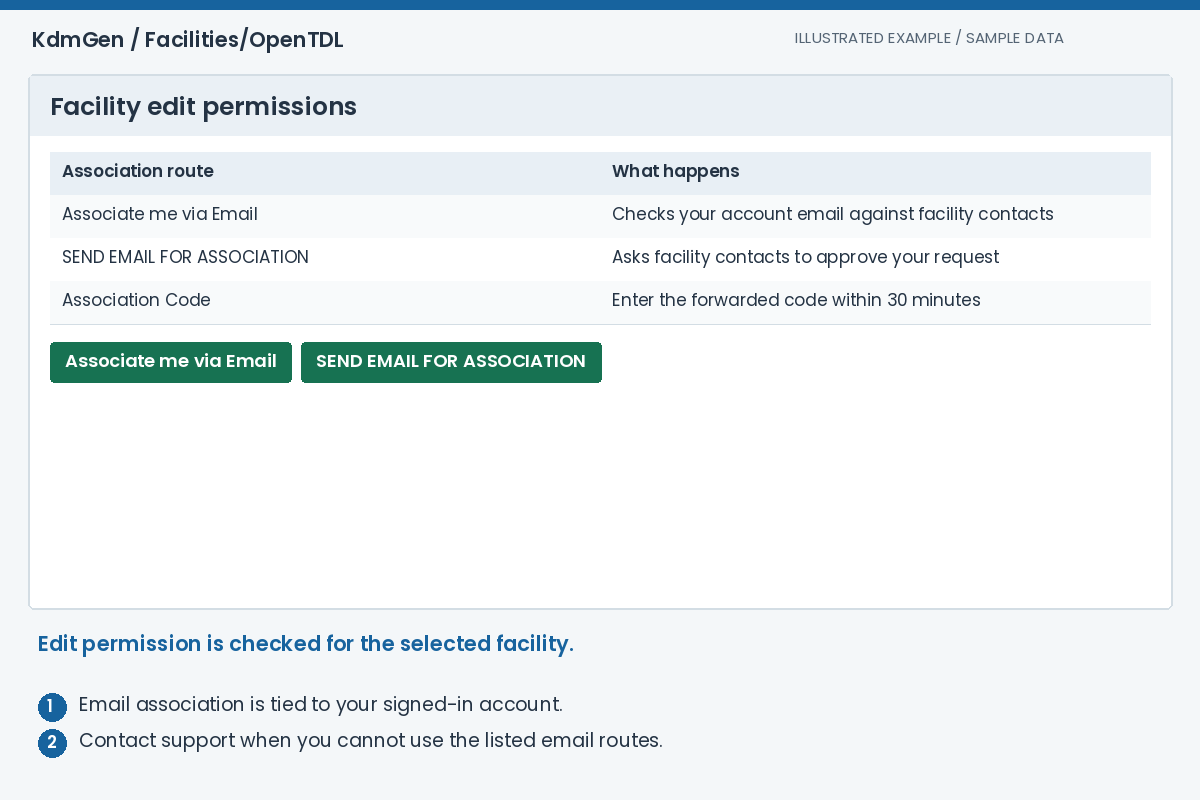
Expected result: You either have edit access or have followed the facility association process.
Review details, contacts and addresses
With edit permission, press Edit in Facility Detail. Review the facility identity and Chain / Circuit selection, then check Facility Contacts and Facility Addresses. Keep physical and mailing addresses in their appropriate fields.
Use the question-mark help beside labels for field-specific FLM explanations. Contact roles describe who to reach, while the KDM delivery configuration belongs in Facility Capabilities. Save changes and reselect the facility to confirm the stored values.
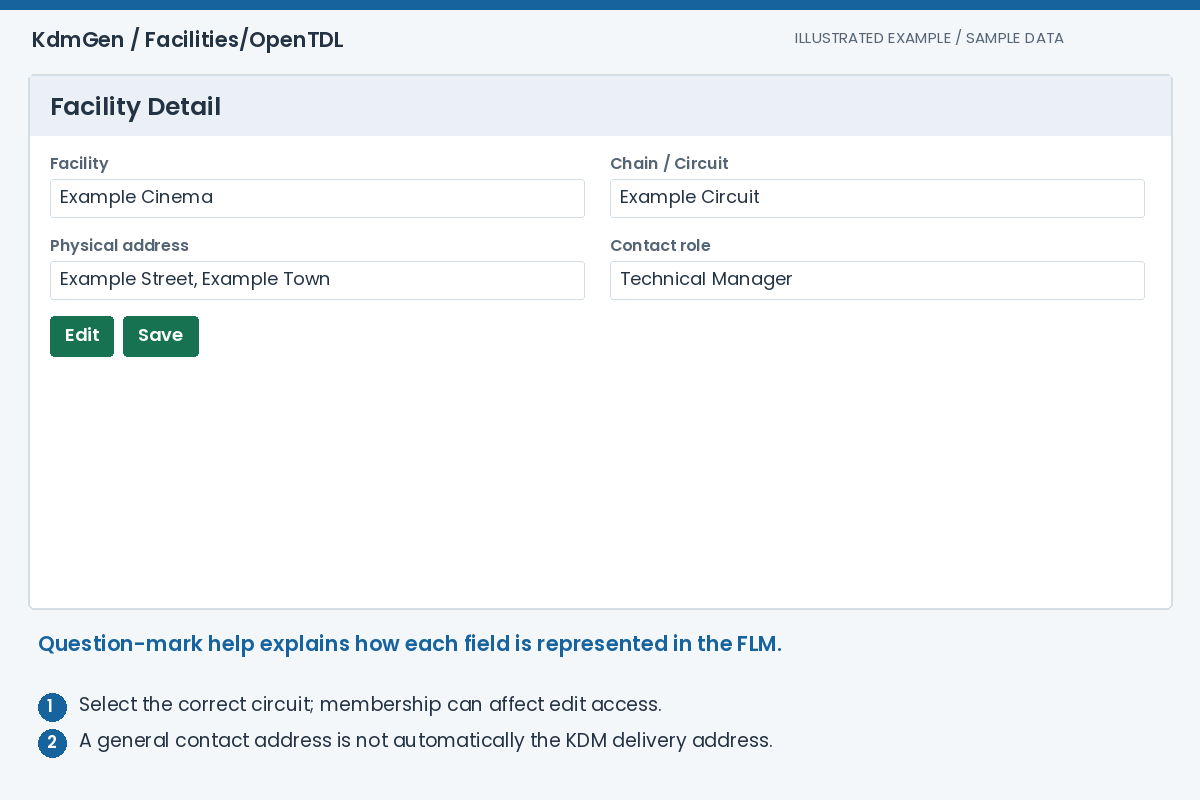
Expected result: The facility's identity, association and contact information reflect the cinema.
Add a screen in Simple mode
Find Facility Screens / Auditoriums. Simple is the default view and concentrates on the screen identity and its player. Use the auditorium add control, then enter Number/Name so booking users can recognise that screen.
Each auditorium has its own section headed Auditoriums followed by its number or name. Add a separate auditorium for each real screen. Avoid creating another screen record just because the player inside an existing screen was replaced.
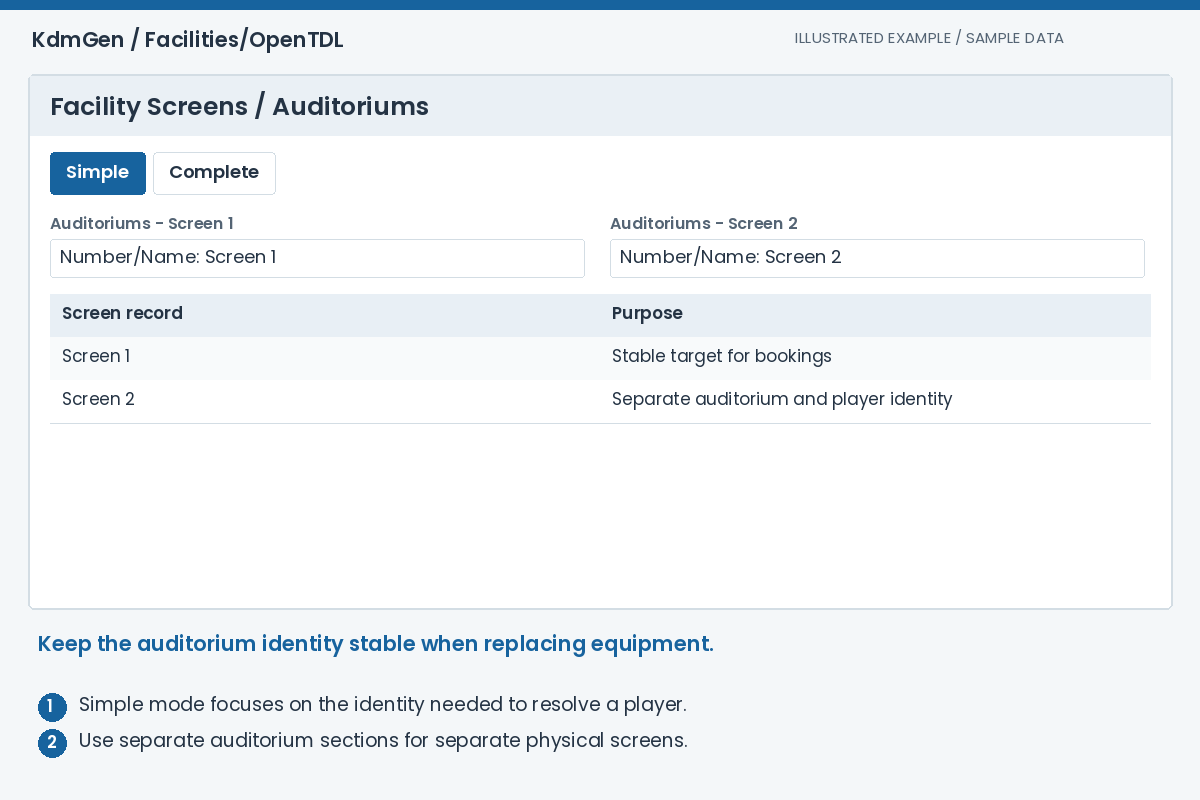
Expected result: Each real screen has one identifiable auditorium record.
Identify the player from the device database
Under Players / Security Devices, use Search Device DB to find a known device. Search by serial and check its manufacturer, type and certificate category, then use the matching result. Search DB on an existing device lets you update its identity from the catalogue.
Manual editing is also available. Enter the exact serial and choose a known type or enter the type directly when appropriate. A manually entered serial does not create a public certificate in the catalogue.
After saving, verify the screen in Device Certs under Add via OpenTDL. Resolved Devices should show the intended player. Resolve any mismatch before using that screen for a managed booking.
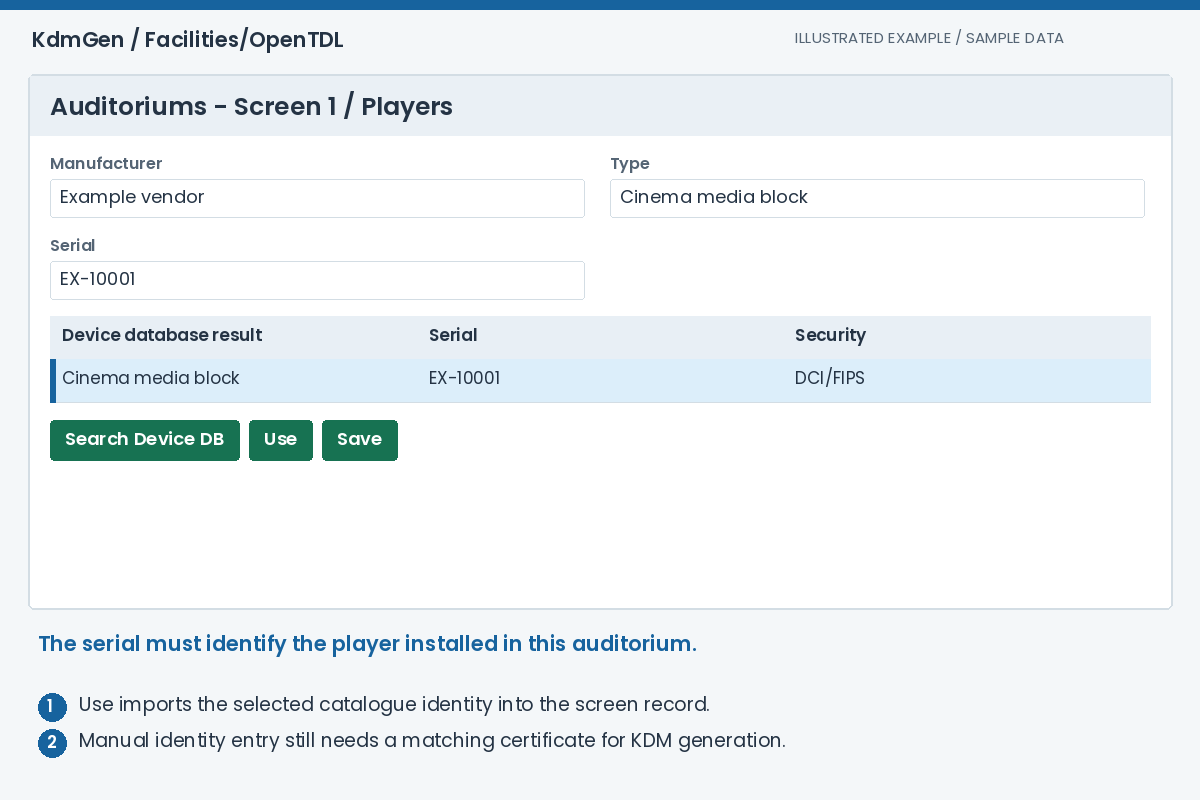
Expected result: The screen's device identity can be matched to the intended public certificate.
Complete capabilities and KDM delivery details
Switch to Complete when you need screen details such as seating, dimensions, picture formats, audio, accessibility or other FLM capabilities. Populate fields you can verify; Simple and Complete are two views of the same auditorium.
In Facility Capabilities, review the KDM delivery method and email addresses used for automated KDM delivery. Update these when the cinema's operational mailbox changes.
When equipment is replaced, edit the player under the existing auditorium and save. Managed bookings with regeneration enabled can then react to the device change while active. Follow the relevant generation and email queue results to confirm that replacement keys were issued.
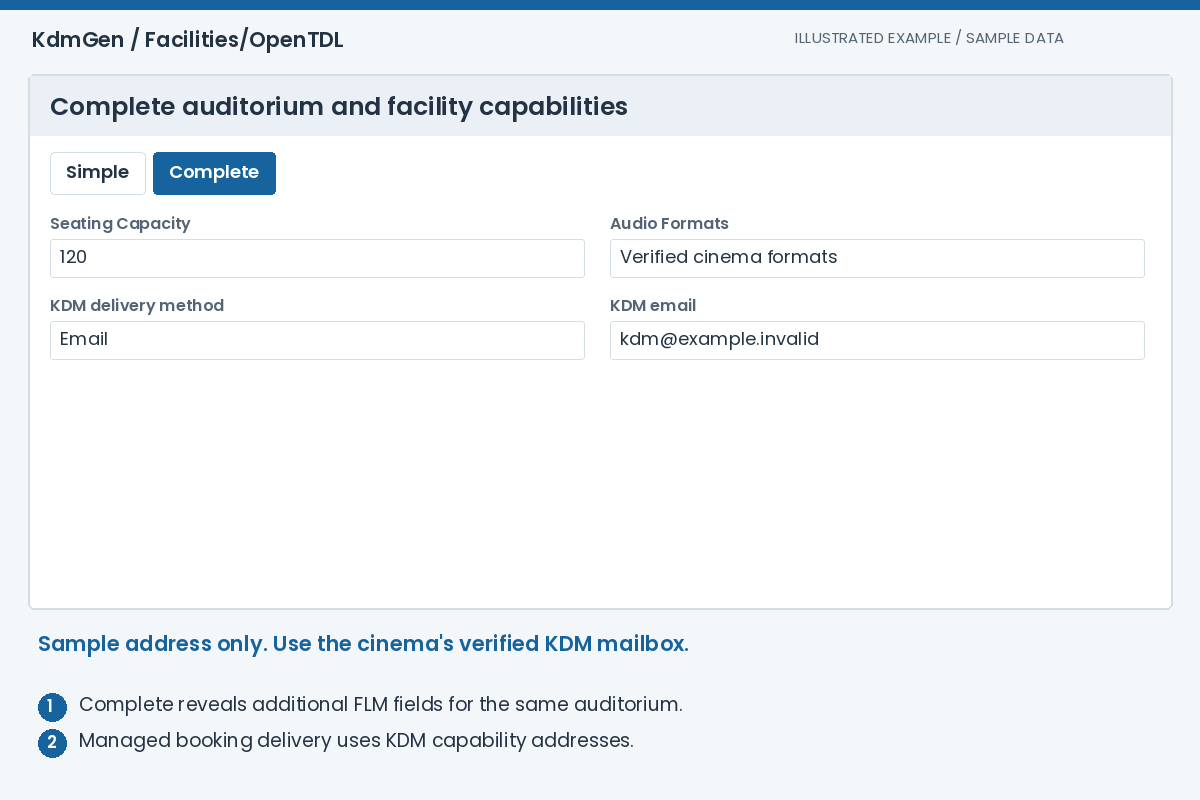
Expected result: Facility capabilities and delivery settings support the actual cinema workflow.
Check FLM output and compare its history
For authorised users, the FLM URL appears below Facility Detail and opens the current facility message. FLM means Facility List Message: the structured description of a facility, its auditoriums and relevant devices.
Changes take effect when saved. A historical FLM snapshot is scheduled after two hours without further changes, so several nearby edits can be represented by one settled version. Background processing needs to be running. Save History Now creates a snapshot immediately when the saved FLM differs; Refresh reloads the history list.
Select an older version or press Compare. The comparison under the history table shows the XML paths and their Historical and Current values, including additions, removals and changes. Changed By records available attribution. Comparing a version does not restore it.
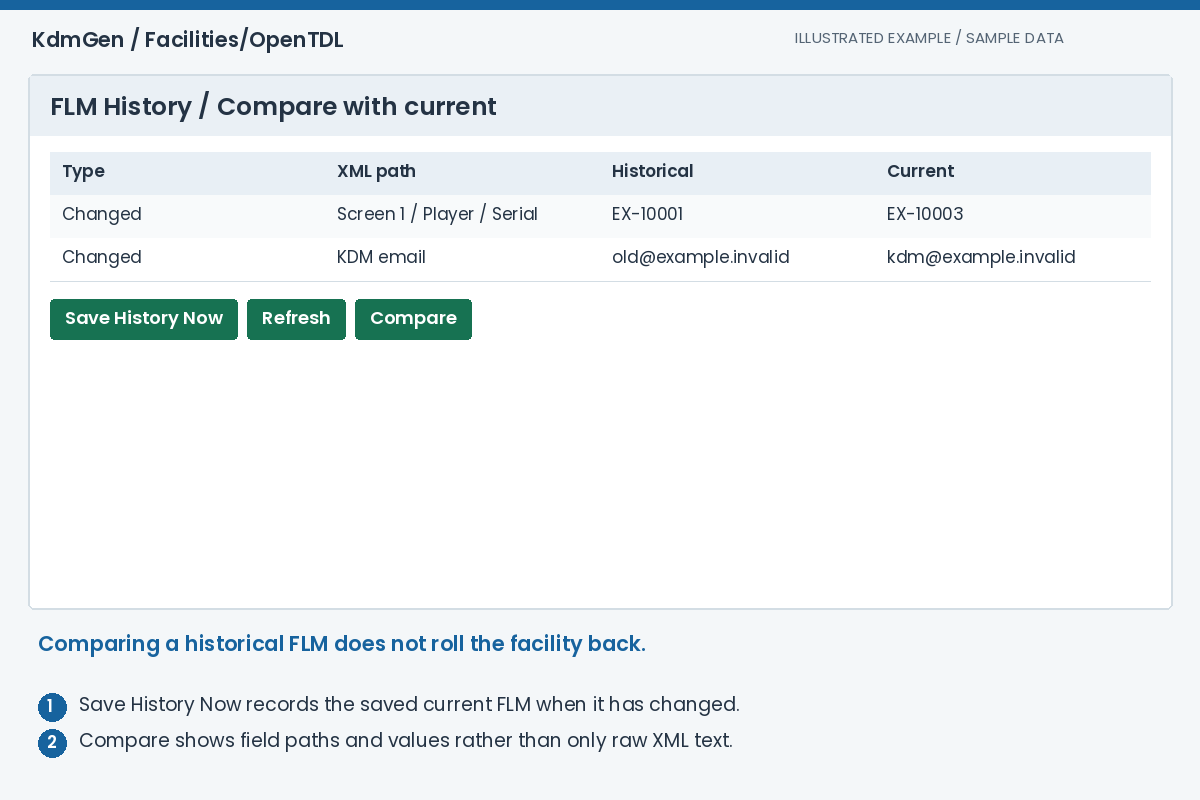
Expected result: You can inspect the current FLM and understand what changed since a stored version.
Troubleshooting
Why can I see the cinema but not its emails or FLM URL?
Those details are restricted to authorised facility users. Use the association instructions or contact support if you need edit access. A facility appearing in a public search does not give the viewer access to its contact details.
I belong to the circuit but still cannot edit. What should I check?
Confirm the selected facility is assigned to that exact chain/circuit and that your account membership is recorded correctly. A similarly named circuit can be a different record. Ask an administrator to review the membership and the facility's editor list.
Why is there no new historical version straight after Save?
Automatic history waits for a quiet period of two hours after the last change and depends on background processing. Use Save History Now for an immediate saved snapshot. Identical FLM content does not require another duplicate version.
Should I create a new screen when its player changes?
Update the player on the existing auditorium whenever it is the same physical screen. Managed bookings refer to that auditorium; creating an unrelated replacement screen can leave bookings pointing at the old record.
Does entering a player serial guarantee that a KDM can be made?
No. The identity must resolve to a usable recipient certificate, and the selected CPL must have suitable DKDM coverage. Check Resolved Devices and run Validate Setup in Generate KDM.