

12 minute guide · 7 illustrated steps
Register encrypted CPLs and their DKDMs
Registration connects each encrypted composition to a DKDM that this service can use. Start with a complete ingested DCP or an individual CPL, then verify the recipient, composition and validity before importing.
Open Register DCP/CPLBefore you begin
- Sign in with access to KdmGen. Have an encrypted CPL XML file, or access to an ingested DCP in the local asset database.
- Ask the content owner or mastering provider for a DKDM targeting this backend's public certificate. A KDM addressed to a cinema player cannot serve as the backend's DKDM.
- The DKDM must match the exact composition and provide the authorised dates needed for the KDMs you intend to create.
Recognise the screen
These screenshots show the actual tool. The numbered steps below use labelled examples to explain the selections and results.


Download the backend target certificate first
Read Backend DKDM Target Certificate and press Download Public Certificate. Give this certificate to the DKDM issuer, or select it as the recipient in your mastering software. Cert Details reveals the subject, serial, fingerprint and certificate dates.
The page presents the active certificate with the latest expiry date. The backend can retain older target certificates for existing DKDMs. Do not assume that a similarly named certificate or an old download is the correct target for a new issue.
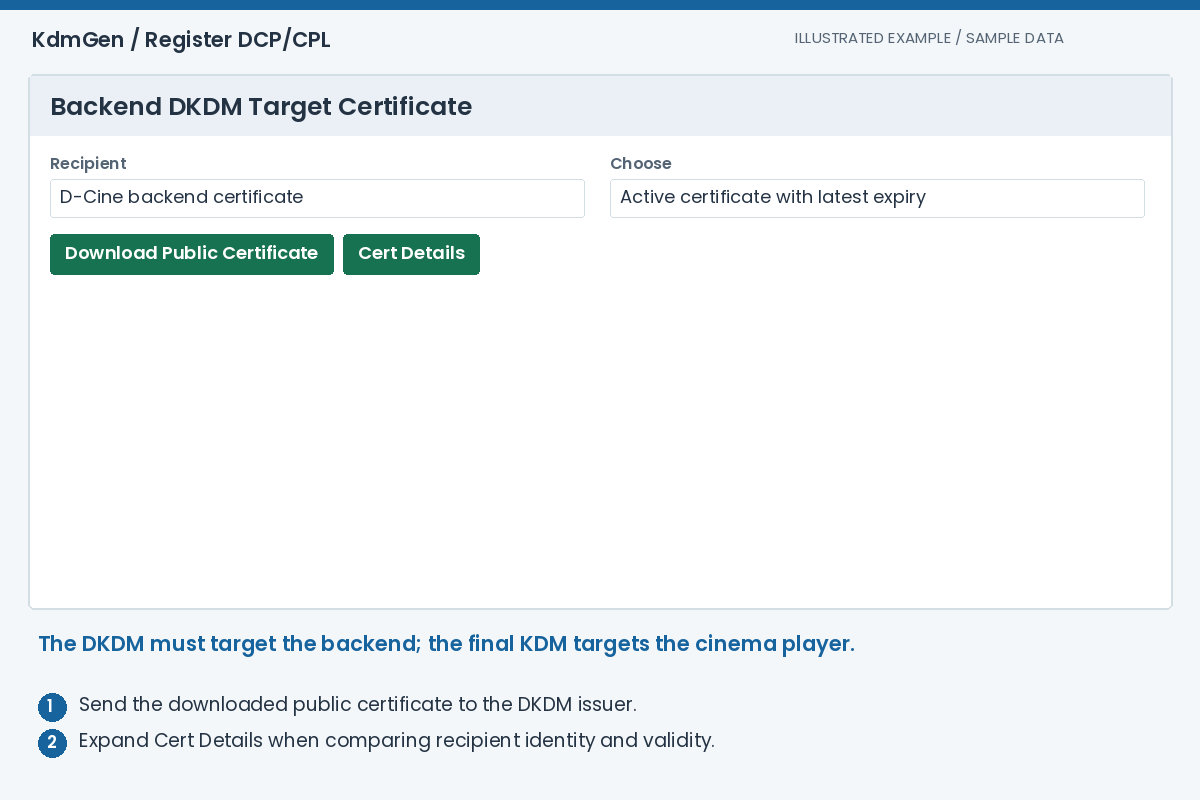
Expected result: The DKDM issuer has the exact public recipient certificate required by this service.
Choose batch or single-CPL registration
Use Register DCP to prepare multiple compositions in one batch. Add CPL accepts individual XML files; Add CPLs in a DCP opens the encrypted-DCP selector for packages already ingested into this system.
Use Register Single CPL when you want the detailed form for one composition, including movie and distributor assignment. Both routes register compositions for Generate KDM; they are alternative workflows, not consecutive steps.
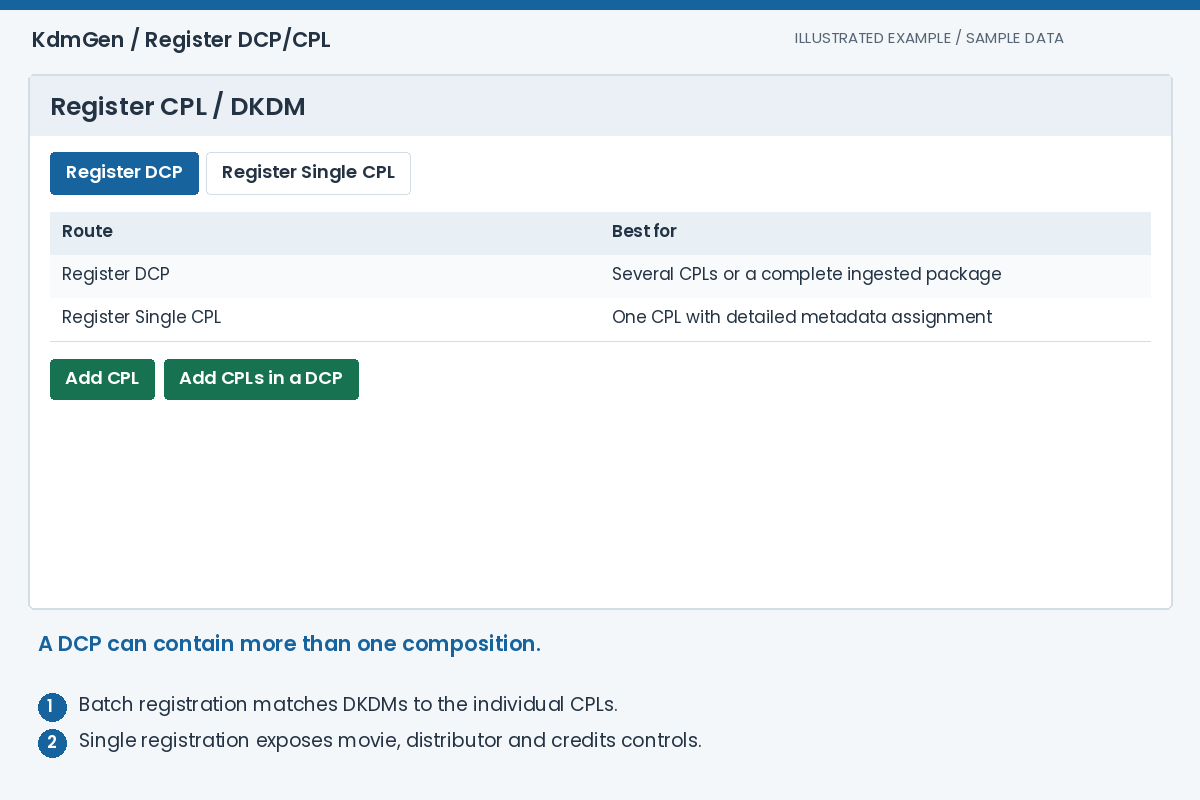
Expected result: You are using the registration route suited to the material you have.
Add the encrypted compositions
In Register DCP, choose Add CPLs in a DCP and filter the package table by AnnotationText or issue date. Select the relevant packages and apply the selection. Check each resulting composition row, not just the package name.
The batch table lists Composition, DCP AnnotationText, Issue date, Registered DKDMs, New DKDMs and Status. Remove any composition you do not intend to register. A package containing several CPLs may need several matching DKDMs.
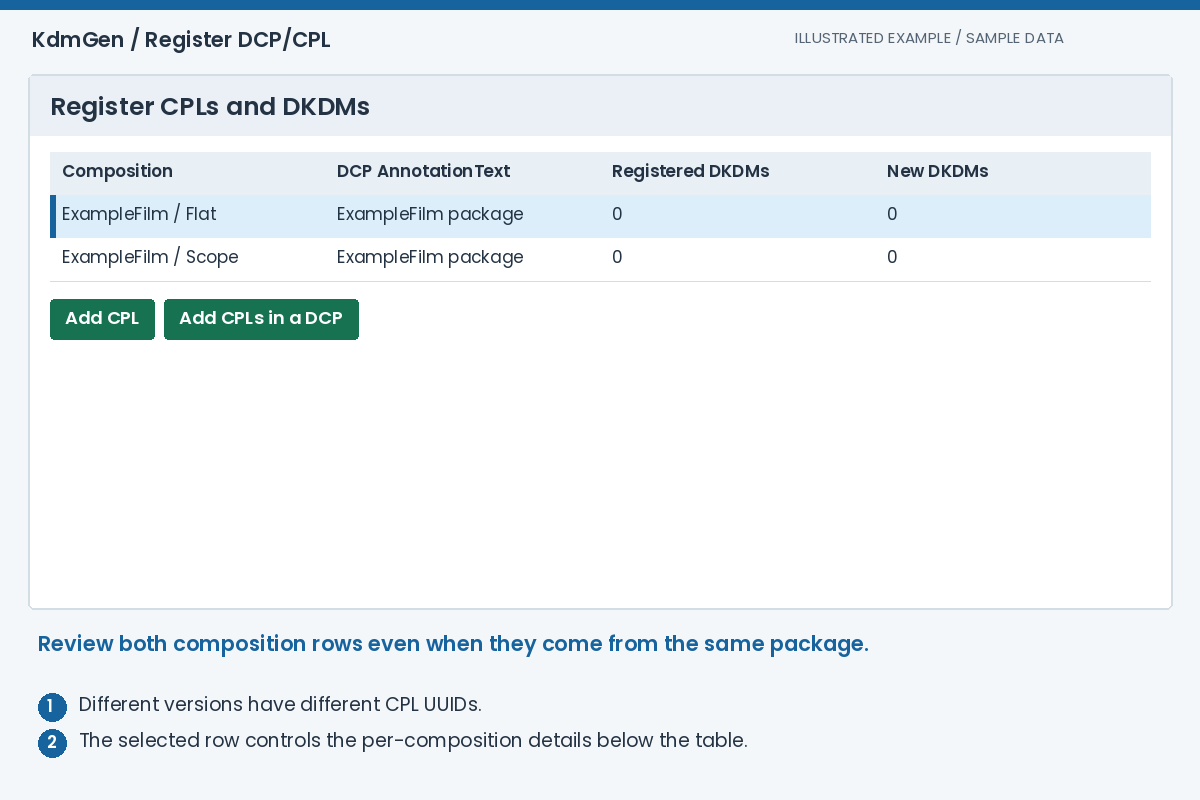
Expected result: The batch contains the intended encrypted CPLs, each identified independently.
Upload DKDMs and review every match
Select a composition row to reveal Upload one or more DKDMs. Uploaded files are matched automatically against every CPL in the batch. You do not need to upload the same batch once for each highlighted row.
Inspect the status and error text for each file. A suitable DKDM needs the matching CPL identity, a supported backend recipient certificate, and an end date that has not passed. The requested later KDM period must also fit inside DKDM coverage.
A duplicate DKDM should be reported instead of creating another identical registration. Existing valid DKDMs can be retained; use the batch route when adding renewed DKDM coverage to an already registered composition.
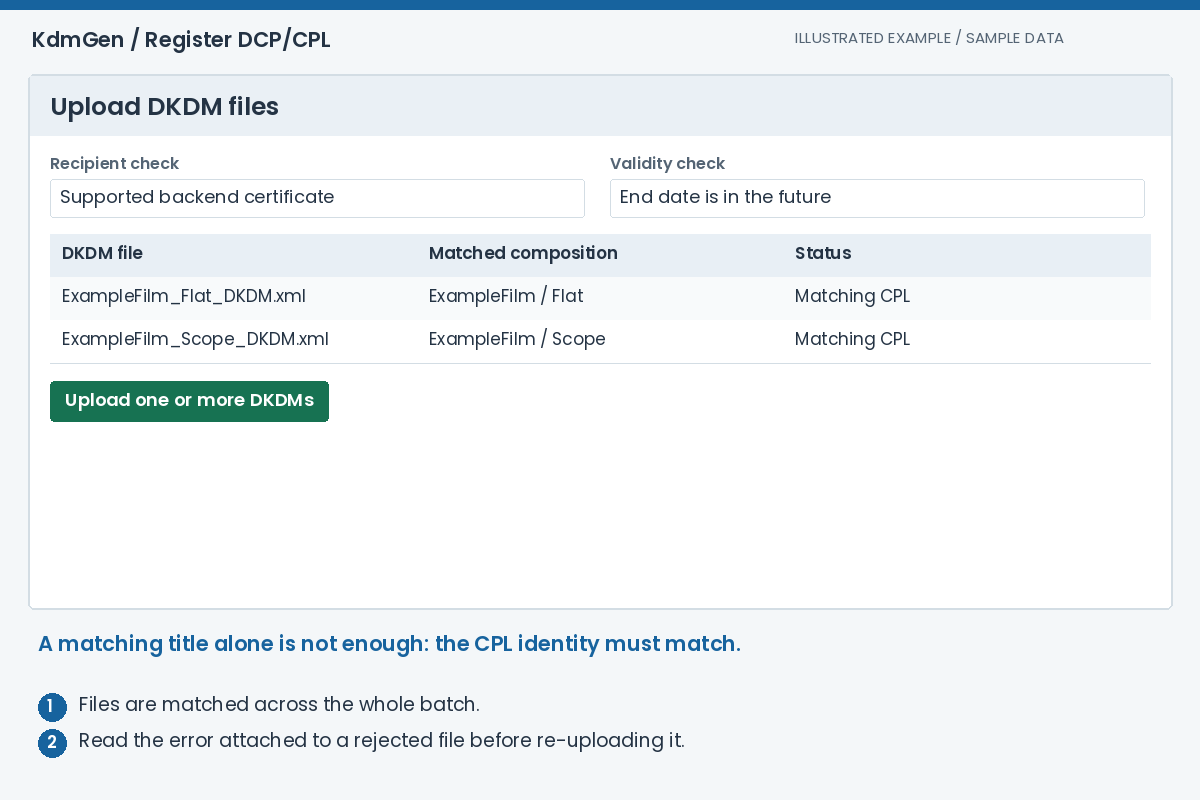
Expected result: Each composition has usable DKDM coverage, or a specific error to resolve.
Choose the credit offset for each CPL
Select a row and set Credit offset method. FFMC means First Frame of Moving Credits; FFEC means First Frame of End Credits. Marker options are available only when that CPL contains the corresponding marker.
Choose Manual to enter HH:MM:SS:FF. The last pair is frames, not milliseconds, so the CPL frame rate matters. Repeat the selection for each composition: Flat, Scope and other versions can have different durations and credit positions.
The credit offset is a suggested credits-start value in the KDM email. It does not change the encrypted picture, the KDM validity period or the CPL itself.
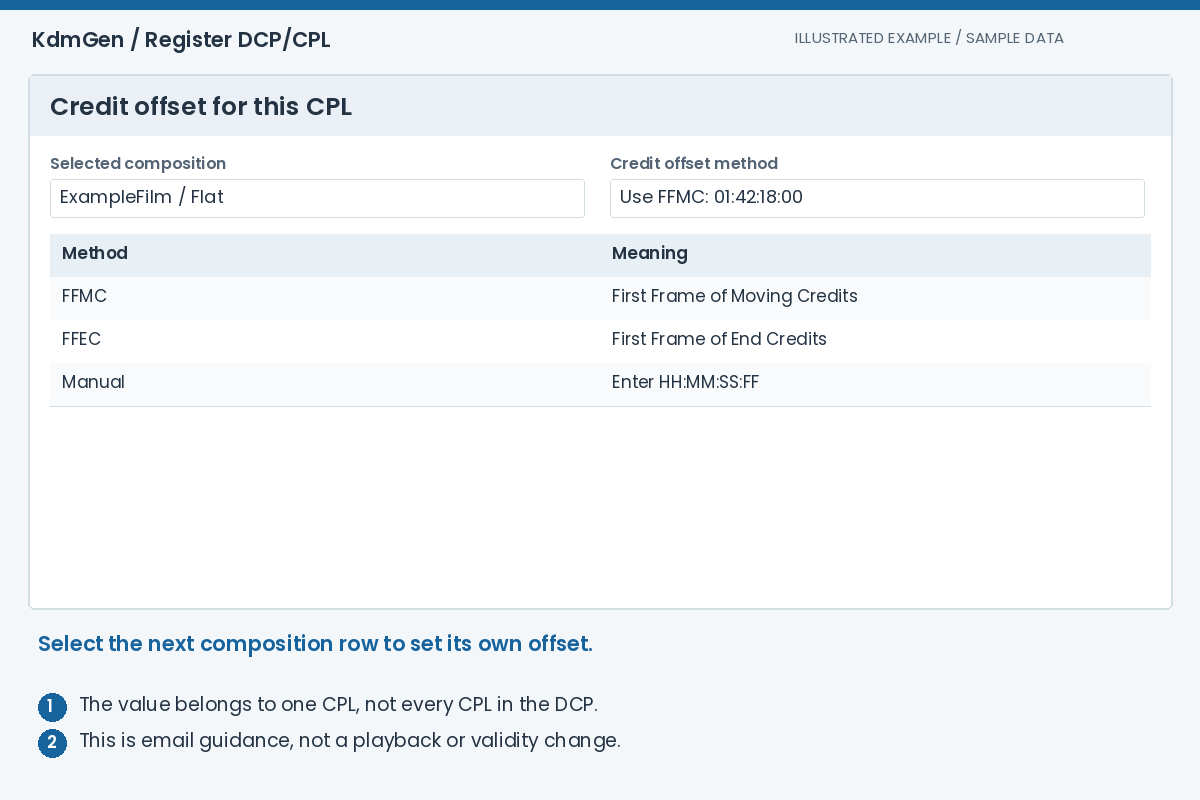
Expected result: Each selected composition carries the intended credits advice.
Use the detailed form for a single CPL
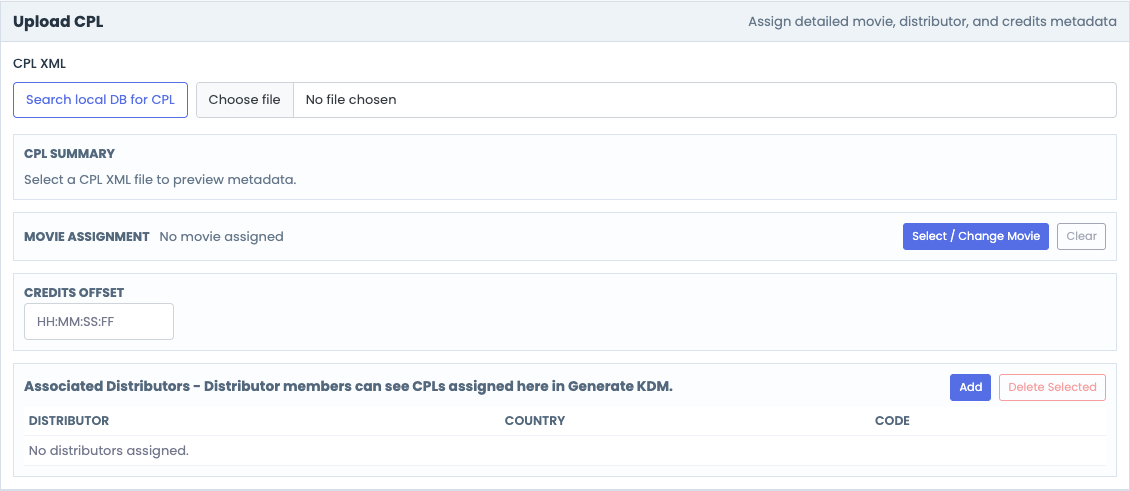
On Register Single CPL, use Search local DB for CPL or Choose file in Upload CPL. Read CPL Summary to verify Title, UUID, Type, Kind, FPS and length. The XML preview lets you check the supplied document.
When an existing asset association is found, Movie Assignment can be filled automatically. Check it, or use the movie selector to change it. Associated Distributors lists the assigned distributors; Add opens a multiple-selection dialog, and selected rows can be removed. Distributor membership affects who can see this CPL in Generate KDM.
Set the Credits Offset, then choose the DKDM in Upload DKDM. Review the composition-match message, recipient checks and validity dates. The register action is enabled only after the required checks pass.
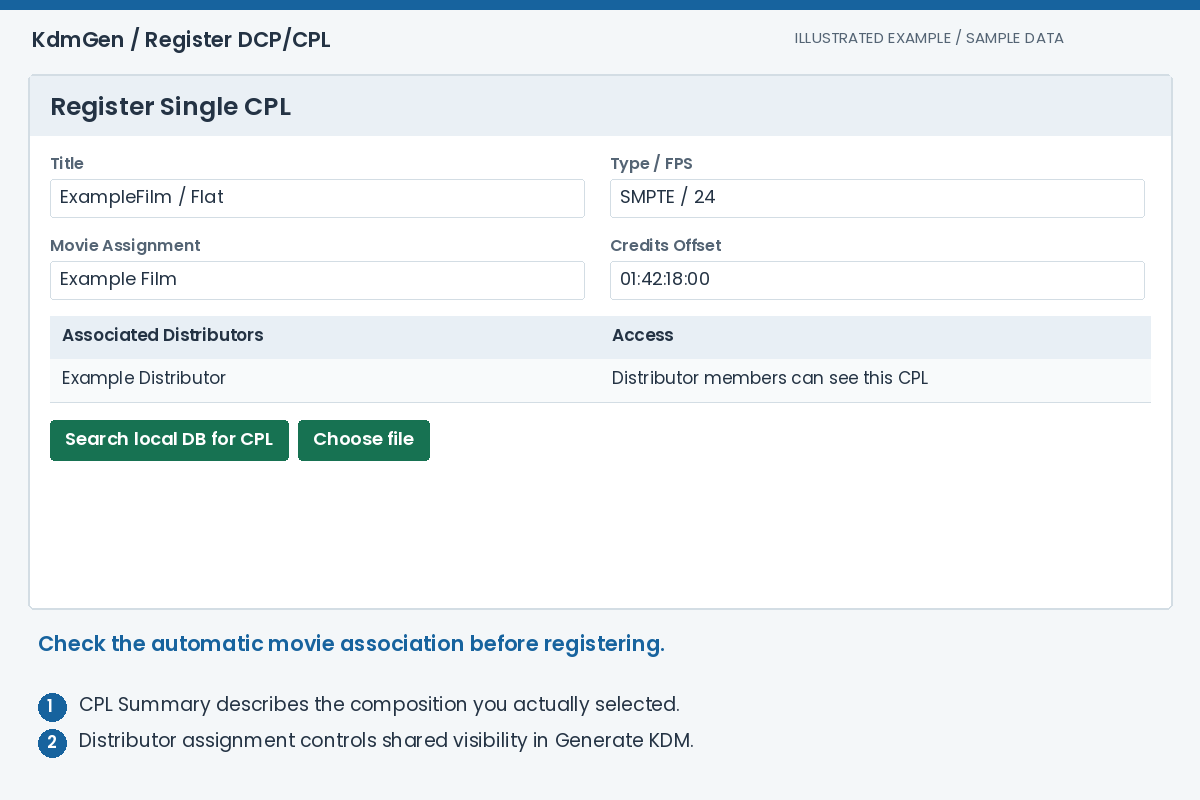
Expected result: One CPL has verified metadata and a suitable matching DKDM.
Import and continue to Generate KDM
In the batch route, wait for Every CPL has valid DKDM coverage, then press Import all CPLs and DKDMs. In the single route, use the register button at the bottom after the validation messages are satisfactory.
Registration does not issue cinema-player KDMs. Open Generate KDM and use Add CPL or Add via DCP to select the newly registered compositions. Check My CPLs versus Distributor CPLs if a record does not appear in the current scope.
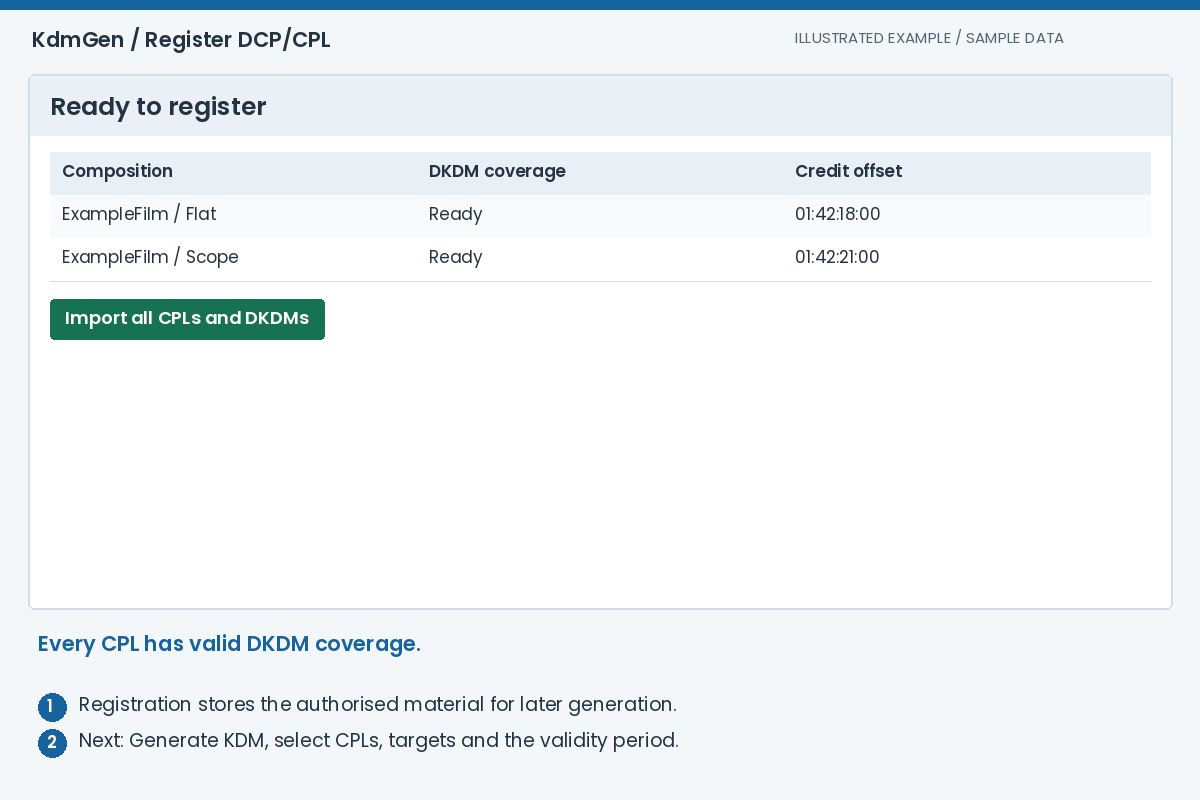
Expected result: The registered compositions are available for KDM generation within their DKDM coverage.
Troubleshooting
The DKDM has the right film name. Why is it rejected?
Different CPL versions can share a film name. Compare the DKDM CompositionPlaylistId with the selected CPL UUID, and check the recipient certificate and validity. Ask the issuer for the matching DKDM if either identity differs.
What if the backend target certificate is unsupported or missing?
Ask the site administrator to check the backend target certificate and its usable private key. Download the currently presented public certificate and have the DKDM issuer target that certificate. Renaming an existing DKDM cannot change its recipient.
Why can I not register the same CPL again?
The single registration route rejects a CPL already in the registry. Use the batch workflow to load the existing composition and add renewed DKDM coverage instead of creating a duplicate CPL.
Why are FFMC and FFEC unavailable?
Those markers were not found in the selected CPL. Use Manual and confirm the offset against the actual composition and frame rate. The single-CPL form can also offer length minus one minute for suitable durations; treat that as an estimate.
Can I request KDMs beyond the DKDM end date?
No. Obtain a newer DKDM covering the extended dates, register that coverage, and then validate the intended KDM period again.