

12 minute guide · 8 illustrated steps
Plan a regional release slate
Survey upcoming releases for a region, narrow the slate and inspect individual films. Turn selected films into facility booking entries when you are ready to work on an offer.
Open Release TimelineBefore you begin
- The release schedule can be viewed publicly. Sign in for booking actions and account-specific preferences.
- Choose the territory whose release dates matter to your programming. Region coverage depends on the collected sources.
- The AU Rating and AU Distributor fields remain Australian metadata even when you select another release region.
Recognise the screen
These are cropped views of the actual tool. Numbered examples below explain the workflow with fictional records; screenshots are not a promise of current release dates or scores.
Choose the release region
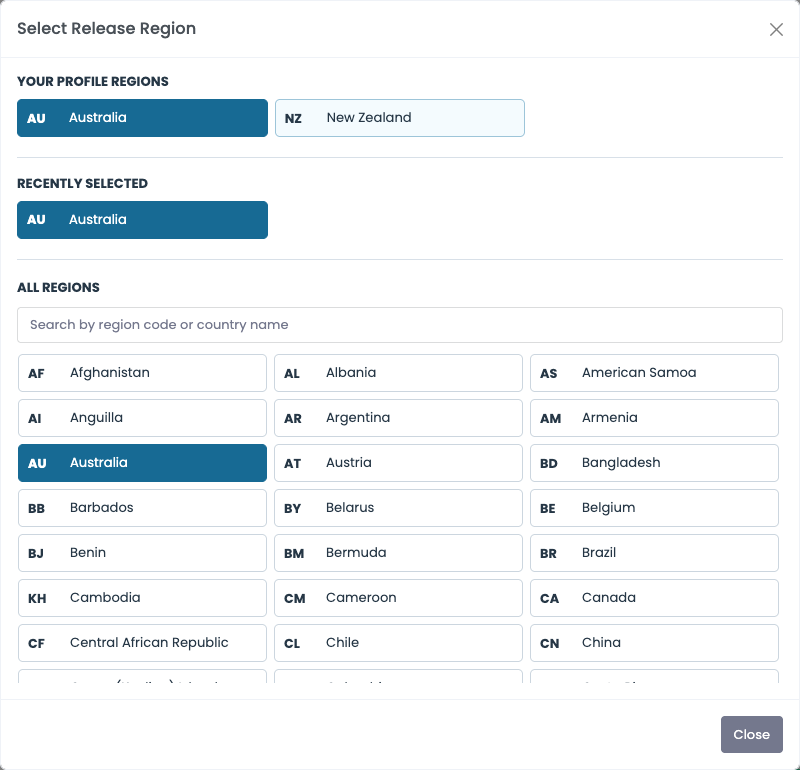
Click Region to open Select Release Region. The dialog lists Your Profile Regions first, then up to three Recently Selected regions, followed by a searchable All Regions list. Search by a country name or region code and select the required region.
Only regions available to this release-date service are offered. Selecting a region reloads the releases for that territory and is remembered in the browser. The last three choices are a convenience list, not a replacement for your profile preferences.
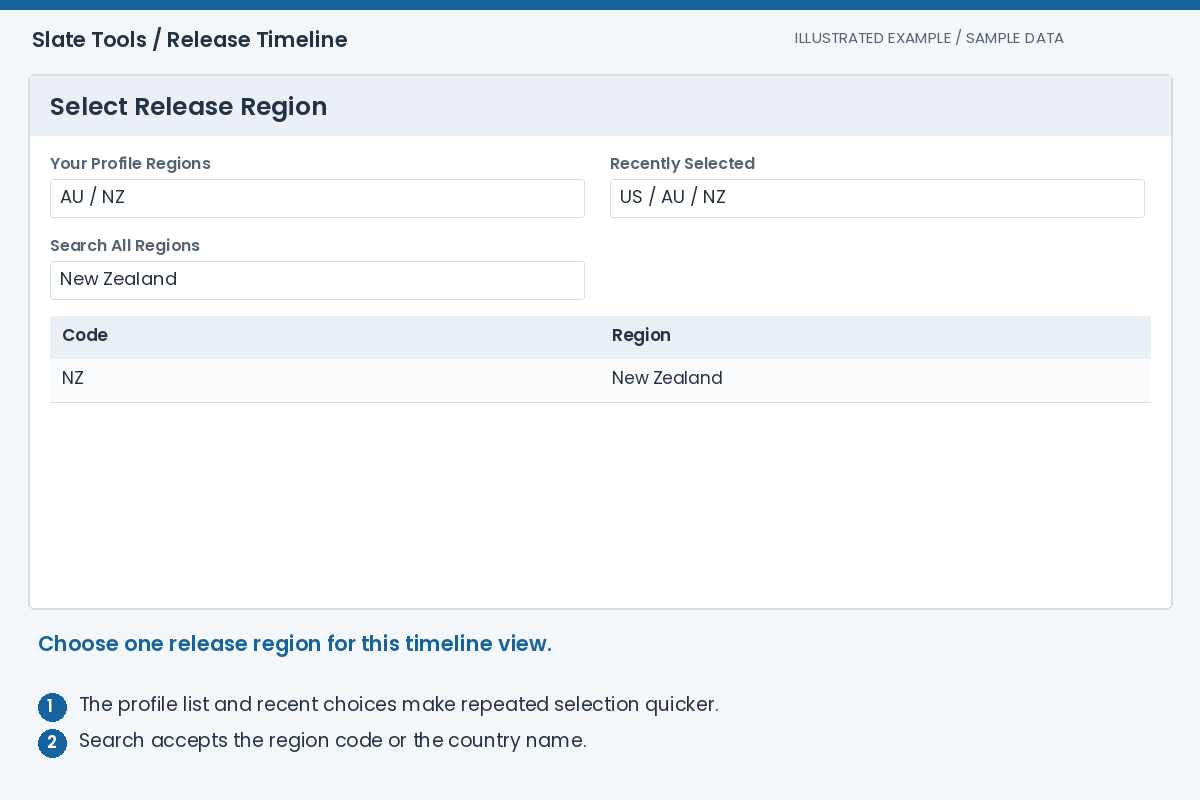
Expected result: The table and timeline use release dates from the selected territory.
Set the From and To months
Use the arrows grouped beside From and To to adjust each month. The outer arrows shift both ends of the period together. Press Apply after changing the range to load the releases for the revised period.
The period defines which releases are loaded; zooming or panning the graph only changes how those loaded releases are viewed. If a film is outside the loaded months, moving the graph alone will not fetch it.

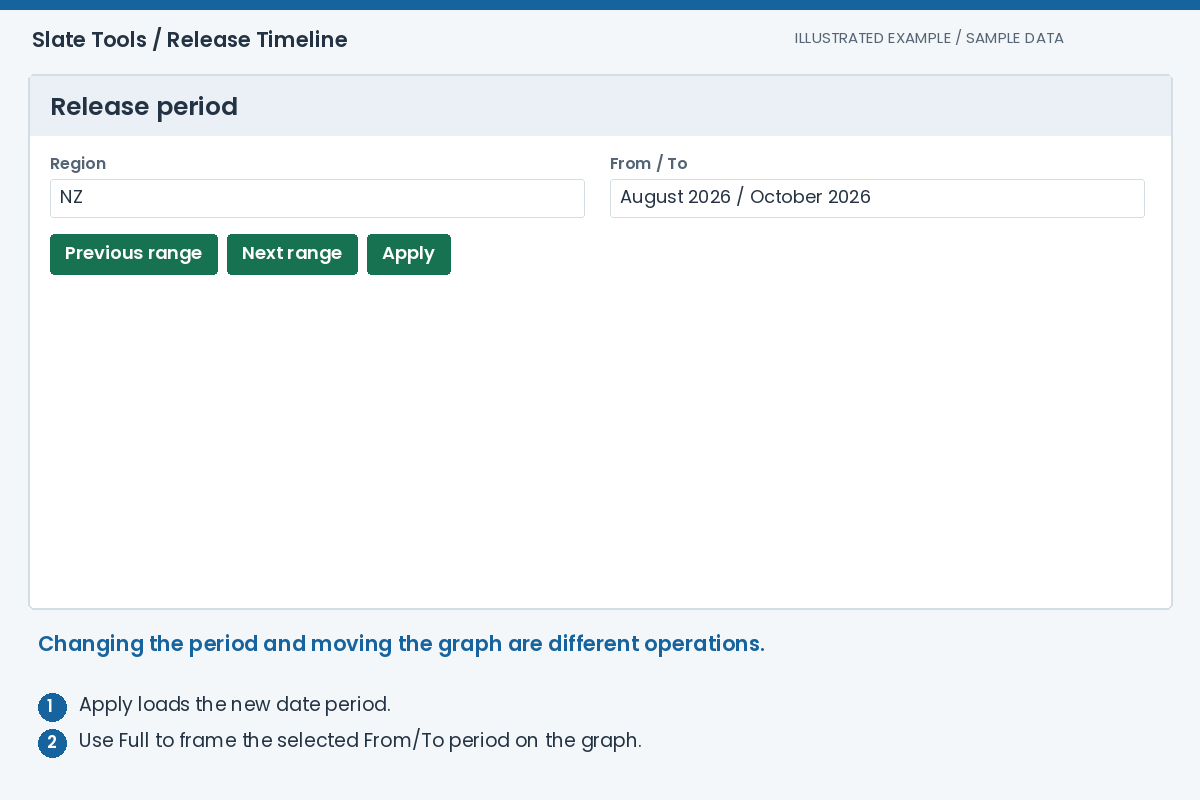
Expected result: The loaded release list covers the intended planning period.
Build and switch distributor groups
Expand Filters (Distributor) to edit the saved groups. Add creates a group; give it a useful description, then use Select beside Targets to choose the distributors it contains. The selector supports multiple selections.
Use Active to narrow the list to a group's targets, the arrow controls to change its order and the red delete control to remove the filter definition. Multiple active groups include matches from any of those groups. With no groups active, there is no distributor-group restriction. When collapsed, the group switches appear in the section header. A switch to the right is on. Deleting a filter is not deleting its movies.
The targets use the AU distributor catalogue. Selecting a US or NZ date region does not turn these into a directory of that country's local distributors.
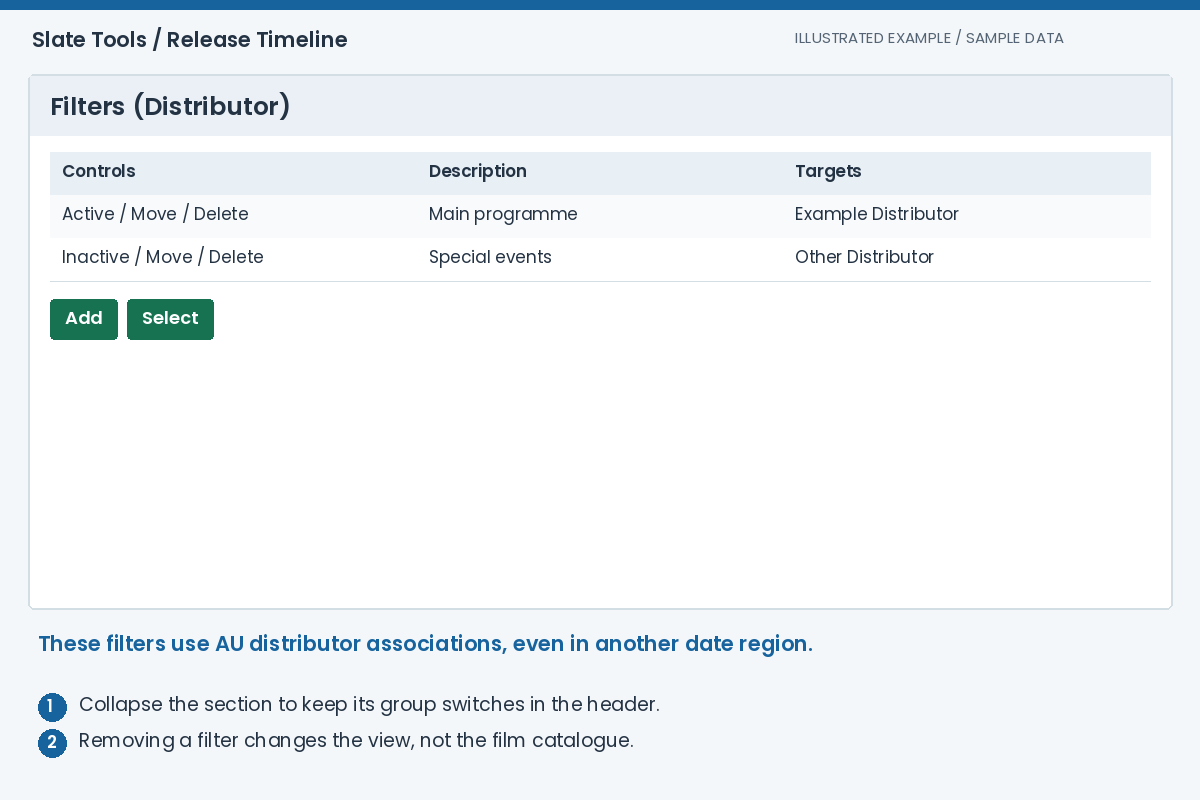
Expected result: The displayed slate reflects the distributor groups you have enabled.
Search, sort and export the release table
Expand Table to inspect the region's release date alongside Title, Source, AU Rating, RunTime, Genres and AU Distributor. Use the inputs beneath the searchable headings to narrow the films. Click headings to sort, and use the page controls to browse.
Table filters also narrow the timeline. Pagination does not mean the graph is restricted to just that page. Export CSV in the title bar exports the current filtered and sorted rows, not only the rows visible on the current table page.
Read Source before assuming all dates have the same authority. Region-specific collected sources and IMDb can contribute dates; the AU classification shown beside them remains an AU field.
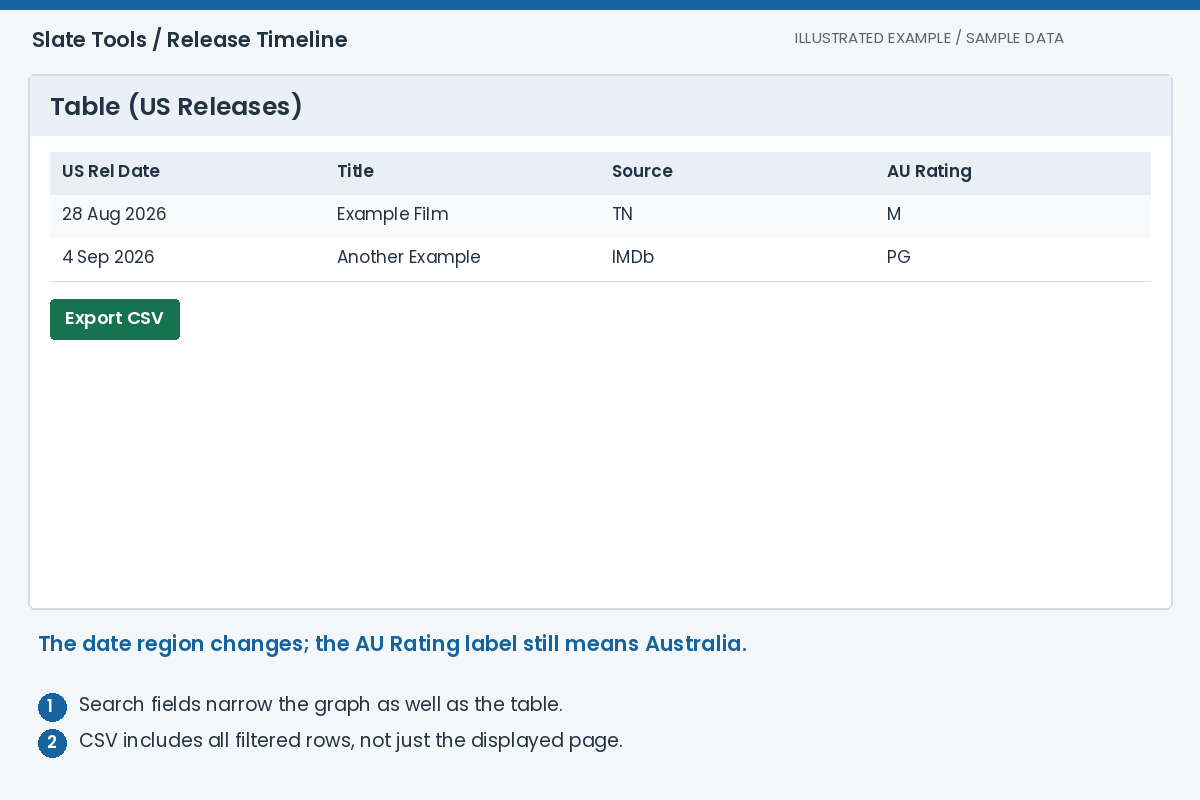
Expected result: The table, exported rows and timeline represent the same filtered slate.
Navigate the timeline and inspect a film
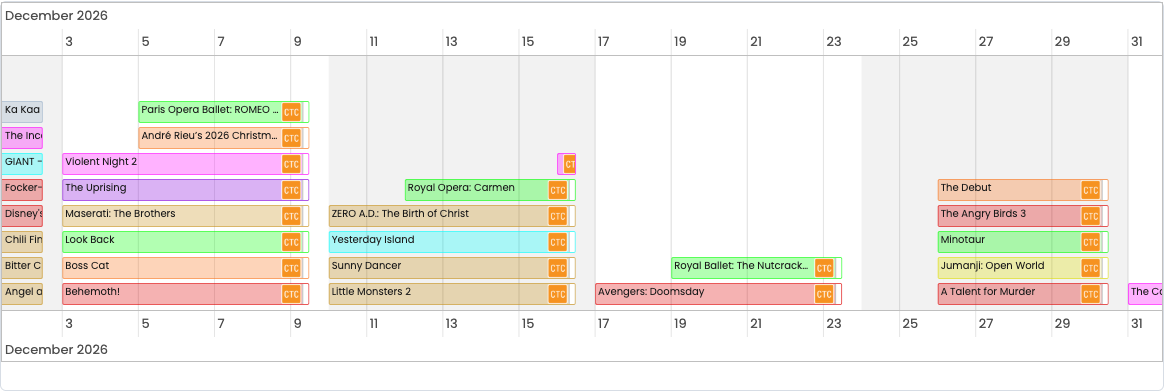
Use Now, Full, Month and Week to frame the graph, or pan and zoom with its controls. Full uses the selected From/To period. The graph's position and zoom are remembered for your return to the page.
Hover over a bar to see a compact poster and film summary, or click it to select the film. Movie Detail remains available below the timeline; selecting a table row also selects that film on the graph. The rating image and small booking-status indicator sit at the end of the bar.

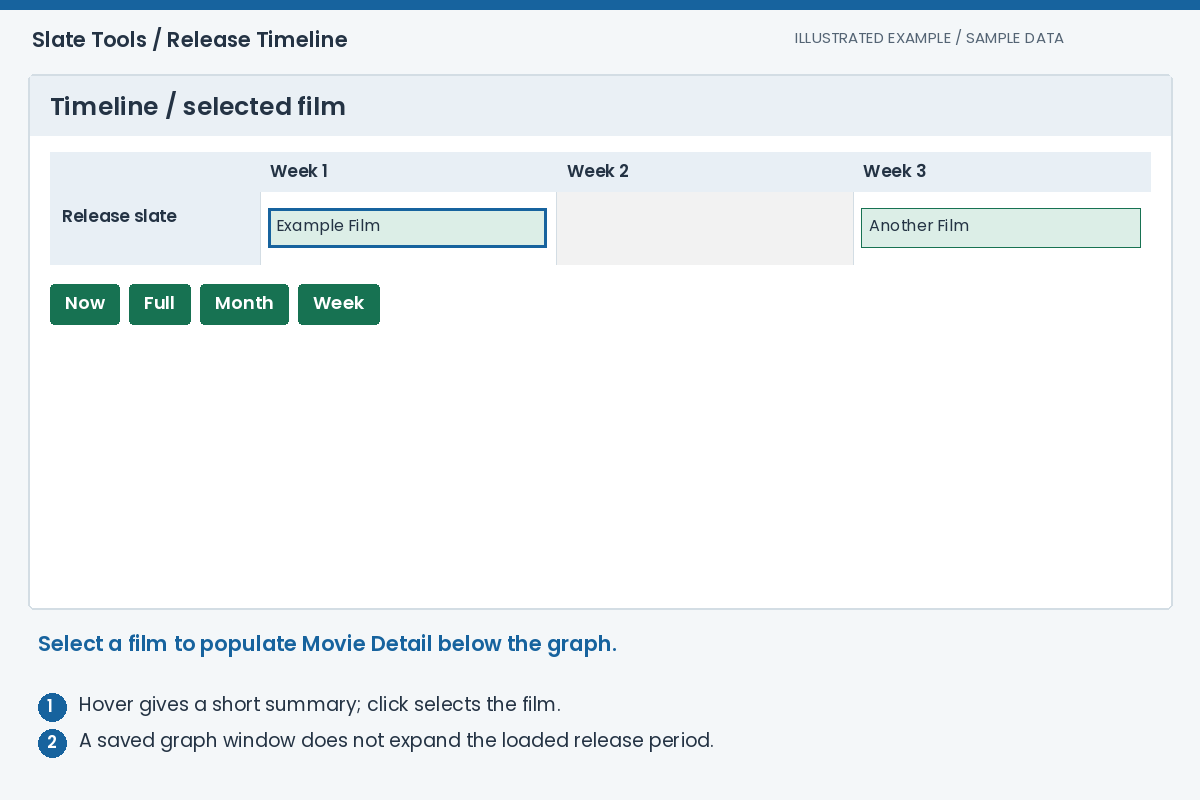
Expected result: You have selected the intended film without confusing graph navigation with loading another date period.
Use status and timeline indicators
Status switches such as NotAssigned, Ignore and Pass control which films are displayed. All and None switch the set together. A film can disappear because of one of these switches even when its release date is within the loaded period.
Weeks adds alternating weekly bands. Duration changes the visual width using runtime; it is a comparison aid, not a confirmed cinema engagement. Public Holidays and School Holidays use the selected Australian state and are available for the AU region, not a global holiday calendar.
Google Trends opens an external comparison based on the recently selected film titles, with title-only, movie or trailer wording. It is an additional research view, not booking confirmation.

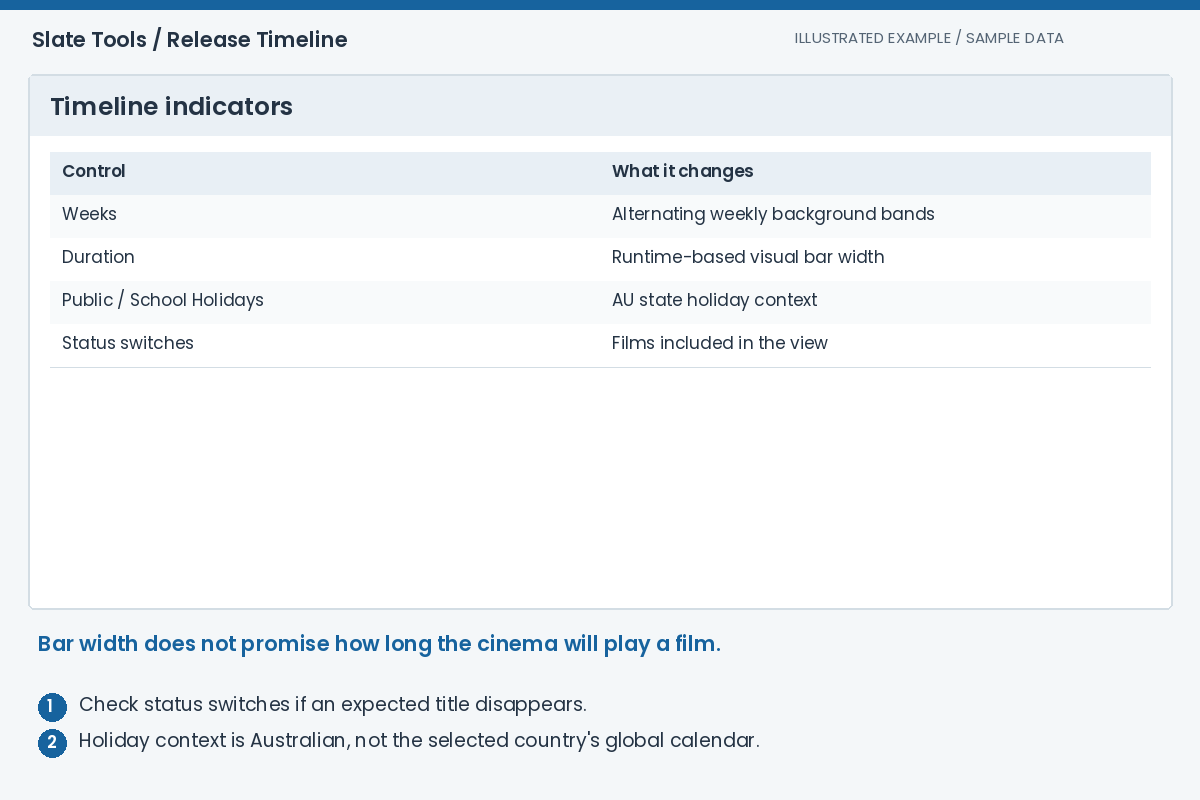
Expected result: The visual overlays support your comparison without being mistaken for booking facts.
Review Movie Detail and open deeper research
Movie Detail shows the selected region/date context alongside the stored film information, poster and trailer. Open in Movie DB opens a new tab with that film selected, including the fuller regional date and classification tables.
Signed-in users see the available editing and booking actions. The fields labelled AU Rating, AU Distributor and official AU release data are not regional overrides. Do not edit them simply because you selected a different territory. Ignore Release changes the film's planning status; a status switch only changes what is visible.
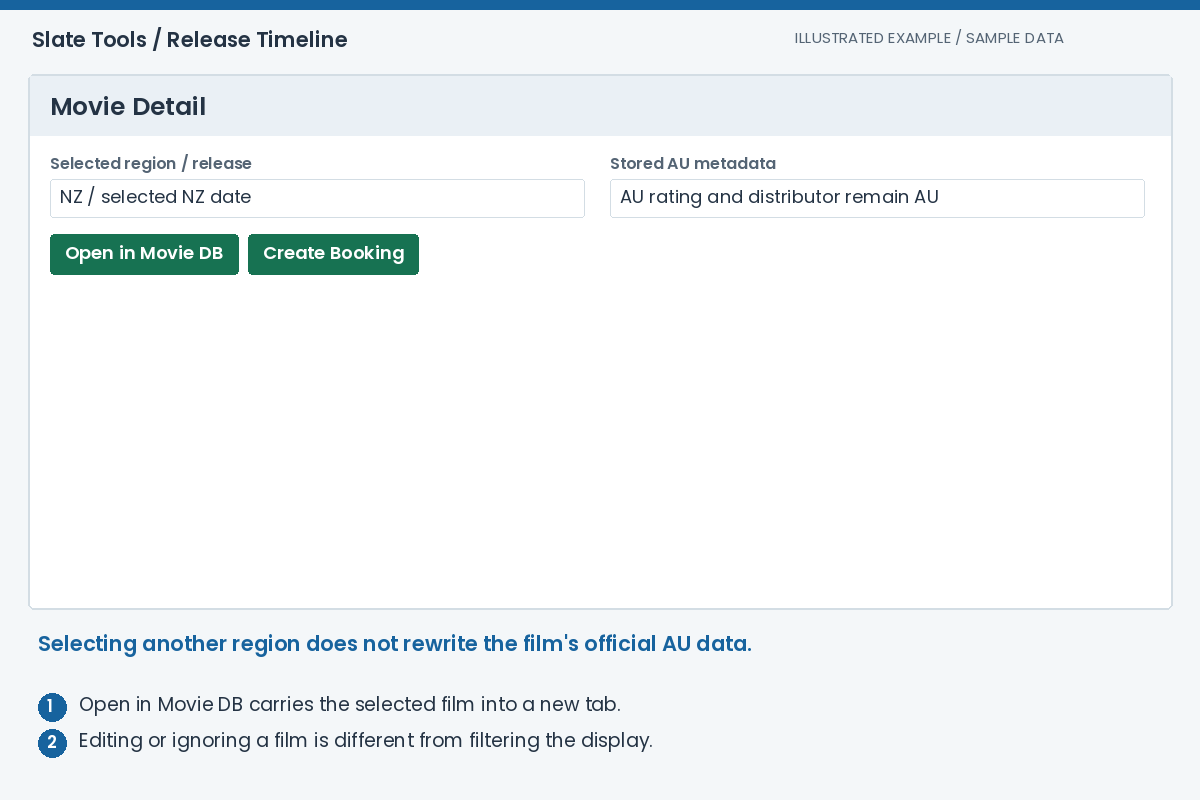
Expected result: You can research the selected film without overwriting its AU metadata to suit a regional view.
Create booking entries for facilities
When signed in, choose Create Booking for the selected movie. Check the dialog's Region, Release date and Source before selecting facilities. Use its search and page navigation to locate the intended cinemas.
Click facility rows to select them. Select Page adds the currently displayed page, not every matching facility in the database; Select None clears the selection. Review the selected count before OK. Cancel closes the dialog without creating bookings.
The booking carries the selected release-region context for its scheduling baseline. It still refers to the same movie identity, and changing the timeline region later does not move existing bookings. Continue in Booking App to work on dates, policies and distributor offers. This is not a KDM-generation action.
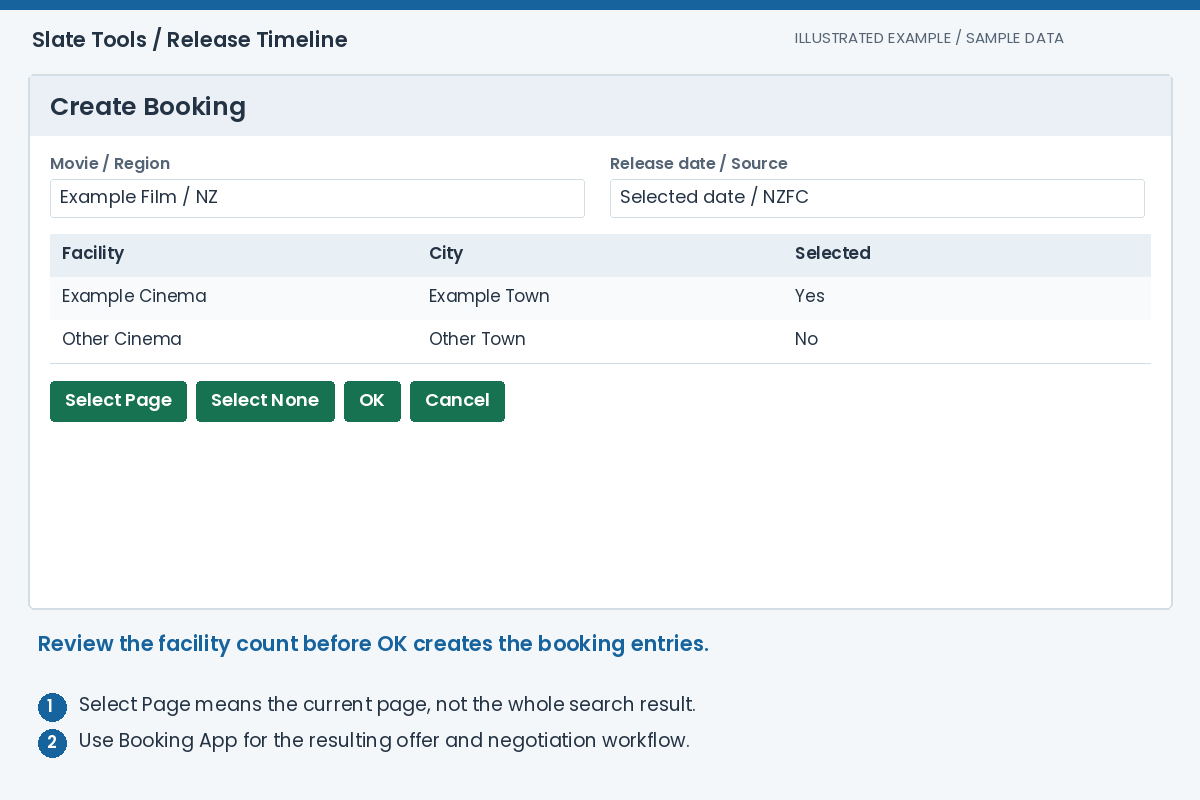
Expected result: The selected film has booking entries for the intended facilities, ready for the offer workflow.
Troubleshooting
Why are fewer films shown than on a release-source website?
Check Region, From/To and Apply, then distributor groups, status switches and table filters. The app also depends on successful imports and matching records. Limited-release information can be present; compare the film and source in Movie DB before assuming all source results were collected.
Why is a country's classification not on the bar?
The timeline currently uses AU rating metadata even when release dates come from another region. Open Movie DB and inspect Regional Ratings for the required country.
I panned the graph but cannot find next year's film. Why?
Panning changes the visible window, not the loaded date range. Extend the From/To period, press Apply and then use Full.
Will changing Region damage my existing bookings?
Region selection changes the release-date view. A new booking records its selected region context, while existing bookings retain their own stored scheduling information. Review those dates in Booking App when a source later changes.
Where is Create Booking?
Select a film and look in Movie Detail while signed in with the appropriate access. Public users can inspect the slate and use Open in Movie DB but do not see the signed-in booking actions.