

Player 4.2.32 · release · Manual updated 31 October 2026
AirPlay Casting
Present a phone, tablet or computer screen through the player’s configured output using the optional UxPlay receiver.
Configure the receiver once
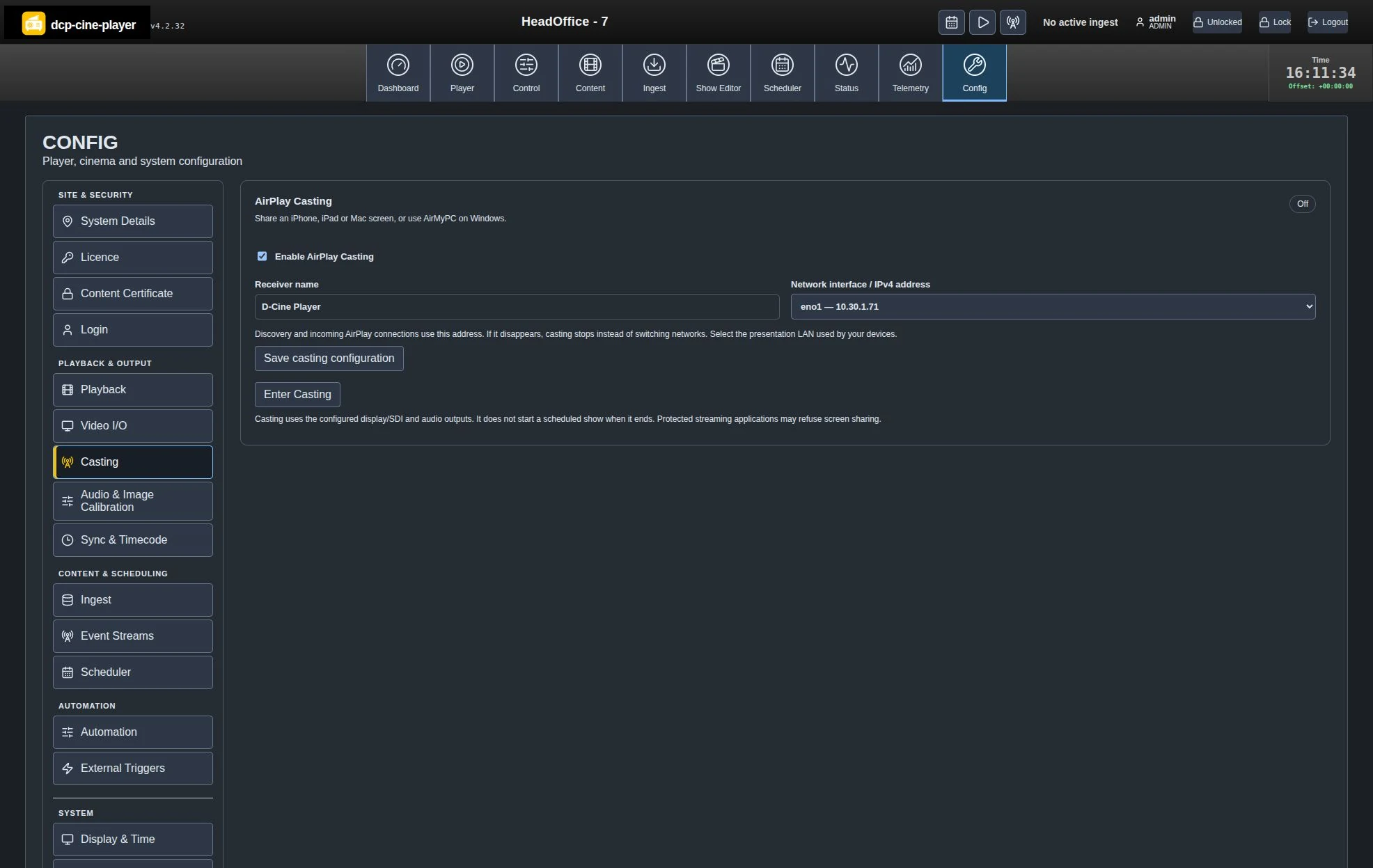
- Sign in as an administrator and open Config → Casting in the Playback & Output group.
- Tick Enable AirPlay Casting. Choose a unique receiver name, up to 50 UTF‑8 bytes. Full stops and control characters are rejected.
- Select the exact Network interface / IPv4 address used by presenters. Discovery and incoming AirPlay connections use that selection.
- Choose Save casting configuration. Saving enables the feature but does not start the receiver.
The interface/address must remain present. The receiver stops if it disappears; it does not switch networks or fall back to all interfaces. You can still disable a saved configuration whose network is unavailable. Configure while Casting is off.
Start a presentation
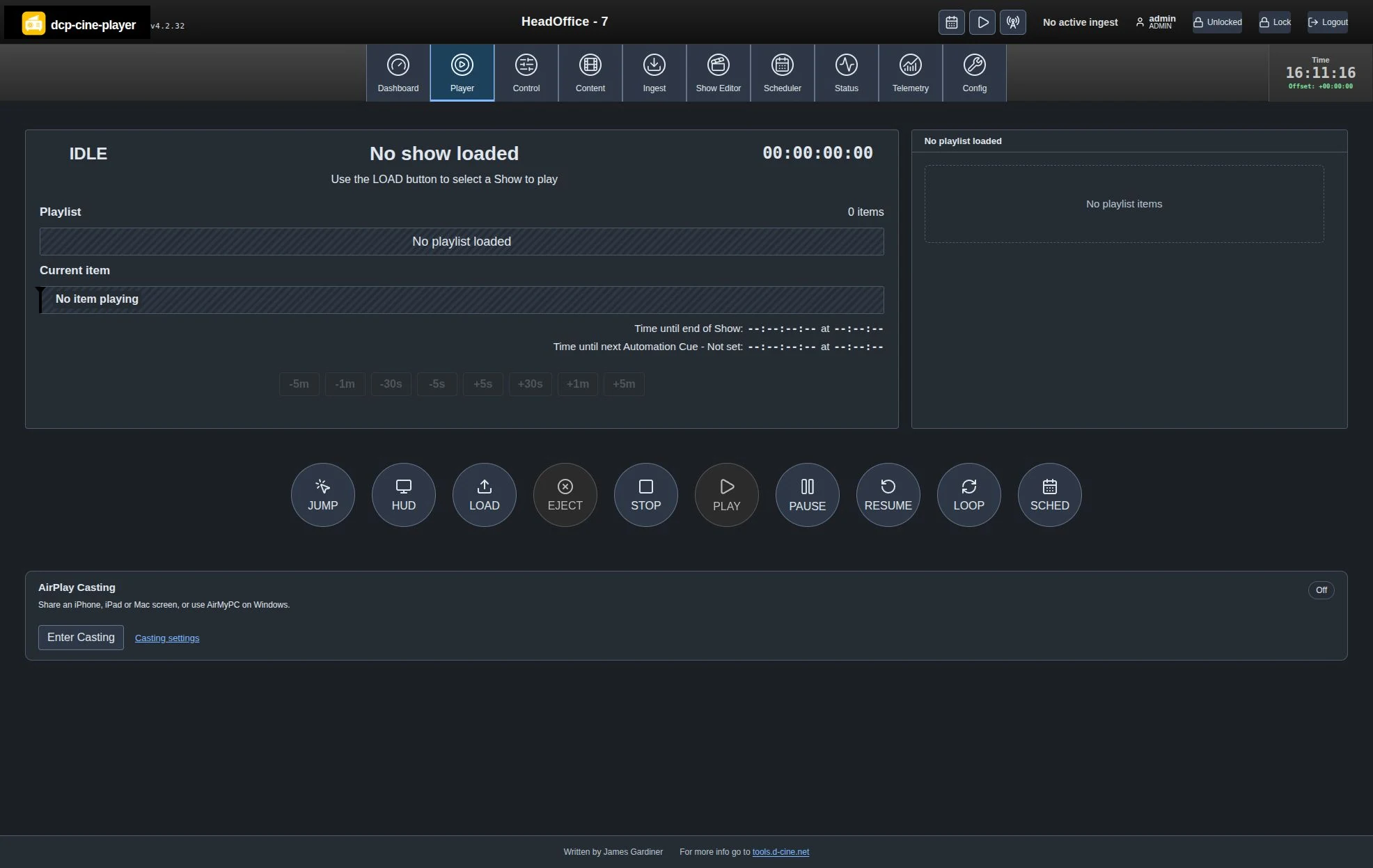
- Stop ordinary playback, turn SCHED off, cancel pending Delay Play and finish any output/calibration operation.
- Open Player → AirPlay Casting and press Enter Casting. An account with playback-control permission and an available playback licence is required.
- Wait for Ready to connect. Read the receiver name and fresh six-digit connection code from the web panel. Do not put that code in shared screenshots.
- On iPhone/iPad, open Control Centre → Screen Mirroring. On Mac, open Control Centre → Screen Mirroring. Select the receiver and enter the code when requested.
- On Windows, use a compatible third-party AirPlay screen sender, such as AirMyPC. Windows’ built-in Cast/Miracast feature does not connect to this AirPlay receiver. Qualify the sender/version separately.
- Confirm actual picture and sound at the cinema output. A network connection alone is not confirmation of playout.
Understand the state
| State | Meaning / operator action |
|---|---|
| Off | Receiver is not running. Enable/configure it before entry. |
| Starting | The receiver and bridge are being prepared. Wait for completion. |
| Ready to connect | Outputs are reserved; connect a sender. SDI is held black while waiting; use the web panel for the code. |
| Connecting | A sender is connecting. Wait and inspect any reported error. |
| Receiving screen | Native video progress has been observed. Verify physical output and audio. |
| Stopping / Needs attention | Wait for cleanup or follow the displayed error. Unconfirmed cleanup retains the output reservation rather than allowing competing playback. |
Disconnect and return to shows
A sender disconnect returns the receiver to waiting while Casting stays active. Use Leave Casting or ordinary Stop to end the mode and release outputs. The previous loaded list is restored stopped; if no list was loaded, the cast input is unloaded. Leaving does not start a show or re-enable SCHED. Verify the stopped selection, then deliberately resume the venue’s manual or scheduled operation.
Network and output requirements
The sender must reach the selected interface and receive mDNS discovery. VLAN isolation, multicast filtering and wireless client isolation can prevent discovery. The implementation uses TCP/UDP 35000–35002 and mDNS UDP 5353 on the selected network. Keep the presentation LAN restricted to intended users.
Picture/audio use the player’s configured local output or Legacy Display SDI output. The initial negotiation requests H.264 up to 1920×1080 at 30 fps with stereo audio; actual sender size/rate may differ. This is live screen sharing, not a DCP ingest or multichannel cinema-audio workflow.
Supported scope and commissioning
Casting is disabled by default and never starts automatically after reboot. While active it reserves playback/output resources and interlocks ordinary transport, scheduling, calibration and output changes. Google Cast, Miracast, protected streaming applications, AirPlay audio-only/HLS and recording are outside this implementation.
Qualify real Apple/Windows sender pairing, AAC‑ELD sender audio, physical display/SDI, end-to-end latency/sync and sustained presentations on the intended installation. Software and synthetic-media checks do not certify those hardware workflows.
Casting troubleshooting · Technical implementation and API · Third-party notices
Written by James Gardiner · Documentation updated 2026-10-31. For more information visit tools.d-cine.net. Check procedures against the installed release and venue policy.