


Connect your cinema's programme
A Provider is the source of film and session information. Choose the provider that matches the export or API supplied by your cinema's ticketing team. An API is a service the player can ask for current information; you normally only need its address and any credentials supplied for your venue.
Settings → Player → Provider
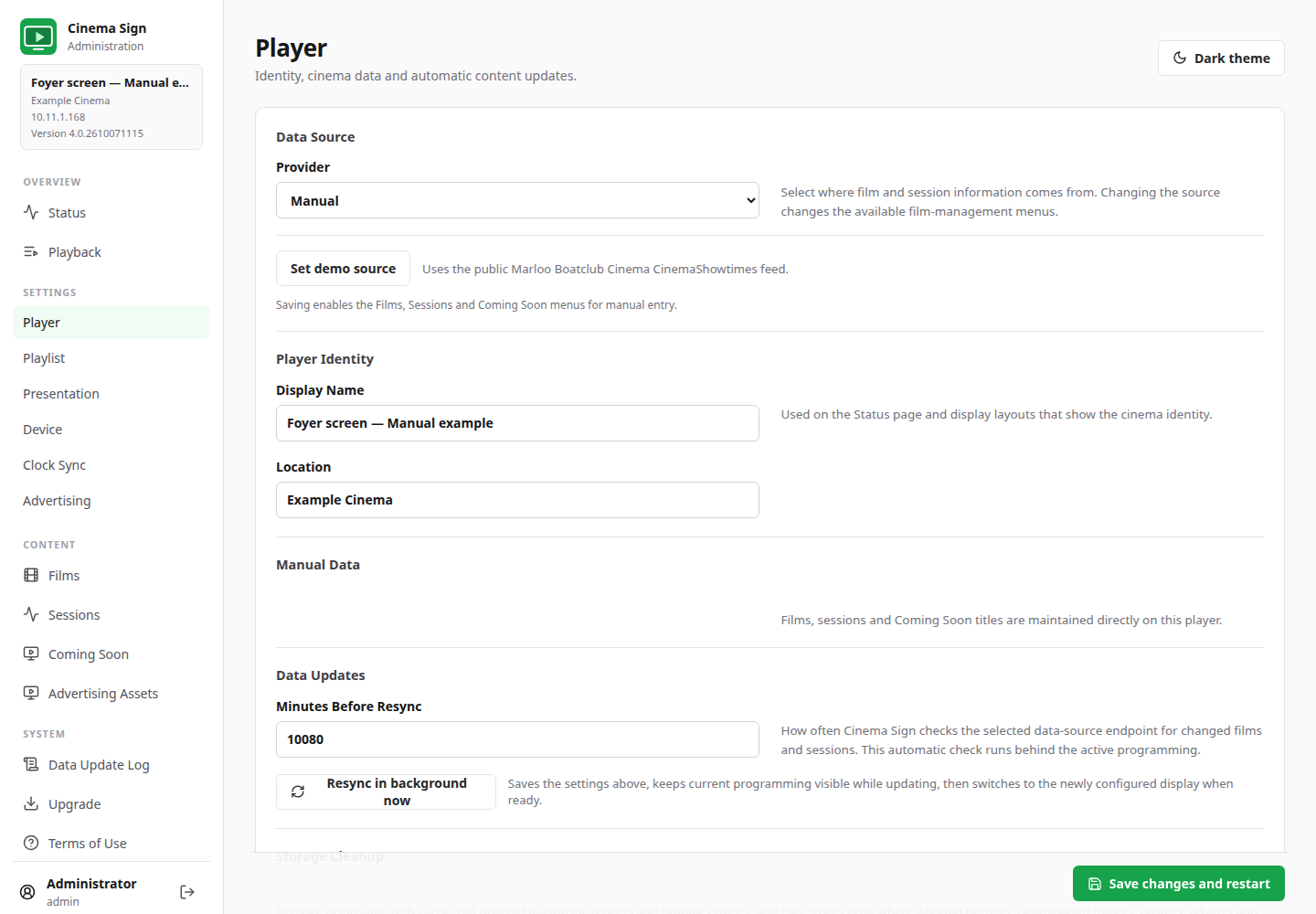
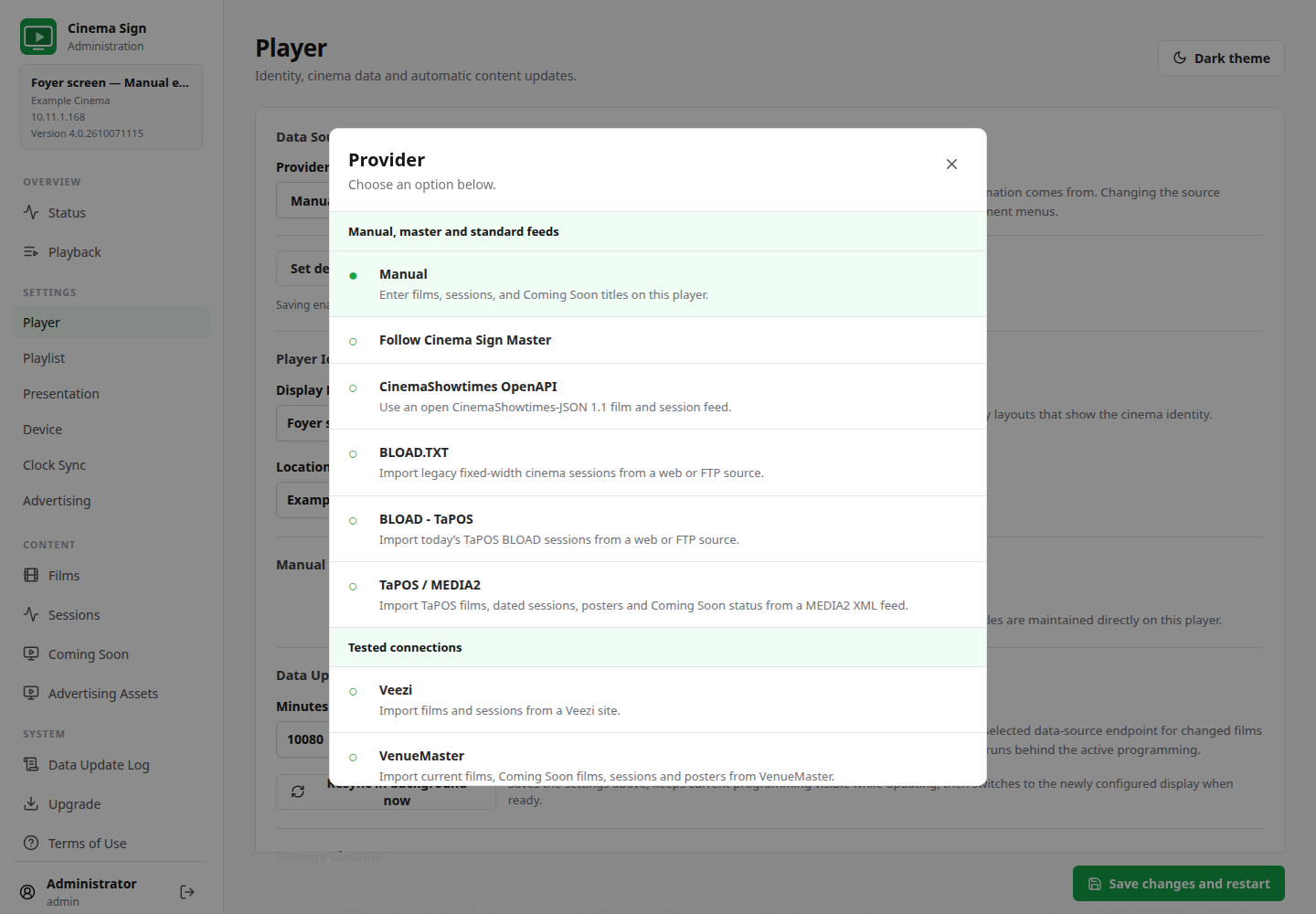
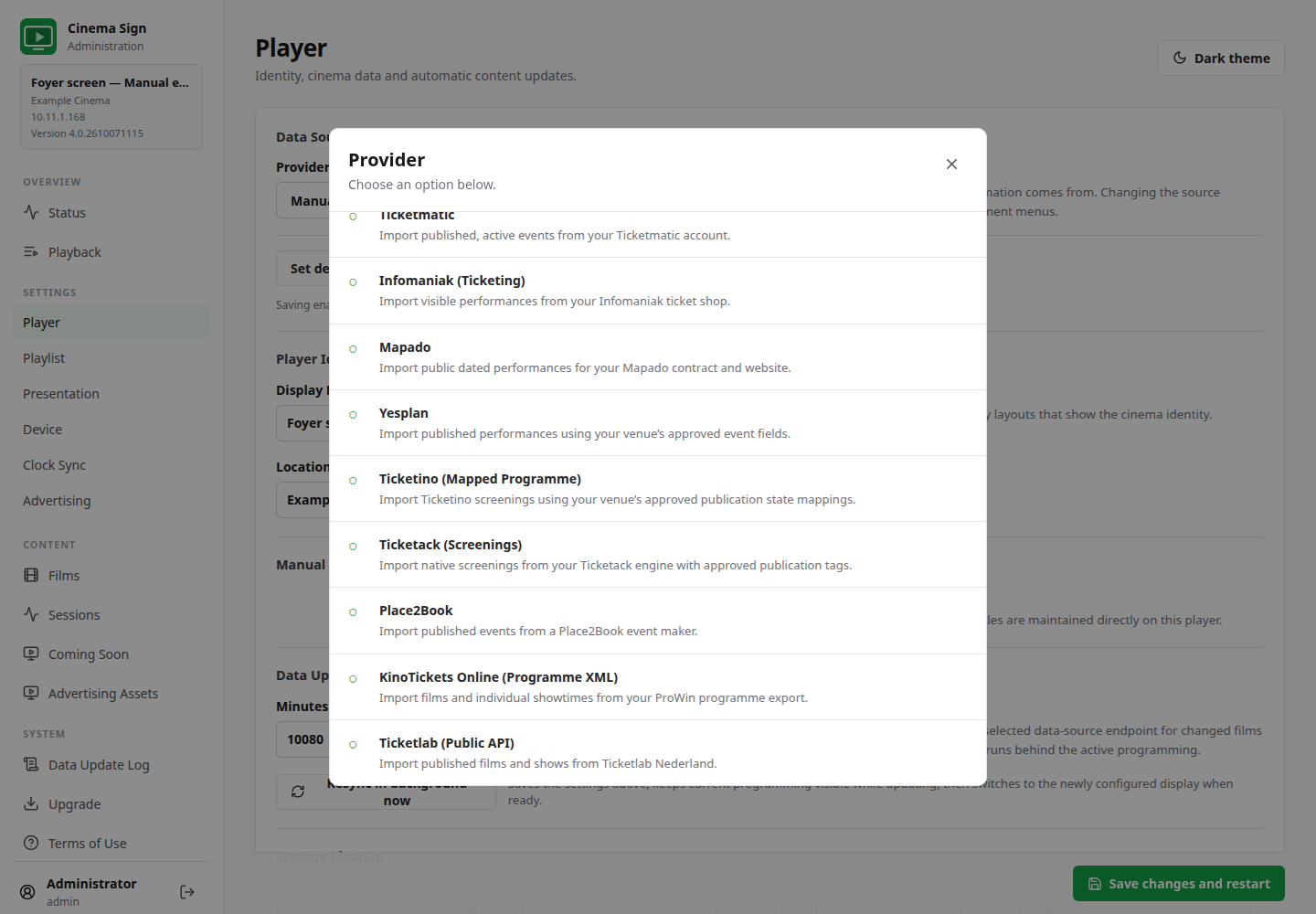
Advertise Only appears immediately below Manual. EBooking-Gateway is the last item under Manual, master and standard feeds. Other providers are listed under Other connections. A green Tested badge on the right of a provider means it has previous successful, public-programme or vendor-sandbox import evidence; there is no separate Tested connections section.
Use d-cine when provider media is missing
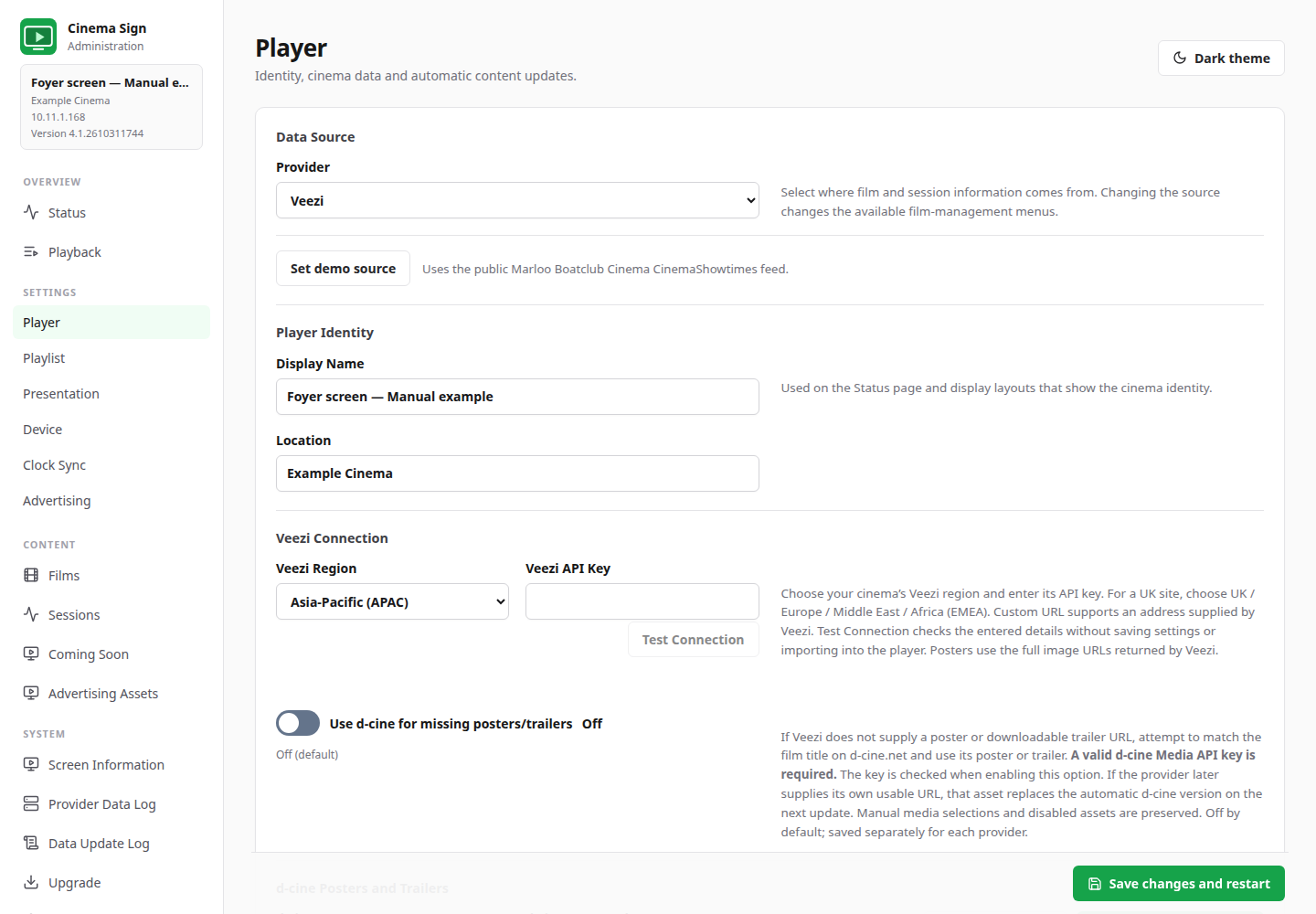
Supported providers show Use d-cine for missing posters/trailers directly below their connection fields on Settings → Player. It is Off by default and saved separately for each provider. Enable it to match film titles and fill missing posters or downloadable trailers from d-cine.net. A valid Media API key is required and checked when enabling the option. Supply the key in the d-cine Posters and Trailers section below.
The provider remains the preferred automatic source. If it later supplies a usable poster or trailer URL, that asset replaces the automatic d-cine version on the next update. Manual selections, uploads, per-film lookup exclusions and disabled media remain under your control. An unavailable key, service failure or ambiguous match leaves the cinema schedule usable; inspect Provider Data Log for the fallback result.
EBooking-Gateway always requires d-cine matching because its protocol has no media URLs. Manual and Follow Cinema Sign Master use their own media controls. Advertise Only needs no film-media matching or Media API key.
Choose a source
| Provider | When to use it | What you need |
|---|---|---|
| Manual | You will maintain films and sessions in Cinema Sign. | No programme feed. Add titles, media and sessions yourself. |
| Advertise Only | You want a dedicated advertising player. | Images, web page URLs or videos in Advertising Assets. Choose Poster or Video under Presentation; no film feed or Media API key is required. |
| Follow Cinema Sign Master | Another Cinema Sign player already has the cinema's programme. | The master player's reachable URL, usually including port 8888. |
| CinemaShowtimes OpenAPI | Your provider supplies the CinemaShowtimes JSON standard. | The complete cinema feed URL. |
| BLOAD.TXT | Your system exports the older BLOAD text format. | A file URL or FTP connection details. |
| BLOAD - TaPOS | Your TaPOS system supplies the modern BLOAD text export. | The correct TaPOS-format file URL or FTP details. |
| TaPOS / MEDIA2 | Your TaPOS administrator supplies a MEDIA2 XML endpoint. | The complete endpoint URL, venue timezone and Coming Soon policy. |
| Veezi | You have Veezi site API access. | The Veezi region and your site's API key. Use Custom URL if Veezi supplied a different address. |
| VenueMaster | You have a VenueMaster programme endpoint. | The venue endpoint and, if needed, a poster URL template. |
| Other ticketing readers | Your cinema has one of the supported ticketing services. | Its documented venue endpoint, credentials and publication settings. |
Enter, test and verify a feed
- Select the correct Provider. Connection fields change to match your choice.
- Enter the complete address and any venue details. Do not substitute your cinema's ordinary home page unless the provider documentation says to use it.
- Use the Test or Test Connection button where provided. A successful test shows that data could be read; it does not replace checking the programme.
- Select Save changes and restart.
- Open Import Status. Review its result, film count and last import time. Select Import now when needed.
- Check Films and Media, Sessions and Coming Soon. Confirm the right venue, dates, classifications and public screenings.
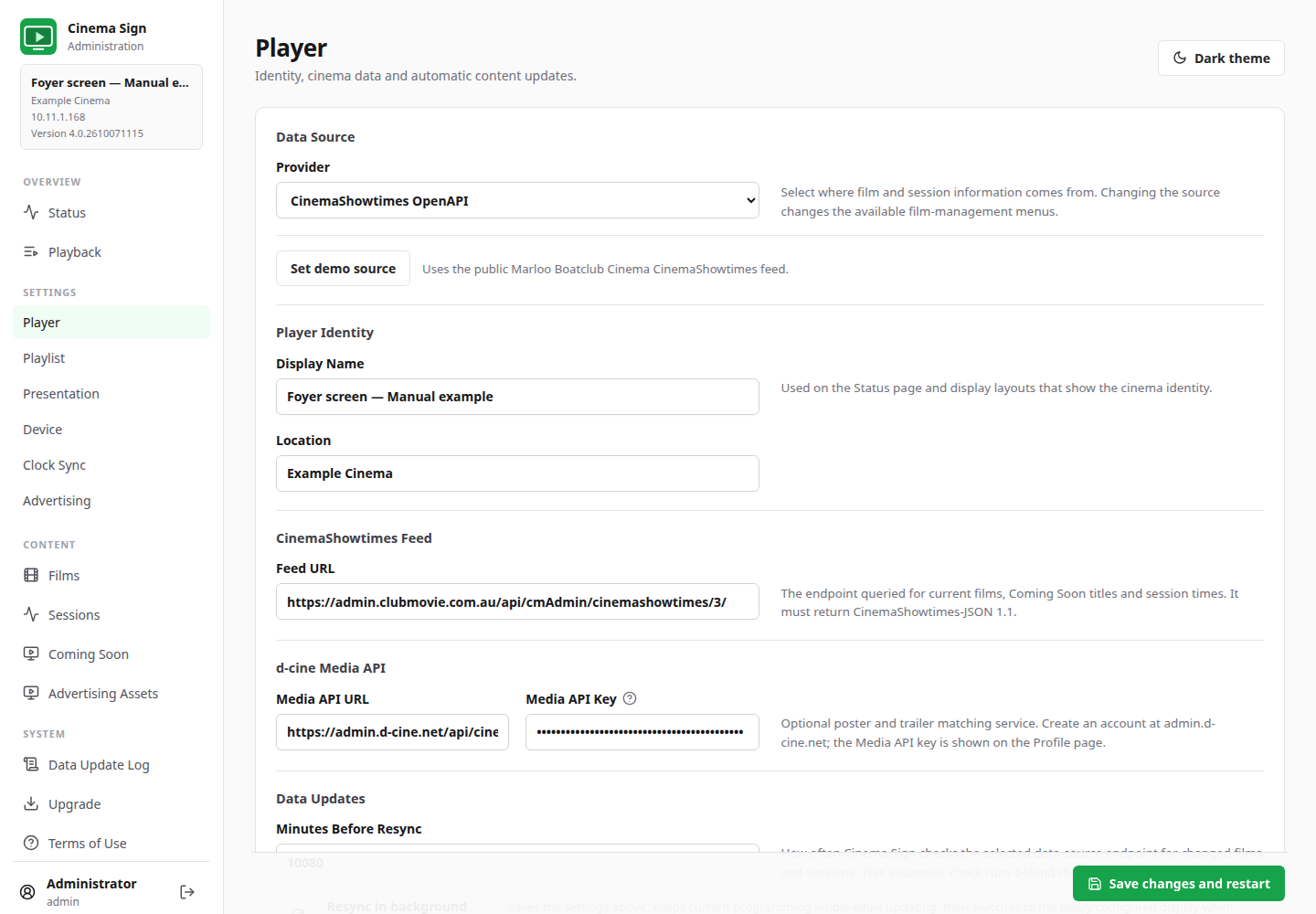
Choose a Veezi region
Under Veezi Connection, open the Veezi Region popup and choose Asia-Pacific, UK / Europe / Middle East / Africa, United States West, or United States East. For a UK cinema, choose UK / Europe / Middle East / Africa (EMEA). Enter the site's Veezi API Key, then select Test Connection to check the cinema name and film/session counts before saving. The test does not save credentials or replace the player's programme.
Choose Custom URL to enter an API address supplied for your cinema. Existing recognised regional addresses are selected automatically; custom and older addresses are retained. Poster URLs come directly from Veezi's film data and are not changed to match the selected API region.
Connect VenueMaster
For VenueMaster Endpoint URL, the suggested default is http://POS-IP:4065/VenueSchedule.json. Replace POS-IP with your POS server address. The port may differ for your installation. External port forwarding can change the address and port required; enter the complete URL reachable from this player and use Test to verify it. Leave Poster URL Template blank to derive poster URLs from the endpoint, or supply a separate template if posters use a different address or port.
Understanding supported and beta
The data-source catalogue lists every selectable importer and its evidence. A previously tested connection, a public example and a venue's production account are different kinds of evidence. Beta means that the reader is available but still needs your venue's acceptance test. Planned entries are not implemented yet.
Check a new connection with someone who knows the ticketing programme. Confirm that cancelled or private events are excluded correctly, sold-out screenings are handled as intended, and dates are interpreted in the venue's timezone.
BLOAD dates need particular care
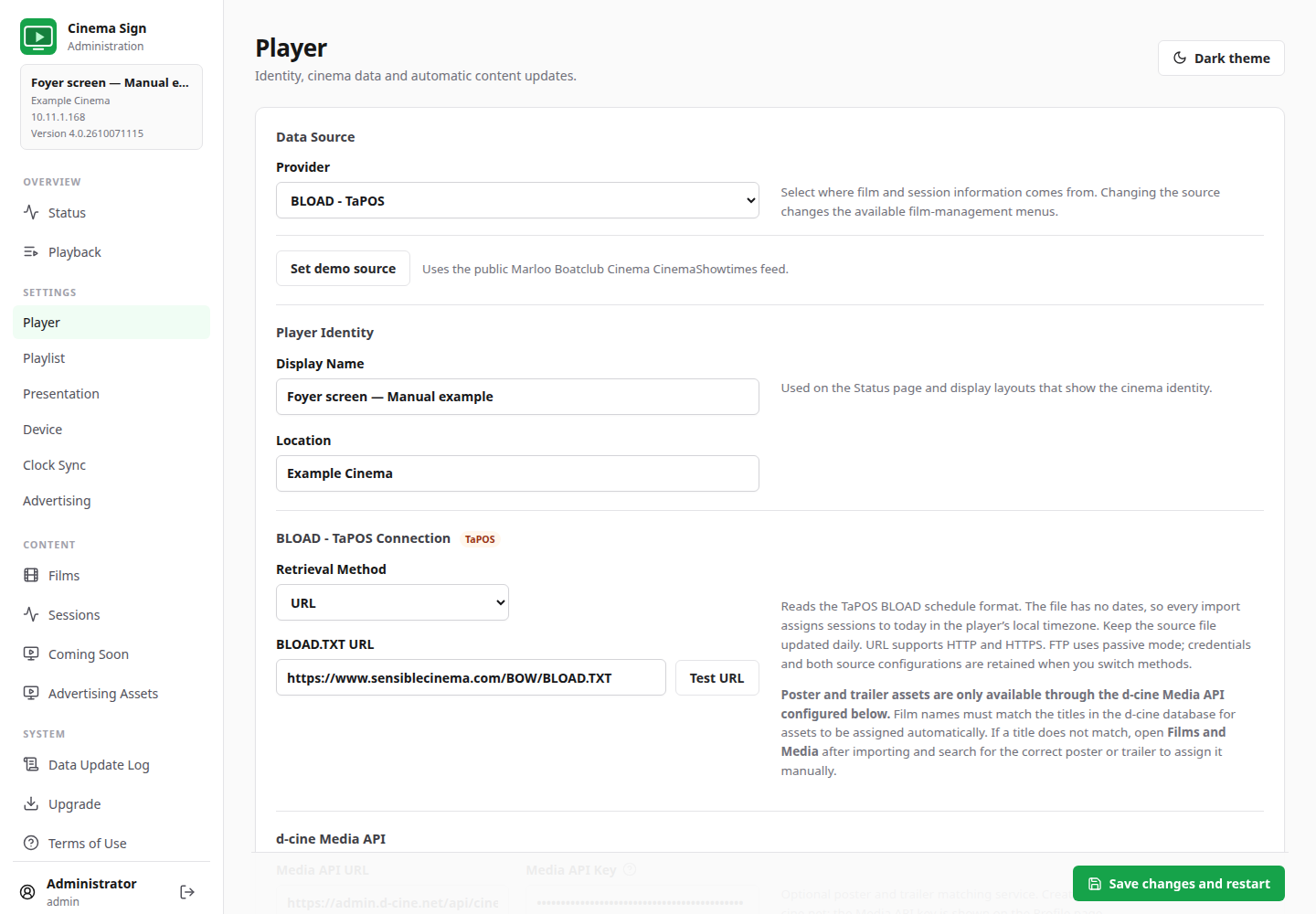
The modern TaPOS BLOAD example contains times without dates. Cinema Sign attaches those times to the import day in the player's local timezone. Arrange a fresh daily export and check it after a date change. A native TaPOS / MEDIA2 feed contains dated performances and is a separate provider.
Automatic updates and outages
The normal resync interval is 15 minutes. Choose an interval that suits how often the cinema changes its schedule. Updates run in the background in normal operation. Cached posters and trailers reduce the need to download the same media again; a live web page still needs a working connection.
If an import fails, inspect Import Status and Data Update Log. The player may continue using previously stored information, so a moving picture is not proof that the programme is fresh.
Veezi: region first, then the key
Select Veezi, choose the region supplied for your site and enter its API key. Use Custom URL when Veezi supplied a different endpoint. Schedule requests use that base address; returned poster addresses are used as supplied and can be on another host. A UK schedule endpoint does not require replacing the poster hostname yourself.
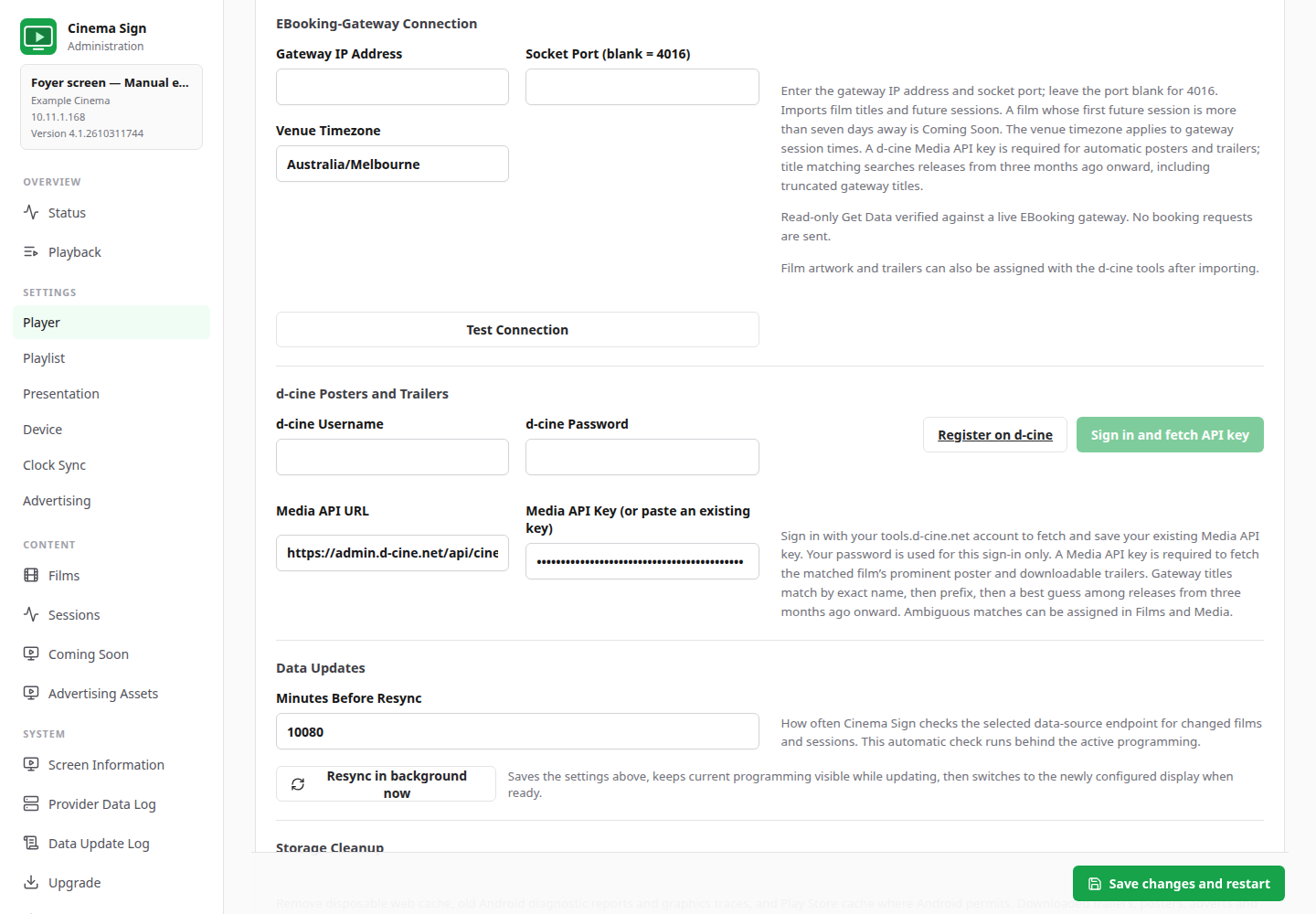
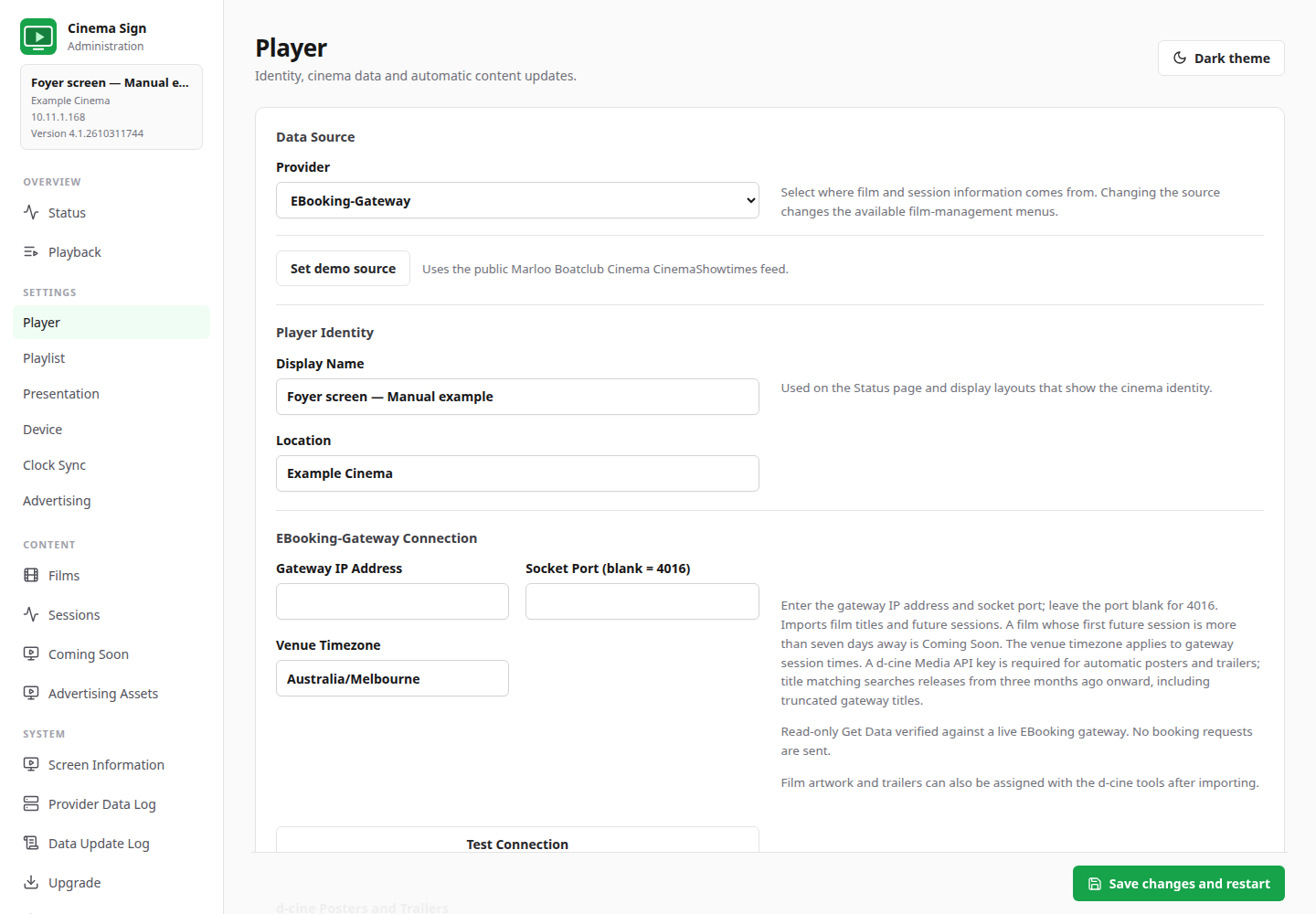
EBooking-Gateway: IP address and TCP port
- Ask the POS administrator for the gateway IP and confirm the read-only gateway service is enabled.
- Select EBooking-Gateway and enter its address. Leave the port blank for 4016, or enter the configured port.
- Configure a valid d-cine Media API key for automatic posters and downloadable trailers.
- Save/import, then verify the film titles, dates and session times against the POS.
- Review uncertain media matches manually, especially when the gateway truncates a title.
This gateway supplies film titles and sessions, not media URLs. Matching tries exact titles, then a prefix for truncated names, then a best guess within releases from three months ago onward. Ambiguous matches require review. Films with future sessions only beyond seven days are Coming Soon; a film with sessions inside the current window remains current even if it also has later sessions. This is the EBooking socket connection, not VenueMaster’s HTTP JSON export.
Fetch your Media API key
Under d-cine Posters and Trailers, enter your tools.d-cine.net username and password and choose Sign in and fetch API key. The password is used for that request only; the returned key is saved. You may paste an existing key instead. Use Register on d-cine if you need an account or the sign-in cannot obtain the key. These controls are also available in Manual mode.