


Add films and prepare their media
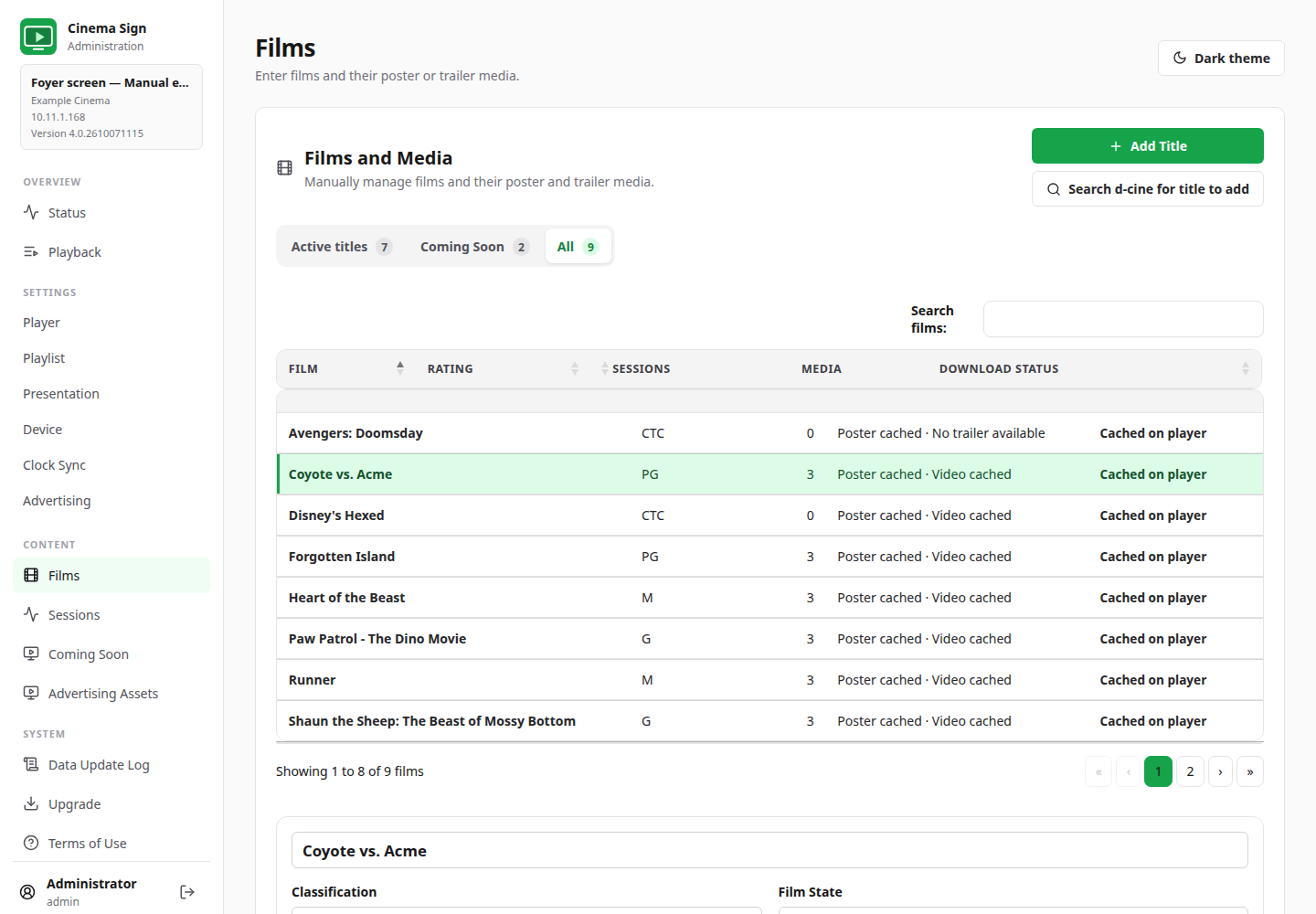
In Manual mode, open Films. With an imported provider, open Films and Media. Select a film in the table to show its editor below. Search and page controls help with a long list.
Add a title manually
- Choose Settings → Player → Provider → Manual and save if you will manage the programme yourself.
- Open Films and select Add Title.
- Enter the full film title and select OK.
- Select the new title in the table. Check its classification and enabled state.
- Add or select its poster and trailer, then enter sessions or mark it Coming Soon as required.
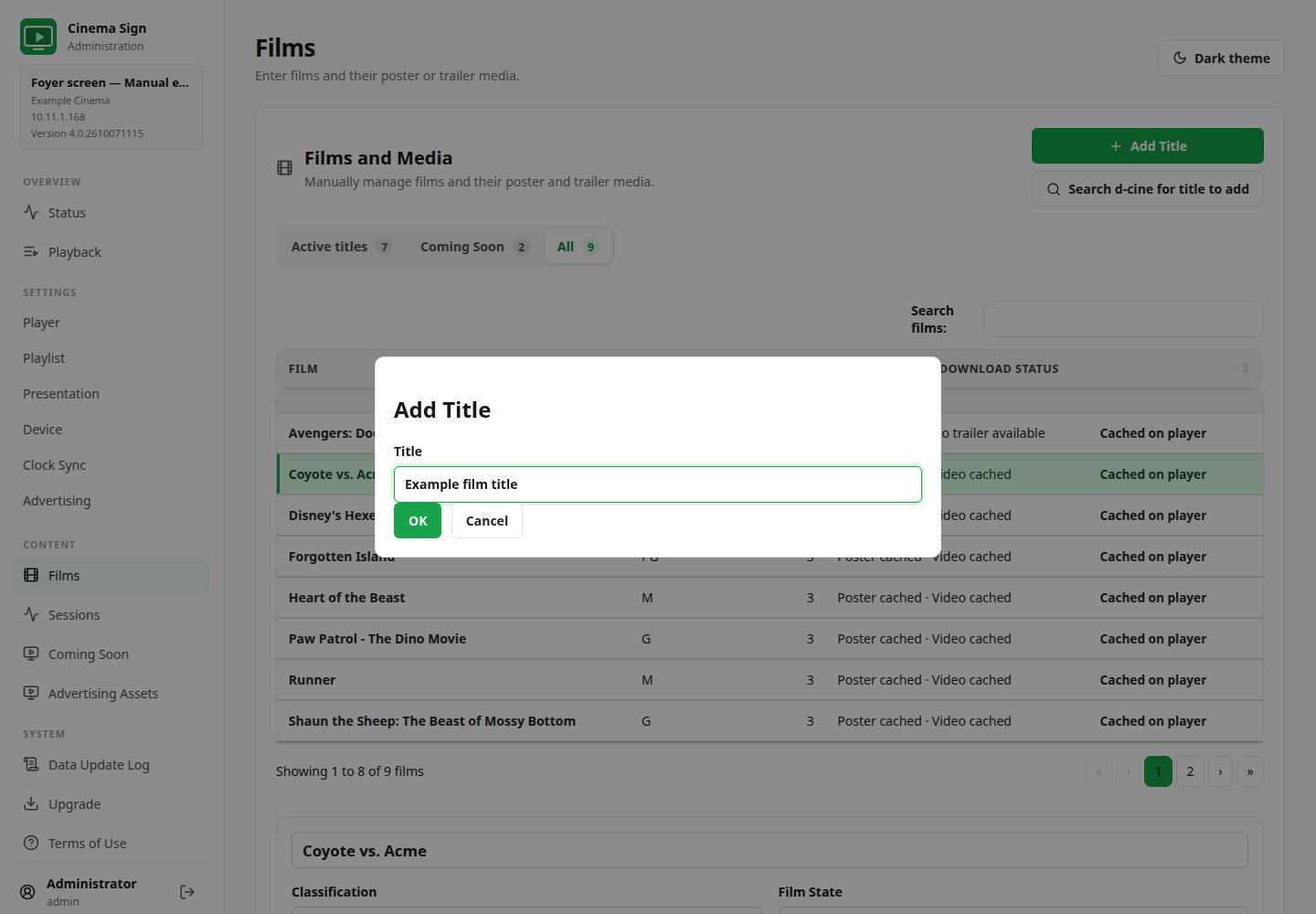
Add Title does not download a poster or choose a trailer automatically. This is useful when you want to upload your own media or control the exact trailer used.
Find a film in the d-cine catalogue
The d-cine catalogue is an optional service for finding film information and media. Under Settings → Player → d-cine Posters and Trailers, sign in with your tools.d-cine.net username and password to fetch your Media API key, or paste an existing key. Register on d-cine is provided for new accounts. Your password is used only for sign-in. These fields are available for Manual and imported sources; the Media API key is separate from the local control-panel password.
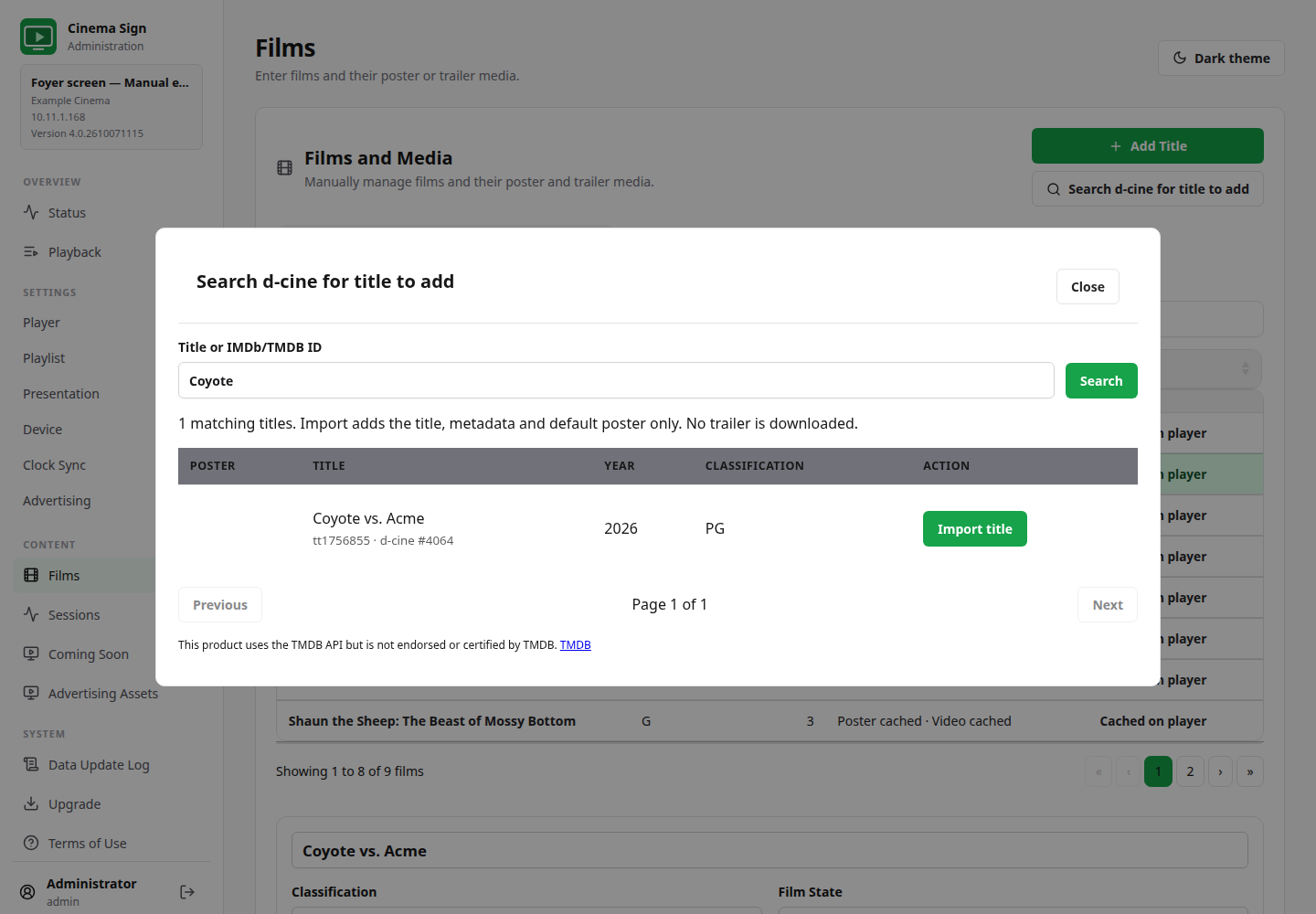
- On Films, select Search d-cine for title to add.
- Enter the film title, or an IMDb/TMDB identifier when you have one.
- Select Search. Check the film's year and classification, especially when titles have similar names.
- Select Import title on the intended result.
- Wait for its default poster to download. Select a trailer separately if the screen will play trailers.
Choose the poster you actually want
- Select the film in Films or Films and Media.
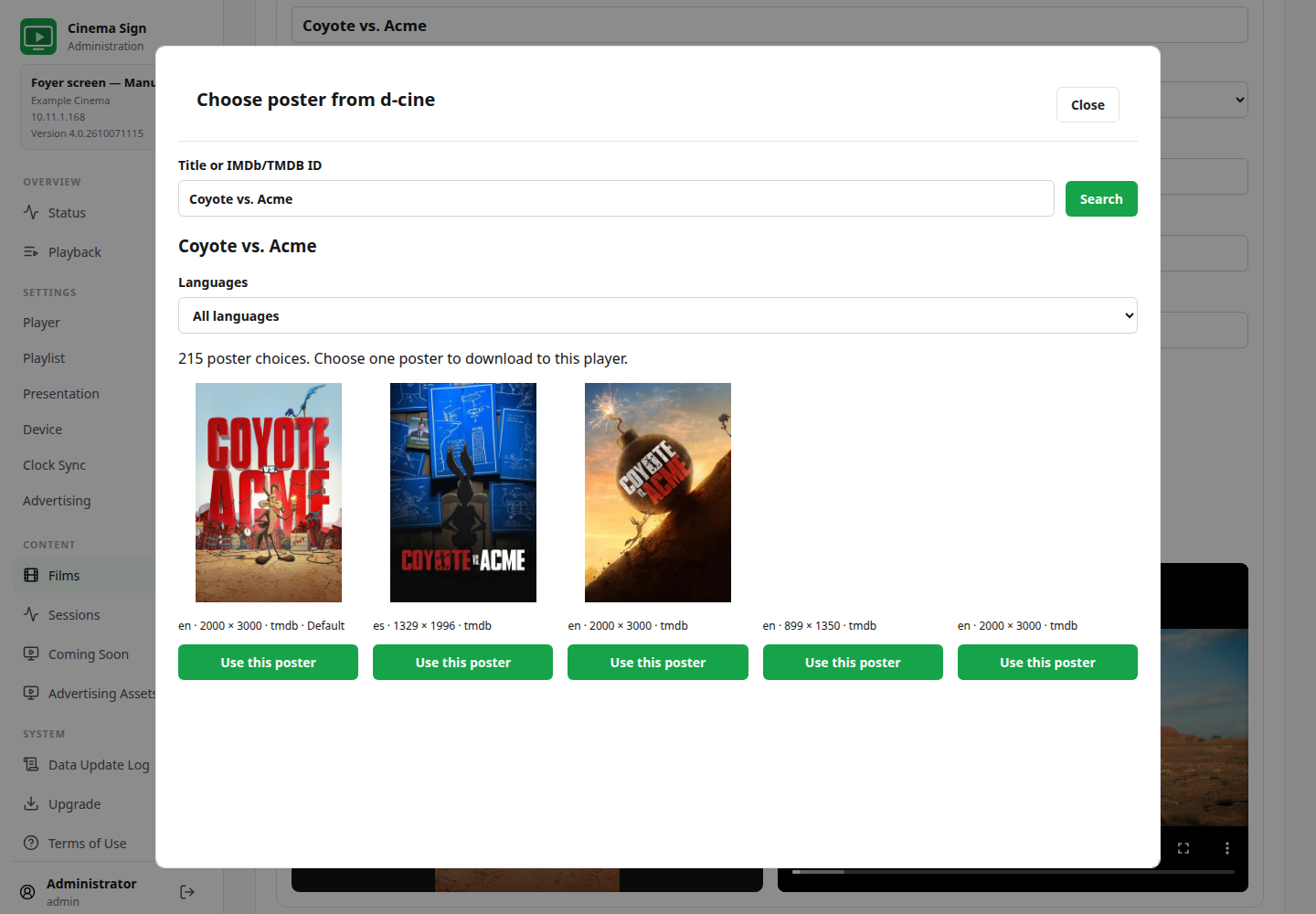
- Select Find poster on d-cine.
- Search for and select the correct catalogue title if asked.
- Review the available artwork, language and dimensions.
- Select Use this poster on the intended image.
- Wait for the download to finish, then check Poster currently on player.
Choose a trailer deliberately
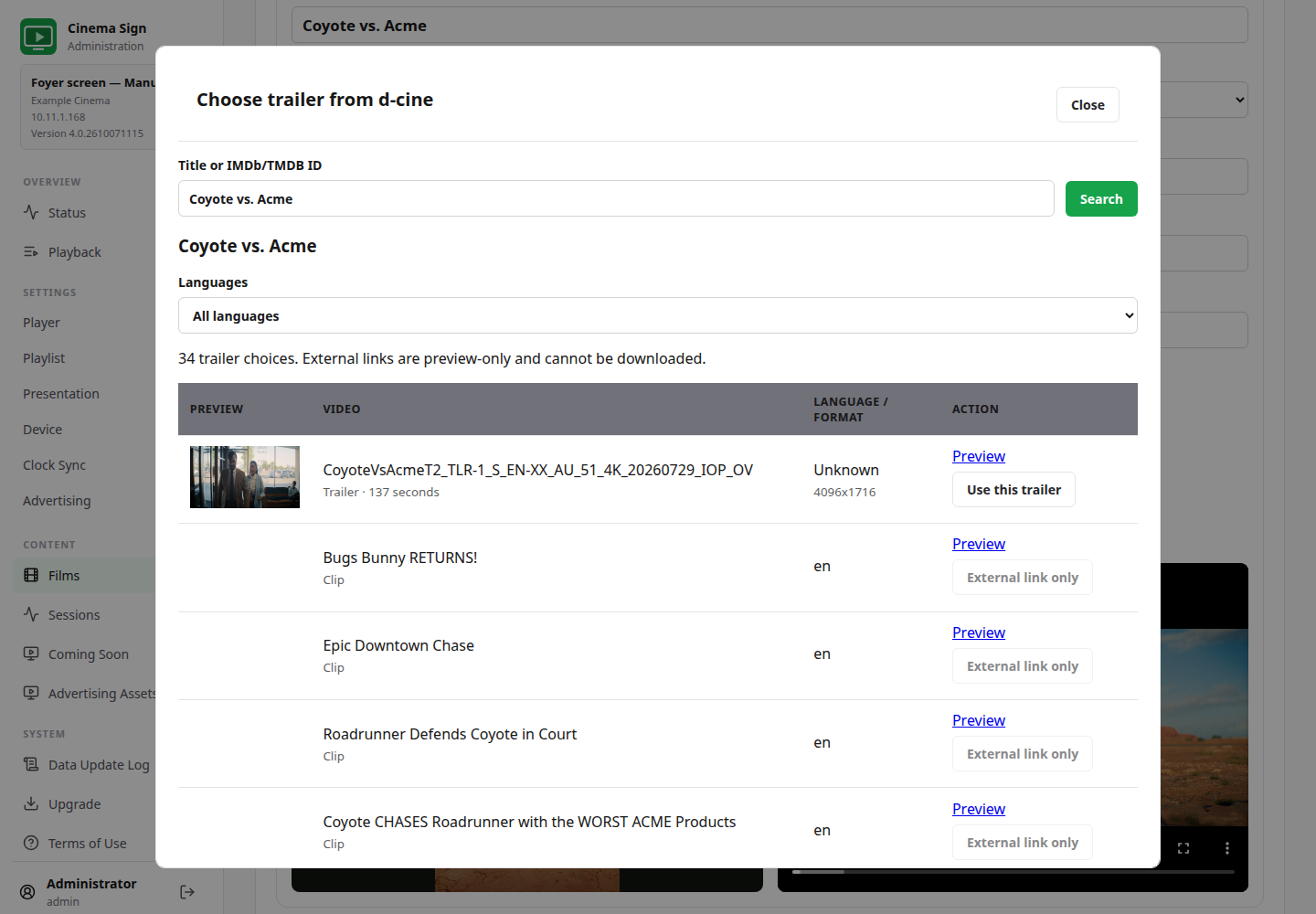
- Select Find trailer on d-cine.
- Select the correct film and review the language, format and available previews.
- Choose a downloadable video using Use this trailer.
- Wait for the download to finish. Check Trailer currently on player and watch a representative part of it.
- Confirm audio level, correct film/version and any start/end offsets before public playback.
Your explicit trailer choice is retained through automatic scans. Where automatic trailer lookup is enabled, it runs once daily for eligible films without a cached trailer. It is useful for filling gaps, but you should still check the result.
Upload files from your computer or phone
- Select the film, then select Upload poster or Upload trailer.
- Choose the intended image or video file on your device.
- Wait for the upload progress to finish.
- Check the cached preview and physical screen. For video, confirm it plays on the actual Android box.
Use a normal image format for posters and a compatible video file, preferably MP4, for trailers. A filename ending in MP4 does not by itself guarantee that the device supports the video's encoding. Avoid using a large video file merely because it is available; choose quality appropriate to the display and player's storage.
Read the film editor
For animated portrait artwork, use the separate Motion Poster URL, Download Motion Poster URL and Upload Motion Poster controls. Its cached preview and playback enable switch are independent of trailers and still posters. Local uploads and URL overrides survive programme updates. See Motion Poster setup, sources and transitions.
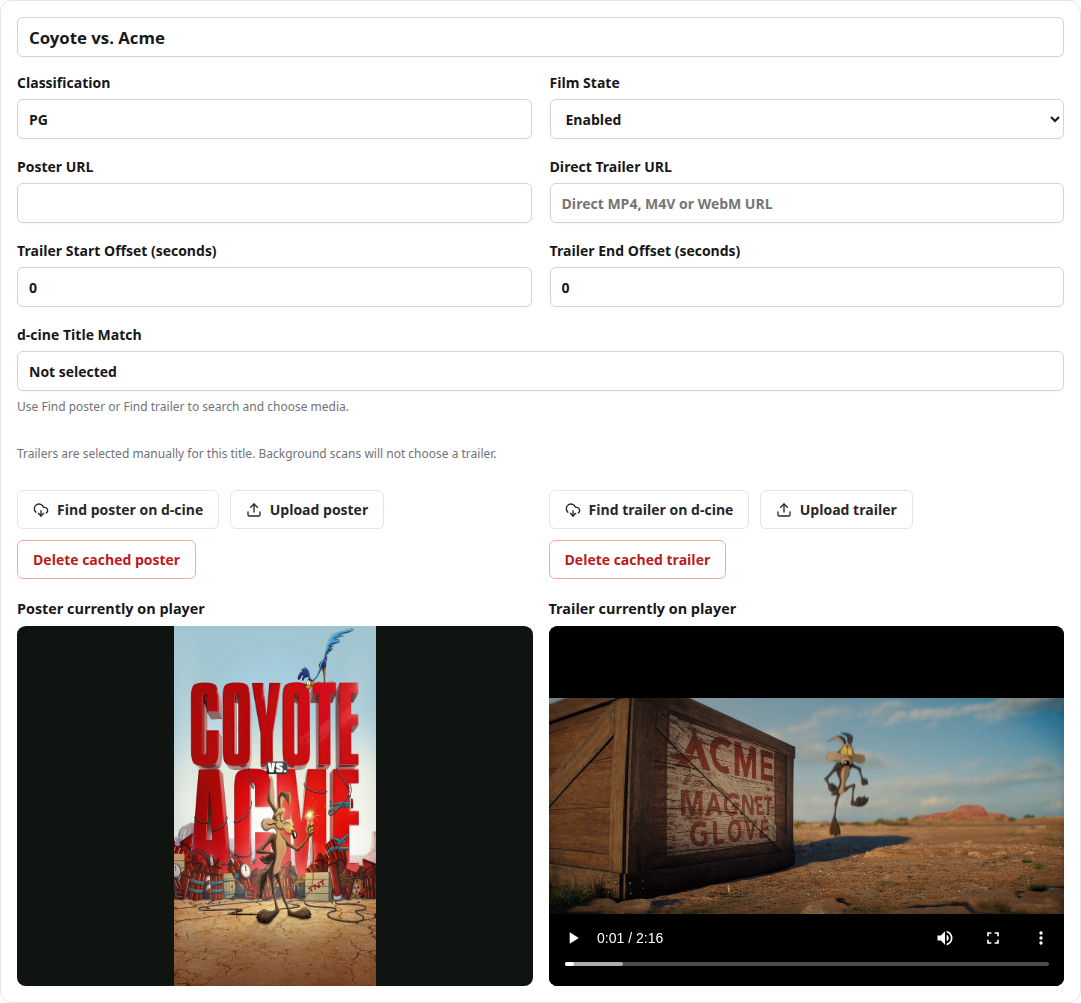
- Enabled / Disabled: decides whether the title can be used.
- Disable Poster / Disable Trailer: stops that type of media without necessarily disabling the whole film.
- Classification: check the correct rating, then select its regional artwork in Presentation.
- Trailer Start Offset: skips seconds at the beginning. End Offset: removes seconds from the end. Preview the resulting cut.
- Playback Weight: appears with the Enabled films selection formula. It changes relative frequency rather than making a fixed sequence.
- Local overrides: imported values may be changed locally and retained through imports. Reset to the imported value when you want the provider to control that field again.
Keep the three film assets separate
Poster is still artwork, Motion Poster is a silent video composition used in the poster area, and Trailer is the trailer clip. Supplying one does not create the other two. Each has its own cached file and playback exclusion. Keep a still poster for Motion Poster fallback. Provider/d-cine automatic poster/trailer fallback does not create Motion Poster content.
Back to contents ↑