


Find your way around the control panel
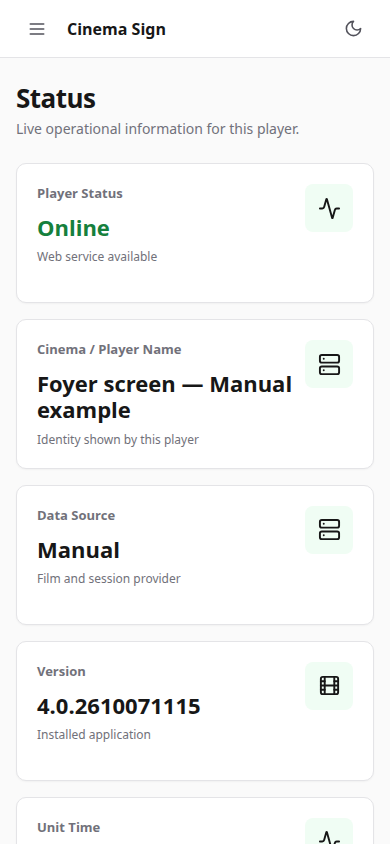
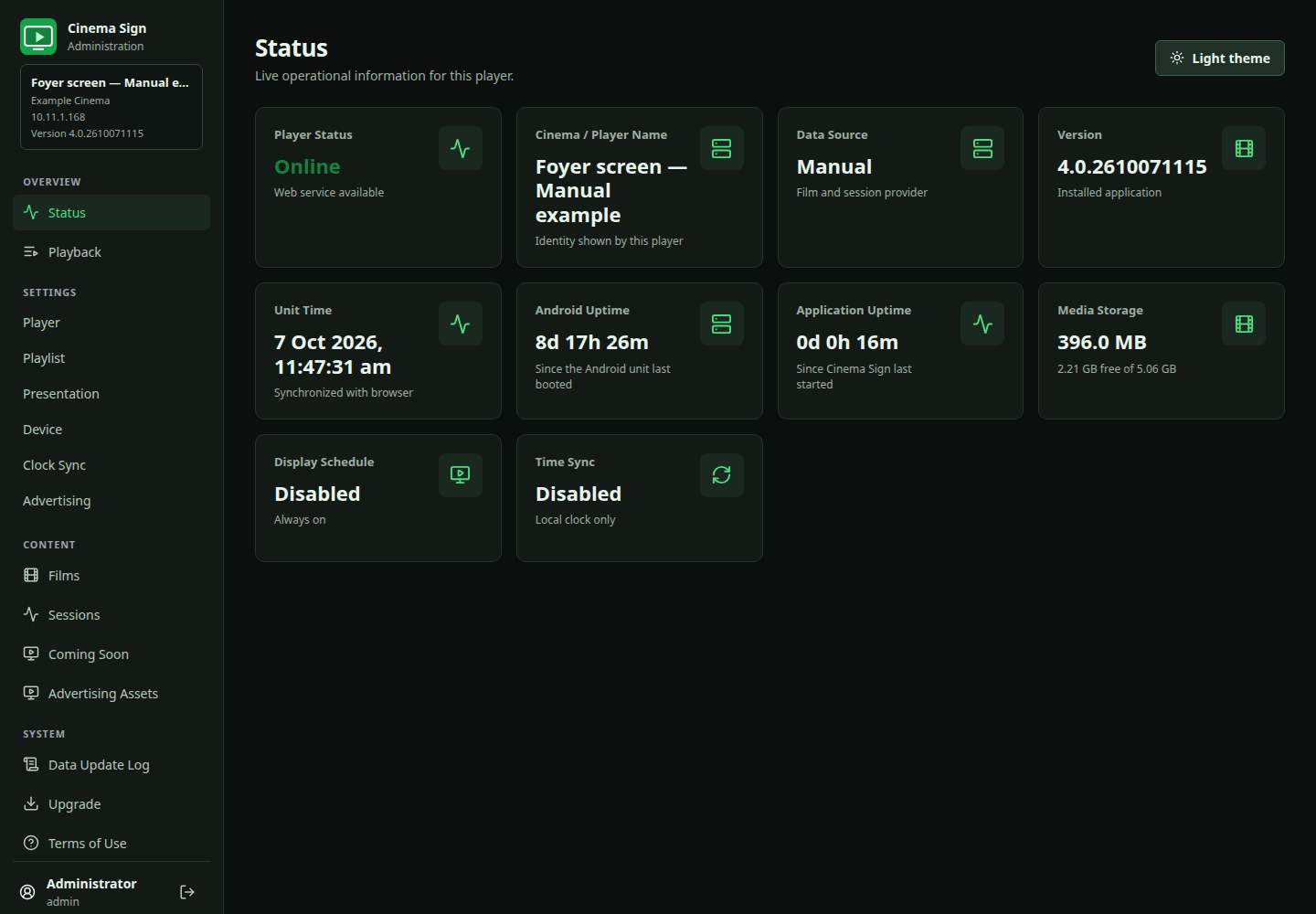
On a computer, the menu appears down the left side. On a phone, select the three-line Open menu button at the top. Scroll inside the menu if its last items are out of view. Choosing a page closes the phone menu.
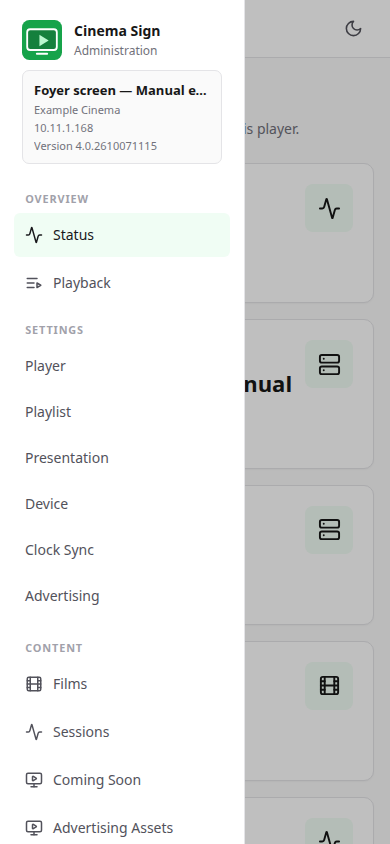
| Page | What you do there |
|---|---|
| Status | Check the player name, software version, time, storage, schedule and clock synchronization. |
| Playback | See the current item, what comes next and the synchronized playlist. |
| Settings → Player | Name the player, choose its programme source, configure imports and use Clean unused data. |
| Settings → Playlist | Choose which films play, their order, still-poster transitions and Motion Poster transitions. |
| Settings → Presentation | Choose the display type, layout, orientation, classifications and time format. |
| Settings → Device | Manage boot, display schedules, nightly app restart, permissions and logging. |
| Settings → Clock Sync | Align timing between players on the local network. |
| Settings → Advertising | Turn advertising on for this player and set the interval. |
| Films / Films and Media | Add or review films, edit local values, choose artwork and download or upload media. |
| Sessions | View the dated timetable and edit local session overrides where appropriate. |
| Coming Soon | Select films that should appear before sessions are scheduled. |
| Import Status | Read the last import result or request an import. This page is available for imported sources. |
| Advertising Assets | Upload advert files, add live URL posters and set campaign eligibility. |
| Data Update Log | Read the most recently completed programme/media update report. |
| Upgrade | Find available releases and request a download/installation. |
| Terms of Use | Review the accepted terms and version. |
Save settings before leaving
Changing a field does not usually apply it immediately. Use the page's save button. For settings pages, Save changes and restart runs a content update and restarts the display presentation. It does not reboot Android.
Some action buttons act immediately: Clean unused data, Import now, Restart application now, permission-opening buttons and privileged system logging controls. Their result appears on the page. Do not press Upgrade installation buttons just to preview a release.
Lists and selection windows
The Provider selector opens a scrollable list. Scroll inside that window to see the last providers. Film and session tables can also scroll sideways on a narrow phone. A film search may hide a record: clear the search and check the page controls before deciding that a film is missing.
Light and dark appearance
The Dark theme / Light theme button changes your browser's control-panel appearance. It does not change the film poster or trailer on the television.
Menus follow the selected Provider
Advertise Only shows Advertising Assets and a reduced Presentation page. Film, session, Coming Soon, import, Playlist and advertising-insertion menus are hidden. Playback Order moves to Presentation. Returning to a cinema provider restores the relevant menus and its retained presentation choices.
Under System, Screen Information reports the attached display. Provider Data Log appears above Data Update Log for cinema sources and explains received data and media eligibility.
Back to contents ↑