
Choose still and Motion Poster displays
Use posters for film promotion on a horizontal or vertical display. Prepare cached artwork first. A detailed layout can show session times or a Coming Soon message as well as the poster.
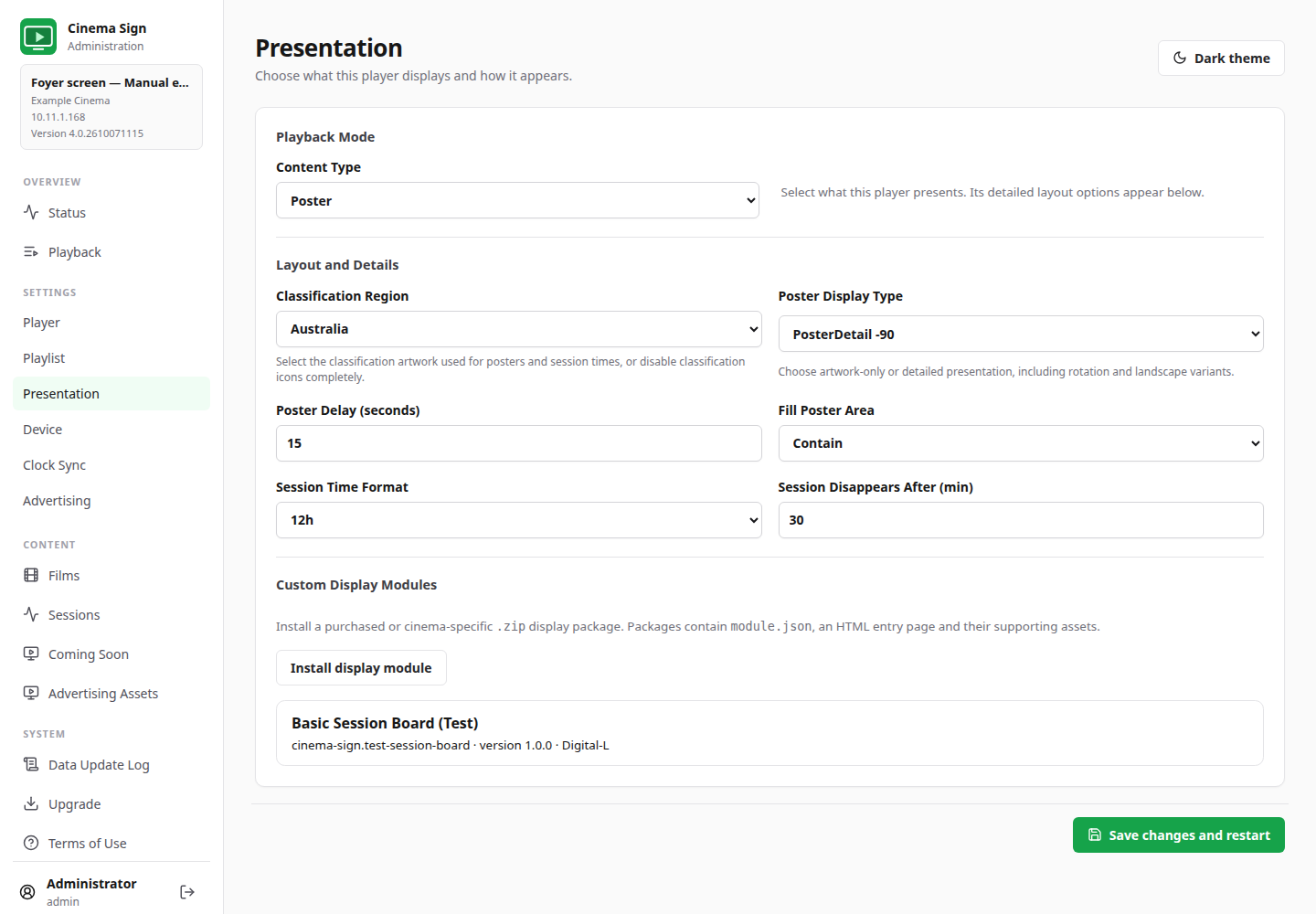
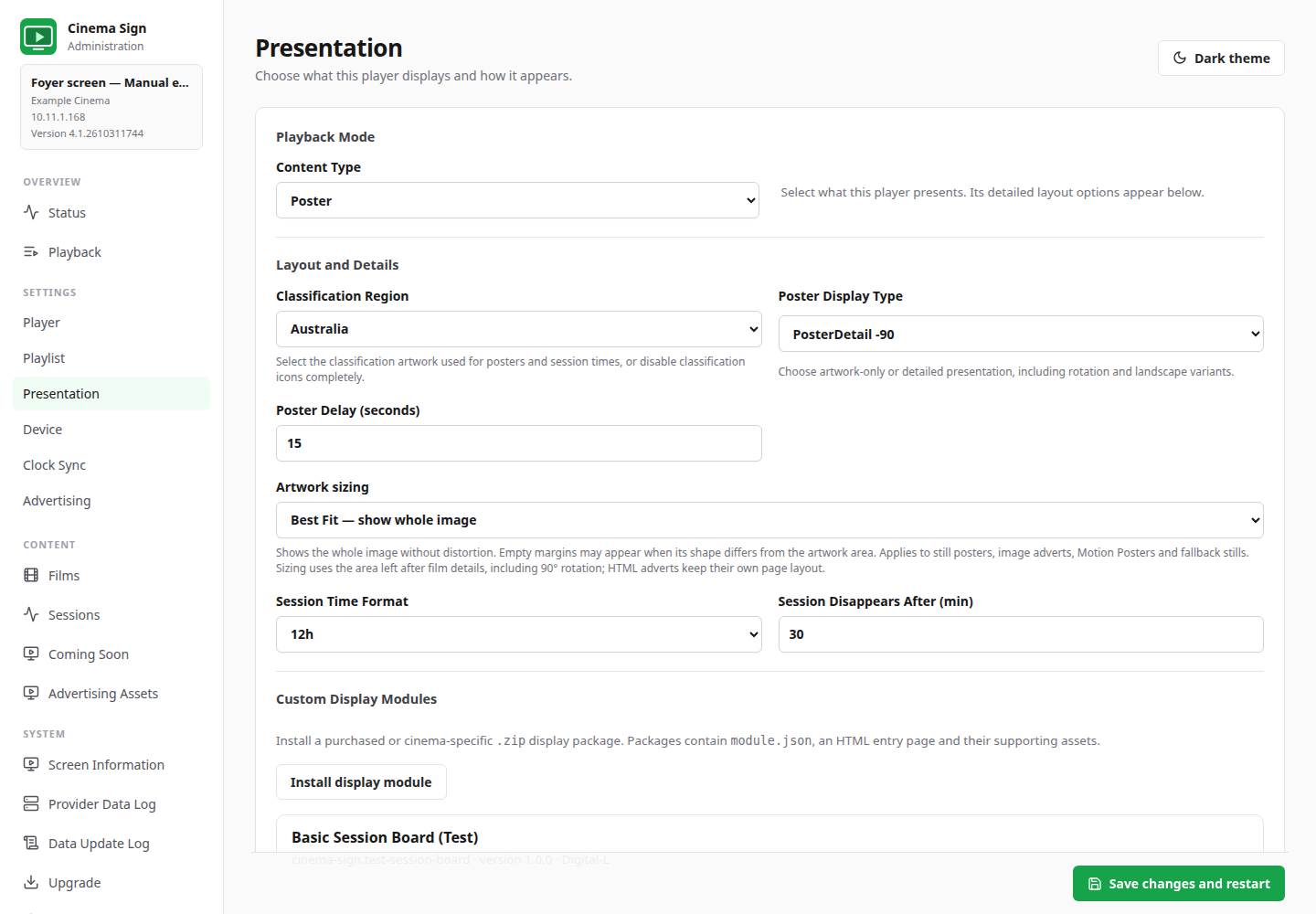
Settings → Presentation → Content Type → Poster
- Select Poster as the Content Type.
- Choose Poster Display Type using the examples below.
- Set Poster Delay: how many seconds each poster slot lasts.
- Choose your classification region. Choose Artwork sizing under Presentation: Best Fit, Fill or Stretch to Fit.
- For detailed modes, choose the time format and Session Disappears After value.
- Save, then check the physical screen's orientation, text and picture.
Without rotating the picture
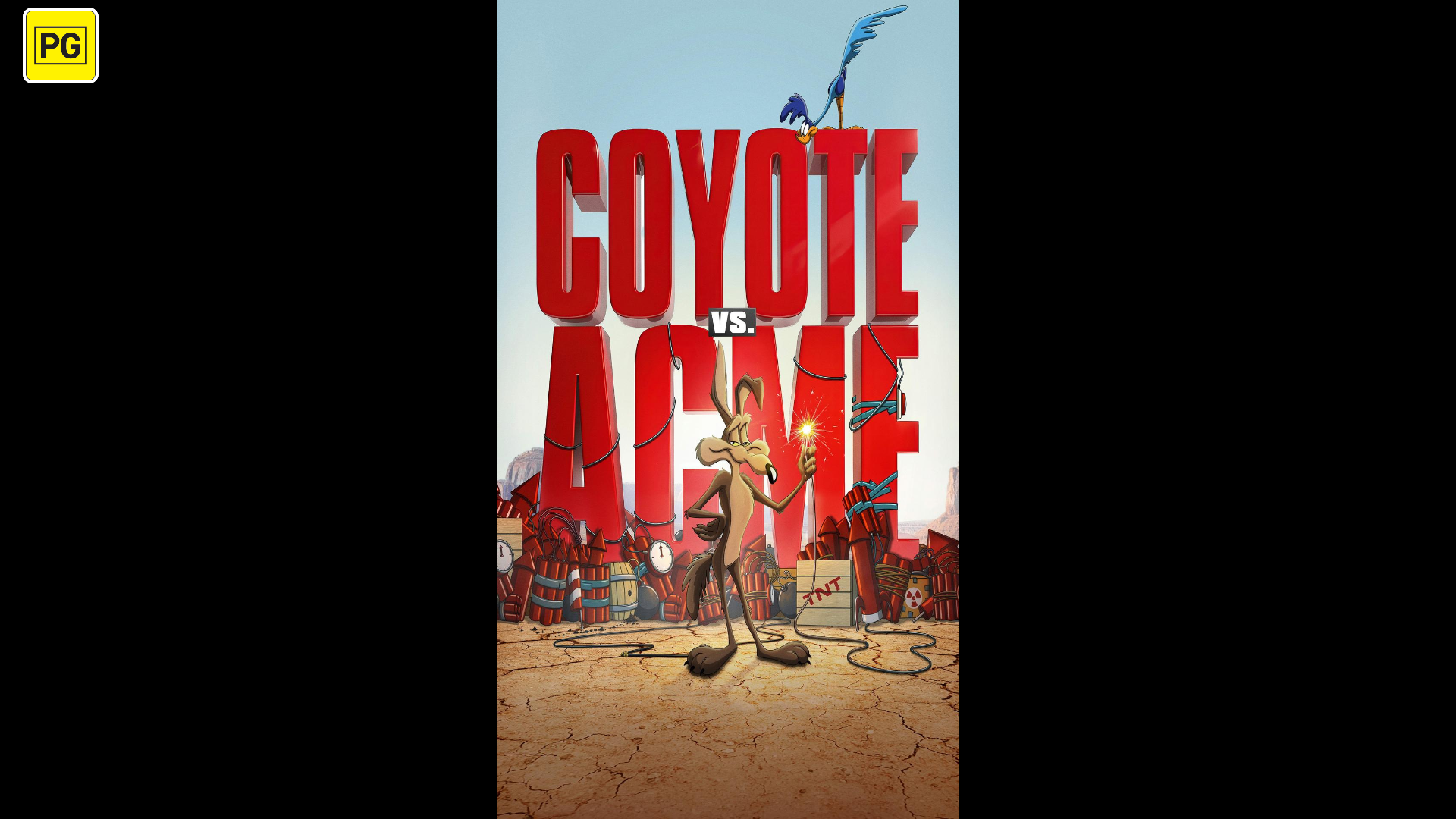
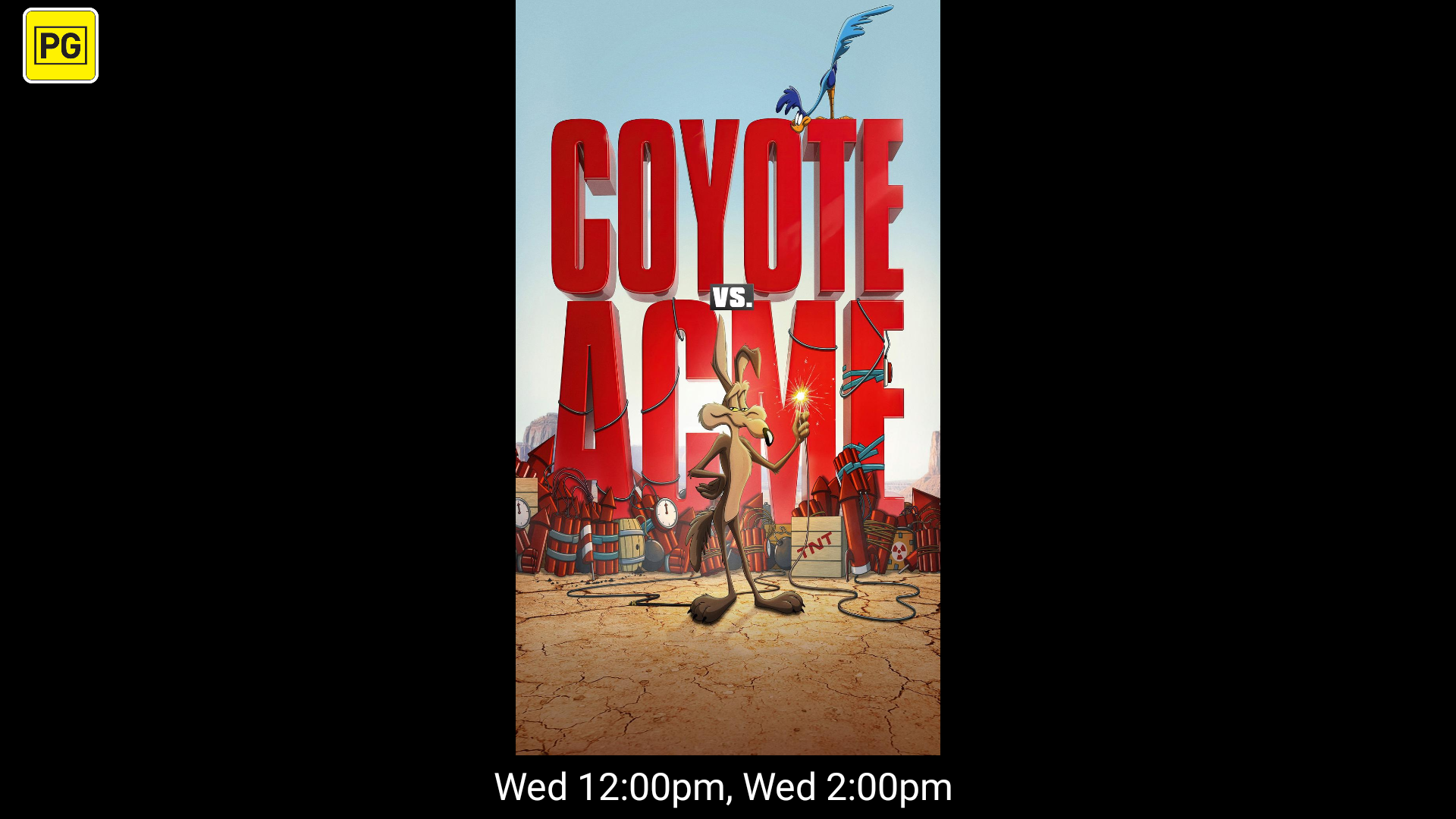
Artwork-only on a vertically mounted television
A television mounted on its side normally needs a rotated layout. The −90 and +90 choices turn the content in opposite directions. Choose the one that makes the physical display upright; if it is upside down, choose the other direction.
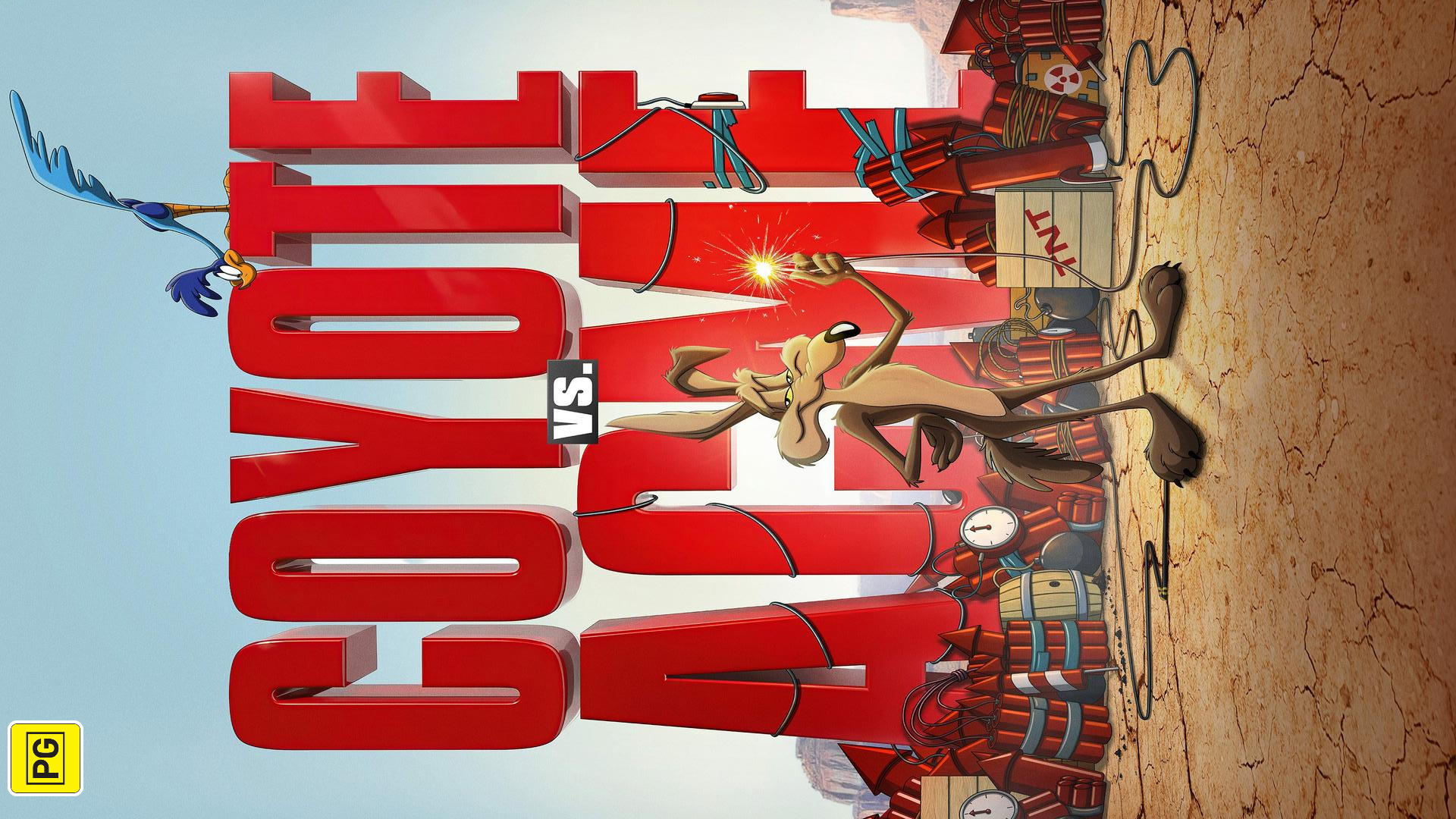
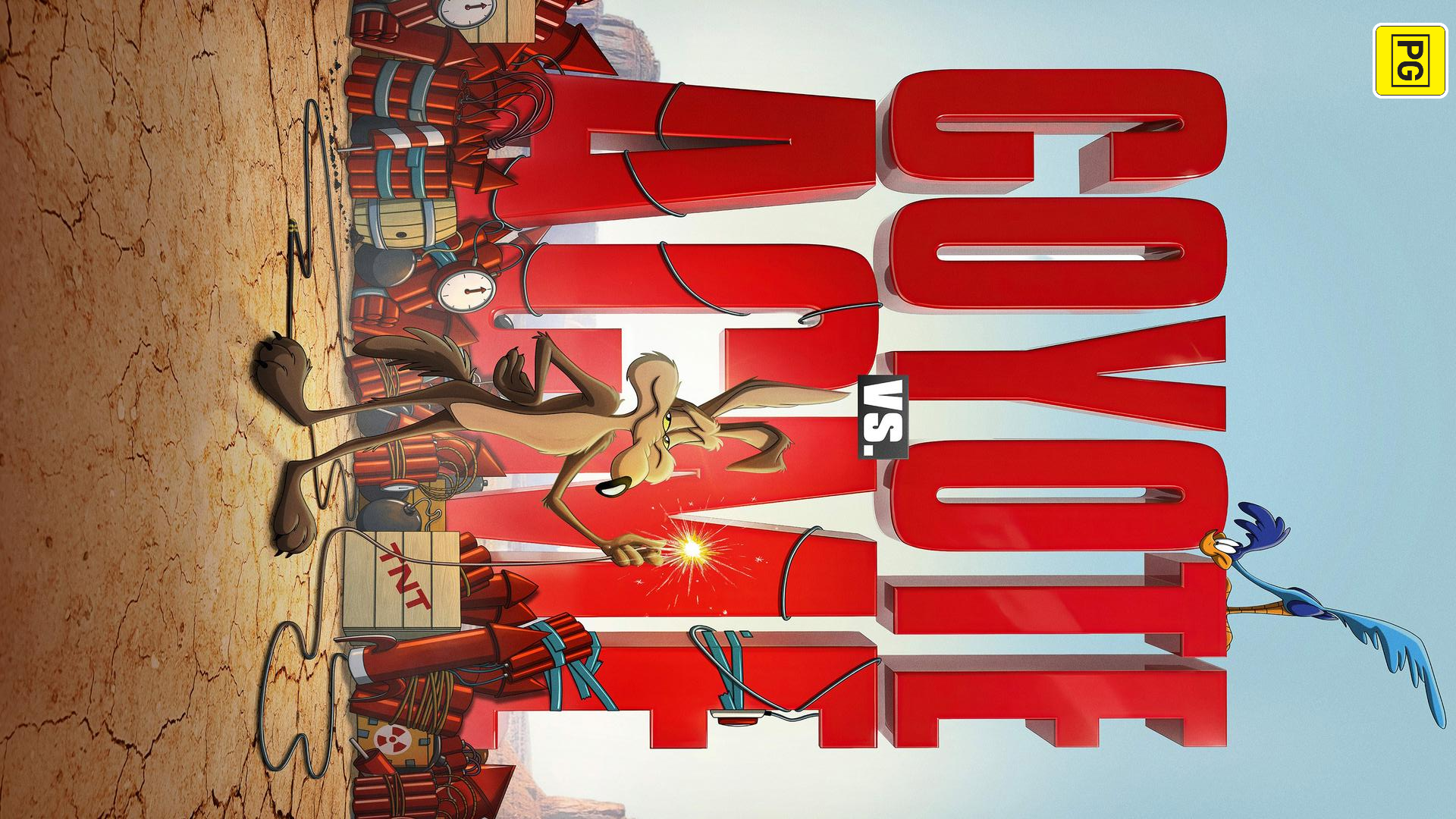
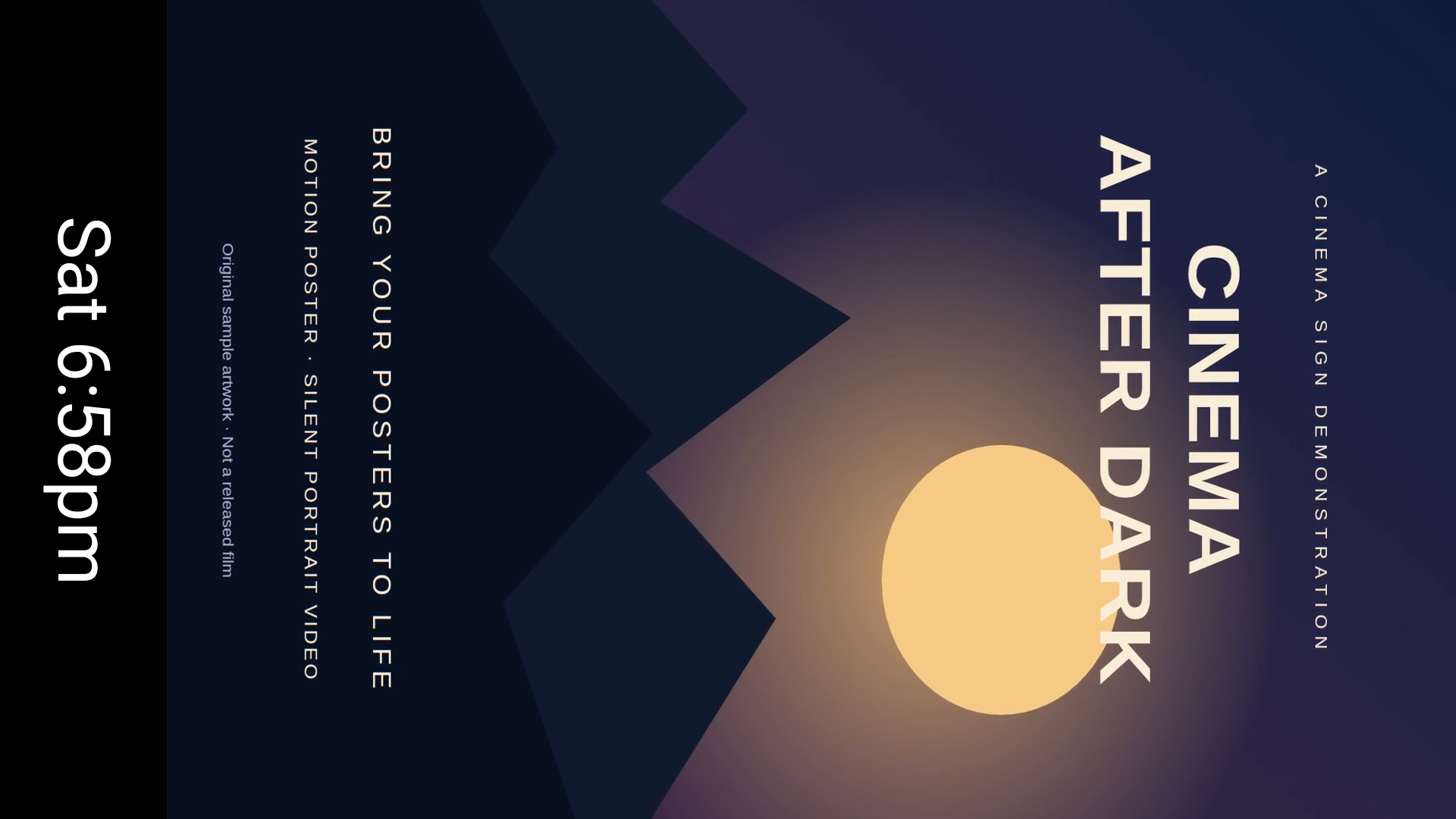
Poster with session details on a vertical television
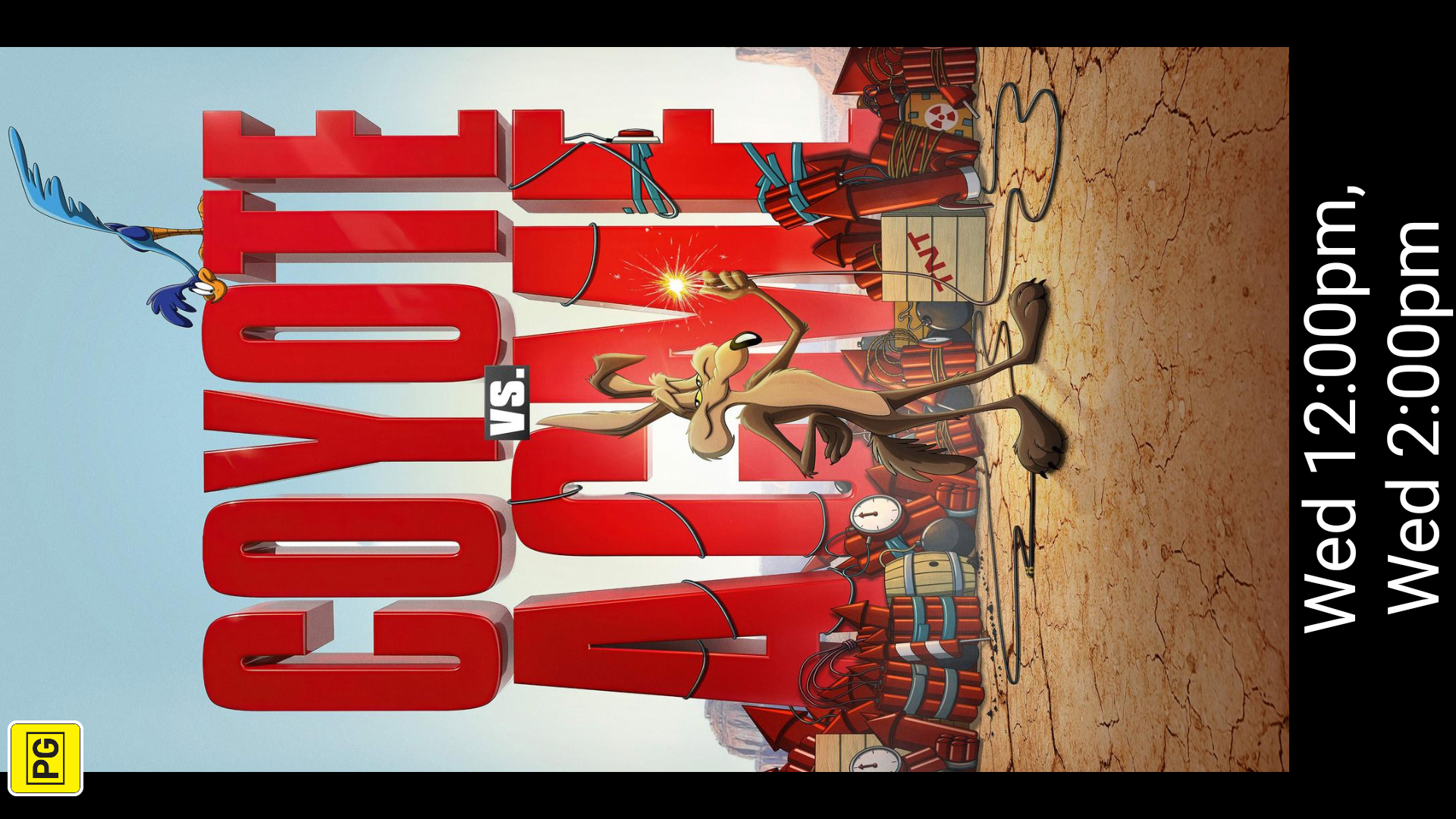
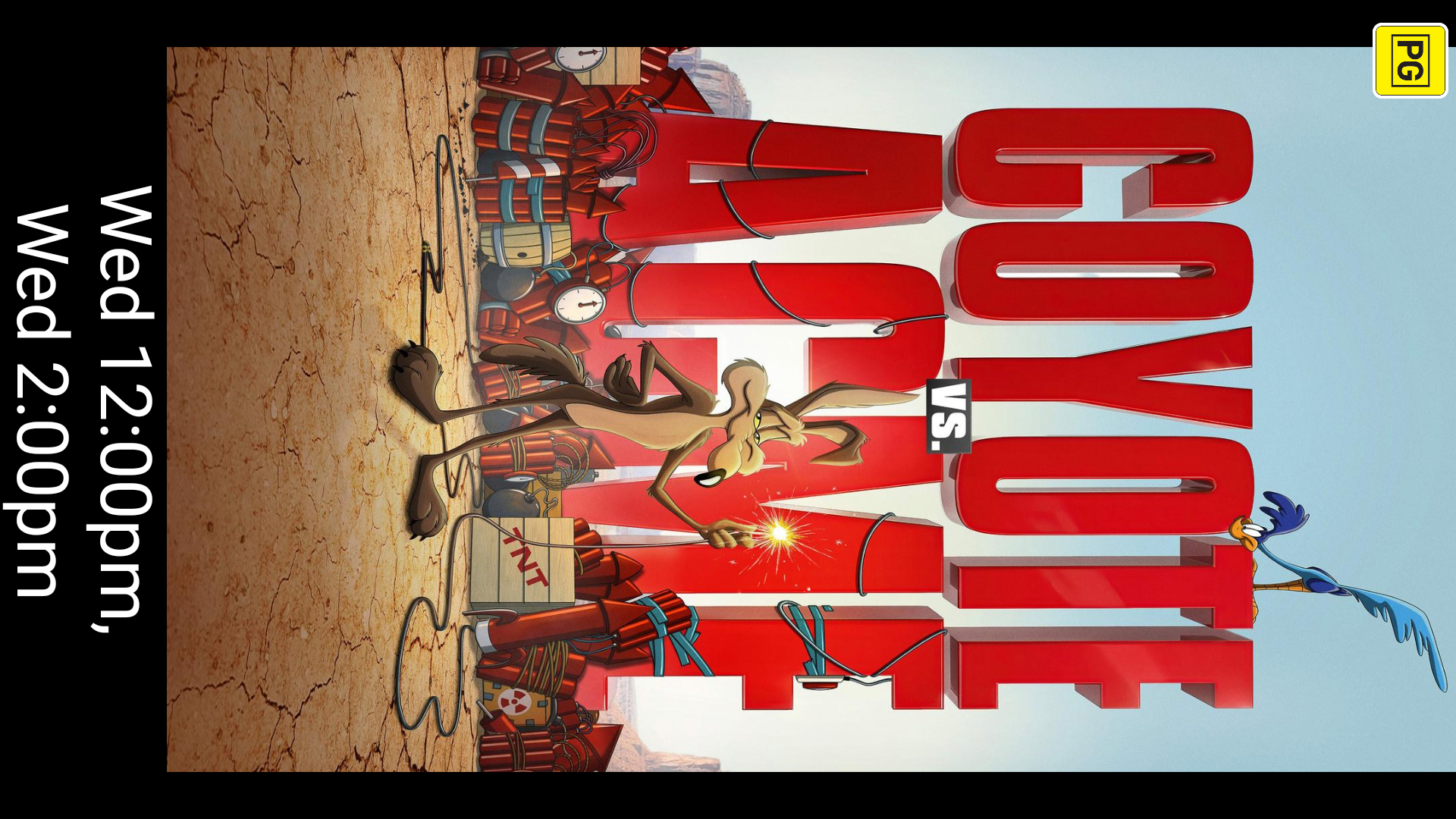
The two portrait directions can look the same once the television has been mounted to match them. The original Android screenshots are sideways; this manual displays them in the intended mounted orientation. The original files are available from the enlarged image view.
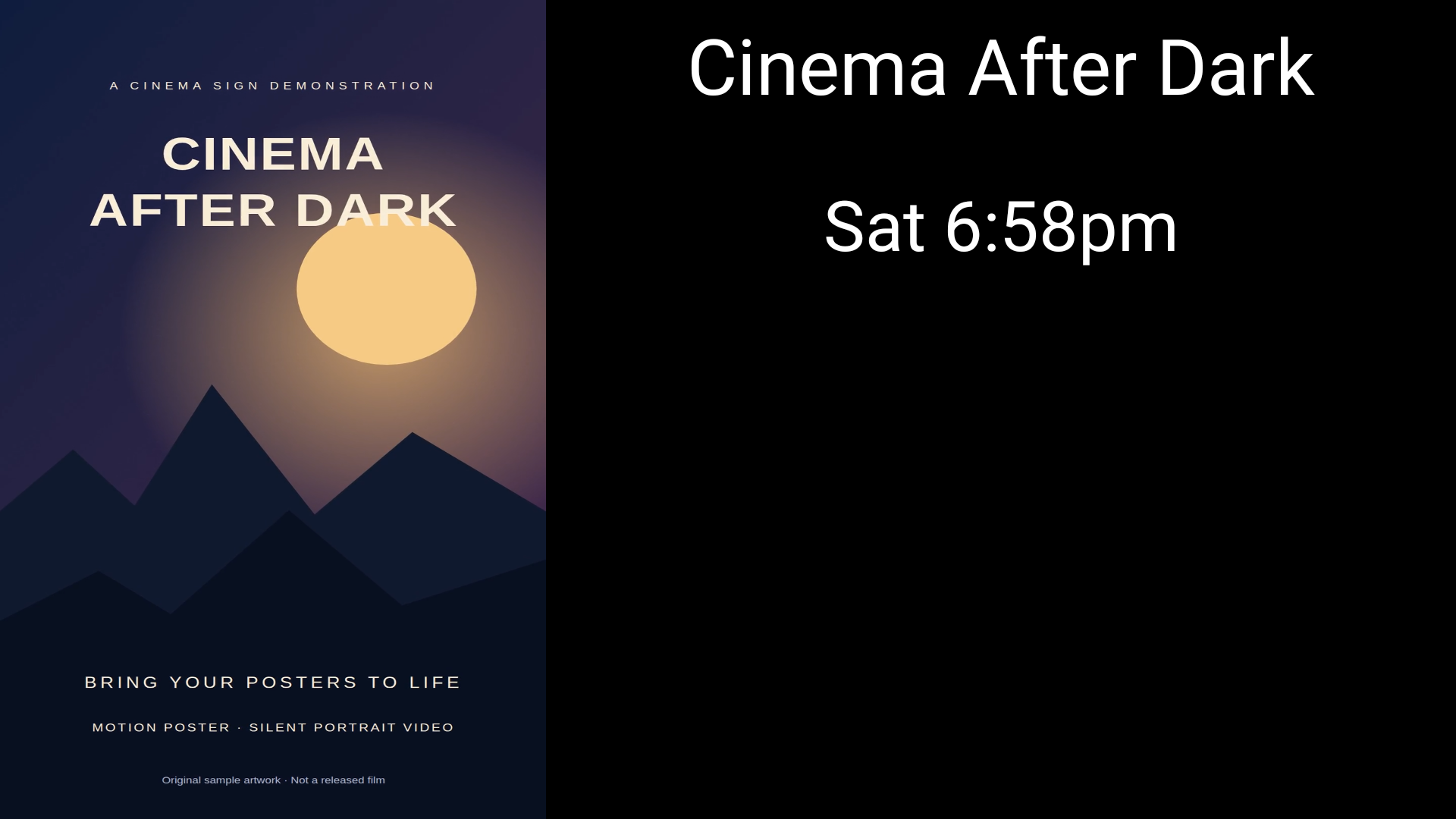
Poster and details beside each other
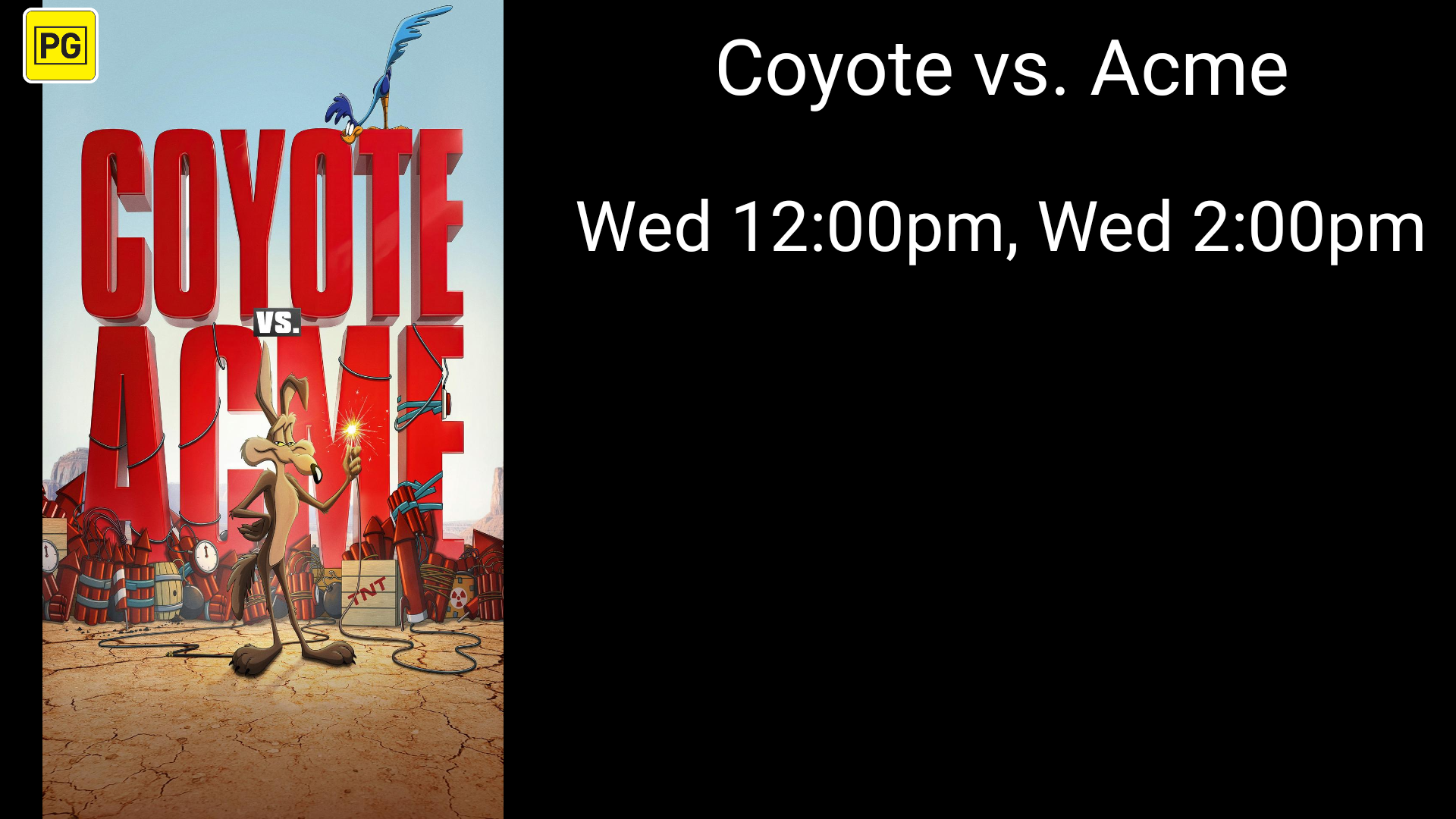
Choose artwork sizing
Open Settings → Presentation → Artwork sizing. This applies to still posters, image adverts, Motion Posters and fallback stills. HTML adverts keep their own page layout. The player uses the actual artwork area after reserving the detail strip or panel, including either 90° rotation.
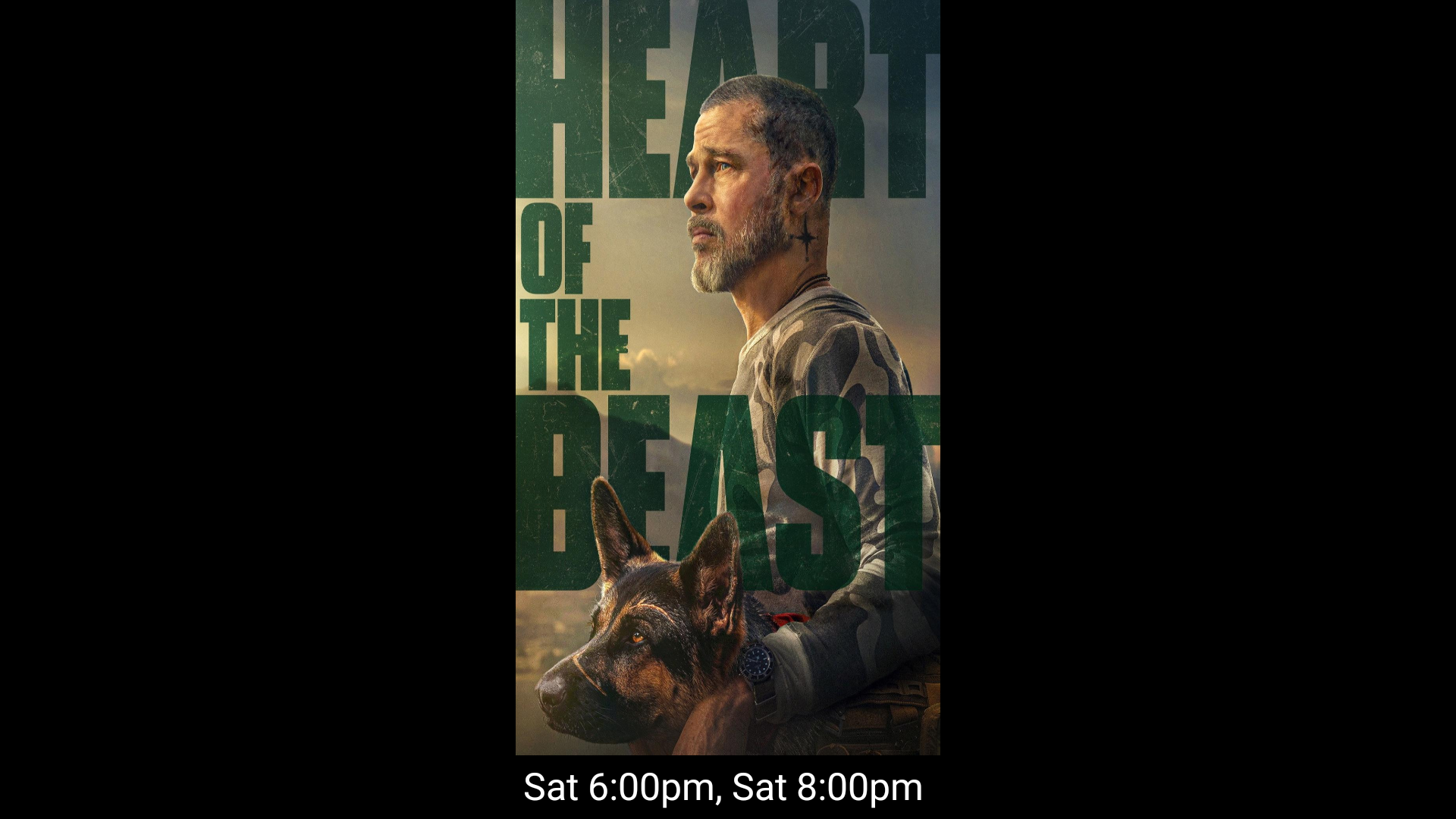
- Best Fit — show whole image: keeps proportions and shows all artwork. Empty margins may remain when the image and area have different shapes.
- Fill — crop edges: keeps proportions and covers the area. Edges may be cut off.
- Stretch to Fit — exact fill: shows all artwork and fills both dimensions exactly. Faces, text and other artwork may look wider or taller. This is the default when no preference is saved.
Saved Fill choices stay Fill. Older saved Contain choices now select Best Fit. Check the actual screen, especially title text, faces and credit text, after changing the setting.
The still examples above were recaptured on the updated physical Shield on 31 October. Compare the three sizing choices below on the same detailed layout.
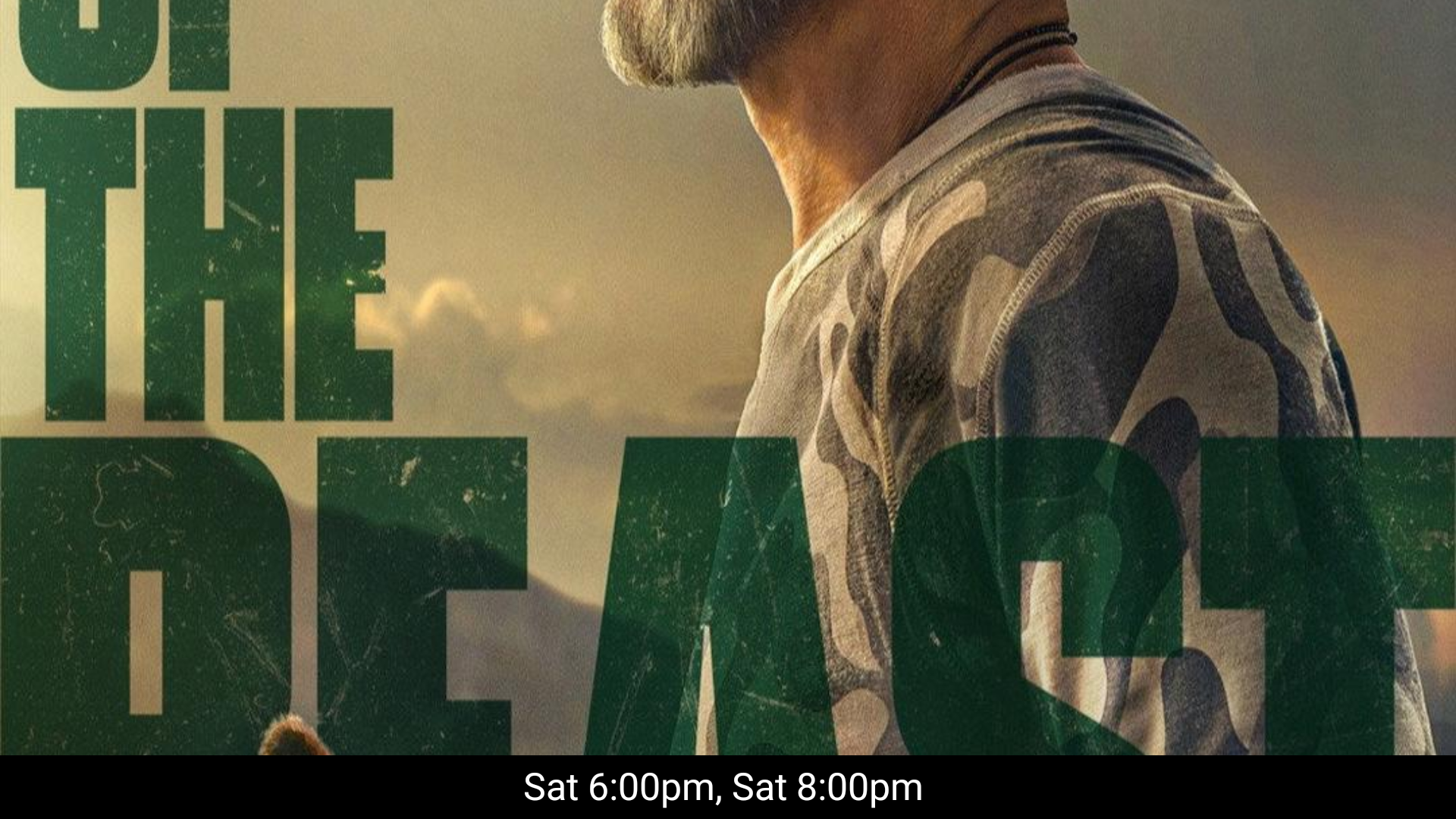
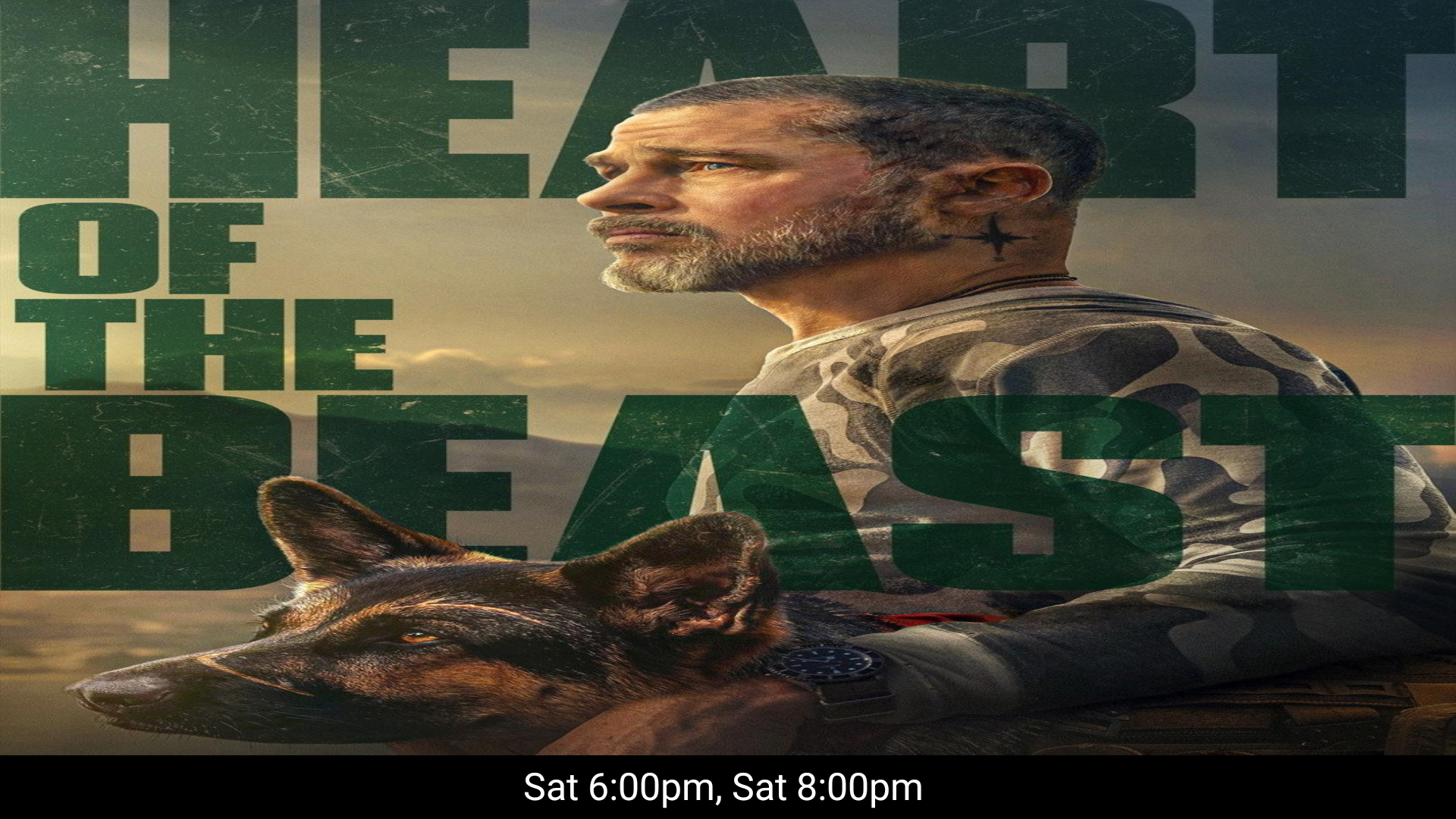
Classifications and Coming Soon
Choose the appropriate Classification Region for the film ratings you use. Disabled hides classification icons. Imported values still need to be correct. U.S. artwork uses a transparent black backing for readability on lighter posters.
To show a Coming Soon message, select the film on Coming Soon and its banner option, then use a playlist formula that includes it. See Promote Coming Soon films.
Motion Posters: animated artwork for portrait screens
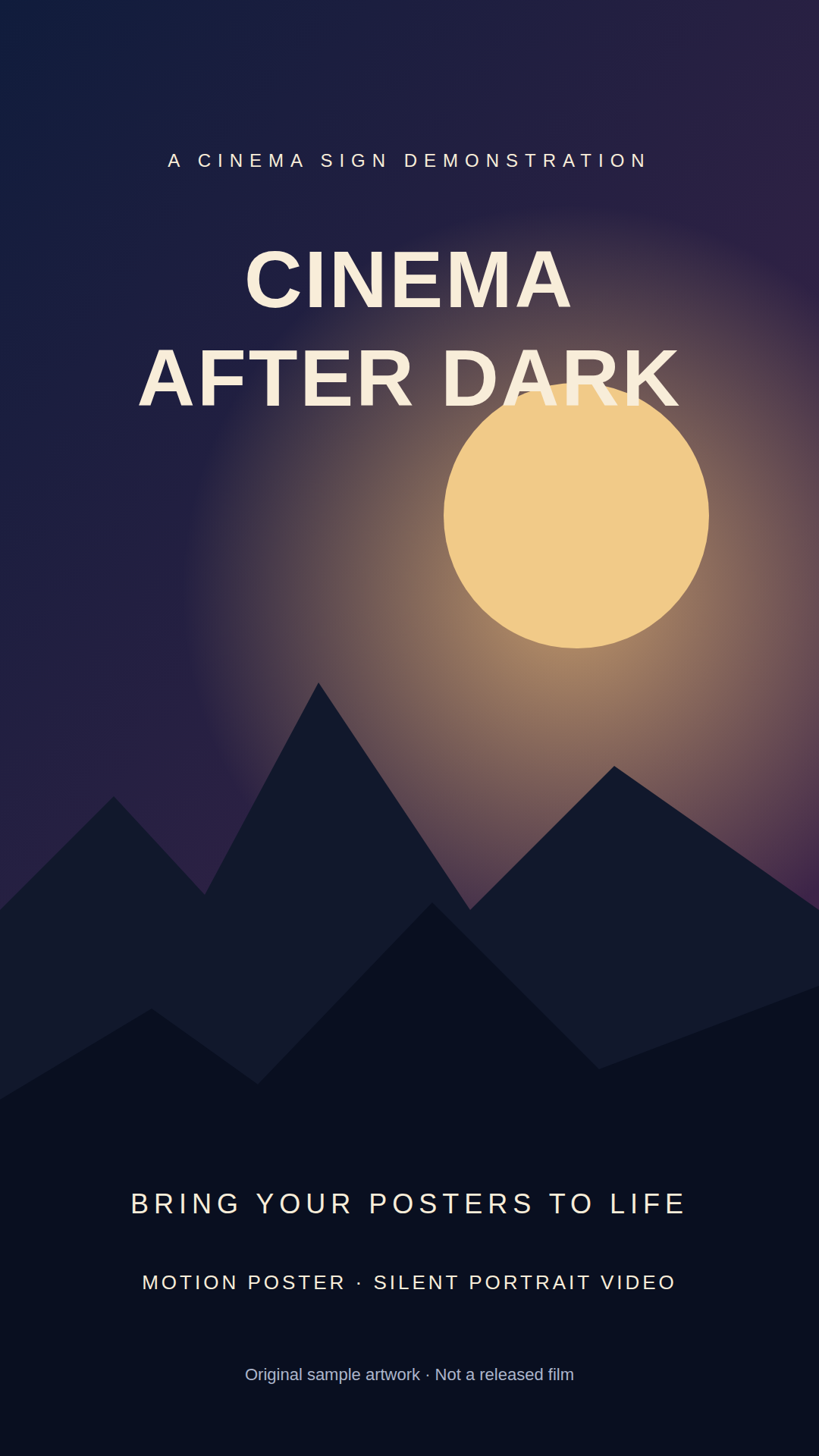
A Motion Poster is a portrait video, such as animated film artwork or artwork framing an edited trailer. Supply the complete composition as a video; Cinema Sign does not create the artwork or edit a trailer into a poster.
- Open Films or Films and Media, then select a film.
- Choose Upload Motion Poster for a compatible MP4, or enter a direct HTTP/HTTPS Motion Poster URL and choose Download Motion Poster URL.
- Wait for the cached preview. Check the correct film, framing and complete video.
- Under Settings → Presentation → Content Type, choose Motion Poster. Choose Motion Poster Display Type: Motion Poster Only, Motion Poster with Details, or Motion Poster with Landscape Details. Details show session times or Coming Soon below the artwork, or the title and sessions beside it. Set Motion Poster Rotation to No rotation, −90° or +90° for the mounted screen.
- Under Settings → Playlist, keep Motion Poster Transition → Cut initially. Save changes and check several complete clips on the actual TV box.
Playback is muted. Video and fallback still posters use the selected Artwork sizing, just like normal posters. Session details, classification artwork and Coming Soon information use the same layout for either media type. The video plays for its own duration; titles without a usable Motion Poster fall back to their static poster when available. A film's Motion Poster playback switch is independent of its poster and trailer controls. Normal film eligibility and Coming Soon playlist rules still apply.
Choose transitions for your TV box
Cut is the default on every Android version. The next clip's first frame is prepared while the current picture remains visible. Android 14 and above also offer Crossfade, Slide Left, Slide Right and Zoom. Earlier Android versions use Cut. Fade through black is not offered for Motion Posters.
Animated changes start before the outgoing video ends, while both clips are moving. The default overlap is 0.7 seconds, limited to a quarter of each clip's duration. The interface warns that two simultaneous videos can stutter or drop frames on some TV boxes. Test your real files and device; select Cut if performance is poor. Synchronized playlist slots account for the overlap. Device decoding delays or faulty files can still interrupt playback.
Where do Motion Poster files come from?
Use locally supplied files, direct downloadable video URLs, or a CinemaShowtimes-JSON feed containing a video asset with role: "motion_poster". The JSON format and player support that optional role; the feed server must still publish actual assets. Veezi's documented public Film API has no confirmed Motion Poster field, and other supported providers are not assumed to supply one. The d-cine poster/trailer fallback does not currently discover Motion Posters.
Motion Poster mode does not insert poster or trailer advertising. Use the existing Poster or Trailer modes for those advertising playlists.
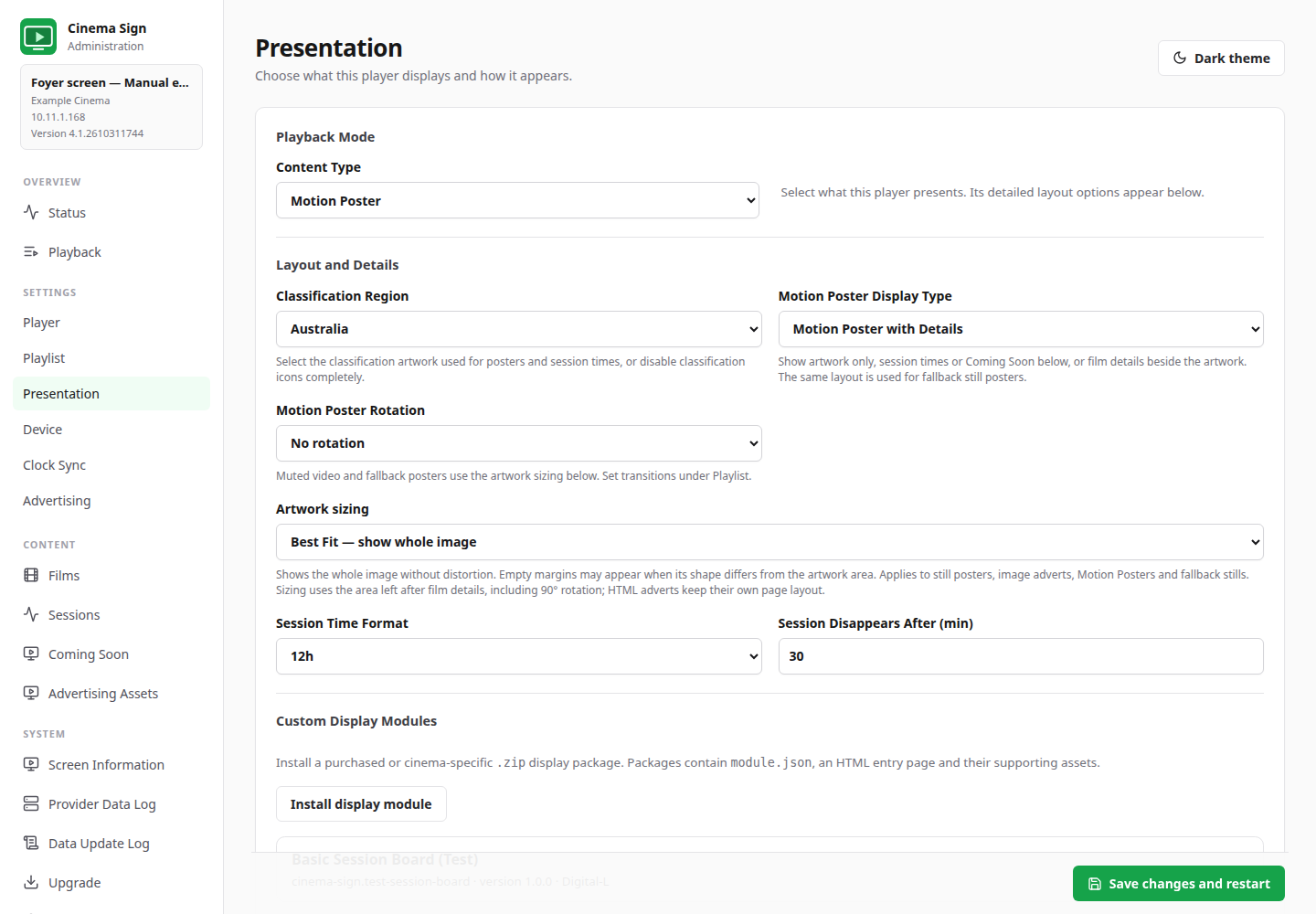
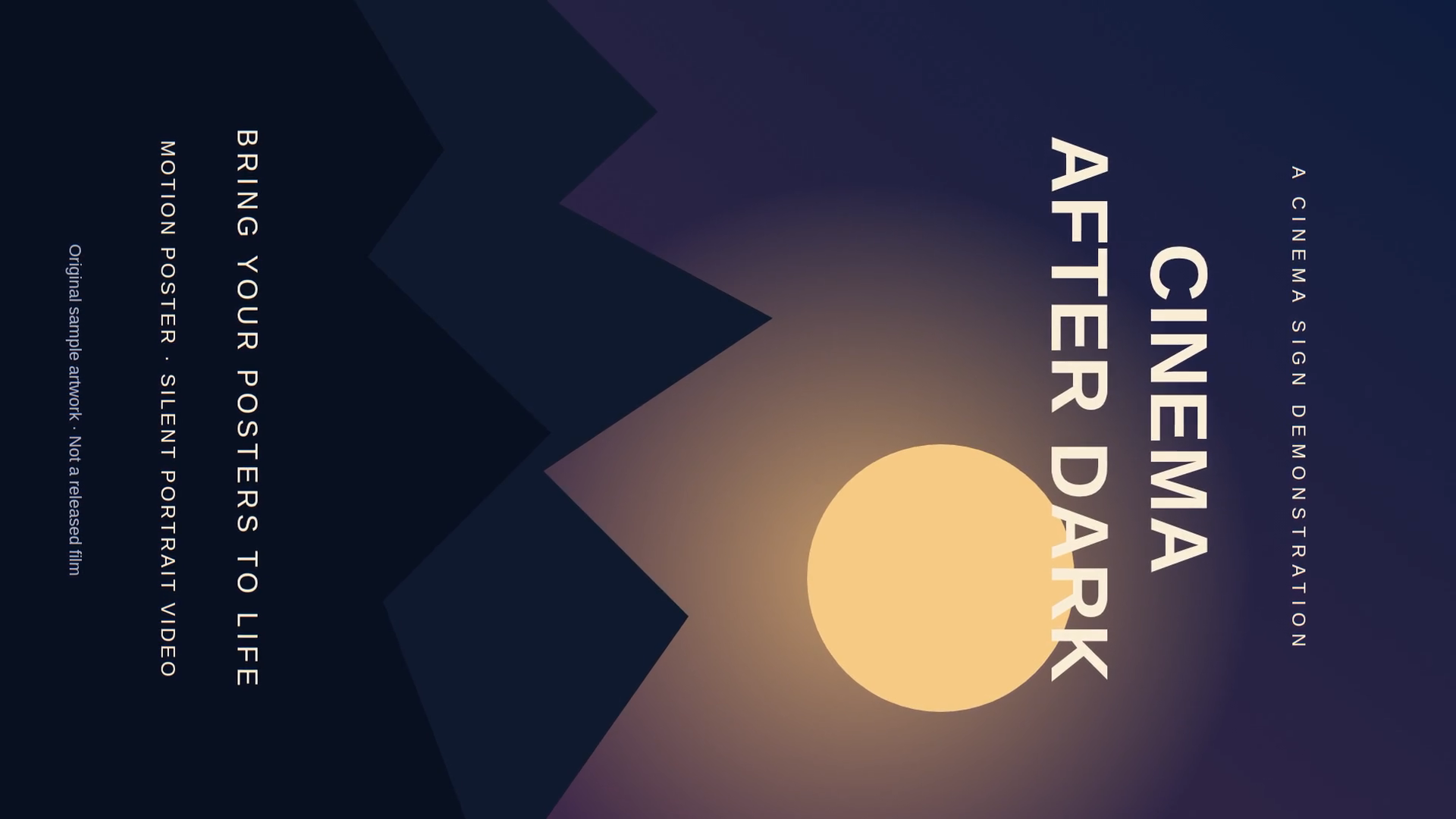
Try the original sample MP4 with its fallback artwork. It demonstrates the media workflow, not a real film release or distributor availability.
Back to contents ↑