


Choose what plays and in what order
Settings → Playlist
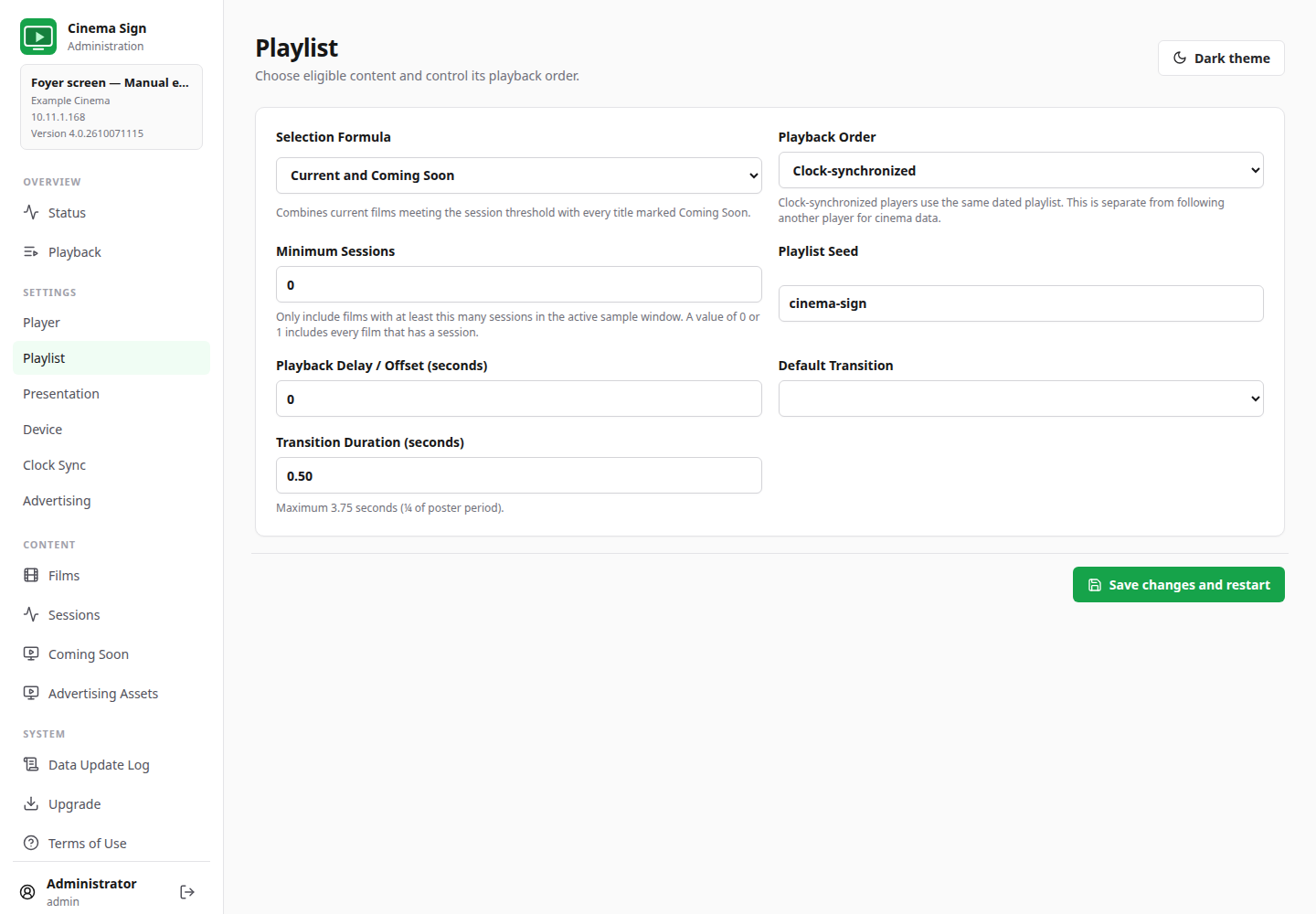
The playlist rules decide which films are eligible. Presentation decides how those films look. Change the playlist when the right films are not appearing; change Presentation when the right films appear in the wrong layout.
| Formula | What it includes | Useful for |
|---|---|---|
| Scheduled sessions | Films with qualifying sessions from today through seven days ahead. Frequency is controlled separately in Content Frequency. | Promoting the current programme. |
| Coming Soon | Films selected as Coming Soon. | A dedicated advance-promotion screen. |
| Current and Coming Soon | Current films meeting the minimum session threshold, plus Coming Soon titles. | A foyer sign showing the next week’s programme and future releases. |
| Enabled films | Enabled films with suitable media/type settings, using their manual Playback Weight values from Films and Media. | A deliberately chosen promotional list that does not depend on sessions. |
Scheduled sessions and the current part of Current and Coming Soon use today through seven calendar days ahead, inclusive, in the player’s local timezone. The window advances every day. Minimum session cutoff applies to this window. Start with 0 or 1 if every film with a session should qualify.
Veezi automatically marks a film Coming Soon when its first future session is beyond that seven-day window. A film with a session inside the window is current even if it also has later sessions. Automatic status advances with the date; deliberate Coming Soon overrides remain available. Eligible posters are downloaded for both groups.
Random or Clock-synchronized?
- Random: this player makes its own selections. It is useful when matching screens is not required.
- Clock-synchronized: uses a dated, repeatable playlist tied to the clock. Playback can show the planned sequence and include advert slots.
For advertising, choose Clock-synchronized. For matching multiple signs, also match the programme, seed, timing and advertising settings and configure clock synchronization. Clock-synchronized playback alone does not copy data from another player.
Content Frequency
Below the main Playlist settings box, Content Frequency controls how often film posters, Motion Posters or trailers appear. It is not needed for session-time boards or dedicated web displays.
- Minimum session cutoff: for current selections, exclude films with fewer than this many sessions from today through seven days ahead, inclusive. 0 or 1 includes any current film with a session. Coming Soon films are not excluded by this cutoff.
- Weighted based on number of sessions: On gives current films with more sessions more appearances. Off gives every eligible current film an equal share.
- Weighted by how soon screening begins: On gives Coming Soon films with nearer first screenings more appearances. When sessions are unavailable, an available release date is used; unknown dates receive the lowest weight. Off weights Coming Soon titles evenly.
- Current / Coming Soon balance: choose each group's share when using Current and Coming Soon. The default is 50 / 50 regardless of the number of films in each group. If one group has no eligible titles, the other fills the rotation.
These controls apply to Random and Clock-synchronized playback. Shares count film slots, not minutes; longer videos take more time per appearance. Advertising is scheduled separately. Higher-weight films can appear consecutively. Use matching frequency settings on players intended to show the same synchronized programme.
Weights, seeds and delays
With Enabled films, a larger Playback Weight gives a title more opportunities. It does not mean “play this film next”. A Playlist Seed helps generate a repeatable sequence; matching players should use the same seed. Playback Delay / Offset shifts timing by seconds. Leave it at the intended venue value unless you are deliberately adjusting a multi-screen installation.
Poster transitions
Choose Cut, Fade, Crossfade, Slide Left, Slide Right or Zoom. Cut changes immediately. Other choices animate the change. The transition duration is limited to a quarter of the Poster Delay. A short transition is easier to read and lighter on modest hardware.
A still screenshot cannot demonstrate the animation. Watch at least two changes on the physical display after selecting a transition. Use a simple transition if a heavy live web page or older player struggles.
Motion Poster timing
Motion Poster has its own transition setting, separate from still posters. Cut is the default; Android 14+ also offers Crossfade, Slide Left, Slide Right and Zoom with a performance warning. The default 0.7-second overlap starts while the outgoing clip is still moving and is bounded for short clips. Clock-synchronized Motion Poster playlists subtract the overlap from each video's slot duration. Matching screens need the same videos, transition and overlap settings. See Motion Poster setup.
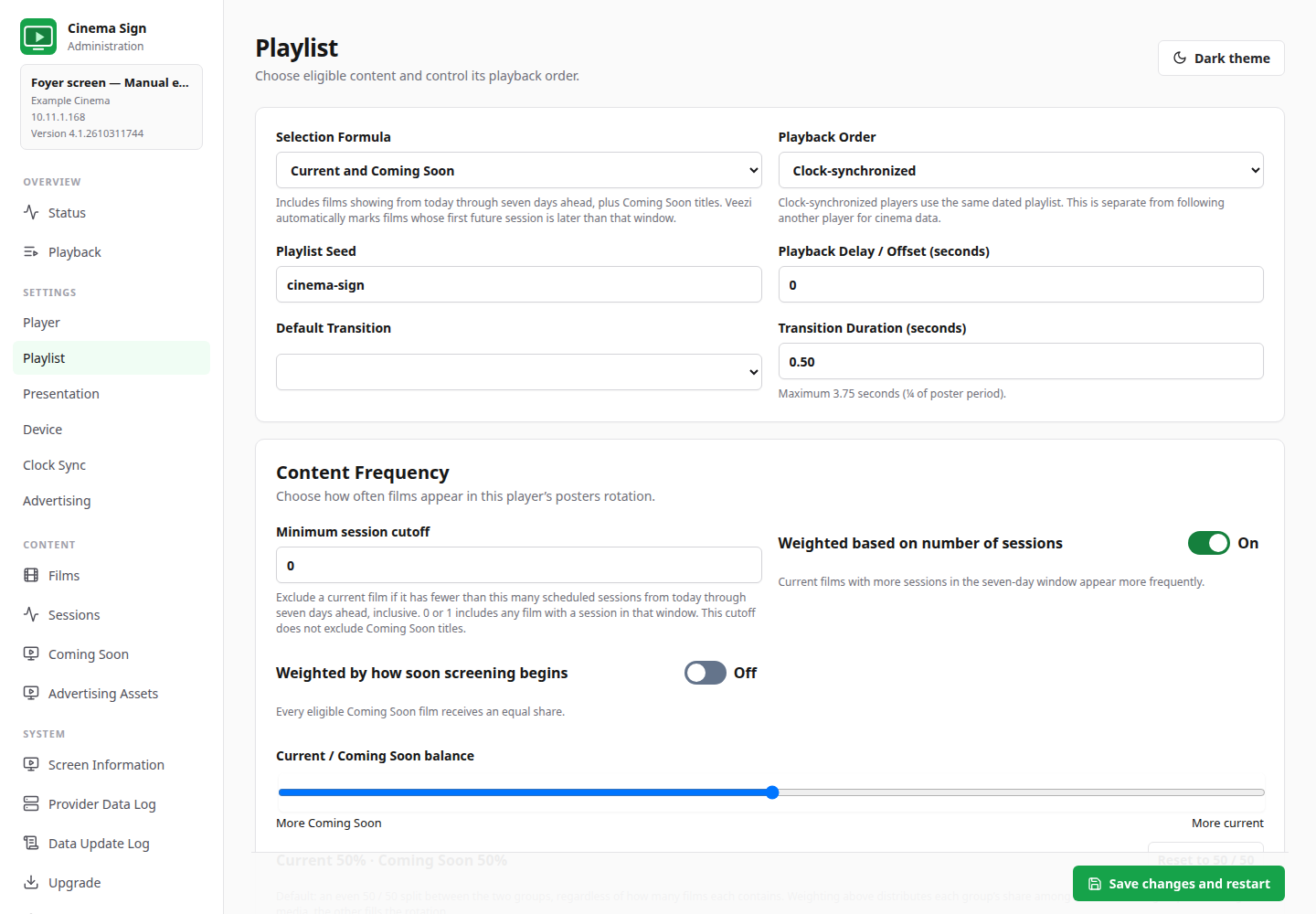
Current session-count weighting defaults to On. Coming Soon proximity weighting defaults to Off, giving that group equal weights. These controls are not an exact play-count quota and do not guarantee alternating groups.
Back to contents ↑