
Choose a poster layout
Use posters for film promotion on a horizontal or vertical display. Prepare cached artwork first. A detailed layout can show session times or a Coming Soon message as well as the poster.
Settings → Presentation → Content Type → Poster
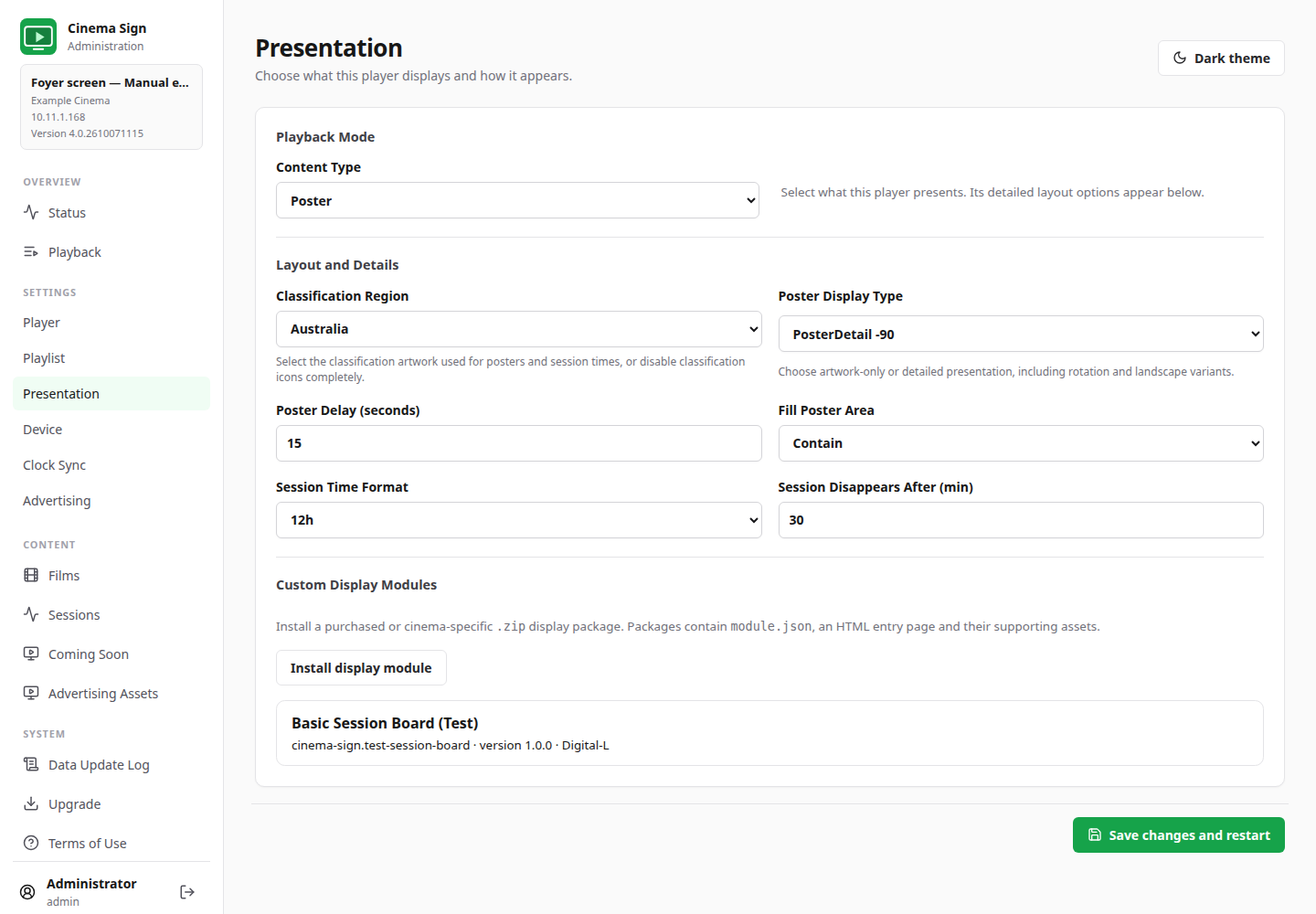
- Select Poster as the Content Type.
- Choose Poster Display Type using the examples below.
- Set Poster Delay: how many seconds each poster slot lasts.
- Choose Fill Poster Area and your classification region.
- For detailed modes, choose the time format and Session Disappears After value.
- Save, then check the physical screen's orientation, text and picture.
Without rotating the picture
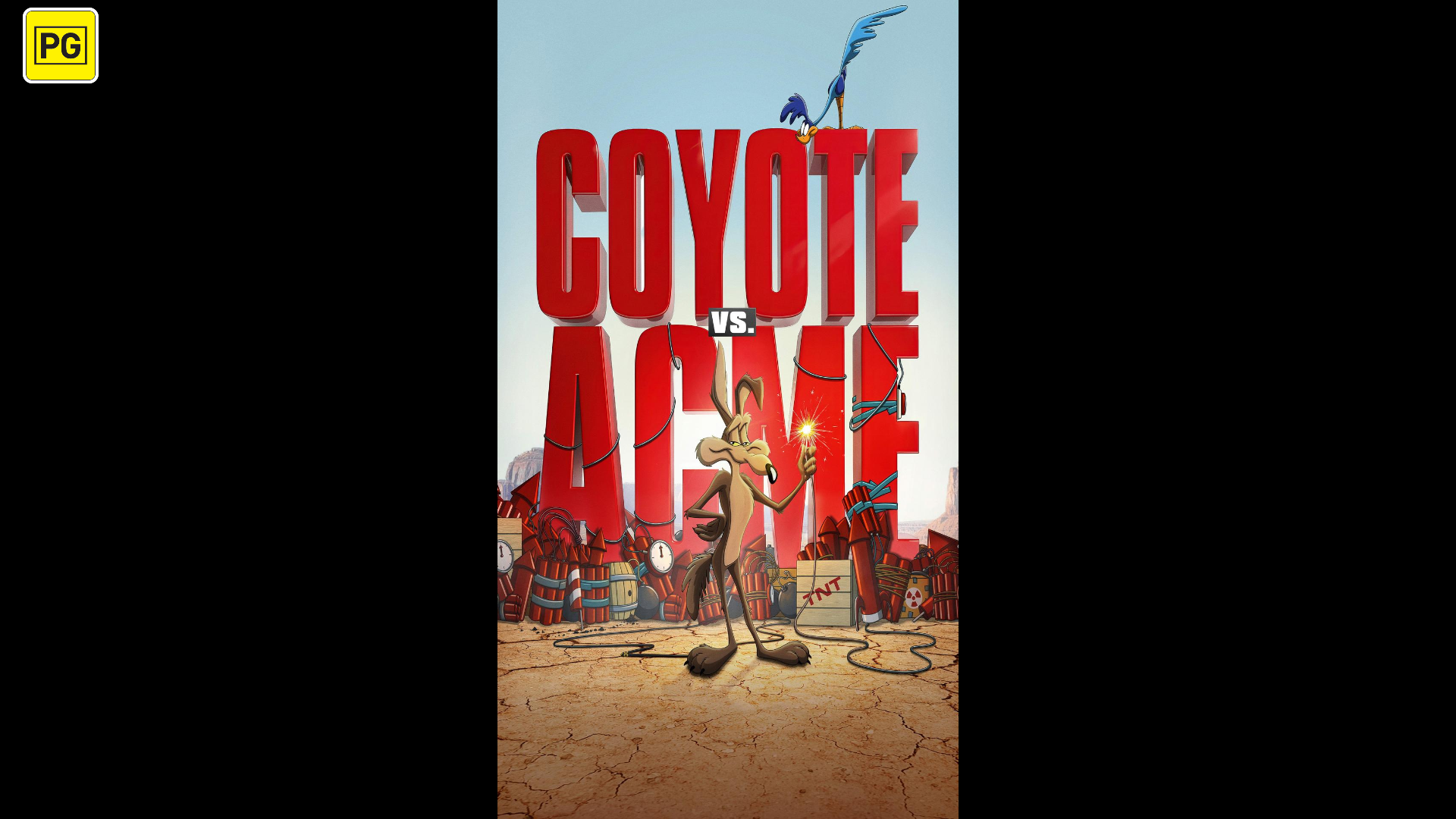
Artwork-only on a vertically mounted television
A television mounted on its side normally needs a rotated layout. The −90 and +90 choices turn the content in opposite directions. Choose the one that makes the physical display upright; if it is upside down, choose the other direction.
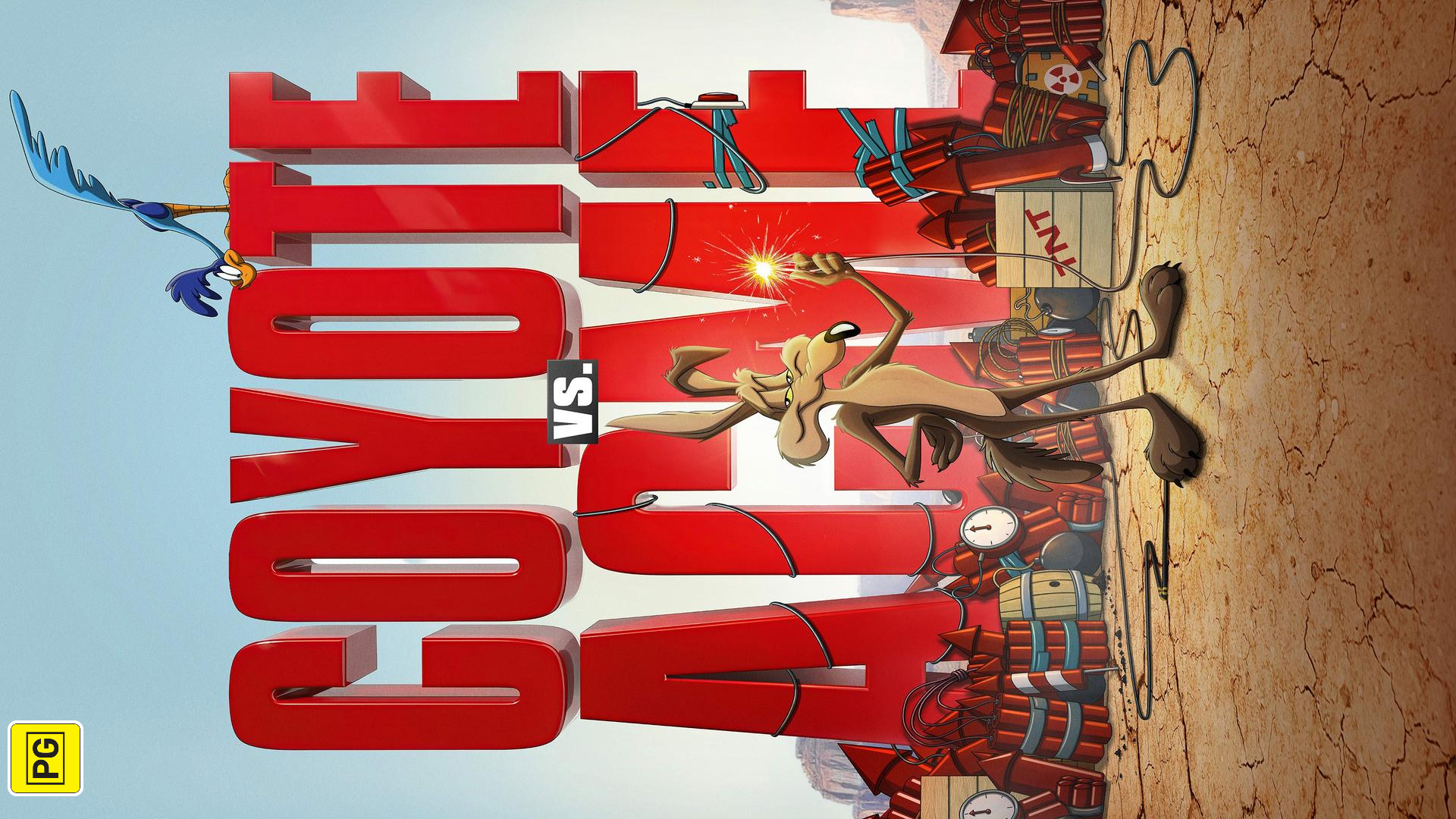
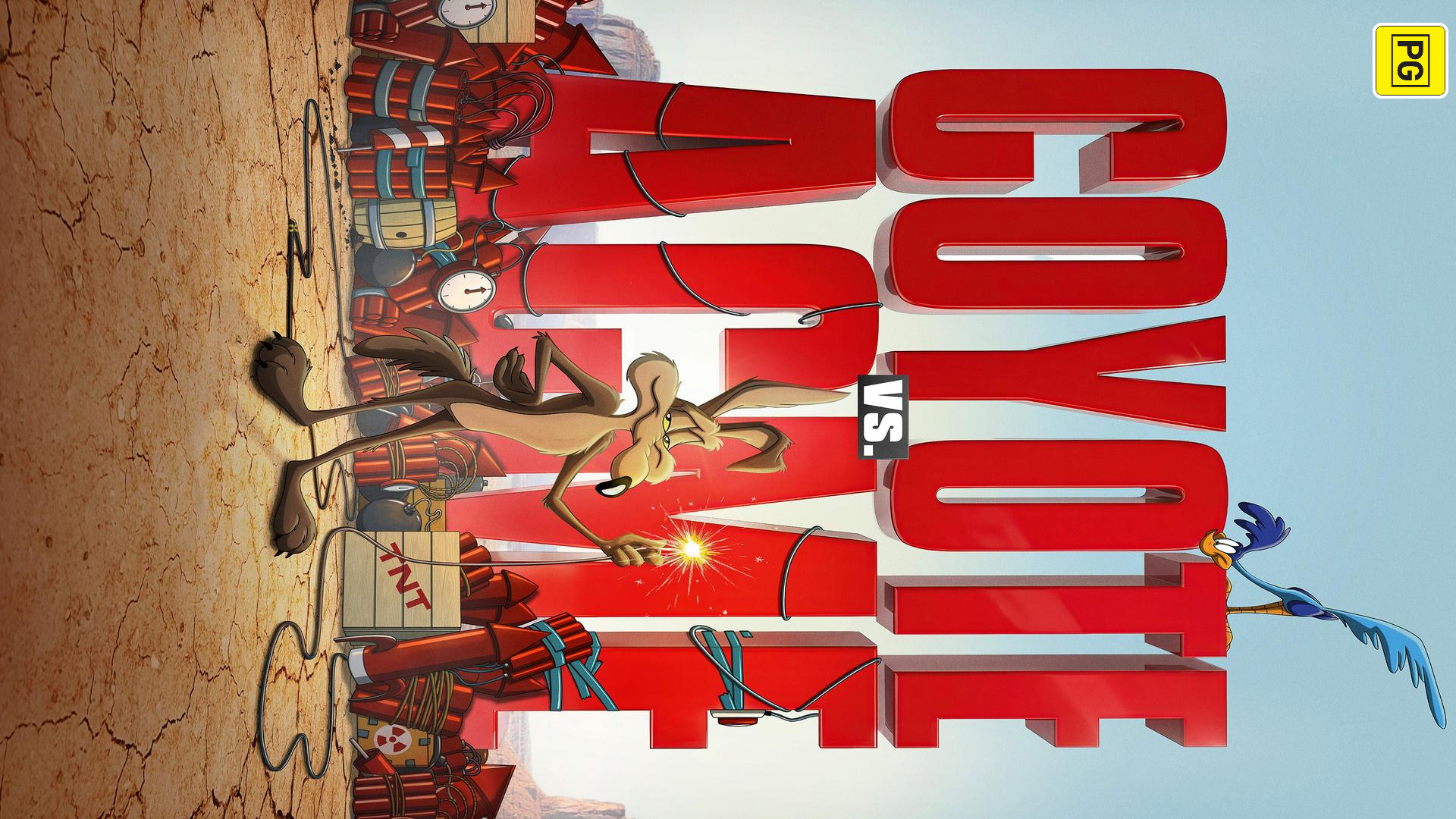
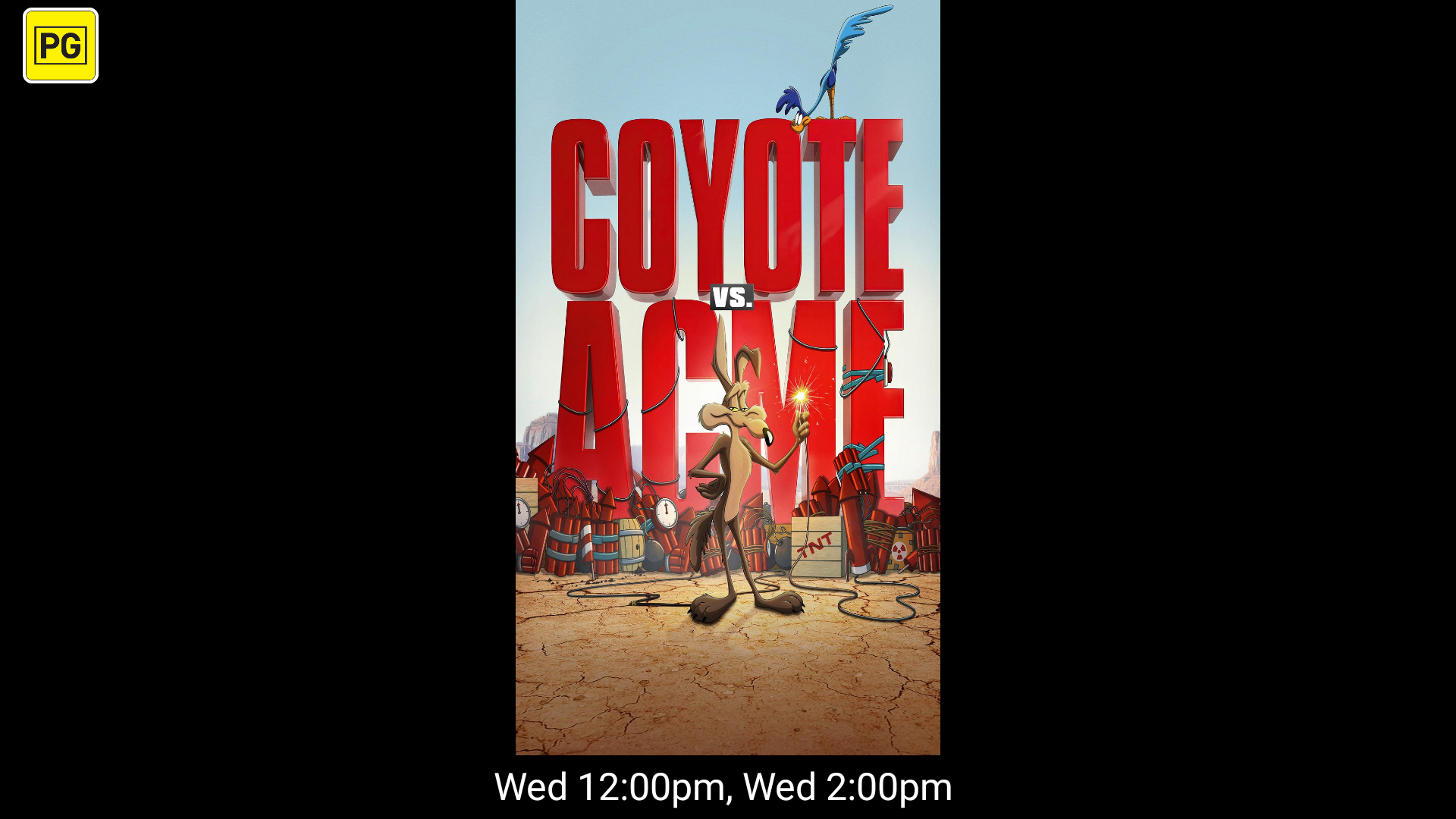
Poster with session details on a vertical television
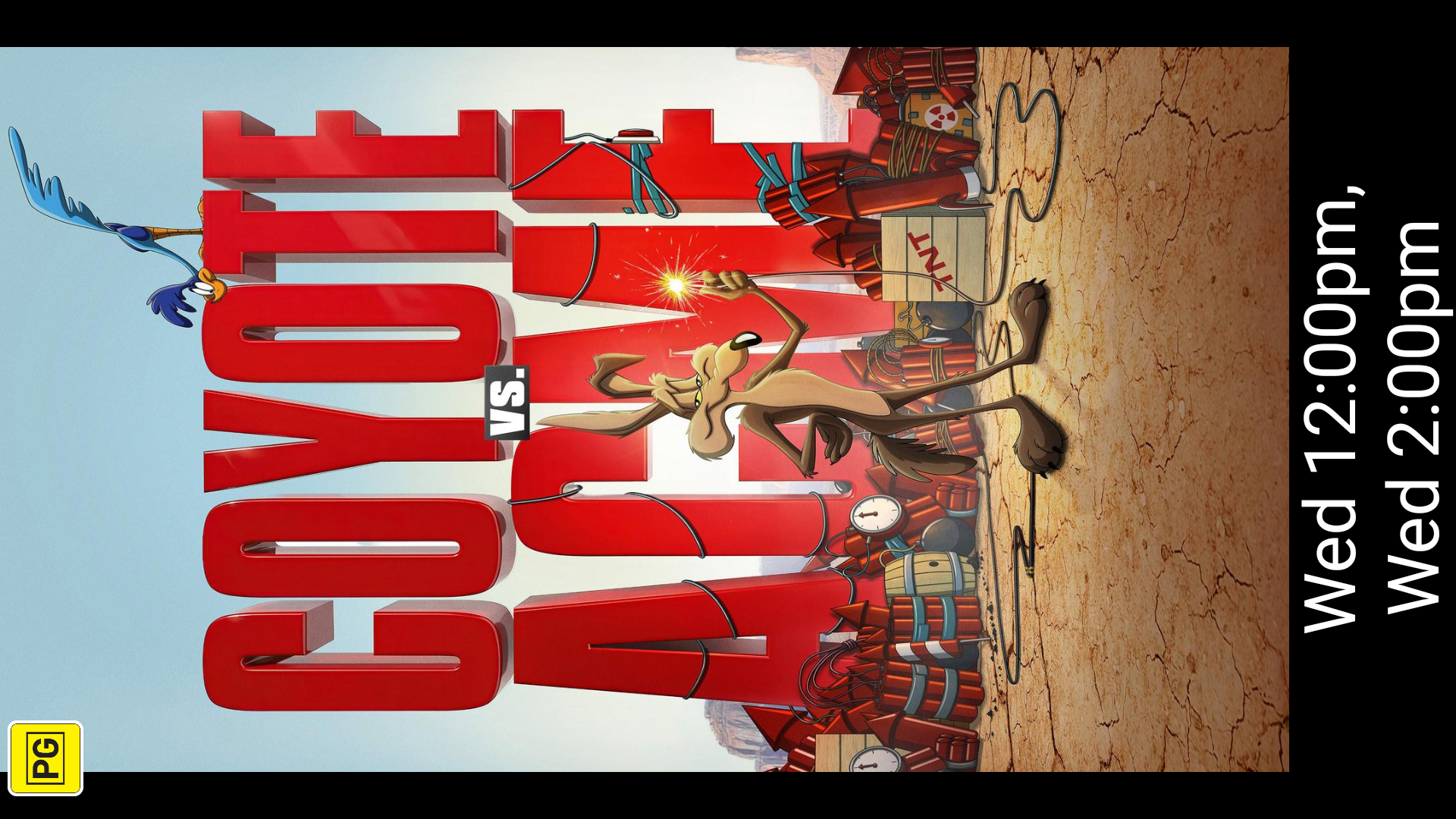
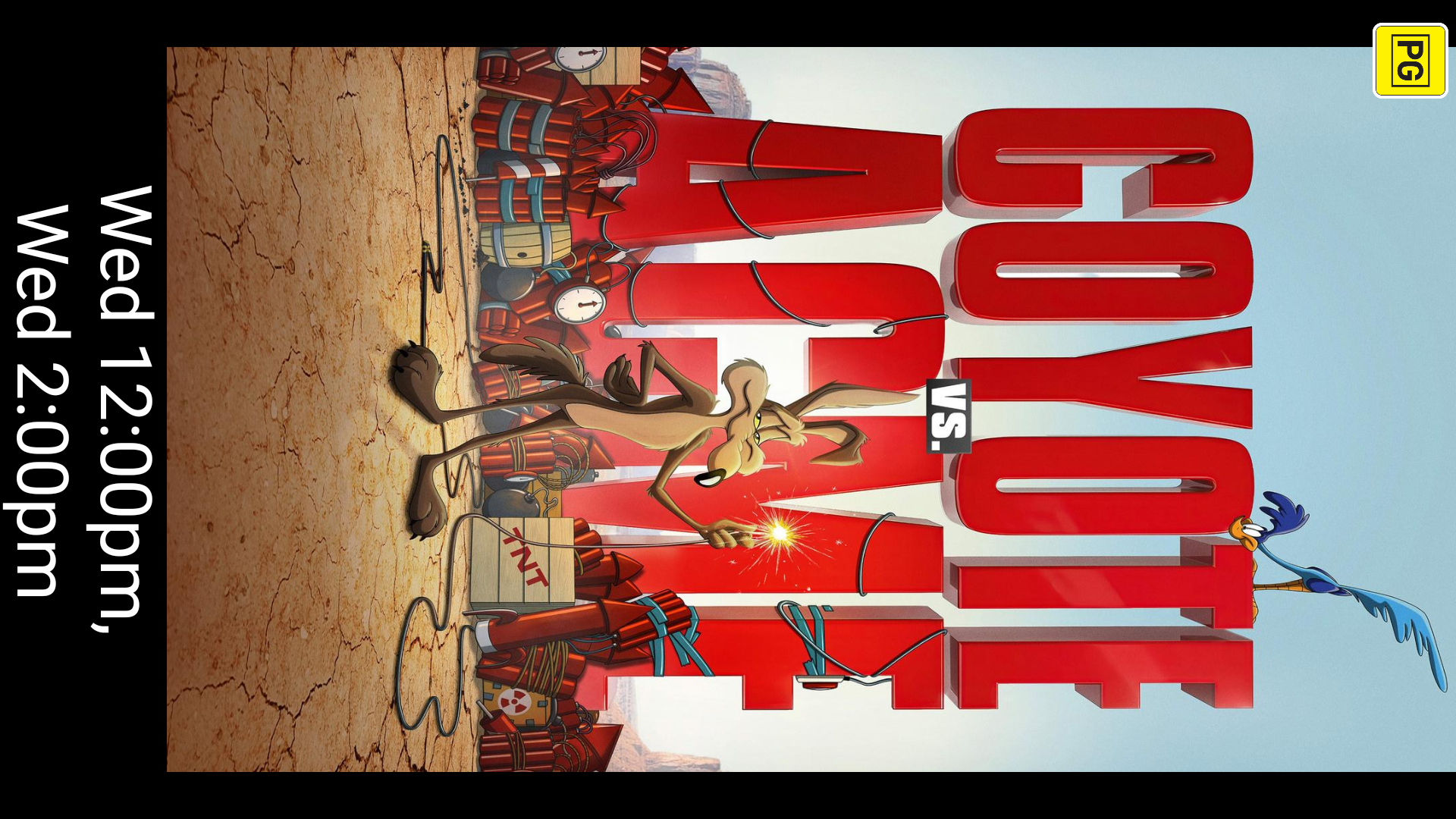
The two portrait directions can look the same once the television has been mounted to match them. The original Android screenshots are sideways; this manual displays them in the intended mounted orientation. The original files are available from the enlarged image view.
Poster and details beside each other
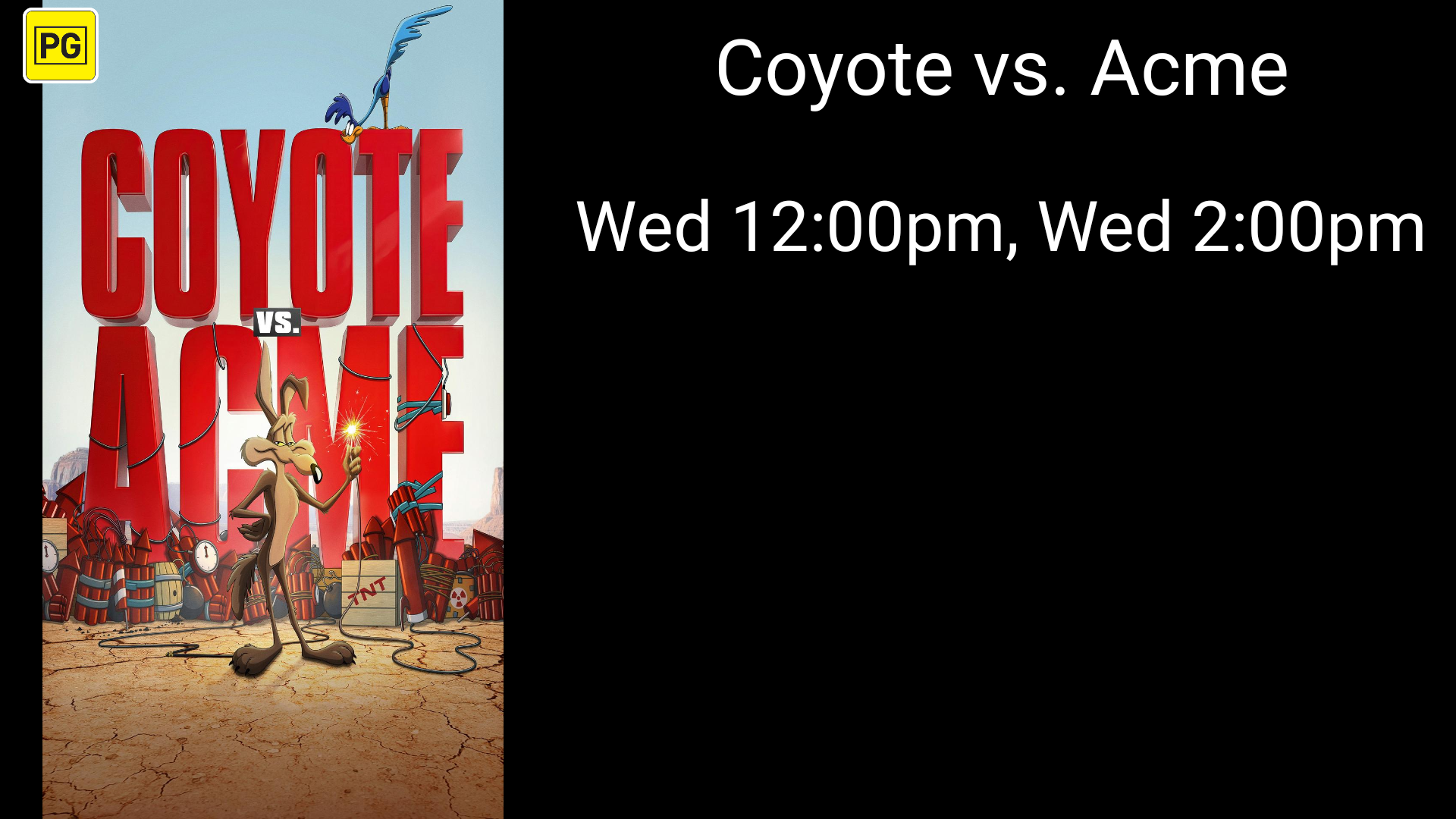
Contain or Fill?
Contain keeps the whole poster visible. There may be empty margins when the poster and screen have different shapes. Fill fills the available area but can cut off edges, titles or credit text. Check a complete poster before choosing Fill.
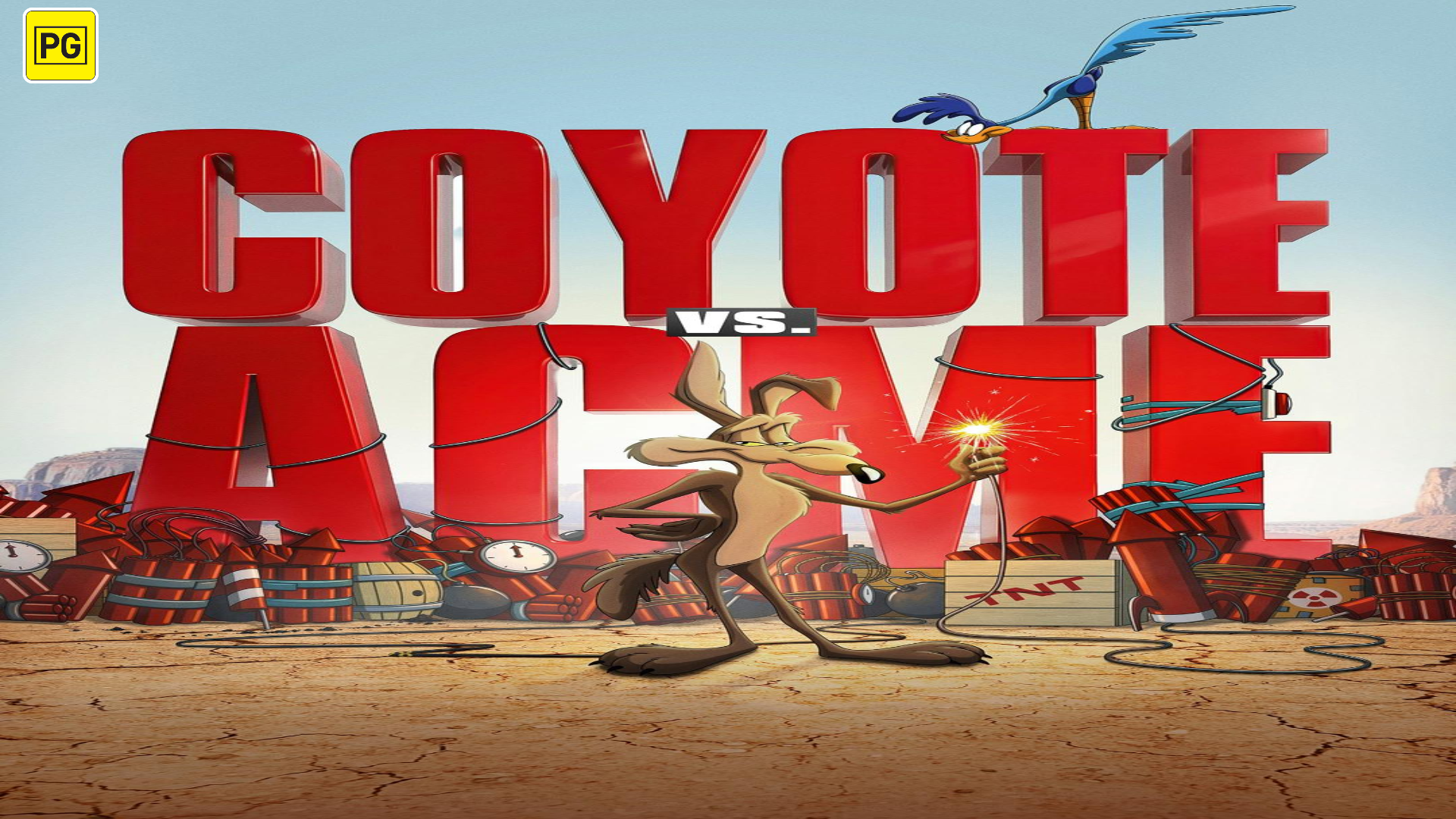
Classifications and Coming Soon
Choose the appropriate Classification Region for the film ratings you use. Disabled hides classification icons. Imported values still need to be correct. U.S. artwork uses a transparent black backing for readability on lighter posters.
To show a Coming Soon message, select the film on Coming Soon and its banner option, then use a playlist formula that includes it. See Promote Coming Soon films.