


Set up TaPOS / MEDIA2 and Coming Soon
Use TaPOS / MEDIA2 for the native TaPOS XML feed. Do not choose BLOAD - TaPOS for this endpoint: that choice expects a text export.
- Ask your TaPOS administrator for the full MEDIA2 feed URL for your venue.
- Open Settings → Player and select TaPOS / MEDIA2.
- Enter TaPOS MEDIA2 Feed URL, including
?type=MEDIA2. - Set Venue Timezone to the cinema's timezone, such as
America/Los_Angelesfor the COMWHI example. This interprets the feed's session dates; do not change the Android clock merely to copy an overseas sample. - Leave Screen Codes blank for all screens, or enter the screen codes supplied for the cinema. They filter sessions, not the whole film catalogue.
- Choose Coming Soon Handling, test the connection, then save.
- Open Import Status, Sessions and Coming Soon to verify the result. Choose the classification region that matches your programme.
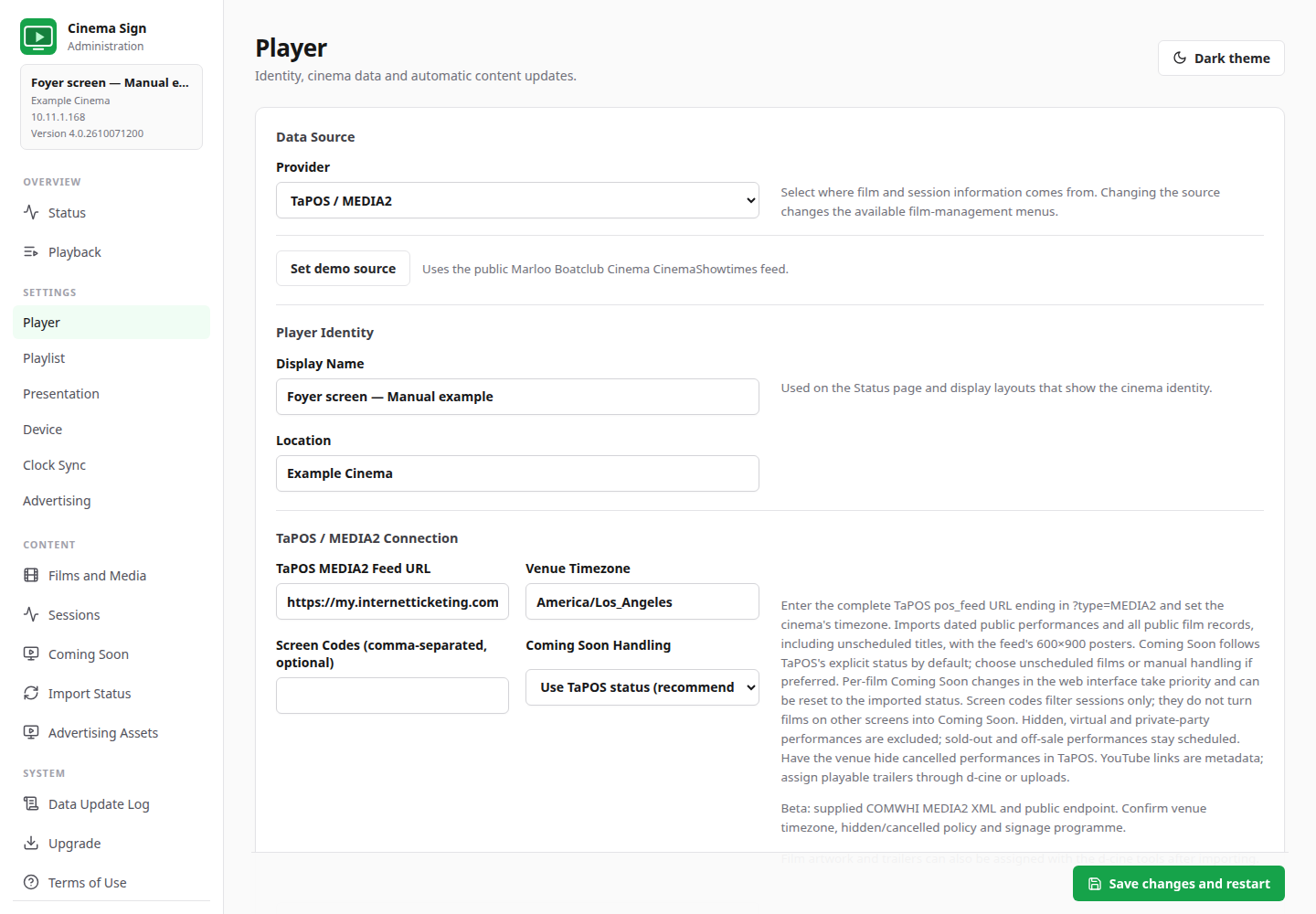
Choose the Coming Soon policy
| Choice shown in the app | What happens |
|---|---|
| Use TaPOS status (recommended) | Uses TaPOS's explicit Coming Soon status. A film without sessions is not automatically Coming Soon unless TaPOS marks it that way. |
| Films without public sessions | Marks titles with no qualifying public sessions as Coming Soon. Review the result: an unscheduled film is not always a film you want to promote. |
| Set manually in the web interface | You decide which films are Coming Soon using the Coming Soon page. |
A local change on the Coming Soon page takes priority over the imported value. Use Reset to imported status when you want TaPOS's selected policy to control that title again.
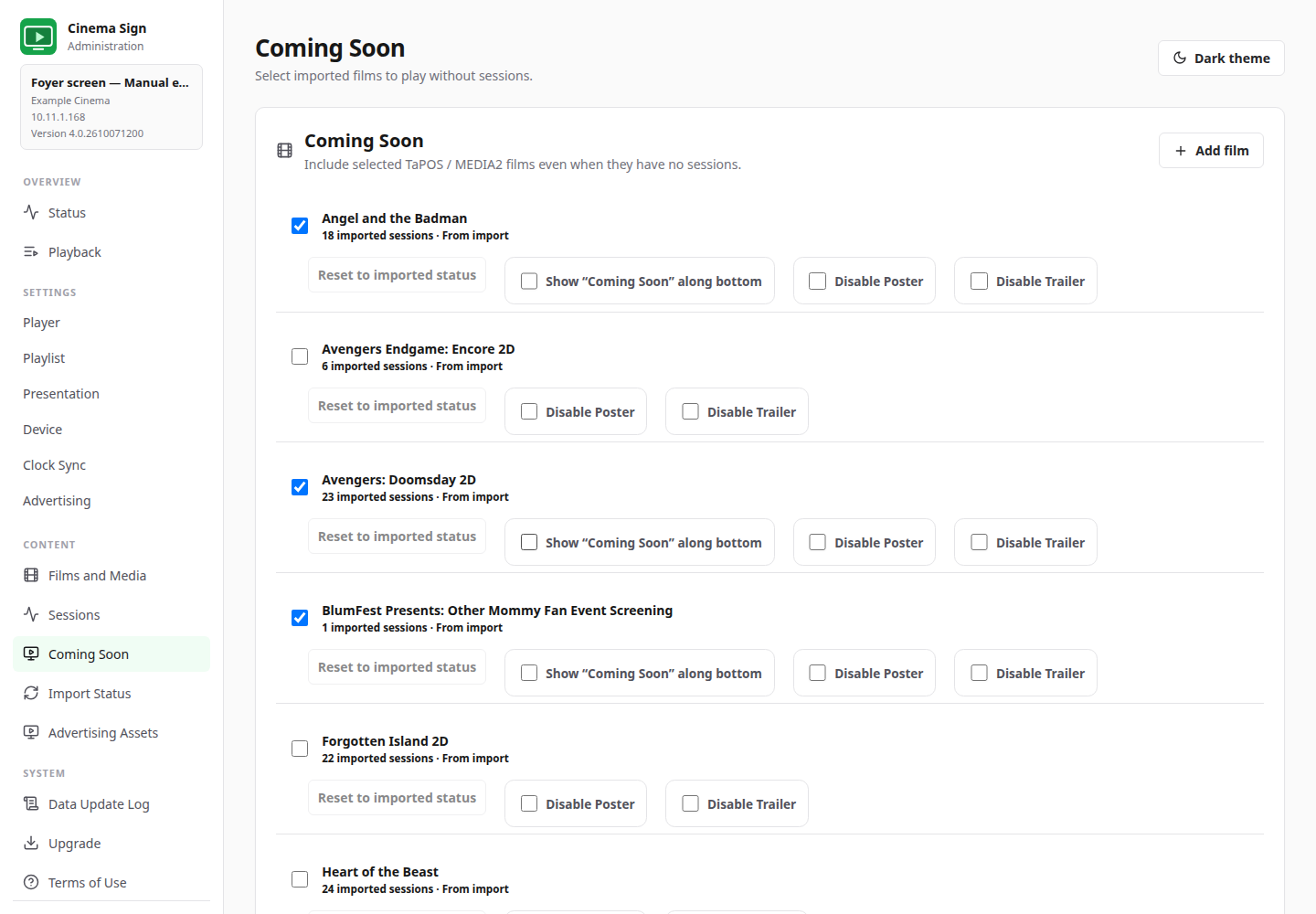
Check the imported result
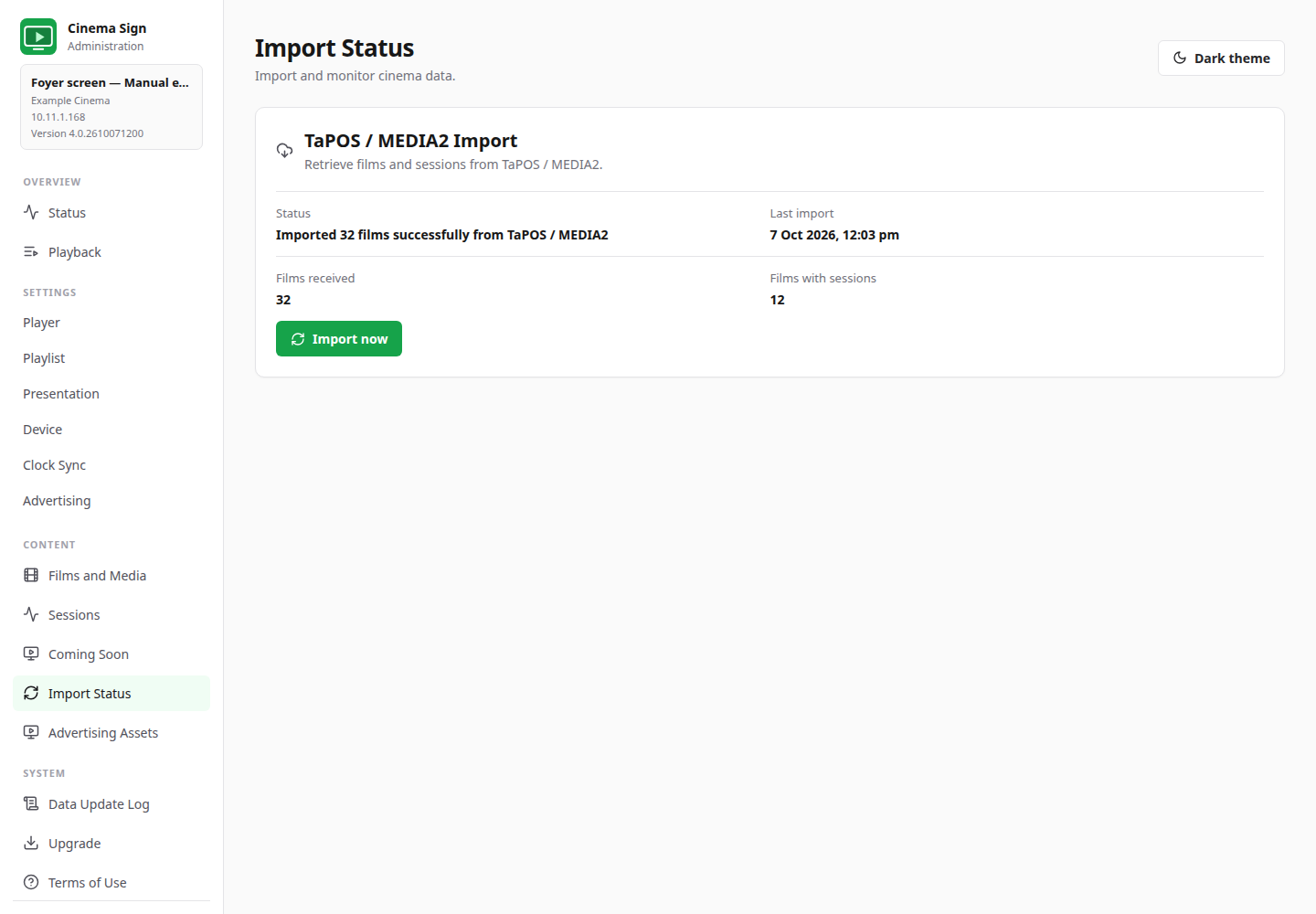
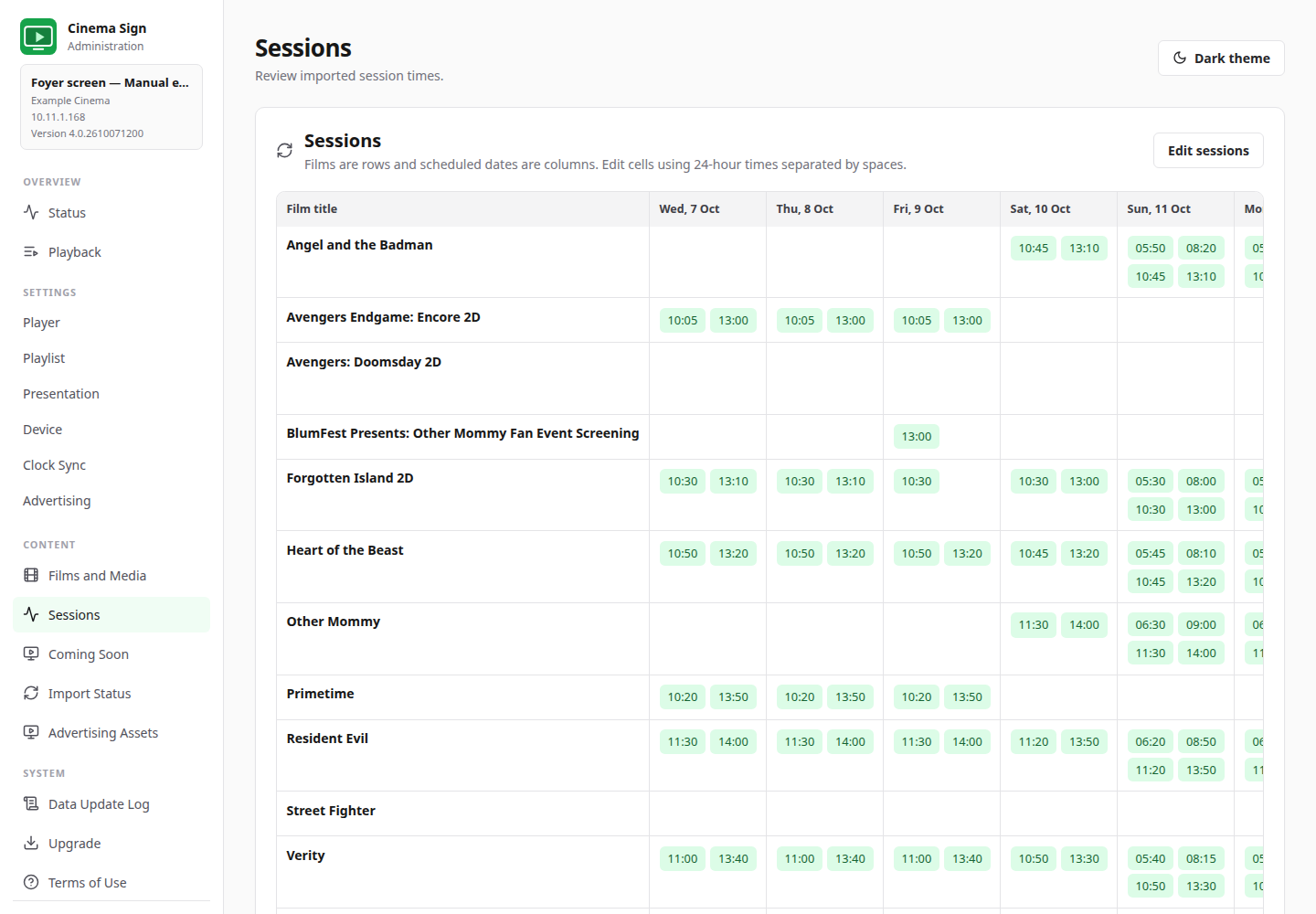
The supplied MEDIA2 example includes 600 × 900 posters. These are usable, although higher-resolution artwork may look sharper on a large screen. You can select a better poster or playable trailer using the normal media tools.
A YouTube link in TaPOS is metadata, not a downloaded trailer file. Choose a playable trailer from d-cine or upload one yourself. Hidden, virtual and private-party performances are excluded by this reader. Sold-out and off-sale performances remain scheduled. Arrange for cancelled performances to be hidden correctly in TaPOS and verify that policy with the venue.
U.S. classification artwork
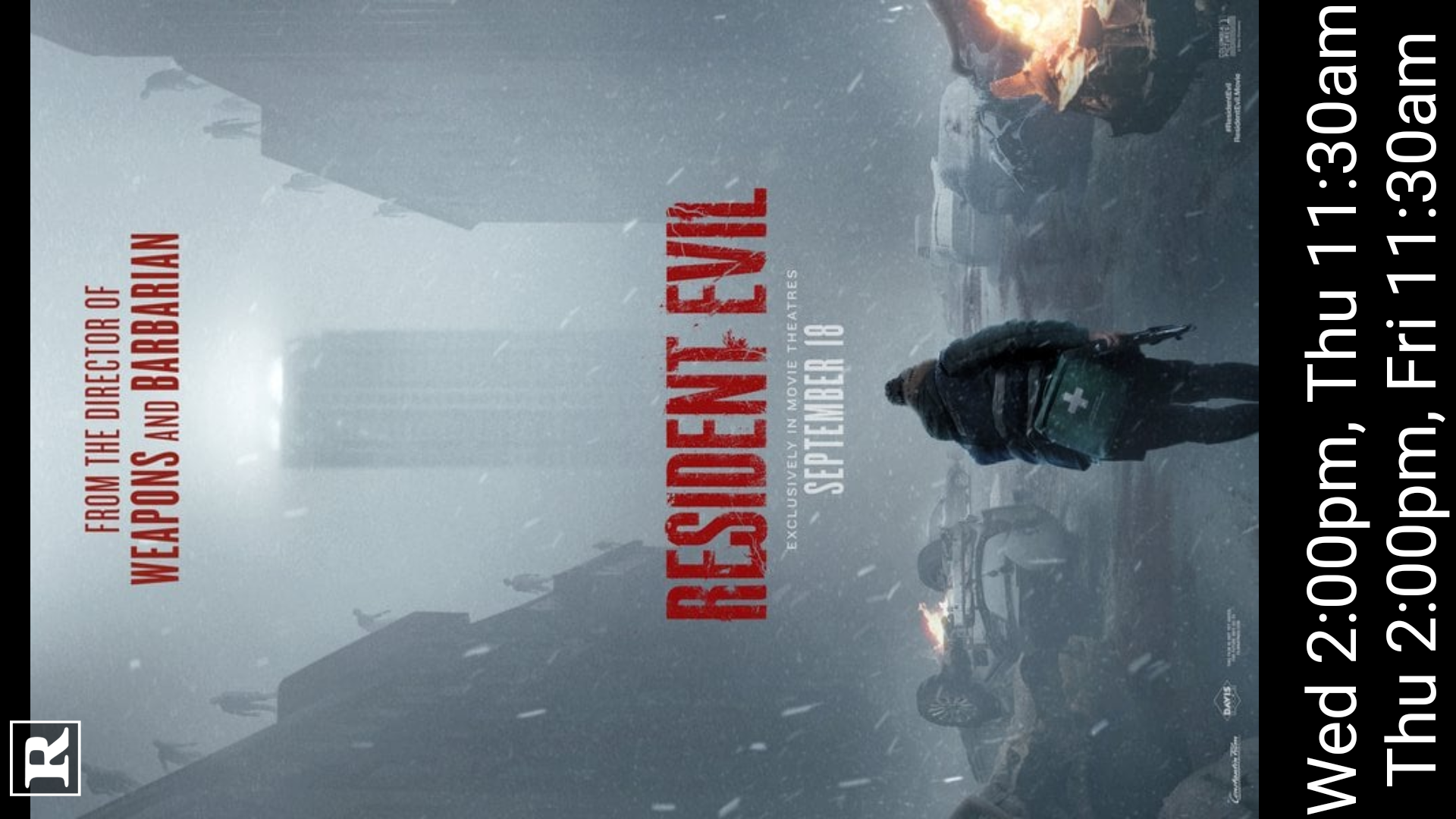
For a U.S. programme, choose Settings → Presentation → Classification Region → United States. The white U.S. symbols have a 50% transparent black backing so they remain visible over lighter poster artwork. Confirm that the imported classification is correct; changing the region changes the artwork, not the film's actual rating.
For installer detail and mapping rules, see TaPOS MEDIA2 setup notes.
Back to contents ↑