


Check the signs before opening
A short daily check helps you catch a wrong programme or missing file before customers do. Check every player; one working screen does not prove that the others are working.
- Look at the physical screen. Is it on the correct HDMI input? Is Cinema Sign showing the intended poster, trailer or board?
- Open Status. Confirm the screen name, location and version. Check Unit Time against your own clock.
- Check the programme. Review Sessions and, for an imported source, Import Status. Confirm today's date and the correct cinema.
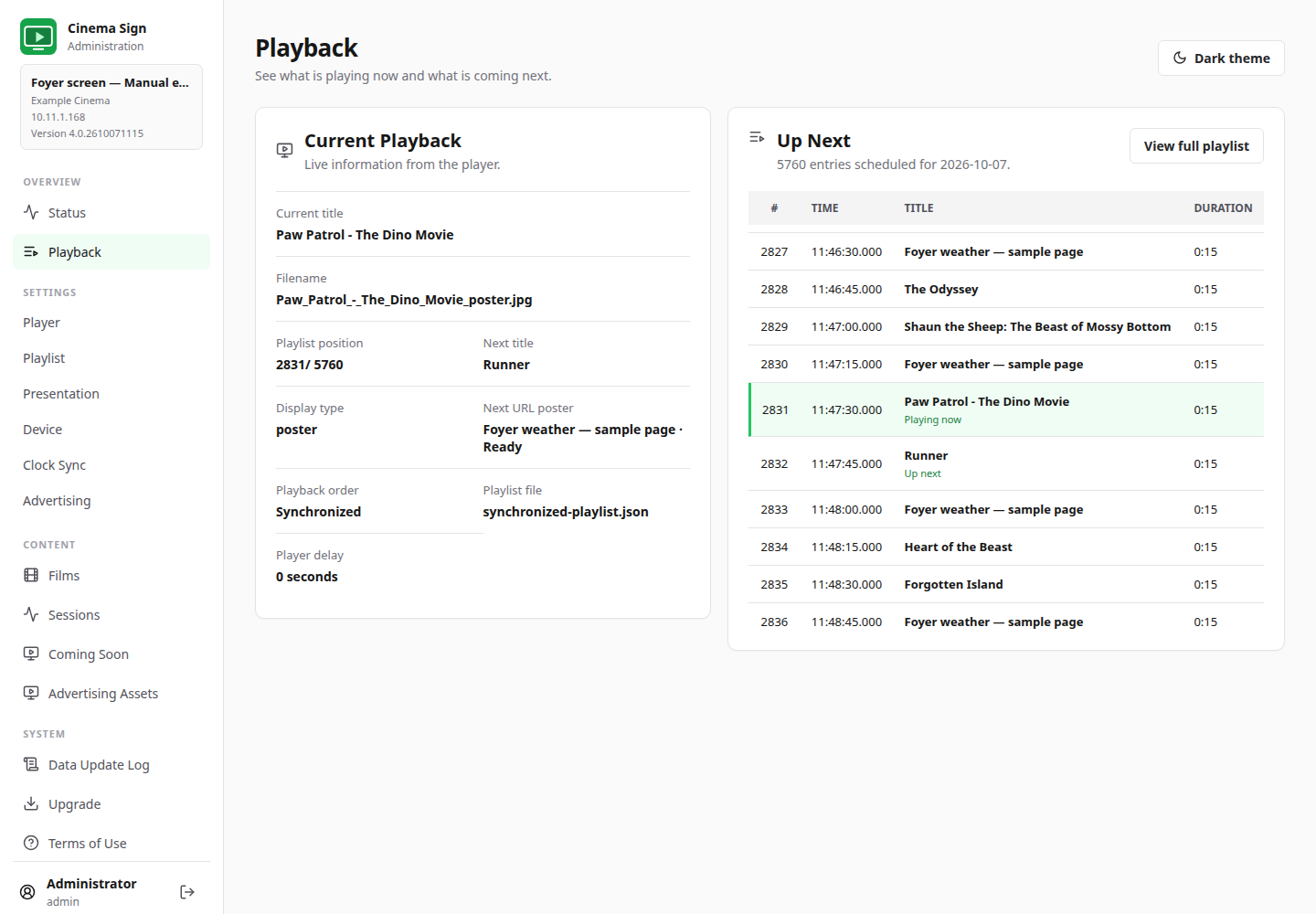
- Open Playback. Check the current title and Up Next. Look for missing-media messages or a URL page that is unavailable.
- Check storage. Follow up a low-space warning before adding more trailers.
- Check campaigns. Confirm that adverts are enabled, within their dates and inserted on the intended player.
- Watch a complete change. Confirm that the next item appears, sound is suitable if trailers use audio, and a live URL advert returns to the film programme afterwards.
Read Status without needing technical knowledge
- Online means the administration service is reachable. Still look at the television to confirm the picture.
- Unit Time is the player's clock. Incorrect time affects sessions, campaigns and synchronized changes.
- Android Uptime is time since the device last booted. Application Uptime relates to the app process; an in-process nightly restart can leave it unchanged.
- Media Storage reports downloaded media and free storage. Free storage is not the complete advertised capacity of the Android box.
- Display Schedule explains whether the screen is in active hours or off hours.
- Time Sync tells you whether local clock sharing is disabled, connecting, acting as master or following a master.
Use the full playlist
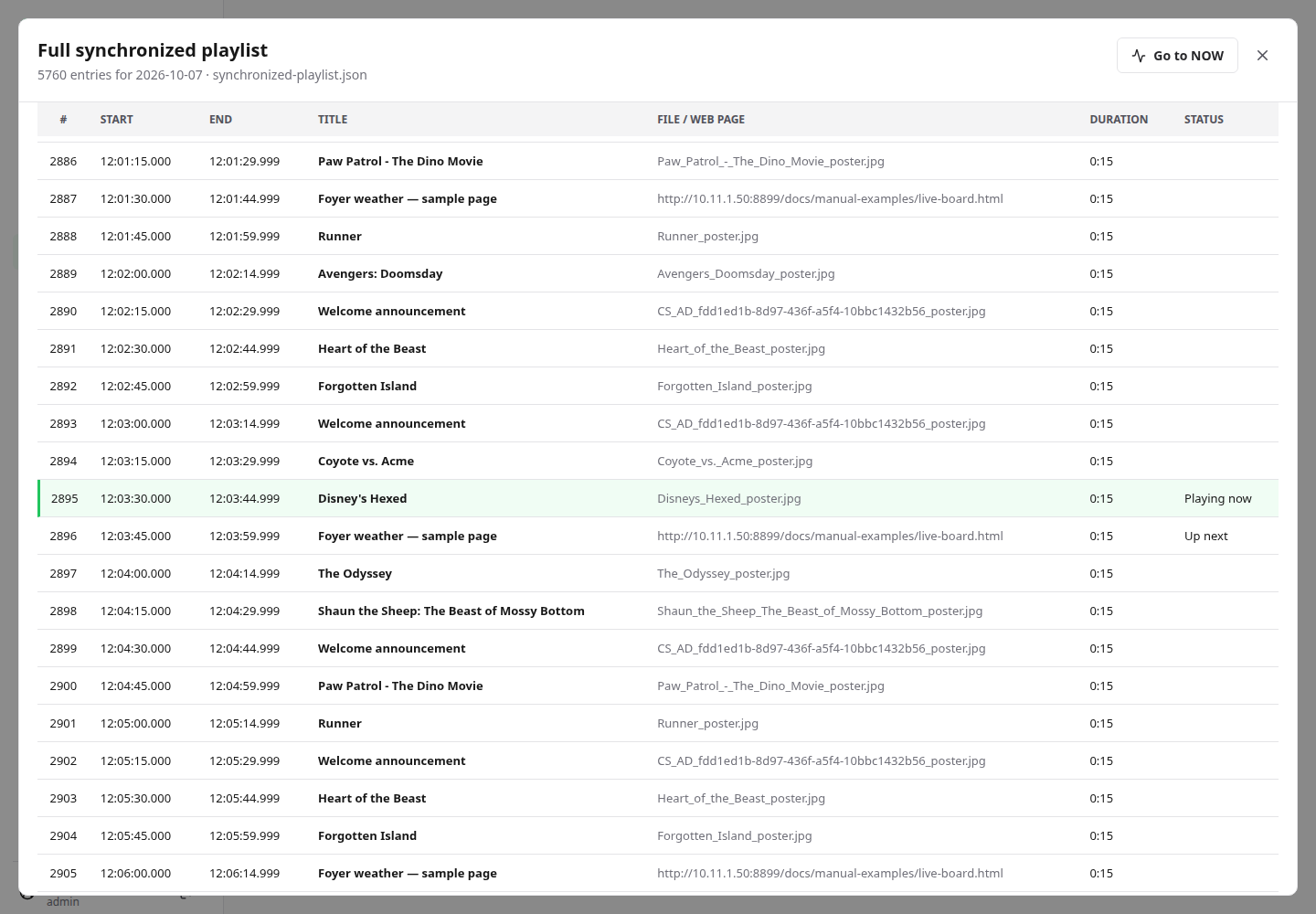
- Open Playback and select View full playlist.
- Review its date, times, titles and durations. Scroll within the playlist window.
- Select Go to NOW to return to the current entry.
- Close the window when finished.
Playback is a status view, not a live video camera showing the TV. A third-party web page's own animation is not synchronized simply because it appears in synchronized advert slots.
Daily check completeThe programme, clock, media, adverts and physical screen are all correct. Report unresolved issues using the support checklist.
Back to contents ↑