


Connect your cinema's programme
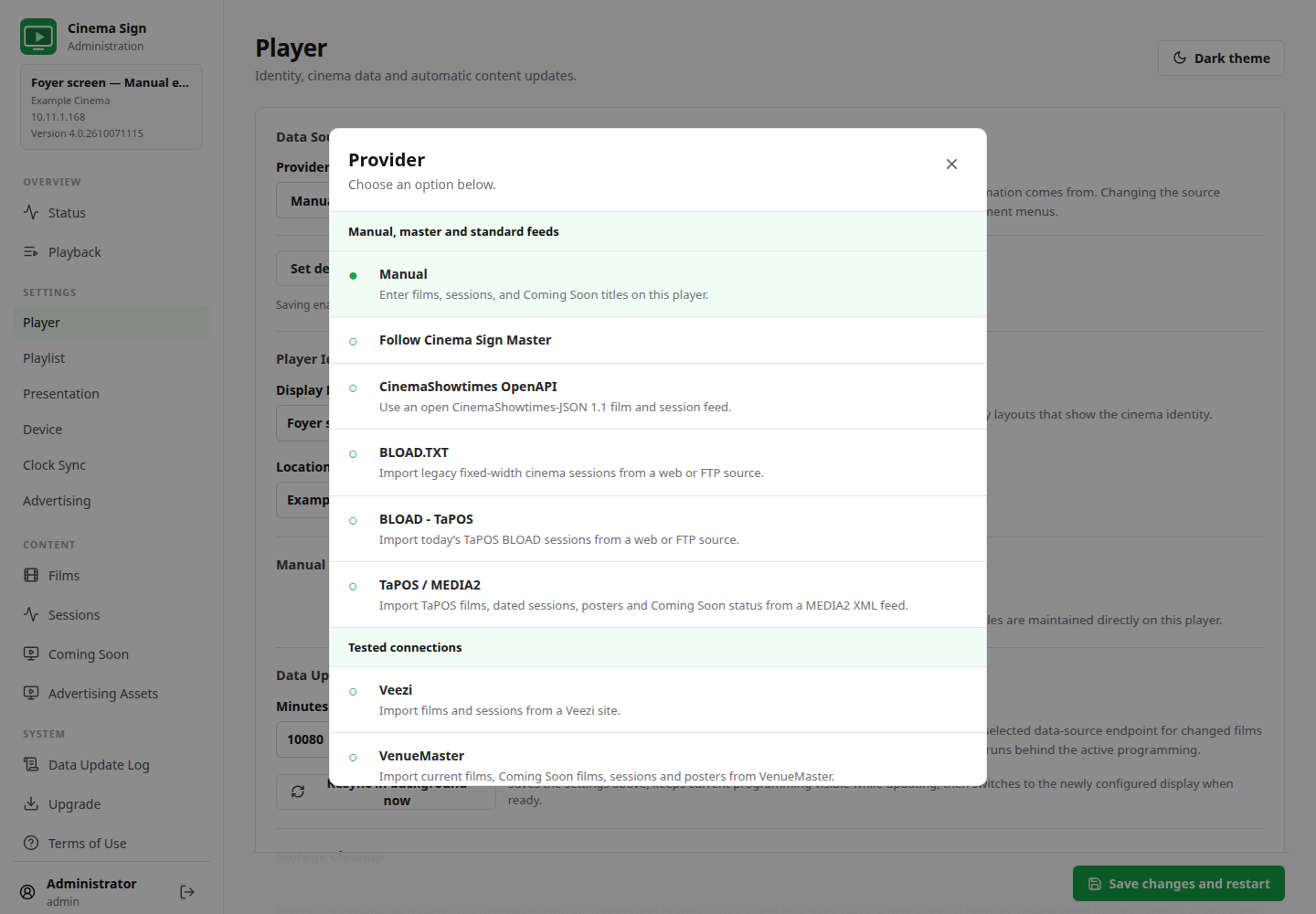
A Provider is the source of film and session information. Choose the provider that matches the export or API supplied by your cinema's ticketing team. An API is a service the player can ask for current information; you normally only need its address and any credentials supplied for your venue.
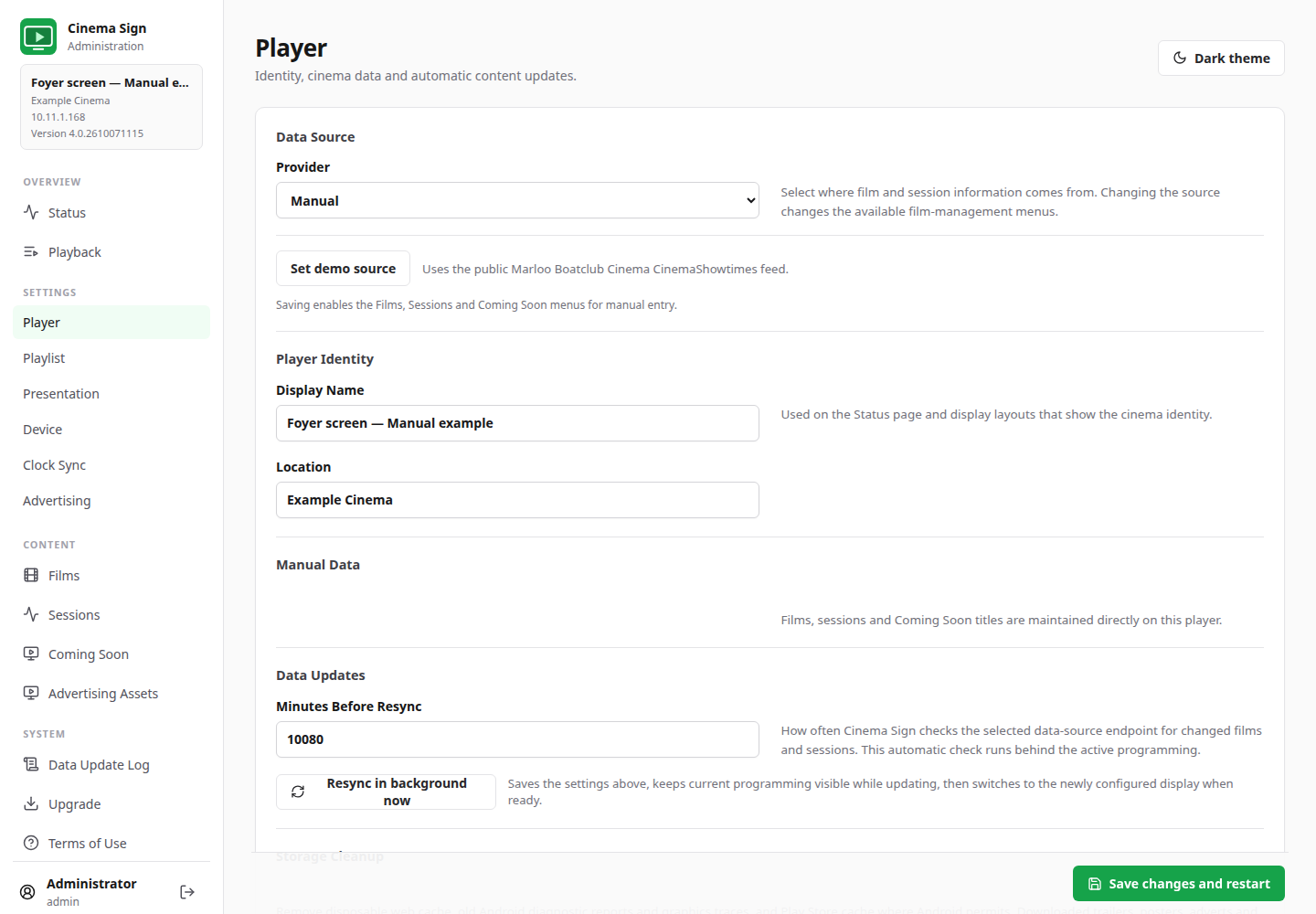
Settings → Player → Provider
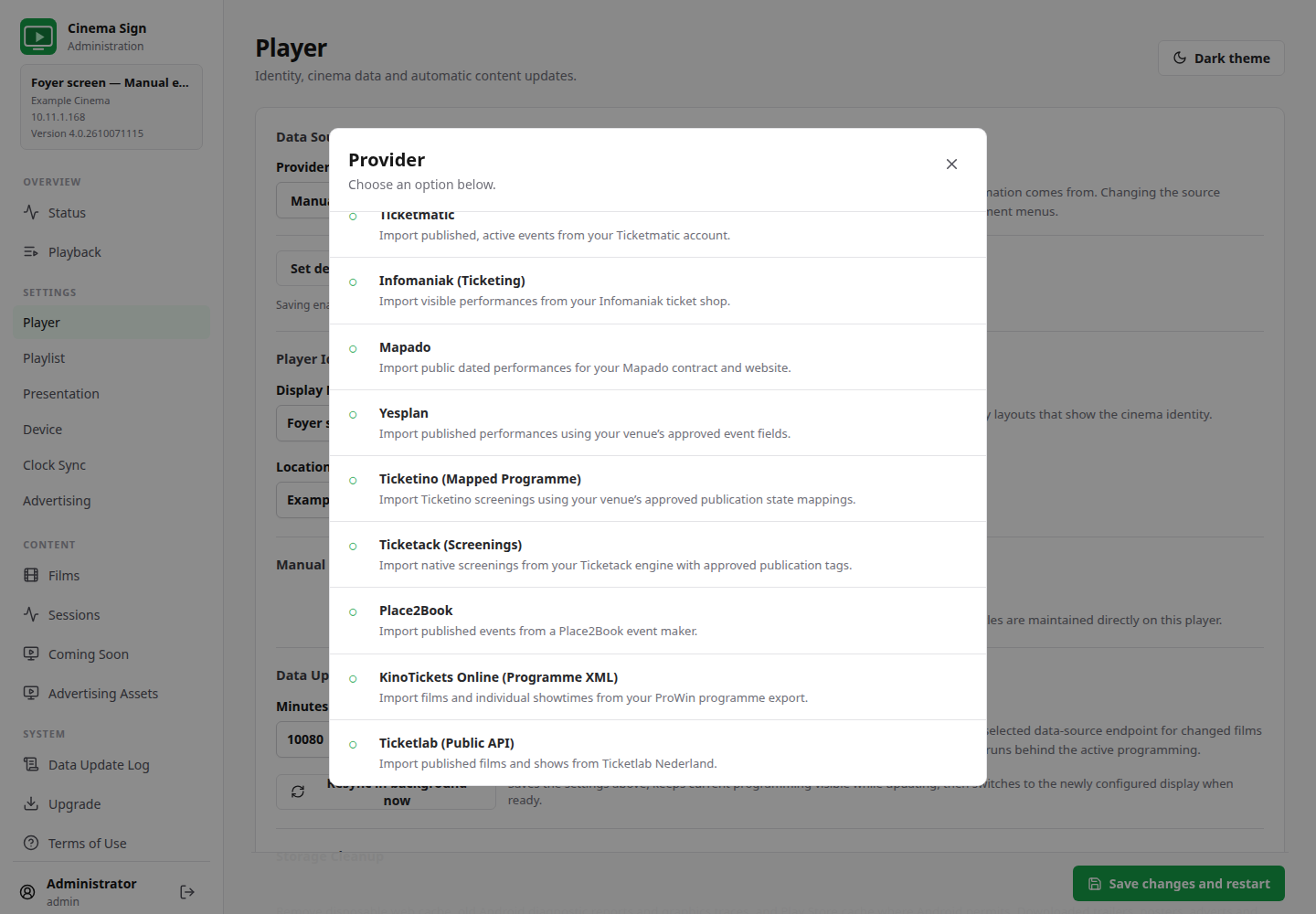
Choose a source
| Provider | When to use it | What you need |
|---|---|---|
| Manual | You will maintain films and sessions in Cinema Sign. | No programme feed. Add titles, media and sessions yourself. |
| Follow Cinema Sign Master | Another Cinema Sign player already has the cinema's programme. | The master player's reachable URL, usually including port 8888. |
| CinemaShowtimes OpenAPI | Your provider supplies the CinemaShowtimes JSON standard. | The complete cinema feed URL. |
| BLOAD.TXT | Your system exports the older BLOAD text format. | A file URL or FTP connection details. |
| BLOAD - TaPOS | Your TaPOS system supplies the modern BLOAD text export. | The correct TaPOS-format file URL or FTP details. |
| TaPOS / MEDIA2 | Your TaPOS administrator supplies a MEDIA2 XML endpoint. | The complete endpoint URL, venue timezone and Coming Soon policy. |
| Veezi | You have Veezi site API access. | The venue API URL and token. |
| VenueMaster | You have a VenueMaster programme endpoint. | The venue endpoint and, if needed, a poster URL template. |
| Other ticketing readers | Your cinema has one of the supported ticketing services. | Its documented venue endpoint, credentials and publication settings. |
Enter, test and verify a feed
- Select the correct Provider. Connection fields change to match your choice.
- Enter the complete address and any venue details. Do not substitute your cinema's ordinary home page unless the provider documentation says to use it.
- Use the Test or Test Connection button where provided. A successful test shows that data could be read; it does not replace checking the programme.
- Select Save changes and restart.
- Open Import Status. Review its result, film count and last import time. Select Import now when needed.
- Check Films and Media, Sessions and Coming Soon. Confirm the right venue, dates, classifications and public screenings.
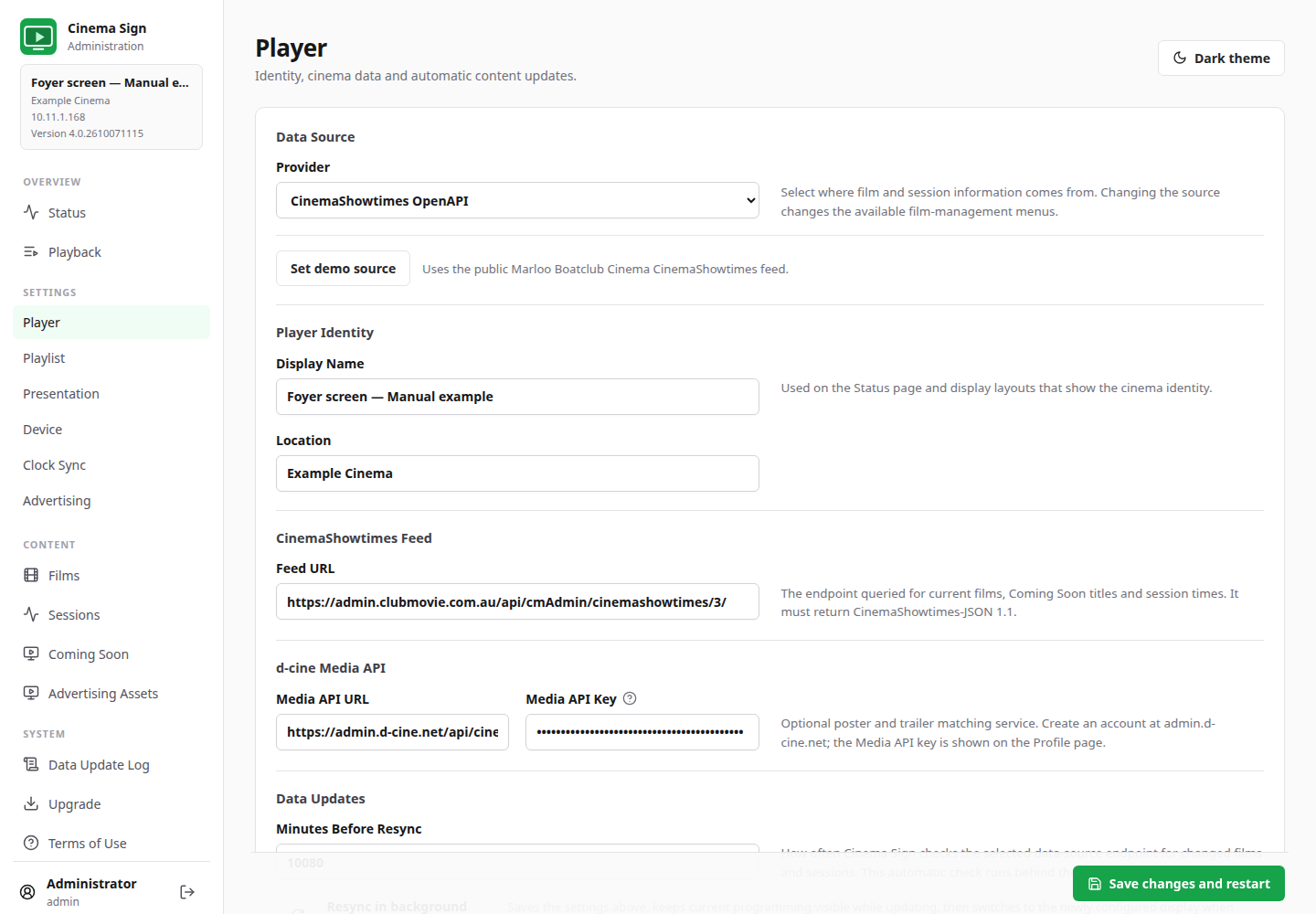
Understanding supported and beta
The data-source catalogue lists every selectable importer and its evidence. A previously tested connection, a public example and a venue's production account are different kinds of evidence. Beta means that the reader is available but still needs your venue's acceptance test. Planned entries are not implemented yet.
Check a new connection with someone who knows the ticketing programme. Confirm that cancelled or private events are excluded correctly, sold-out screenings are handled as intended, and dates are interpreted in the venue's timezone.
BLOAD dates need particular care
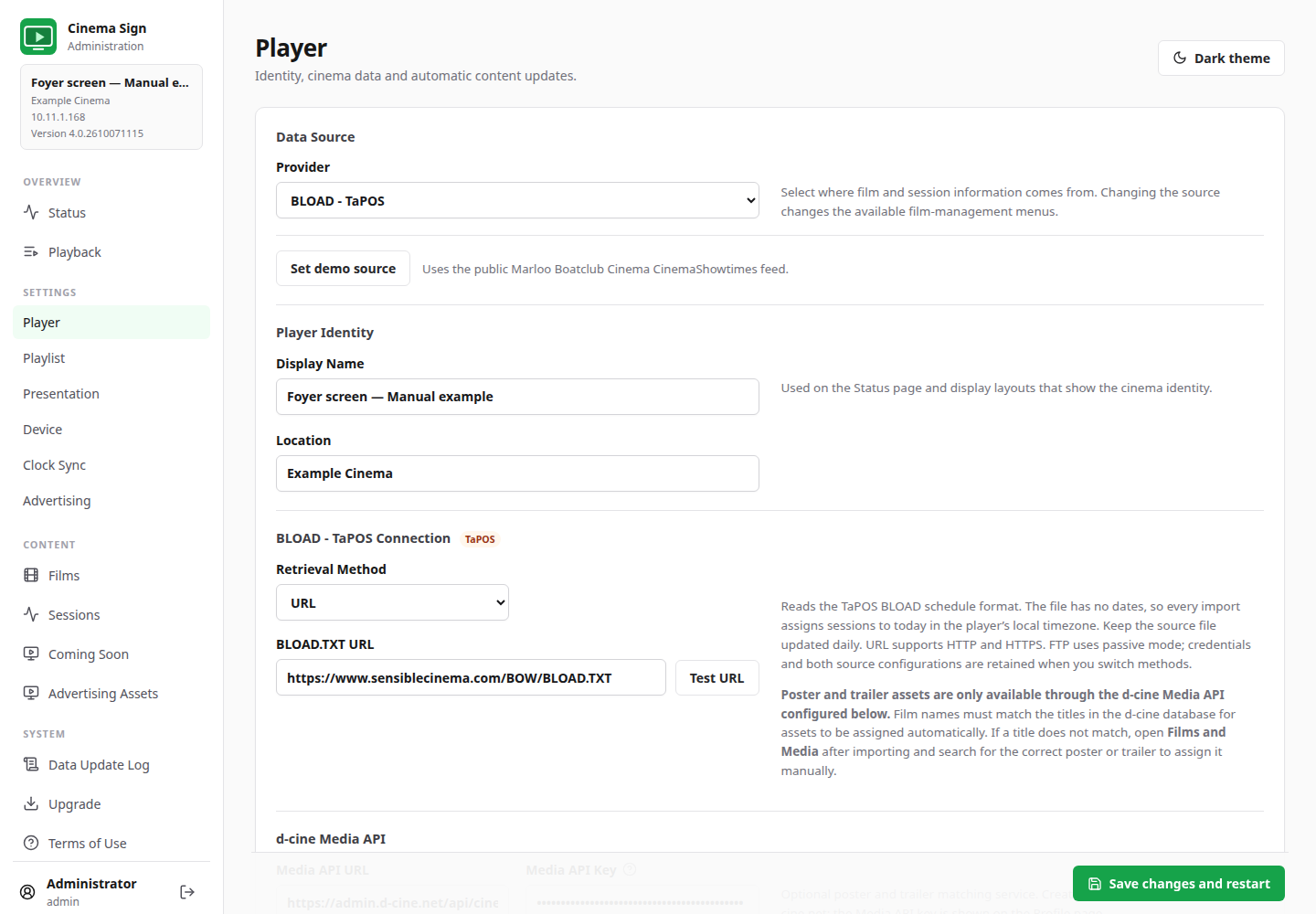
The modern TaPOS BLOAD example contains times without dates. Cinema Sign attaches those times to the import day in the player's local timezone. Arrange a fresh daily export and check it after a date change. A native TaPOS / MEDIA2 feed contains dated performances and is a separate provider.
Automatic updates and outages
The normal resync interval is 15 minutes. Choose an interval that suits how often the cinema changes its schedule. Updates run in the background in normal operation. Cached posters and trailers reduce the need to download the same media again; a live web page still needs a working connection.
If an import fails, inspect Import Status and Data Update Log. The player may continue using previously stored information, so a moving picture is not proof that the programme is fresh.