


Run several screens together
Sharing film data and synchronizing clocks are separate features. Use the first to avoid maintaining the same programme on several players. Use the second when screen changes need to line up.
Follow another Cinema Sign player's programme
- Choose the player that will be the programme master. Configure its cinema source and confirm its imports and media.
- On another player, open Settings → Player.
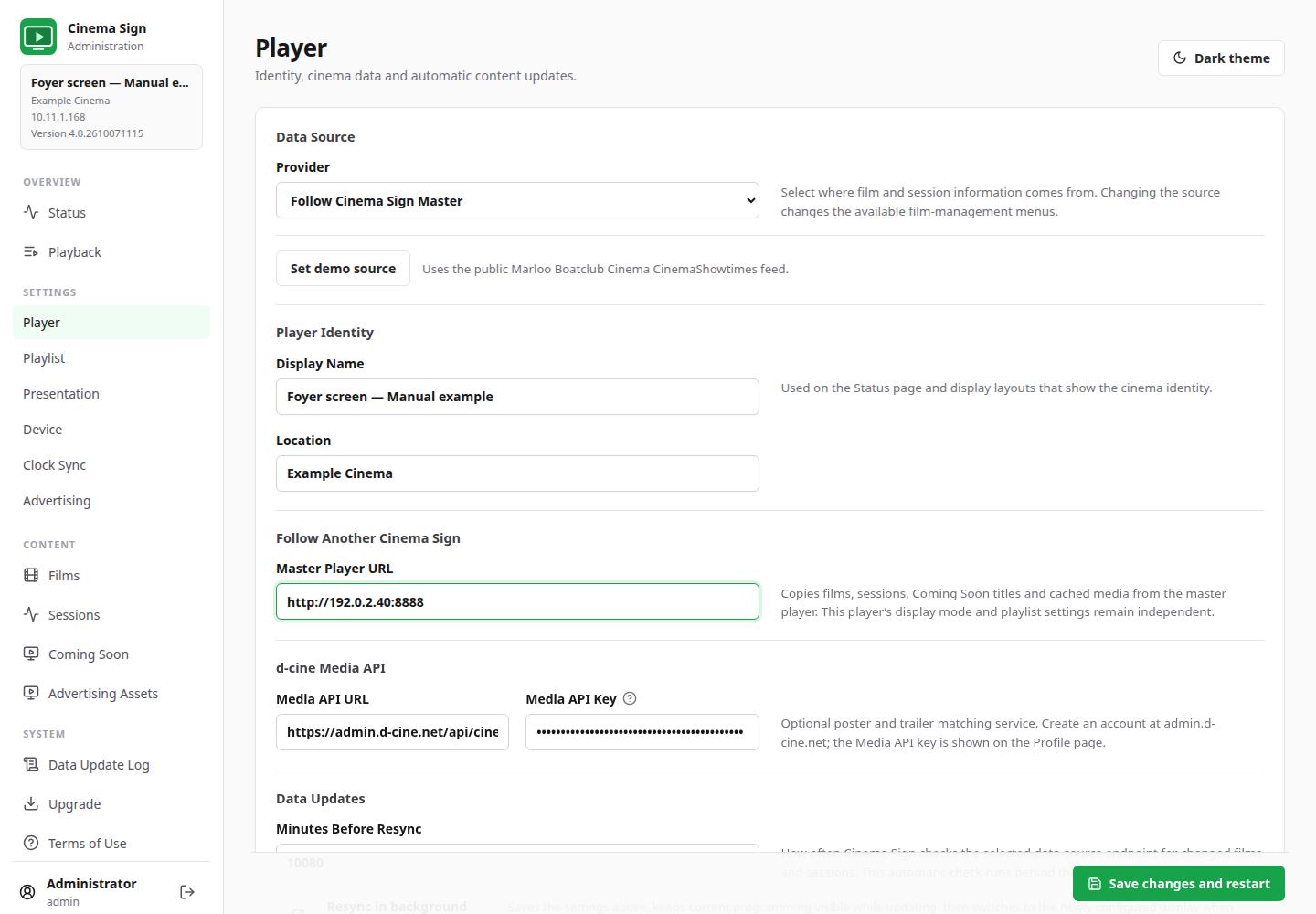
- Select Follow Cinema Sign Master.
- Enter the master's complete Master Player URL, usually
http://ADDRESS:8888. - Save and check the follower's films, sessions and cached media.
- Choose that follower's own layout, playlist and advertising settings.
A follower can have a different presentation: for example, a portrait poster sign can follow a master whose physical screen shows trailers. Each follower still needs advertising enabled separately. A shared URL advert is a link, not a downloaded picture of the website; every follower must reach that page.
Align the players' clocks
- Put the players on a network that allows them to communicate. Ask the installer about Wi-Fi client isolation if they cannot find each other.
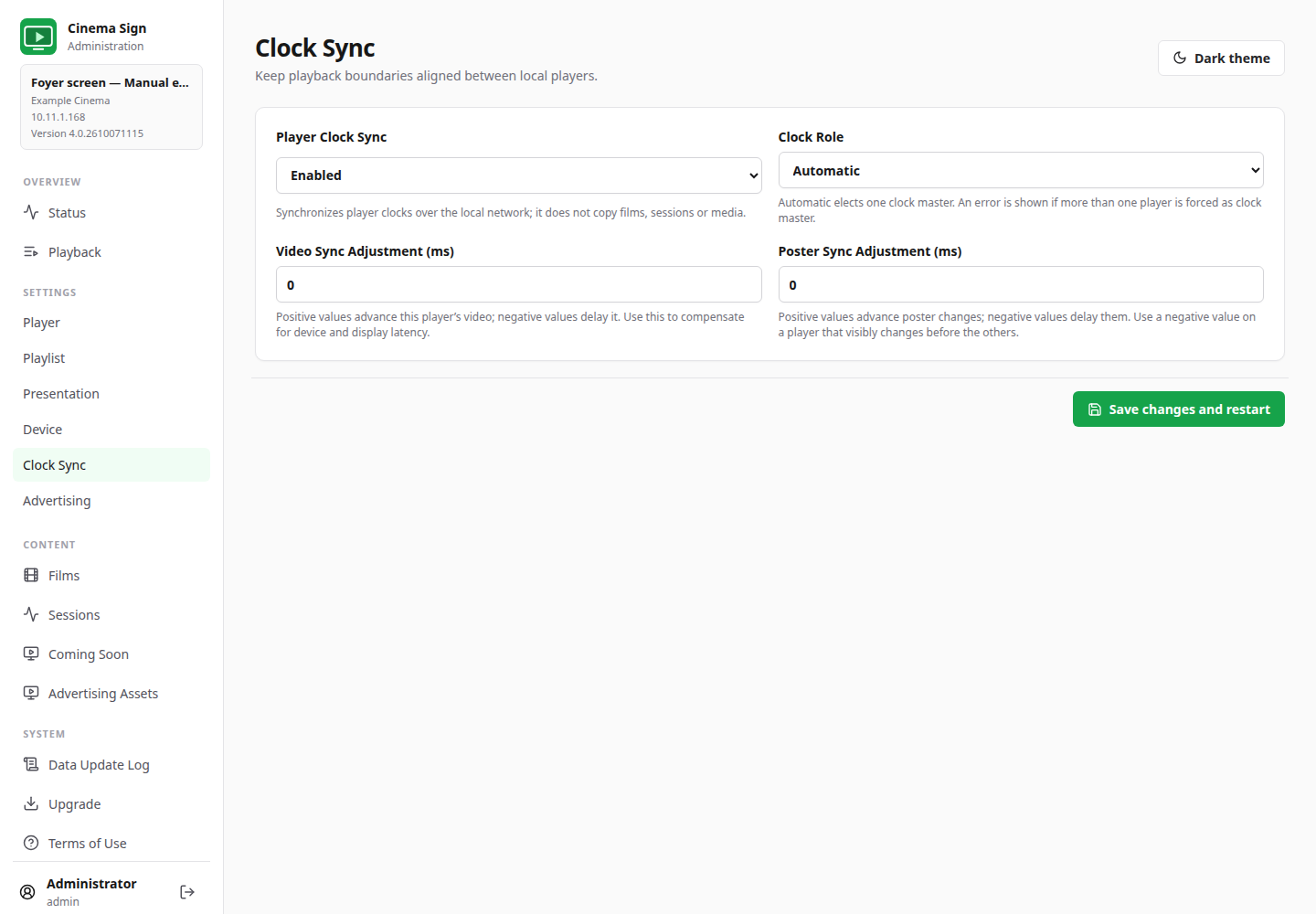
- Open Settings → Clock Sync on each player.
- Enable Player Clock Sync. Start with Clock Role → Automatic.
- Save and check Time Sync on Status.
- Do not force two players to be clock master. Investigate a Master conflict message before continuing.
Make matching screens change together
Use the same eligible films, selection formula, playlist seed, poster duration and advertising choices. Choose Clock-synchronized Playback Order and confirm the clocks are aligned. A player missing a required file can show a fallback while its neighbour plays normally.
Video Sync Adjustment and Poster Sync Adjustment compensate for observed device/display latency. Positive values advance the player; negative values delay it. Use small, deliberate adjustments after watching the screens together. They do not repair a wrong programme or a missing asset.
For installers, the local timing service uses UDP port 39427 and programme sharing uses the player's HTTP server, normally port 8888. Operators do not need to enter those ports unless configuring an address or working with the network installer.