


Manage storage and keep logging light
Posters, trailers, adverts, settings and Android itself need storage. Large trailers usually take much more space than posters. The aim is to remove unnecessary data and avoid repeated diagnostic writes while keeping the files the sign actually needs.
Read storage and memory correctly
Storage holds files after power is removed. RAM is temporary working memory while apps run. Free storage is not the complete advertised flash capacity, and available RAM is not the installed RAM total. Android uses some storage and memory itself.
Check Media Storage on Status. Follow up low-space warnings before adding more media. The downloader preserves a 256 MiB free-space reserve for its normal download checks; you should still leave comfortable space for Android, updates and future media.
Use Clean unused data
- Open Settings → Player.
- Select Clean unused data.
- Wait for the result. Playback can continue.
- Read the measured change in free space and the result for each target.
- If protected targets say permission is unavailable, do not assume they were cleared. Ask your installer if further cleanup is needed.
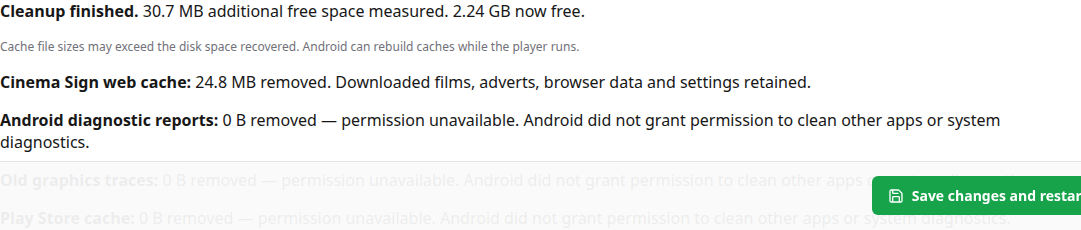
The button clears disposable Cinema Sign web cache and attempts old Android bugreports, graphics traces and Play Store cache. Protected targets need privileges that ordinary apps may not have. Recent reports/traces are retained, as are downloaded film media, adverts, settings and browser sign-in/local data.
It is not a general “delete everything” button. Use it when needed. Repeatedly clearing media or web caches makes the player download or recreate data again, which adds writes rather than preventing them.
Keep app update reports in RAM
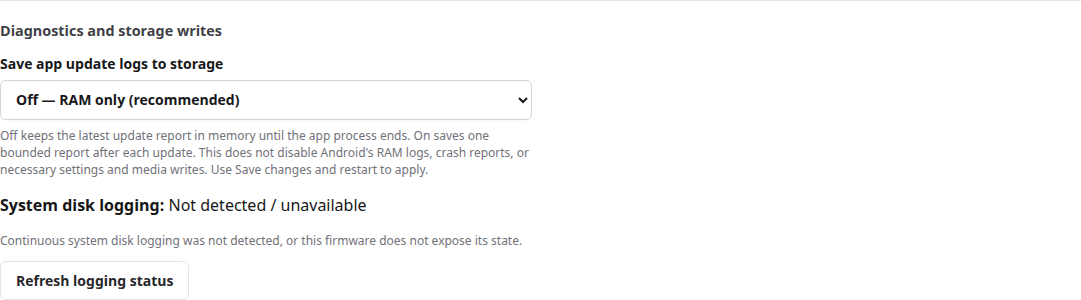
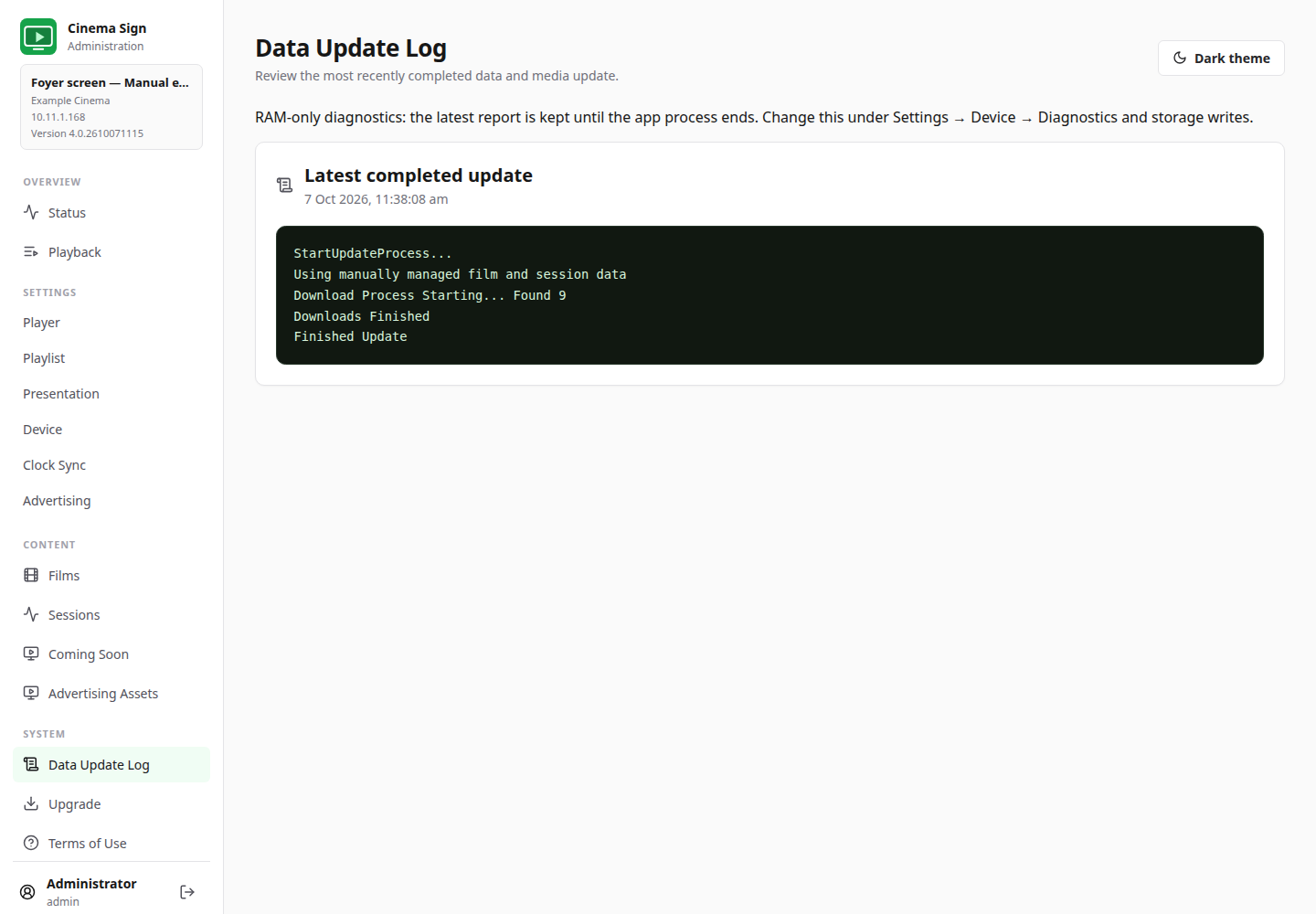
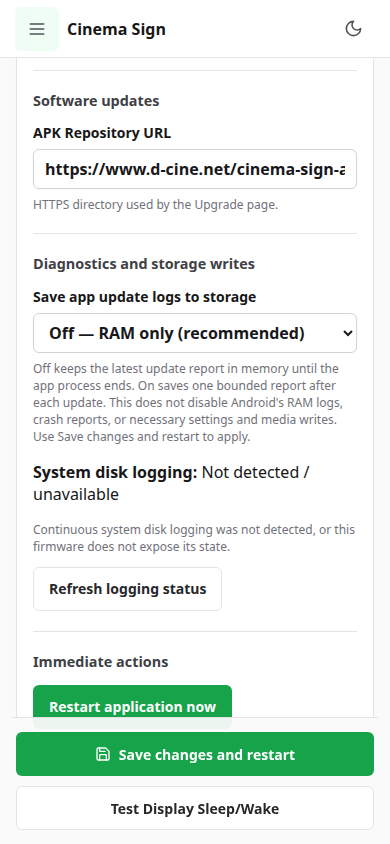
Settings → Device → Diagnostics and storage writes
| Setting | What it means |
|---|---|
| Off — RAM only (recommended) | Keeps the latest bounded update report in memory. It remains available while the process runs, including an in-process nightly restart. A full app process exit or reboot clears it. |
| On — retain the latest update after restart | Saves the latest bounded report after each update so it can survive a process restart. It replaces the previous report rather than building an unlimited history. |
- For normal operation, leave the setting Off.
- Use Save changes and restart to apply a change.
- If troubleshooting requires a report after a process restart, turn it On temporarily and save before reproducing the problem.
- Read Data Update Log afterwards and record the relevant result.
- Turn persistence Off and save when finished. The saved report is removed; the current report can remain in RAM.
The latest transcript is bounded to 65,536 characters. It is a report of the most recent data/media update, not a complete record of every Android event or app crash.
System disk logging is a different control
Ordinary Android Logcat uses rotating RAM buffers. Some vendor firmware also runs a collector that continuously copies those messages to disk. Cinema Sign's system status checks that exposed collector; it cannot promise to detect every vendor's private diagnostic service.
Where the collector is supported, Check privileged logging access explicitly checks whether Android will allow changes. A root manager may ask for permission. Enable/disable buttons appear only after suitable access is confirmed. A denied or unverified change is reported as a failure.
On stock Android TV, a normal app generally cannot change protected system logging. “Not detected / unavailable” is not a claim that all Android disk writes are disabled. Your installer may have ADB access that the app does not; that is a separate installation task.
Ask the installer to reduce avoidable writes
- Leave normal app update-log persistence Off.
- Check unnecessary persistent Android logging and developer tracing, then check again after reboot.
- Keep normal media cached and use an appropriate resync interval.
- Remove unused entertainment apps individually if appropriate for the device.
- Keep required security updates and essential Android services working.
Crash reports, databases, WebView data, settings and media changes still write to storage. These controls reduce unnecessary writes; they do not make Android write-free or guarantee a device's service life.
For an installer, see low-write operation and the ADB helper, cleanup boundaries and permission evidence and hardware measurements. The installer should recheck a disk-logging change after a hardware reboot because vendor firmware may restore it.