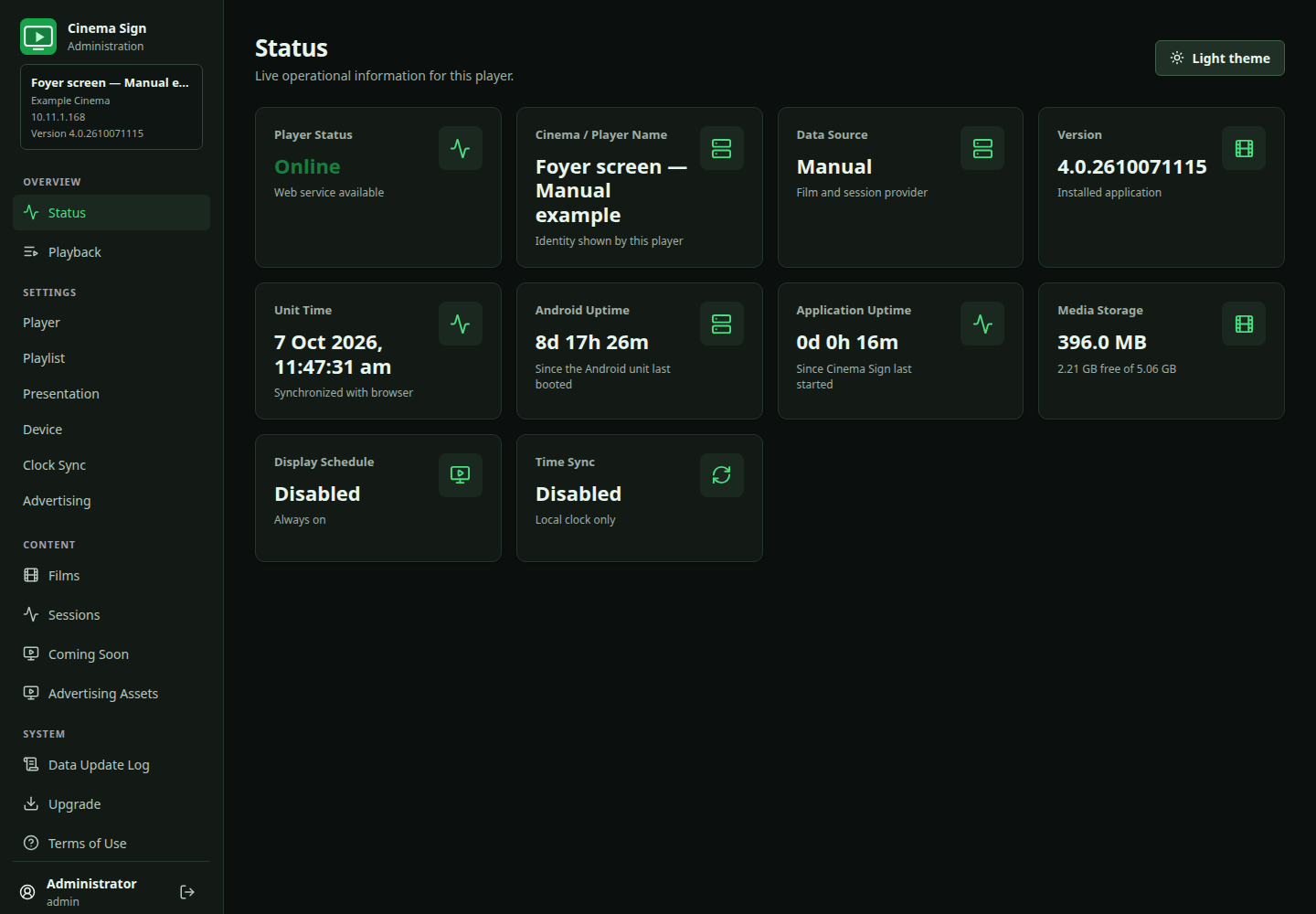



Find your way around the control panel
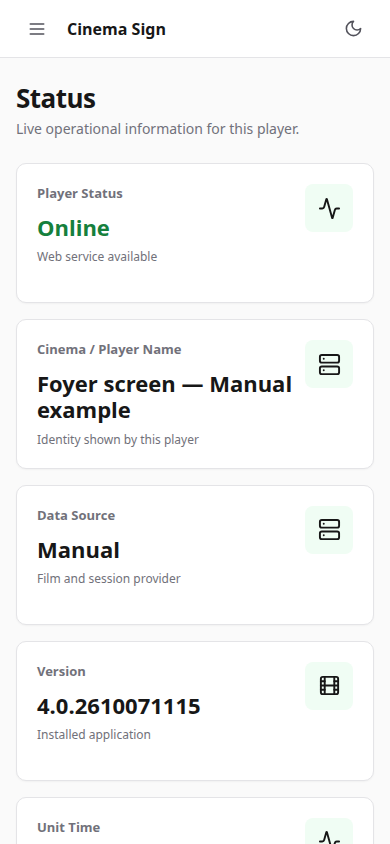
On a computer, the menu appears down the left side. On a phone, select the three-line Open menu button at the top. Scroll inside the menu if its last items are out of view. Choosing a page closes the phone menu.
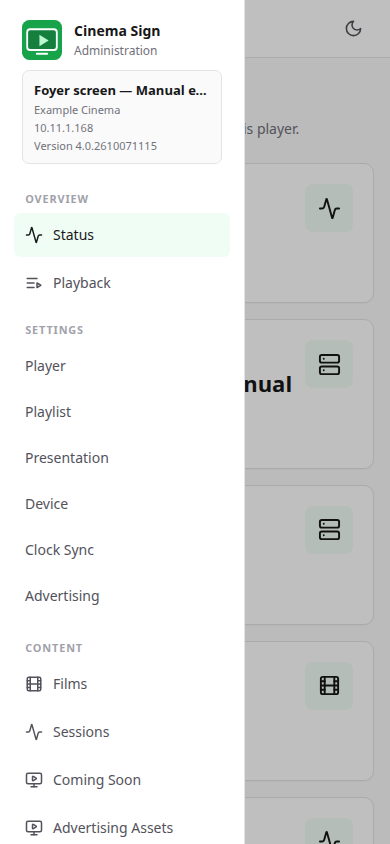
| Page | What you do there |
|---|---|
| Status | Check the player name, software version, time, storage, schedule and clock synchronization. |
| Playback | See the current item, what comes next and the synchronized playlist. |
| Settings → Player | Name the player, choose its programme source, configure imports and use Clean unused data. |
| Settings → Playlist | Choose which films play, their order and poster transitions. |
| Settings → Presentation | Choose the display type, layout, orientation, classifications and time format. |
| Settings → Device | Manage boot, display schedules, nightly app restart, permissions and logging. |
| Settings → Clock Sync | Align timing between players on the local network. |
| Settings → Advertising | Turn advertising on for this player and set the interval. |
| Films / Films and Media | Add or review films, edit local values, choose artwork and download or upload media. |
| Sessions | View the dated timetable and edit local session overrides where appropriate. |
| Coming Soon | Select films that should appear before sessions are scheduled. |
| Import Status | Read the last import result or request an import. This page is available for imported sources. |
| Advertising Assets | Upload advert files, add live URL posters and set campaign eligibility. |
| Data Update Log | Read the most recently completed programme/media update report. |
| Upgrade | Find available releases and request a download/installation. |
| Terms of Use | Review the accepted terms and version. |
Save settings before leaving
Changing a field does not usually apply it immediately. Use the page's save button. For settings pages, Save changes and restart runs a content update and restarts the display presentation. It does not reboot Android.
Some action buttons act immediately: Clean unused data, Import now, Restart application now, permission-opening buttons and privileged system logging controls. Their result appears on the page. Do not press Upgrade installation buttons just to preview a release.
Lists and selection windows
The Provider selector opens a scrollable list. Scroll inside that window to see the last providers. Film and session tables can also scroll sideways on a narrow phone. A film search may hide a record: clear the search and check the page controls before deciding that a film is missing.
Light and dark appearance
The Dark theme / Light theme button changes your browser's control-panel appearance. It does not change the film poster or trailer on the television.