


Enter and check session times
A session is one screening on a particular date and at a particular time. A film record and a trailer do not create sessions automatically. Sessions can affect both the displayed timetable and which films qualify for a playlist.
Sessions
Enter manual sessions
- Make sure the film already exists under Films.
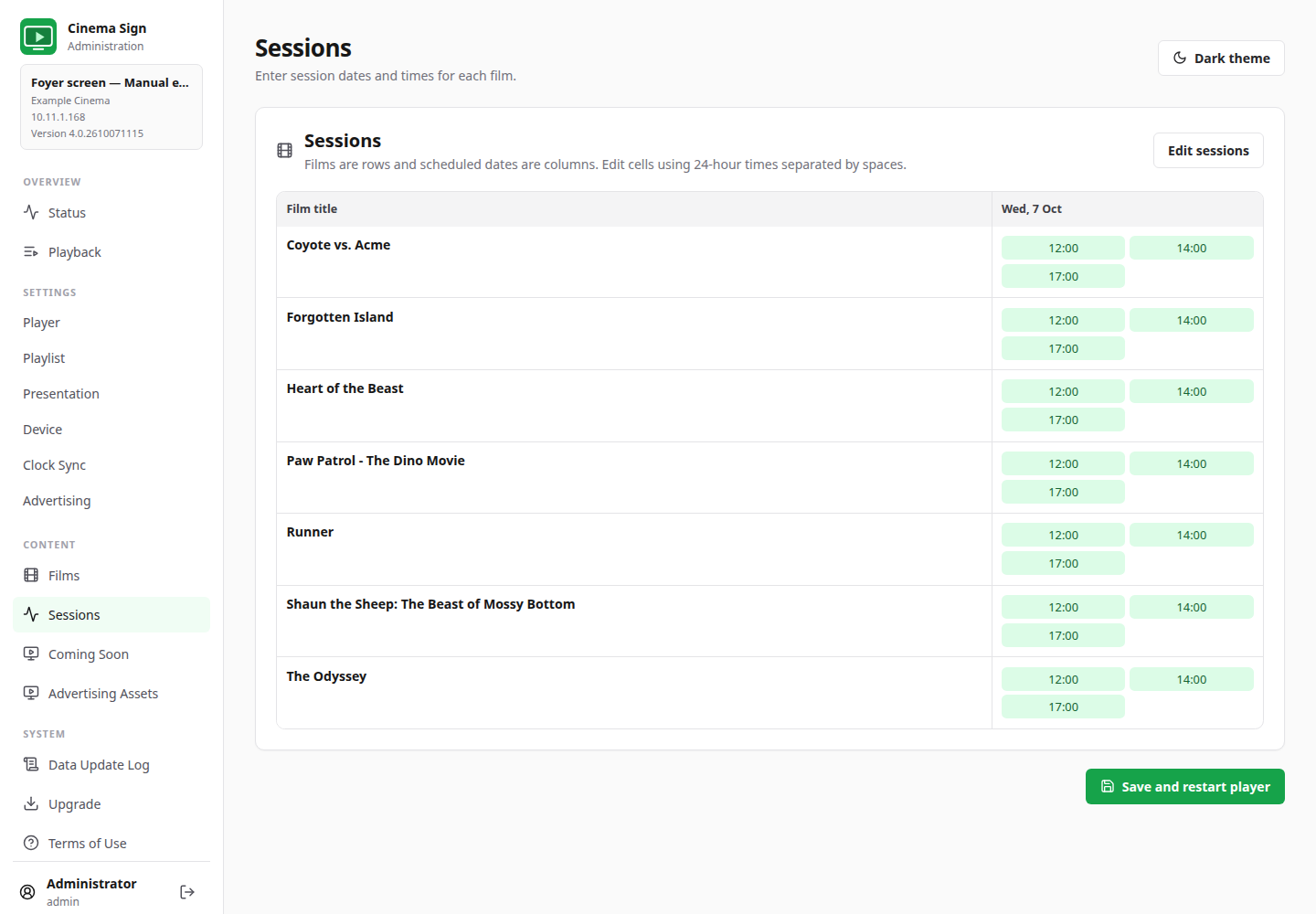
- Open Sessions and select Edit sessions.
- Find the film row and correct date column. On a phone, scroll sideways inside the table to reach other dates.
- Enter times using the 24-hour clock, separated by spaces. For three sessions at noon, 2 pm and 5 pm, enter
12:00 14:00 17:00. - Check every date and time. To remove a day's sessions, clear that day's cell.
- Select Finish editing, then the page's save/restart button.
- Check the television's poster detail or session board, not just the editable table.
Be careful around midnight
A screening at 00:30 on Saturday belongs to Saturday's date, even if your venue calls it part of Friday night's programme. Use the actual dated session supplied by the ticketing system. Do not move sessions to another date just to make the board appear correct.
Imported sessions and local overrides
For an imported programme, first correct scheduling mistakes in the ticketing system where possible. Local session edits can become overrides and remain after imports. If an old local timetable persists, review its override/reset controls rather than importing repeatedly.
Some providers have an explicit venue timezone field. Check that it belongs to the cinema whose feed you are reading. The player's local time, the source's timezone and your browser's clock may differ; an overseas demonstration feed is not a reason to change an Australian venue's operating clock.
When sessions disappear from the sign
Under Settings → Presentation, Session Disappears After (min) sets how long a started session remains visible. A value of 0 removes it at its start time. A positive value keeps it for that many minutes afterwards. This affects presentation; it does not cancel or remove the original booking.
The built-in Session Times board shows remaining sessions for today and needs cached posters for its film rows. A film can therefore be present in Sessions yet absent from that board if its sessions have finished, the current playlist rule excludes it, or its poster is not cached.