


Understand the player and the screen
Cinema Sign runs on an Android TV player connected to a television or commercial display. It can show film posters, trailers, session times, adverts or a web page. You manage it through a web browser on your phone or computer. The television shows the result; the browser is your control panel.
Each Android player has its own settings. Giving one player a name such as Foyer portrait screen and another Box office session board makes it much easier to change the correct screen.
Four things a film needs before it appears
- A film record. The title must exist in Films or Films and Media.
- Suitable media. A poster screen needs a downloaded poster. A trailer screen needs a playable video file.
- Permission to play. The film must be enabled, and its poster or trailer must not be disabled.
- A matching playlist rule. For example, Scheduled sessions uses films with qualifying sessions, while Coming Soon uses films you have marked Coming Soon.
Adding a title alone does not guarantee that it will appear. A download, a session or a Coming Soon selection may still be needed. This manual checks each of these steps separately.
How to use this manual
Read Set up your first screen for a new installation. Use Daily checks for normal opening duties. For an existing problem, go to Troubleshooting. The contents search finds chapters containing a word such as “poster”, “storage” or “logs”.
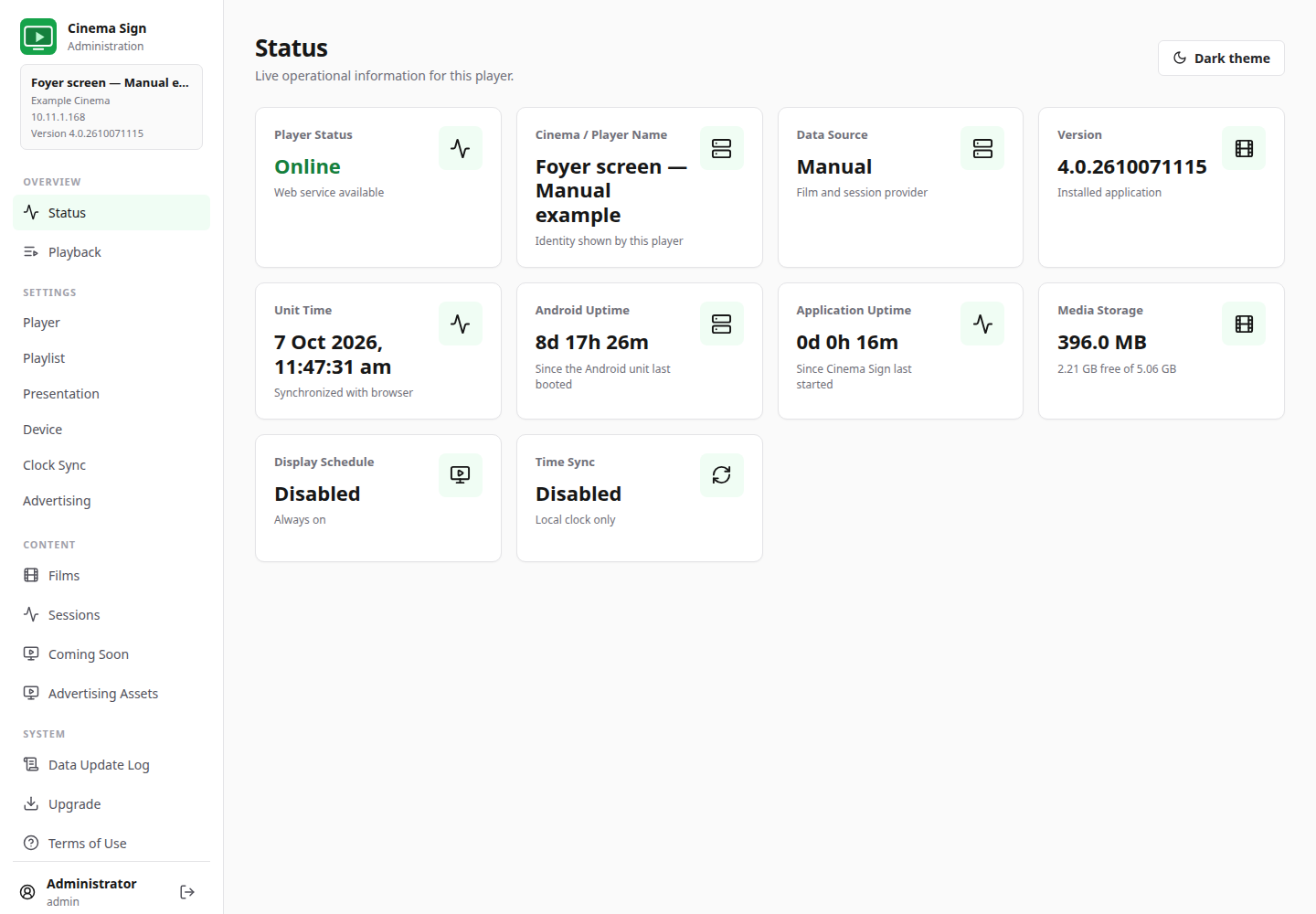
Menu paths look like Settings → Presentation. Select Settings in the browser's side menu, then select Presentation. Buttons and field names are shown in bold. The pictures are real captures, with demonstration settings and session times; they are visual guides, not a programme to copy.